FERS Retirement Savings Excel – Free Template (2026)
1
Free download
Track employee Traditional and Roth TSP deposits, agency matching, fund allocations, pay details, and allocation checks in a 2026 workbook.


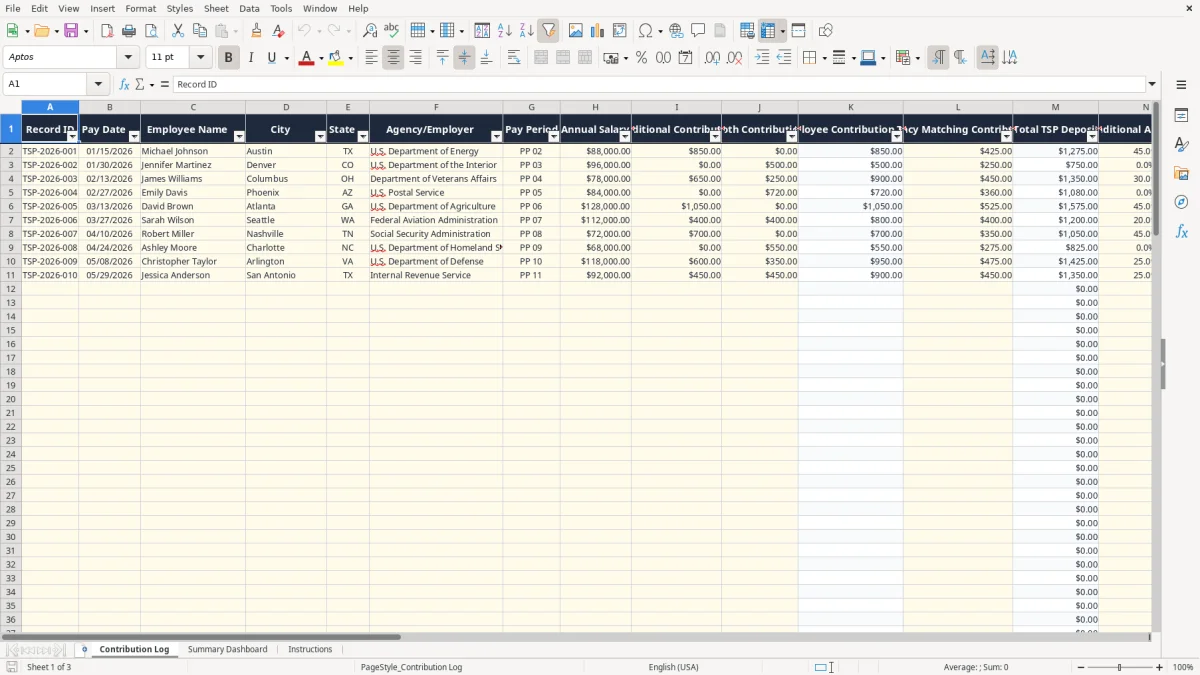
This TSP contribution allocation log records each employee's pay date, salary, Traditional and Roth contributions, agency match, and G, F, C, S, I, and L Fund allocations. It contains 100 prepared rows, automatic contribution totals, a 100% allocation check, a summary dashboard, and instructions for 2026 tracking.
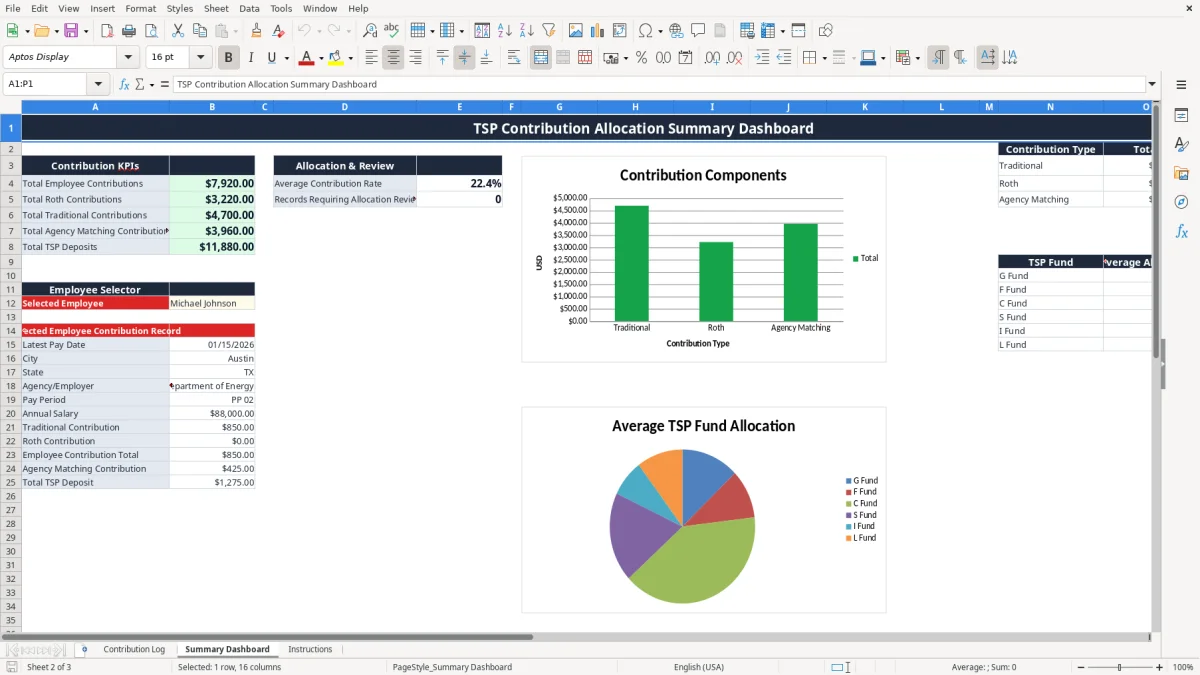
Use the Contribution Log for payroll-level entries, the Summary Dashboard for totals and employee lookups, and the Instructions tab for field definitions and verification reminders. Image 1 shows the detailed log, image 2 shows the dashboard, and image 3 shows the built-in guidance.
A federal agency payroll specialist, benefits coordinator, or employee managing personal records can use this workbook whenever a pay statement or agency contribution record arrives. It is especially useful during a biweekly payroll run because the Contribution Log includes Pay Date, Pay Period, Annual Salary, employee deposit fields, agency matching, and investment allocation percentages in the same row.
Suppose a Department of Energy employee earns $88,000 and contributes $850 Traditional plus $0 Roth for PP 02. The sheet calculates an Employee Contribution Total of $850; with a $425 Agency Matching Contribution, Total TSP Deposit becomes $1,275. A payroll coordinator can compare those figures with the official payroll register before closing the period.
The workbook also captures City, State, and Agency/Employer, which helps a benefits office distinguish employees across agencies or locations. State and pay-period lists reduce inconsistent entries such as typing Texas in one row and TX in another, while the date validation keeps Pay Date values usable for sorting.
An employee may want a personal record showing whether each deposit was Traditional or Roth rather than one combined savings number. For example, a $500 Roth contribution and a $250 agency match produce a $750 total deposit while preserving the source amounts separately for review.
Image 1 shows the wide Contribution Log layout, including the allocation columns from Traditional Allocation % and Roth Allocation % through G Fund, F Fund, C Fund, S Fund, I Fund, and L Fund. The prepared rows extend through row 101, so you can record up to 100 data rows without rebuilding formulas.
At year-end close, a benefits coordinator can filter the log by employee, agency, or pay period and compare the calculated totals with payroll and TSP statements. The Summary Dashboard then provides a faster management view without replacing the source-level records.
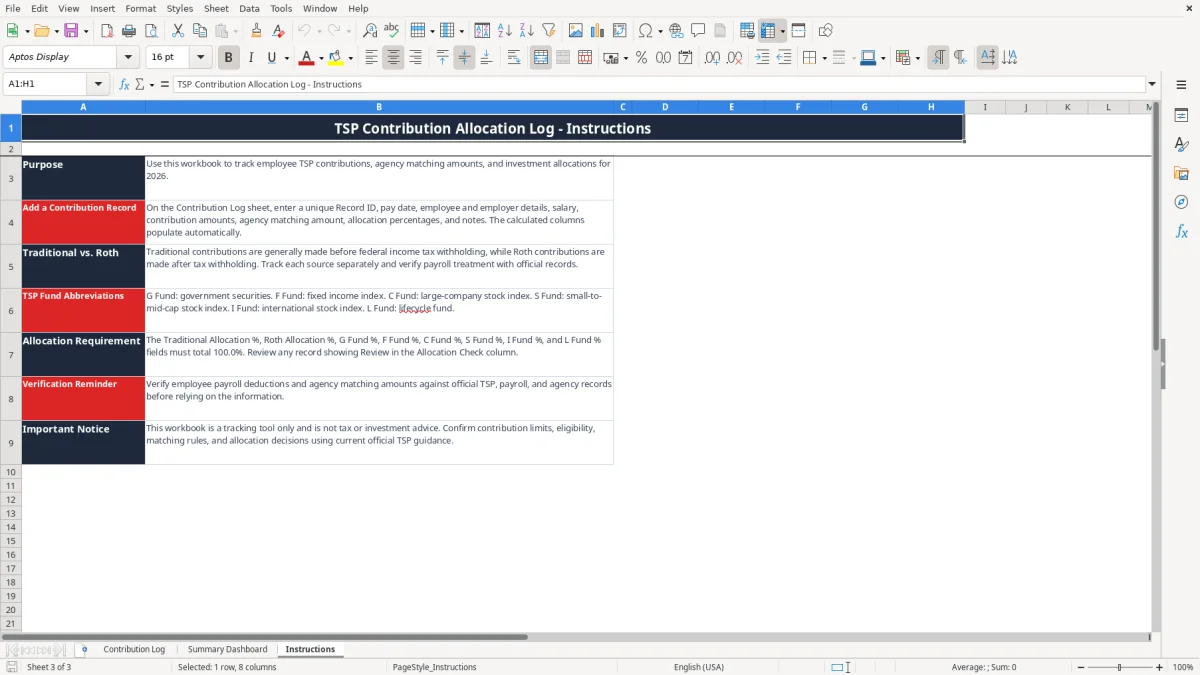
This workbook is a tracking tool, not a substitute for current IRS or TSP guidance. The Instructions tab specifically tells you to verify contribution limits, eligibility, matching rules, and allocation decisions against official records before relying on the workbook.
Traditional TSP contributions generally reduce federal taxable wages before income-tax withholding, while Roth TSP contributions are made after tax withholding. The distinction affects payroll reporting, so the log keeps Traditional Contribution and Roth Contribution in separate columns instead of forcing you to enter one blended amount.
Do not use the workbook's Contribution Rate % as a legal contribution-limit test. Its formula divides the employee contribution by Annual Salary divided by 26, which assumes 26 pay periods. For example, $1,000 contributed from an $80,000 salary produces 3.25%: $1,000 ÷ ($80,000 ÷ 26) = 32.5% for that pay period, not an annual statutory-limit calculation.
The Allocation Check formula tests Traditional Allocation %, Roth Allocation %, and the six fund fields from G Fund through L Fund. If their combined value equals 100%, the row shows OK; if the sum is 95% or 105%, it shows Review. A 45% Traditional allocation, 10% G Fund, 5% F Fund, 25% C Fund, 10% S Fund, and 5% L Fund totals 100% when Roth and I Fund are both 0%.
This check is an internal completeness test, not an investment recommendation. The TSP fund descriptions in Instructions identify G Fund as government securities, F Fund as a fixed-income index, C Fund as a large-company stock index, S Fund as a small-to-mid-cap stock index, I Fund as an international stock index, and L Fund as a lifecycle fund.
The IRS generally expects tax records to be retained for 3 years, with records sometimes needed for up to 7 years. For TSP administration, retain payroll statements, agency records, and confirmation documents according to your employer's official retention policy; the spreadsheet should agree with those source documents, not replace them.
The most expensive errors usually begin with a row that looks complete but does not reconcile to payroll. A benefits specialist may enter $850 as the employee deposit and $425 as the agency match, then accidentally type $1,125 as the total deposit. In this workbook, the calculated Total TSP Deposit should be $1,275, so overwriting the formula creates a $150 discrepancy.
A common problem is entering fund percentages without checking the contribution-source percentages. Consider a row with 40% Traditional, 20% Roth, 10% G Fund, 10% F Fund, 15% C Fund, 5% S Fund, and no I or L Fund allocation. The total is 100%, but omitting a planned 5% L Fund and leaving another field unchanged can push the row to 105%; the Allocation Check should remain Review until the intended mix is confirmed.
Another error is treating blank fields as zero without confirming the employee's election. A blank Roth field may mean no Roth contribution, or it may mean the payroll record was not entered. Use Notes to distinguish a confirmed zero from an incomplete record.
Entering PP 03 for a 01/15/2026 payment can distort monthly or biweekly comparisons even though the dollar amounts are correct. The workbook provides a 26-item PP 01 through PP 26 list, so use the pay stub rather than guessing from the calendar.
The Contribution Rate % also exposes salary-entry problems. If a $900 contribution on an $88,000 salary appears as 26.59% but should be about 26.59% under the sheet's per-pay-period calculation, verify the formula and salary; if the displayed rate changes dramatically after entering $8,800 instead of $88,000, correct the salary before reviewing totals.
The employee selector retrieves the first matching name from the log. If two people share the name Alex Brown, the dashboard can return the wrong record. Use distinctive Employee Name entries or review the source rows directly; do not treat a name-only lookup as a unique employee identifier.
The easiest routine is to update the workbook immediately after each payroll register is finalized. Set aside 15 minutes on the same day every two weeks: enter the new row, compare the calculated totals with payroll, resolve every Review result, and save a dated copy such as TSP-2026-02-13.xlsx.
Image 2 shows the dashboard's Contribution KPIs, Allocation & Review area, employee selector, selected employee record, contribution-type totals, and average fund allocations. It also includes three charts, so you can notice an unusual deposit pattern or allocation average without manually building a report.
Use the built-in state and pay-period lists rather than free-typing alternate labels. Copying a prior row can save time, but clear the old Record ID, date, employee details, dollar amounts, percentages, and Notes before entering the new record; never copy a formula result over a formula cell.
Review the dashboard after every fourth payroll period. If the log begins to require more than 100 rows, multiple TSP plans, employee-level security, audit history, or integration with payroll, move the process to a controlled payroll or benefits system. This workbook is best for a defined 2026 tracking cycle, not as a replacement for an authoritative payroll database.
Image 3 shows the Instructions tab, which provides the purpose, source definitions, fund abbreviations, allocation requirement, verification reminder, and important notice. Leave it intact when sharing the file so another coordinator understands which figures are entered and which are calculated.
It tracks Record ID, pay date, employee and employer details, pay period, annual salary, Traditional and Roth contributions, agency matching, total deposits, eight allocation percentages, an allocation check, contribution rate, and notes.
The Contribution Log has 100 prepared data rows, from row 2 through row 101. The formulas, validation rules, and formatting are already extended across those rows.
OK means Traditional Allocation %, Roth Allocation %, G Fund %, F Fund %, C Fund %, S Fund %, I Fund %, and L Fund % add to exactly 100.0%. Review means the combined allocation does not equal 100%.
No. The formula calculates the employee contribution divided by annual salary divided by 26, reflecting a 26-pay-period assumption. Use current official TSP guidance and payroll records to test eligibility and annual limits.
The dashboard summarizes employee, Roth, Traditional, agency matching, and total TSP deposits; shows average contribution rate and Review count; averages G, F, C, S, I, and L Fund allocations; retrieves a selected employee record; and includes three charts.
No. The Instructions tab identifies the workbook as a tracking tool only. Verify contribution limits, eligibility, matching rules, payroll deductions, and allocation decisions using current official TSP, employer, and IRS information.