Crypto Portfolio Excel – Free Template (2026)
5
Free download
Estimate retirement benefits from earnings history, wage indexing, claiming age, bend points, COLA, and withholding assumptions in Excel.


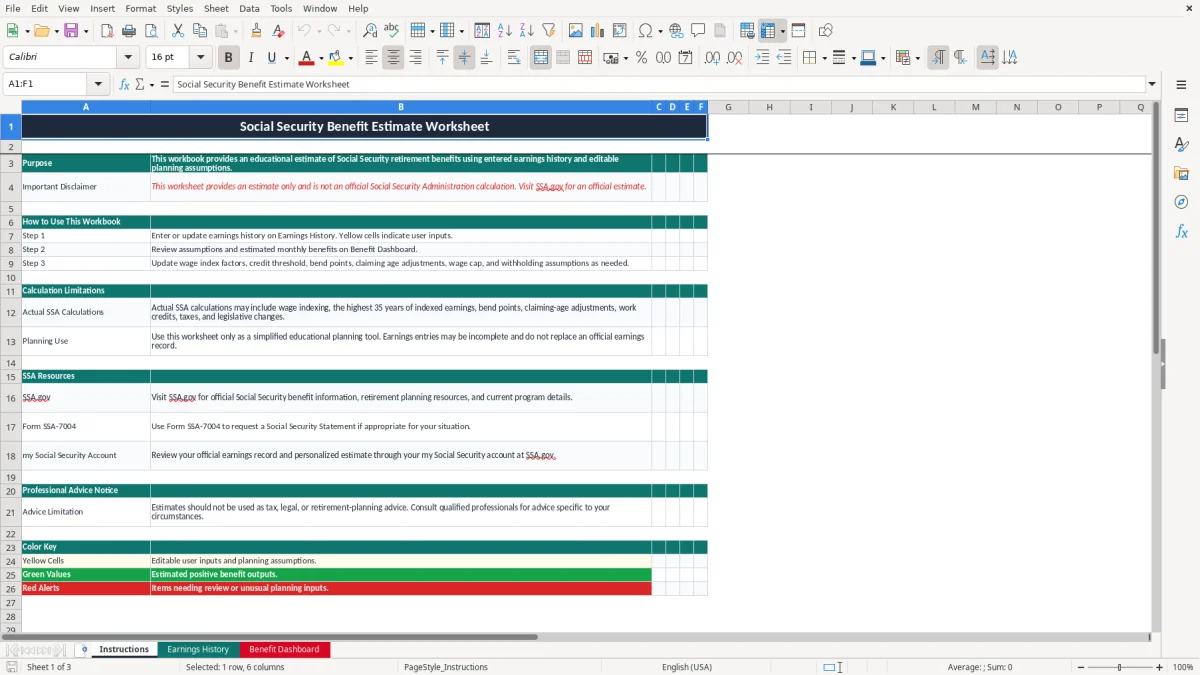
This Social Security benefit estimate worksheet uses entered covered and self-employment earnings to calculate indexed earnings, work credits, an estimated Primary Insurance Amount, and monthly and annual retirement benefits. It contains Instructions, Earnings History, and Benefit Dashboard tabs for educational planning.
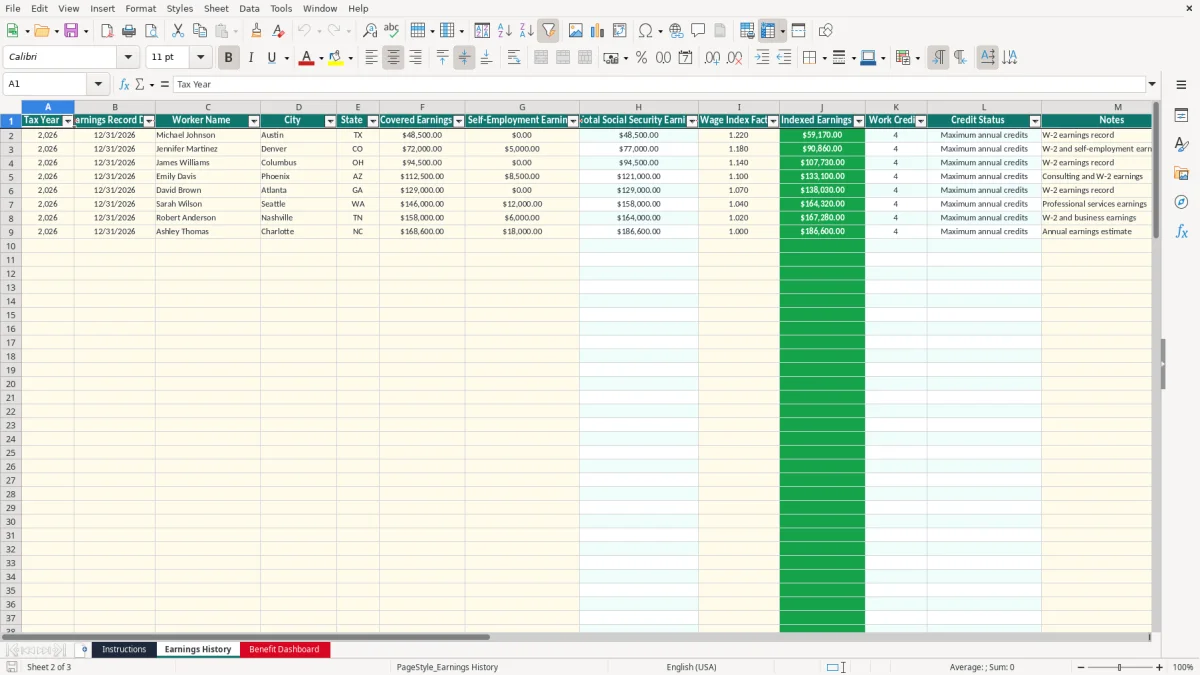
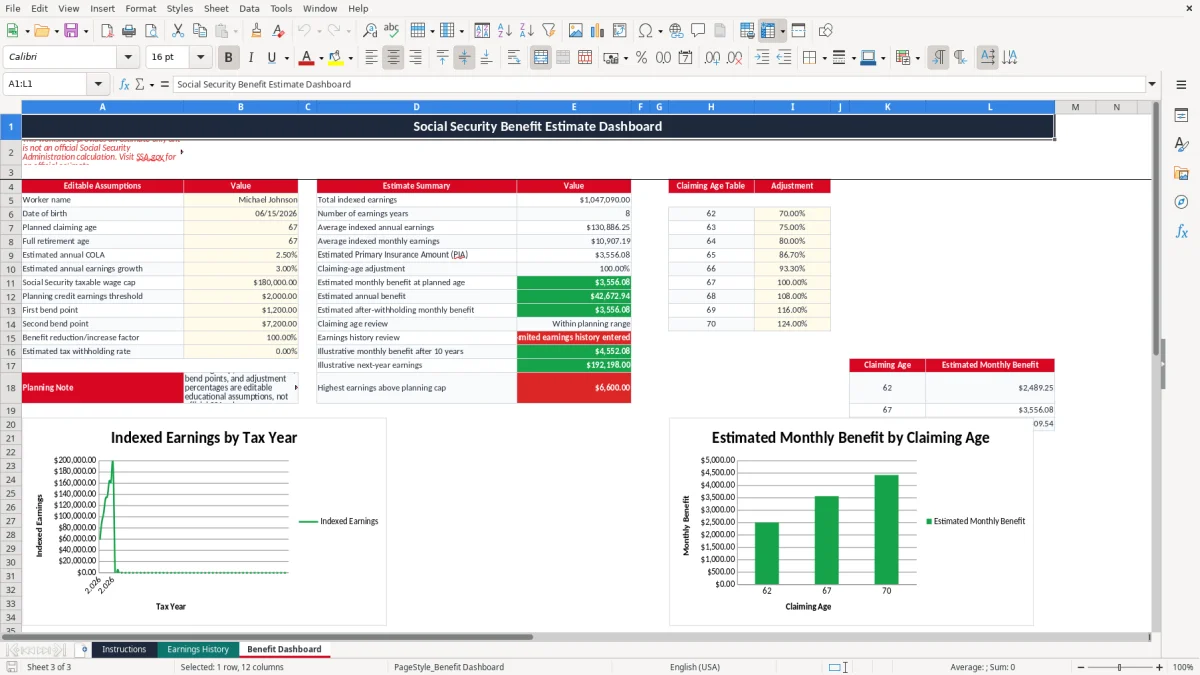
Enter records in the yellow input cells, then review the green calculated values on the dashboard. Image 1 shows the Instructions tab, image 2 shows the 100-row earnings table, and image 3 shows the assumptions, estimates, claiming-age table, and charts.
A worker approaching retirement can use this worksheet during an annual benefits review to organize earnings records before comparing claiming ages. For example, a 58-year-old with 28 entered earnings years can see the dashboard's warning that fewer than 35 years are present, rather than mistaking an incomplete history for an official benefit calculation.
The Earnings History tab is also useful for a sole proprietor reviewing Schedule C income. Enter covered wages in the Covered Earnings column and net self-employment earnings in the Self-Employment Earnings column. The Total Social Security Earnings formula adds both fields, so a year containing $72,000 of wages and $5,000 of self-employment earnings produces $77,000 before indexing.
A bookkeeper at an LLC can use the rows during a year-end close to compare payroll records with a worker's personal earnings history. A household with two incomes can duplicate the workbook for each worker, but should not combine spouses' records into one estimate because the dashboard is built around one worker name and one earnings history.
During tax season, a contractor can compare the worksheet with Forms W-2 and self-employment records. The Notes column lets you identify the source, such as W-2 earnings record or W-2 and self-employment earnings, while the dashboard provides a consistent planning snapshot rather than a replacement for the official SSA record.
The worksheet uses an editable Planning Credit Earnings Threshold, initially populated at $2,000, to calculate annual work credits. Its formula divides total earnings by that threshold, rounds down, and caps the result at four credits. That is a workbook assumption, not a claim that the official Social Security Administration credit amount remains $2,000 in 2026; verify current figures at SSA.gov.
The dashboard also uses the entered highest indexed earnings value structure to estimate benefits through bend points. The first bend point is initially $1,200, the second bend point is an editable dashboard assumption, and the formula applies 90%, 32%, and 15% tiers. These values must be reviewed before relying on the result because official bend points and indexing rules are program-specific and can change.
The editable claiming table lists ages 62 through 70. Its sample adjustments range from 70% at age 62 to 100% at age 67 and 108% at age 68; use the table as a planning model, not as an official award notice. The dashboard flags an age below 62 or above 70 for review.
Social Security benefits may be taxable as federal income depending on combined income, and state treatment differs. This workbook's withholding assumption is simply a percentage applied to the estimated monthly amount; it does not calculate Form 1040 tax, provisional income, Medicare premiums, spouse benefits, survivor benefits, or the earnings test.
The most expensive error is treating missing years as zero without checking the official record. If a worker has 30 entered years but actually has 35 qualifying years, the worksheet's average and benefit estimate can be materially distorted. The dashboard's Limited earnings history entered alert is useful, but it cannot identify an omitted employer by itself.
Another problem occurs when a user enters gross business revenue instead of net self-employment earnings. A contractor with $90,000 of customer receipts and $35,000 of deductible business expenses should not automatically enter $90,000 in the self-employment column. Using the wrong number can overstate both indexed earnings and the resulting benefit estimate.
A wage index factor of 1.22 turns $48,500 into $59,170. If 1.22 is typed as 122, the indexed result becomes $5,917,000, overwhelming every dashboard output. The workbook permits nonnegative decimal factors but does not validate whether a factor is economically reasonable, so inspect unusual values before trusting the chart.
Users also change the COLA, wage growth, wage cap, bend points, or withholding percentage without recording why. A 2.5% annual COLA applied for 10 years compounds to about 28%, so a small assumption change can create a large planning difference. Save an assumptions note outside the workbook or in the available Notes column.
Use one recurring date each year, such as the week after receiving final payroll documents, to update the newest earnings row. Enter the record date in MM/DD/YYYY format and keep the source in Notes. This takes less time than reconstructing ten years of records before retirement.
Review the dashboard immediately after updating the row. Confirm that Total Social Security Earnings equals covered earnings plus self-employment earnings, that the index factor is sensible, and that the new indexed amount appears in the earnings chart. For a $60,000 record with a 1.10 factor, the expected indexed earnings are $66,000.
Keep a dated copy after each annual review so you can see which assumptions changed. This spreadsheet is appropriate for a small personal history, but a financial-planning practice or employer serving hundreds of workers should use a controlled database or specialized planning system rather than manually maintaining separate copies.
No. It is an educational worksheet that applies entered earnings, index factors, bend points, claiming adjustments, and other editable assumptions. Use SSA.gov and your my Social Security account for an official earnings record and personalized estimate.
Enter covered wages in Covered Earnings and self-employment amounts in Self-Employment Earnings. The worksheet adds them into Total Social Security Earnings; enter the amount appropriate to your record, not automatically your business's gross receipts.
The prepared table runs from rows 2 through 101, providing 100 annual record rows. Formulas calculate totals, indexed earnings, work credits, and credit status for those rows.
The dashboard displays that alert when fewer than 35 indexed-earnings rows contain positive amounts. It signals an incomplete planning history; it does not prove that you have fewer than 35 qualifying years.
Yes. The Benefit Dashboard includes a claiming-age table for ages 62 through 70, with editable adjustment percentages. The planned claiming age in cell B7 uses that table to calculate the estimated monthly benefit.
No. The workbook does not replace an SSA calculation or determine federal or state tax. Its withholding percentage is a simple planning assumption, so verify benefits and tax consequences using official information before making a decision.