Crypto Portfolio Excel – Free Template (2026)
5
Free download
Track income, expenses, planned amounts, actual spending, variances, savings rate, and monthly cash flow in an XLSX household budget workbook.


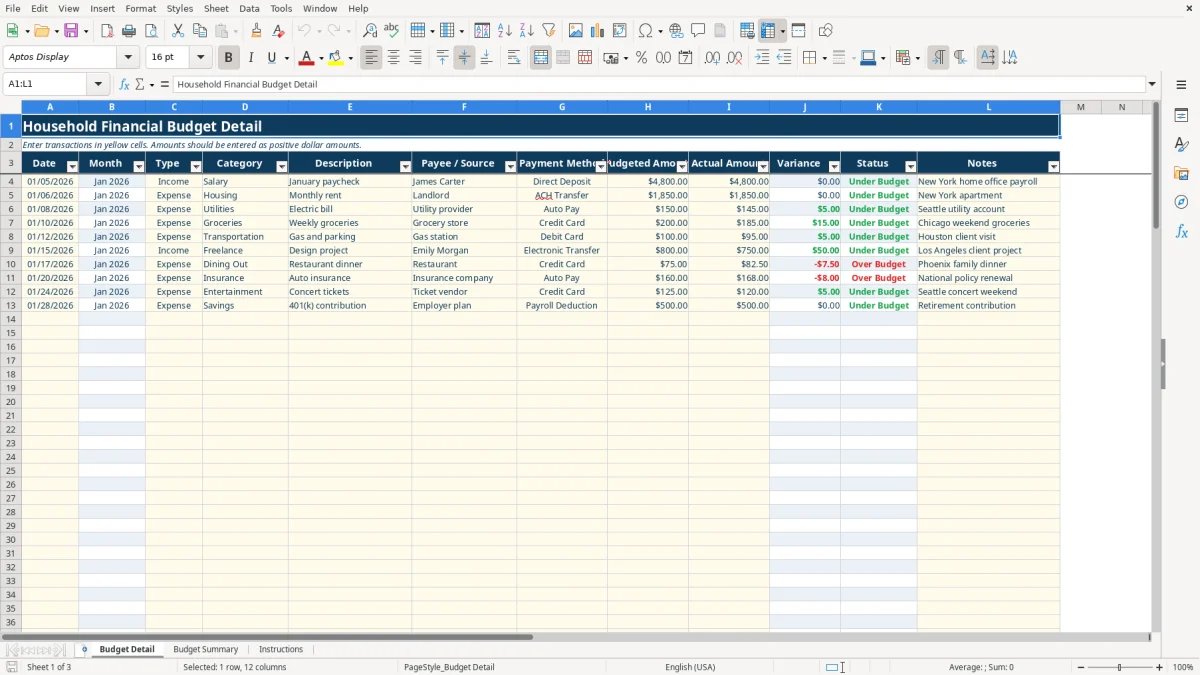
This financial budget Excel workbook records income and expenses, compares budgeted amounts with actual amounts, and summarizes cash flow by category and month. It includes a transaction-entry sheet, a calculated summary dashboard with charts, and instructions for household or small-business planning.
Enter transactions on Budget Detail, using the yellow input cells for dates, types, categories, descriptions, payees, payment methods, and dollar amounts. The workbook calculates month labels, variance, and status, while Budget Summary converts the entries into totals, category comparisons, savings rate, and monthly trends.
A household with two incomes can use this workbook during a weekly money review to compare paychecks with rent, utilities, groceries, transportation, and savings. A household that enters $4,800 of salary, $1,850 of rent, and $200 of groceries can see those transactions flow into the summary instead of reconstructing the month from bank statements.
The same layout works for a sole proprietor planning business cash, provided personal and business transactions are labeled consistently and the workbook is not treated as a tax return. An office manager at a small company can record payroll deposits, insurance, subscriptions, and operating expenses, then review actual cash movement at month-end.
Image 1 shows Budget Detail with 12 columns. The yellow entry areas cover the transaction facts, including the date, Income or Expense type, category, description, payee or source, payment method, budgeted amount, actual amount, and optional notes. Month, Variance, and Status are calculated outputs rather than fields you should overwrite.
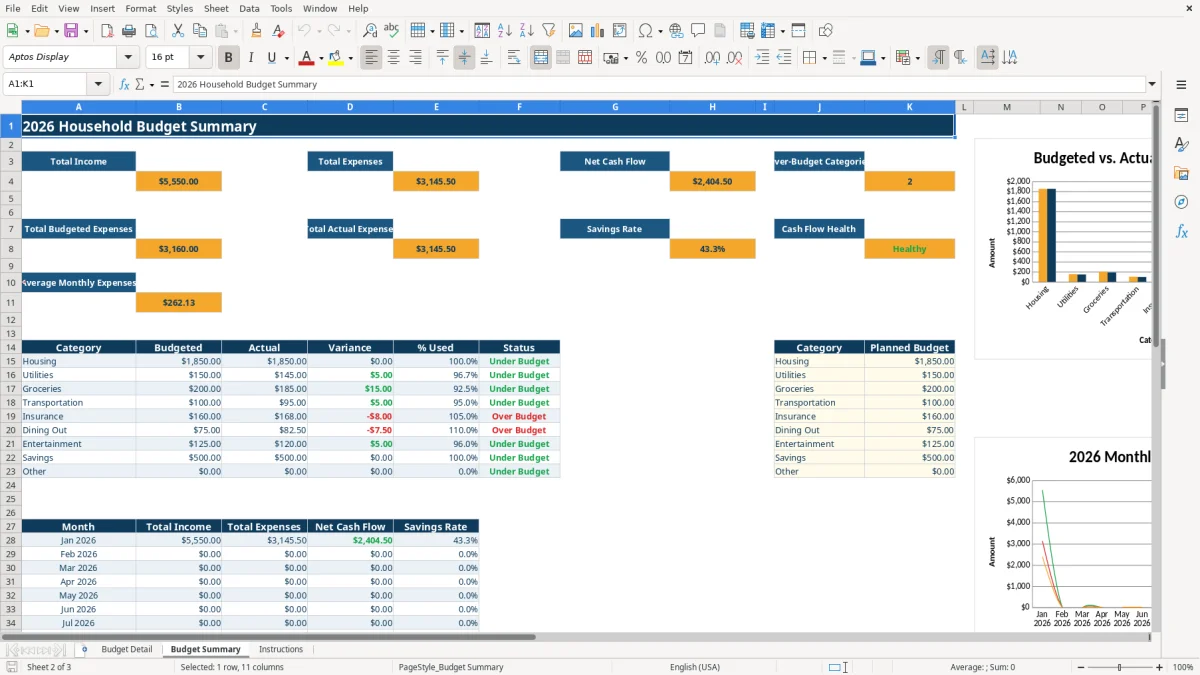
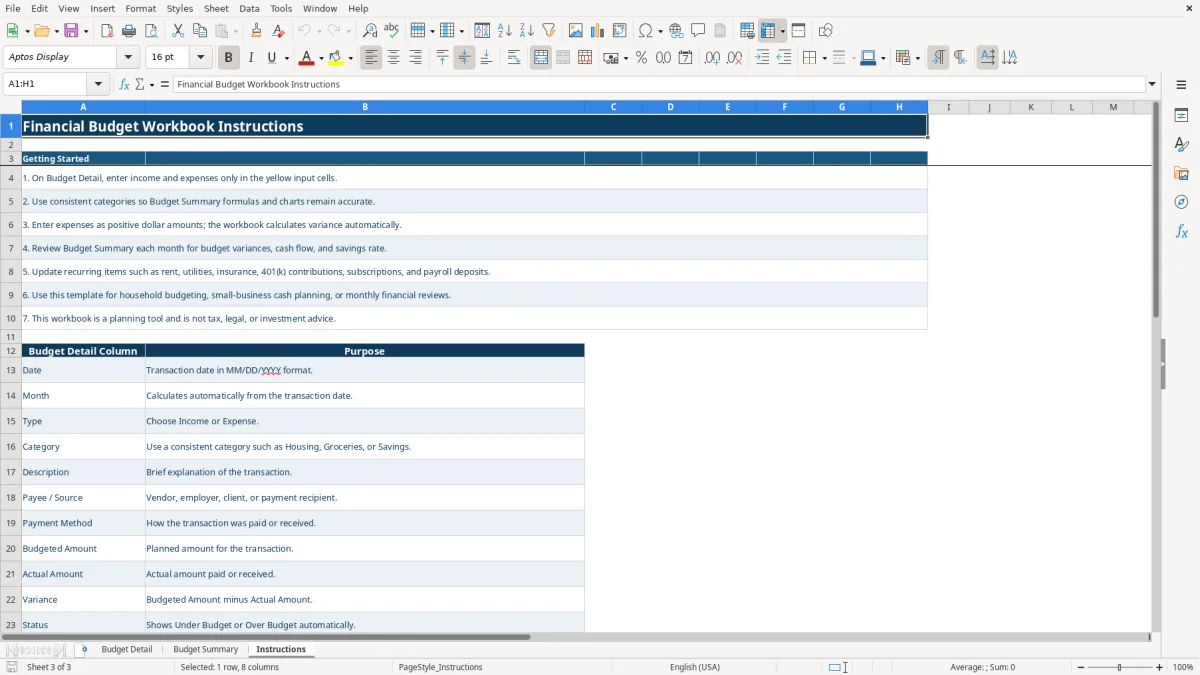
Image 2 shows the summary layout. It reports total income, total expenses, net cash flow, over-budget categories, total budgeted expenses, actual expenses, savings rate, and cash flow health. The category table covers nine listed categories, while the monthly table provides rows for January through December. Image 3 shows the Instructions tab and its column guide.
The workbook uses positive dollar amounts for both income and expenses. Budget Summary identifies the transaction type with SUMIFS: total income sums Actual Amount where Type is Income, and total expenses sums Actual Amount where Type is Expense. Net cash flow is total income minus total expenses.
For a concrete workbook example, the January sample includes $4,800 of income, $1,850 of housing, and $145 of actual utilities. The $150 utility budget produces a $5 variance because the calculation is $150 minus $145. A positive or zero variance receives the Under Budget status.
The category table uses planned amounts from the small reference list and compares them with actual expense entries. Housing is shown with a planned budget of $1,850, Utilities $150, Groceries $200, Transportation $100, Insurance $160, Dining Out $75, Entertainment $125, Savings $500, and Other $0. Keep category names consistent because the formulas match text values.
The monthly section calculates total income, total expenses, and variance by month. The workbook also calculates average monthly expenses from the monthly results and savings rate as net cash flow divided by total income. If total income is zero, IFERROR returns 0 rather than displaying an error.
This is a planning workbook, not tax, legal, investment, or accounting advice. It is supplied in XLSX format; practical behavior can differ in applications that do not fully support Excel formulas, validation, formatting, or charts.
The most damaging error is entering a negative expense when the workbook instructions require positive amounts. If a $200 grocery purchase is entered as -200, the expense total and variance no longer represent the household's actual spending. The resulting summary can make cash flow appear $400 better than it is because the same purchase is effectively reversed in the calculation.
Inconsistent categories create a second problem. Typing Groceries on one row and Grocery on another separates the transactions because the category formulas match the listed text. A $200 grocery budget may therefore appear unused while the unrecognized spelling sits outside the intended category comparison.
Month, Variance, and Status are formula-driven outputs. Replacing a formula with text can leave one row showing a stale month, an incorrect dollar difference, or no status at all. The problem may not be visible until the next monthly review, when one transaction fails to agree with the underlying dates and amounts.
Entering only actual spending defeats the comparison. If planned groceries are $200 and actual groceries reach $260, the variance should be negative $60 and the status should be Over Budget. If Budgeted Amount is left blank, the category comparison cannot communicate that overrun clearly.
Another costly habit is waiting until the end of the month to enter every receipt. A household with 30 transactions has to reconstruct 30 dates, payees, methods, and amounts at once, increasing the chance of duplicate entries. Entering purchases during a weekly review is the better choice because the source information is still available.
Use a fixed review time, such as the first evening after the monthly bank statement is available. Enter new transactions on Budget Detail, check that Type and Category use the dropdown values, and compare the summary's actual expenses with your account activity. A 20-minute weekly update is easier to maintain than rebuilding four weeks of spending in one sitting.
Start with net cash flow, then check total actual expenses against total budgeted expenses. Next, review the category table and the over-budget count. For example, if the summary shows positive net cash flow but Dining Out is Over Budget, you can address that category without assuming the entire budget failed.
Keep the workbook's category labels unchanged unless you also understand how the summary formulas depend on them. Use Notes for explanations instead of creating alternate spellings. The Instructions tab is a useful reference when another household member or employee takes over entry.
Outgrow the workbook when transaction volume, account reconciliation, approvals, or multiple users require stronger controls. This file is designed for structured planning and review, not a replacement for a full bookkeeping or budgeting system.
It includes Budget Detail for transactions, Budget Summary for calculated totals and charts, and Instructions for entering data. The workbook covers income, expenses, planned amounts, actual amounts, variance, status, categories, payment methods, and notes.
Enter information in the yellow input cells: Date, Type, Category, Description, Payee / Source, Payment Method, Budgeted Amount, Actual Amount, and Notes. Month, Variance, and Status are calculated fields.
Enter expenses as positive dollar amounts, such as 200 for a $200 grocery purchase. The workbook uses the Type field to identify expenses and calculates the difference between Budgeted Amount and Actual Amount.
Variance equals Budgeted Amount minus Actual Amount. A $200 budget and $180 actual amount produce a $20 variance and Under Budget status; a $200 budget and $225 actual amount produce a negative $25 variance and Over Budget status.
The summary formulas match category text such as Housing, Utilities, Groceries, and Savings. If you type a different spelling or a new label, the transaction may not be included in the intended category result.
Yes, the Instructions tab identifies small-business cash planning as a possible use. Keep the entries consistent and remember that the workbook is a planning tool, not a tax return, bookkeeping system, or professional tax, legal, or investment advice.