Tithe Offering Excel – Free Template (2026)
0
Free download
Track income and expenses in Transactions, then review revenue, costs, net profit, margins, counts, and monthly results in Excel.


This small business profit and loss statement Excel template records income and expenses, groups transactions into revenue or operating expenses, and calculates gross profit, net profit, margin, and monthly results. It includes Transactions, P&L Summary, and Instructions tabs for a practical 2026 bookkeeping workflow.
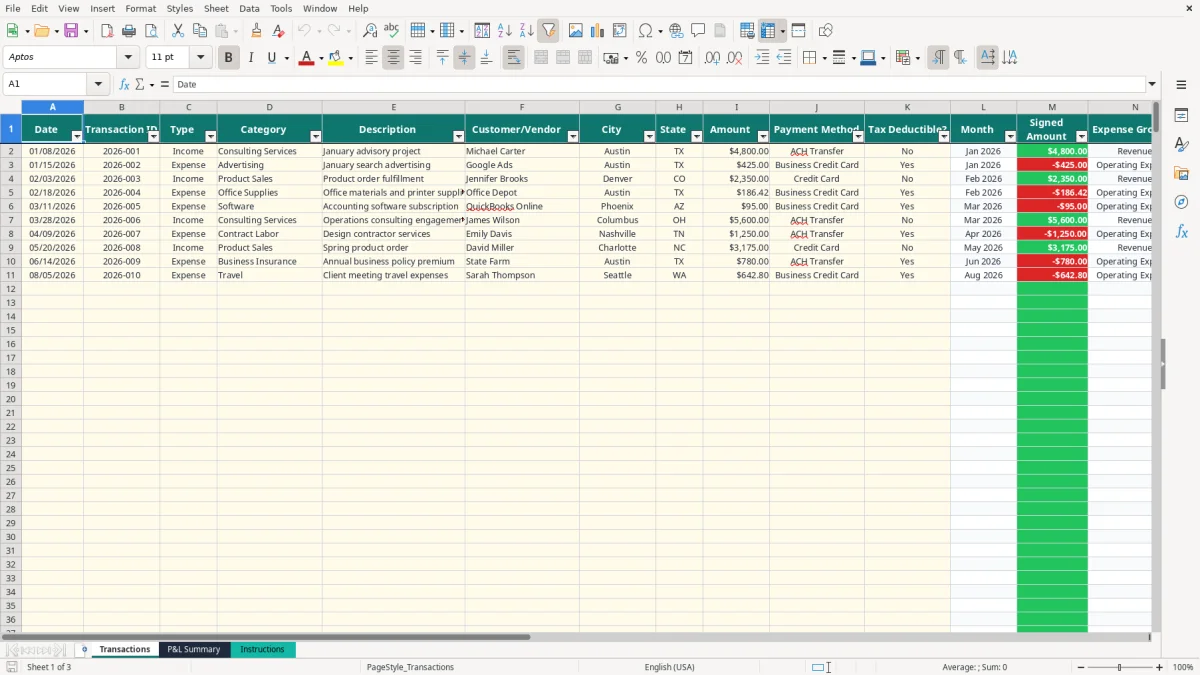
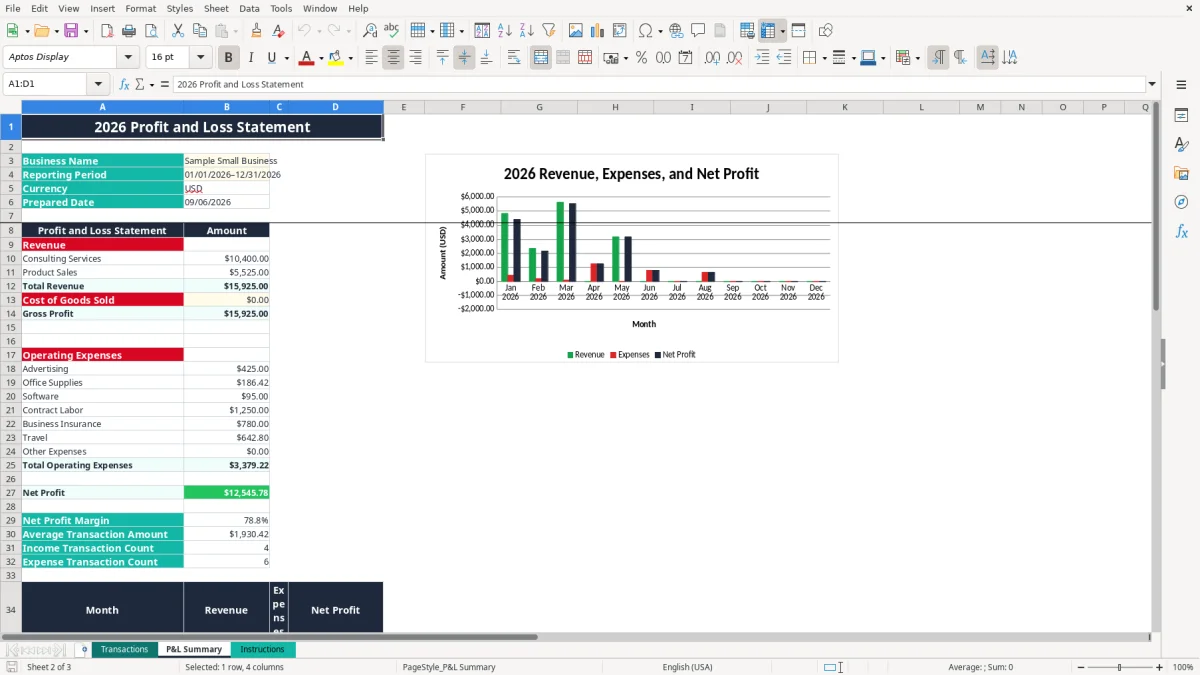
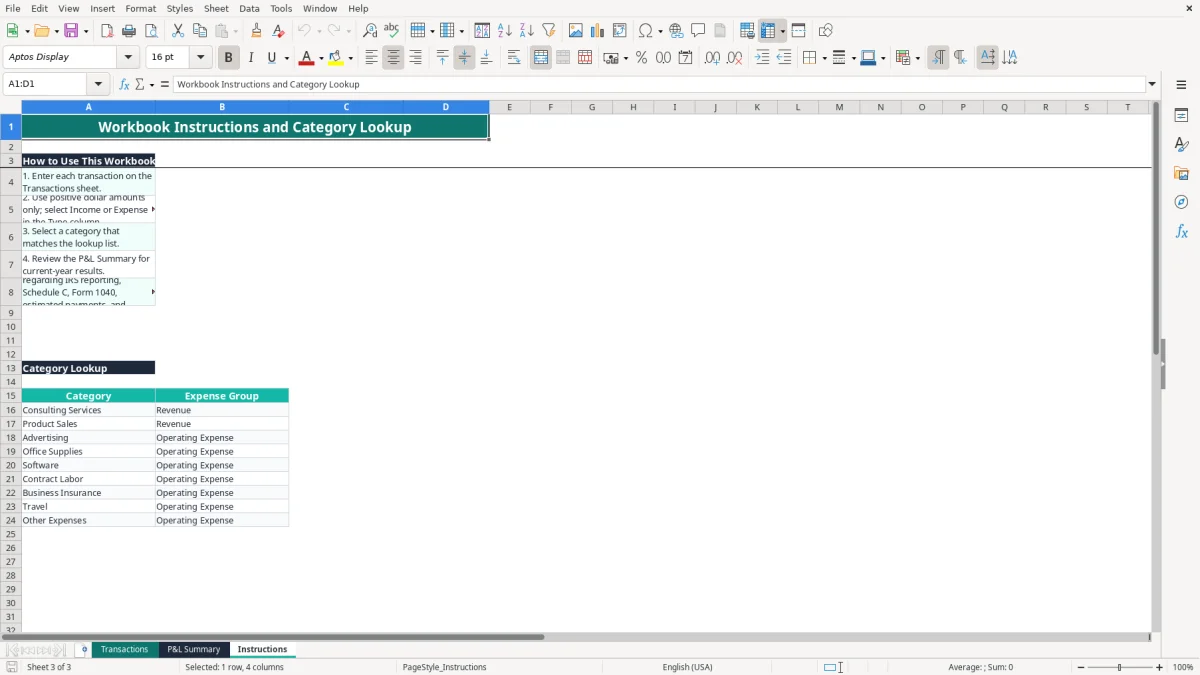
Enter positive amounts on Transactions and select Income or Expense. The workbook calculates Month, Signed Amount, and Expense Group automatically, while the P&L Summary uses SUMIF, SUMIFS, COUNTIF, and AVERAGE formulas to organize the results. Image 1 shows the transaction-entry layout; image 2 shows the statement and monthly chart; image 3 shows the category lookup and instructions.
A profit and loss statement gives you a period view of revenue, expenses, and earnings. A sole proprietor can use it before a quarterly review, a bookkeeper at an LLC can use it during month-end close, and an office manager at a four-employee contractor can use it before deciding whether a new truck payment fits the budget.
The workbook is suited to a business with consulting income, product sales, or both. For example, a consultant who collects $4,800 for an advisory project and pays $425 for advertising can see $4,375 before other expenses. A small online store can classify customer receipts as Product Sales while tracking software, travel, and contract labor separately.
Image 1 shows the Transactions tab with 14 columns. The first 11 are entry fields, including Date, Transaction ID, Type, Category, Description, Customer/Vendor, City, State, Amount, Payment Method, and Tax Deductible?; Month, Signed Amount, and Expense Group are calculated columns. The sheet has prepared rows through row 501, an auto-filter, and frozen row 1.
Use the file after a weekly bank download, during a monthly bookkeeping session, and at year-end close. The P&L Summary has a 2026 reporting period, revenue lines for Consulting Services and Product Sales, a $0.00 Cost of Goods Sold input, seven operating-expense lines, and a January-to-December comparison.
Image 2 shows the summary layout: revenue is totaled first, gross profit follows cost of goods sold, and net profit subtracts operating expenses. The chart uses the monthly Revenue, Expenses, and Net Profit ranges, so it is useful for seeing whether a $10,000 sales month produced only $1,000 of earnings after costs.
This workbook is a management and bookkeeping tool, not a substitute for a filed return. A sole proprietor generally reports business profit or loss on Schedule C attached to Form 1040, and self-employment tax is calculated on Schedule SE. Keep the transaction detail that supports each total.
Use the Amount column for the transaction amount and mark Tax Deductible? based on your bookkeeping judgment and documentation. The workbook does not calculate depreciation, inventory cost, sales tax, payroll taxes, or a tax liability. Its Cost of Goods Sold line is a manual $0.00 input on the prepared summary, so a product business must enter an appropriate amount rather than assume all purchases are operating expenses.
The IRS generally expects records to be retained for 3 years, and some situations require up to 7 years. Keep invoices, receipts, bank statements, payment-processor reports, and contractor records with the spreadsheet. A contractor paid $600 or more for services may require a 1099-NEC; the W-9 supports the contractor's legal name and taxpayer identification information.
Self-employed owners commonly plan federal estimated payments with Form 1040-ES, generally due April 15, June 15, September 15, and January 15. The self-employment-tax rate is 15.3%: 12.4% Social Security plus 2.9% Medicare, subject to the applicable limits and adjustments. The P&L Summary shows profit, but it does not calculate those taxes.
If your business has employees, wages require FICA withholding: 6.2% Social Security and 1.45% Medicare from the employee, with a matching employer share. A payroll provider should handle payroll filings; do not treat a net-profit figure as payroll-tax output. State income tax and sales-tax obligations are state-level matters, and there is no national VAT.
The most expensive errors usually begin in transaction entry and become visible only after totals are used for decisions. I have seen owners classify a $2,400 annual software renewal as revenue because the Type field was typed manually, or enter an expense as a negative number and effectively reverse its effect in a separate analysis.
This workbook expects positive Amount values and uses Type to determine whether the transaction is income or expense. If you enter a $1,200 expense as -$1,200, the summary formulas that sum the Amount column can understate expenses or produce a misleading profit. A $30,000 sales month with $18,000 of actual costs can appear to have $48,000 of profit-impacting activity when signs are inconsistent.
Category mismatches create a different problem. The Expense Group formula uses VLOOKUP against Instructions!A15:B23; a misspelled category can return a blank group. The summary still relies on its listed categories, so an entry such as Software Subscriptions may not appear in the Software total. Choose the drop-down category instead of inventing a near-duplicate.
Posting a credit-card charge when you pay the card can shift advertising or travel into the wrong month and make one month look $3,000 too profitable. Duplicate bank imports are also common: two $850 charges for the same vendor add $850 of false expense and reduce net profit by that amount.
Another failure is treating the summary as a balance sheet. It does not show cash, accounts receivable, accounts payable, loans, owner draws, assets, or liabilities. A business may report $12,000 of net profit while its bank balance is only $4,000 because customers have not paid or loan principal has been repaid.
Finally, using an unreviewed net-profit number for estimated taxes can cause an underpayment. The workbook provides a useful starting total, but missing receipts, inventory adjustments, depreciation, or owner transactions can materially change taxable profit.
The spreadsheet works best when you attach it to a routine rather than open it only at tax time. Set a recurring 30-minute appointment after the last bank activity of each week, then perform a fuller close by the fifth business day of the next month. For a business with 40 transactions, that cadence is faster than reconstructing a year of activity in December.
Image 3 shows the Instructions tab, including the five numbered use notes and the Category Lookup table. Keep that tab unchanged unless you intentionally revise the categories and the corresponding summary formulas. The prepared lookup has 9 categories: 2 revenue categories and 7 operating-expense categories.
Never type over Month, Signed Amount, or Expense Group. If you add a new category, update the lookup and the P&L Summary line together; otherwise a transaction can be valid in Transactions but absent from the statement. Keep the filter on row 1 available for finding a vendor, month, or tax-deductibility selection.
You have outgrown this workbook when more than 500 prepared transaction rows, multiple entities, inventory costing, unpaid invoices, payroll, or automated bank feeds become central to the process. At that point, QuickBooks or an accounting system is preferable; retain this file as an export or review schedule, not as a substitute for a general ledger.
It calculates total revenue, gross profit, total operating expenses, net profit, net profit margin, average transaction amount, income transaction count, expense transaction count, and monthly revenue, expenses, and net profit. It does not calculate income tax, payroll tax, depreciation, or inventory cost.
Enter each item on the Transactions tab. Use positive numbers in Amount, then select Income or Expense in Type and choose a listed Category. The Month, Signed Amount, and Expense Group columns are calculated automatically.
Yes, it can organize transaction detail for review while preparing Schedule C. Reconcile the totals to your records and account separately for items the workbook does not model, such as depreciation, inventory, owner draws, and tax adjustments.
The prepared summary includes Advertising, Office Supplies, Software, Contract Labor, Business Insurance, Travel, and Other Expenses. A category must match the Instructions lookup and a corresponding summary line; adding a new category requires updating both areas.
The Transactions tab has prepared operational rows from row 2 through row 501, providing 500 entry rows. If you need more than 500 rows, copy the formulas and validation carefully or move to accounting software designed for larger ledgers.
No. The P&L Summary reports business results but does not calculate federal or state estimated taxes. Use the profit figure as bookkeeping information for Form 1040-ES planning, while considering Schedule SE, deductions, prior payments, and other income.