Donation Tracker Excel – Free Template (2026)
1
Free download
Track church tithes and offerings by donor, fund, service, payment method, deposit status, receipts, and weekly giving in Excel.


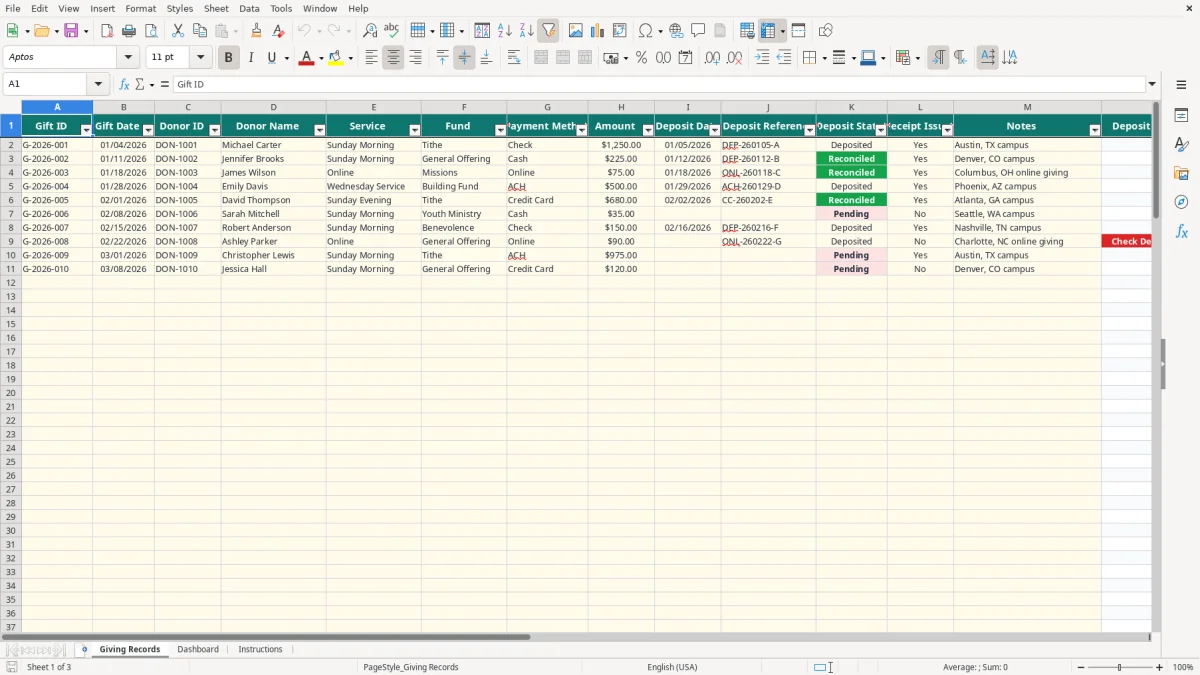
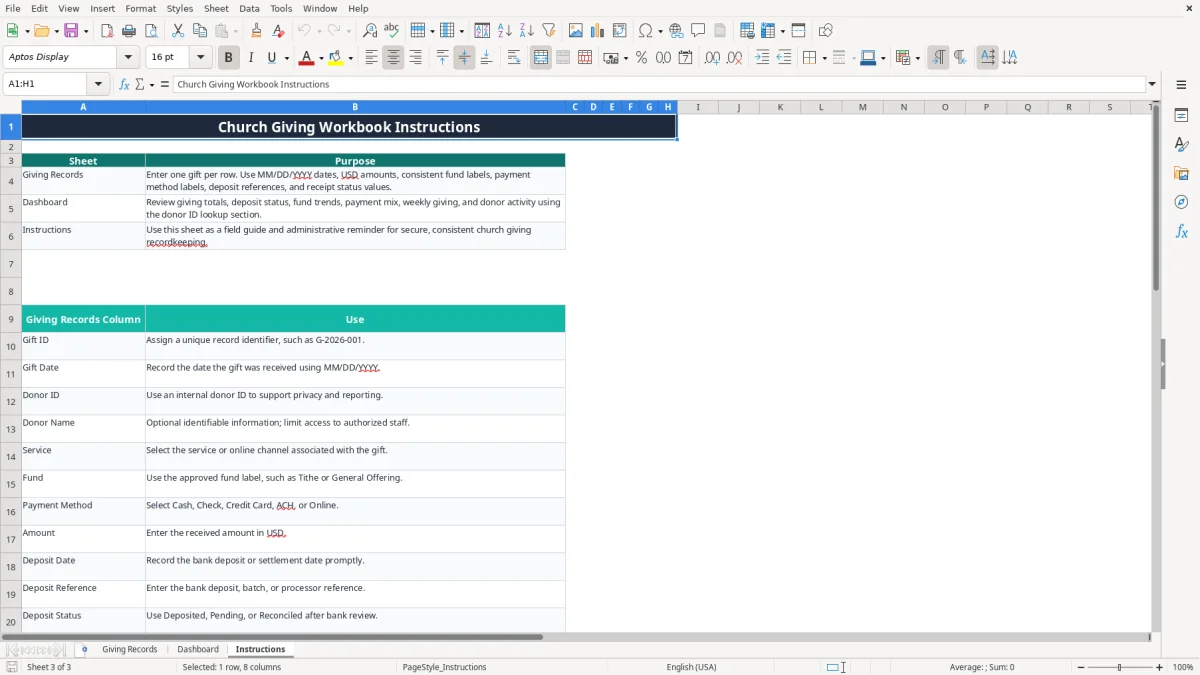
This church tithe and offering Excel spreadsheet records one gift per row and tracks the gift date, donor ID, fund, payment method, amount, deposit details, receipt status, and notes. It includes a Giving Records table for entry, a Dashboard for totals and giving analysis, and an Instructions tab for field guidance.
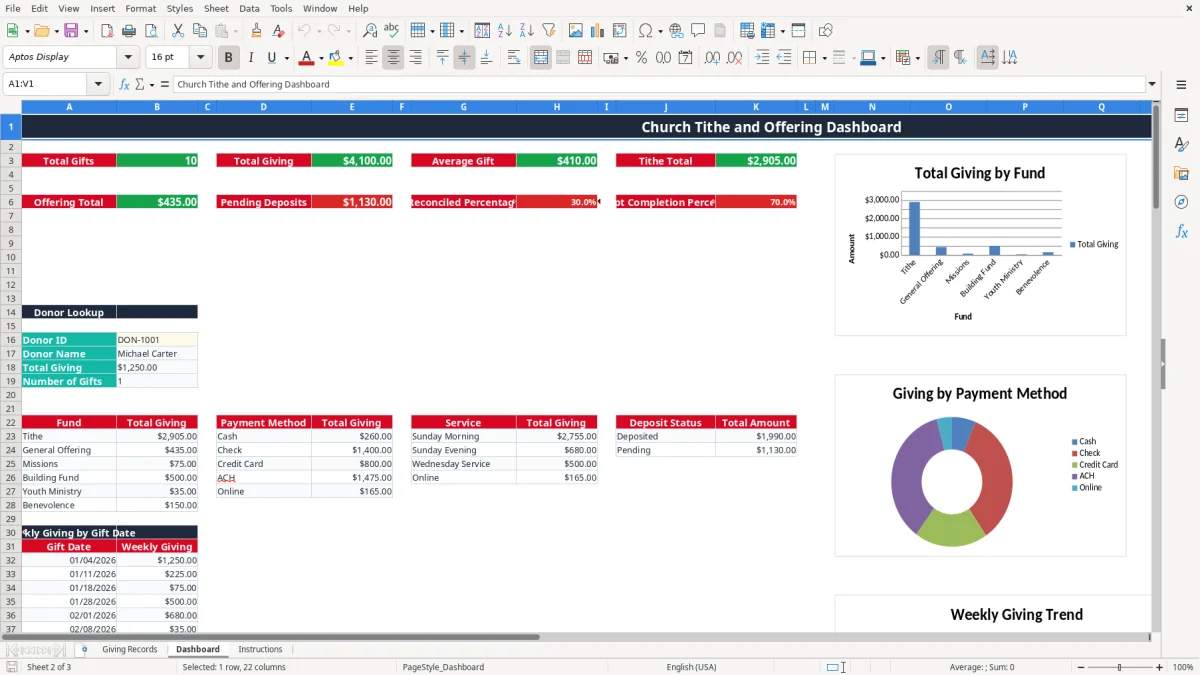
Use the workbook for weekly collection entry, deposit follow-up, and monthly church finance review. The Dashboard summarizes total gifts, total giving, average gift, tithe, general offering, pending deposits, reconciliation, receipts, funds, payment methods, services, weekly giving, and donor activity.
A church treasurer, finance committee volunteer, or bookkeeper at a small congregation can use this workbook during the weekly count and deposit process. It is also practical for a church with several services or an online channel that needs one consistent record instead of separate notes for Sunday Morning, Sunday Evening, Wednesday Service, and Online gifts.
Suppose a congregation receives 42 gifts after Sunday services: 18 checks, 12 cash gifts, 7 online gifts, and 5 card payments. Entering each gift separately preserves the connection between the donor ID, fund, amount, deposit reference, and receipt status. A $1,250 Tithe and a $225 General Offering remain distinct rather than becoming one unexplained deposit total.
At month-end, the treasurer can use Dashboard to compare Tithe with General Offering, Missions, Building Fund, Youth Ministry, and Benevolence. If January contains 86 gift rows totaling $18,400, the Dashboard can show the average gift, pending deposits, reconciliation percentage, and receipt completion percentage without manually adding each fund.
The Notes field can identify a campus or channel, such as Austin, TX campus or Columbus, OH online giving. That detail is useful when the church deposits money in separate batches, while the Service and Payment Method fields provide standardized categories for the Dashboard summaries.
Use Donor ID as the primary lookup value rather than relying on spelling in Donor Name. For example, DON-1001 can return the donor name, total giving, and number of gifts through the Dashboard lookup area, while authorized staff control access to identifiable information.
A church receiving charitable contributions should maintain records that support its internal controls and donor acknowledgments. This spreadsheet is an administrative ledger, not a substitute for the church's accounting records, bank statements, contribution software, or legal review of its 501(c)(3) status.
For a donor's single contribution of $250 or more, the IRS generally requires a written acknowledgment from the qualified organization before the donor files a federal return. The acknowledgment should describe the cash or property and state whether the donor received goods or services. Track Receipt Issued as Yes or No, but retain the actual acknowledgment outside this workbook.
When a donor receives goods or services in return for a payment over $75, the church generally provides a written quid pro quo disclosure. A gift record of $500 should not automatically be treated as fully deductible if the donor received a $100 benefit; the church should describe the benefit and the remaining contribution in its acknowledgment.
Use Deposit Date and Deposit Reference to tie the individual records to the bank batch. If 20 gifts total $3,875 and the bank deposit is $3,875, the treasurer can reconcile the batch rather than approving a rounded figure. Deposit Status separates Pending from Deposited and Reconciled, while Deposit Check flags a missing date when the status is not Pending.
Donor names and giving amounts are sensitive financial information. Limit workbook access to authorized staff, store it in a protected church location, and retain supporting bank and acknowledgment records according to the church's written policy. Keep the Excel file's labels consistent with the church's chart of accounts so the giving ledger does not become a second, conflicting accounting system.
The most expensive errors in church giving records usually begin with a rushed count, an inconsistent label, or a deposit that cannot be matched to the bank statement. These problems may not change the cash in the bank, but they consume hours during month-end close and can make donor acknowledgments inaccurate.
A volunteer may enter one $2,000 Sunday total instead of 12 individual gifts. That shortcut removes donor-level activity, fund detail, and receipt tracking. If $800 belongs to Tithe, $700 to General Offering, and $500 to Missions, one combined row cannot support the Dashboard's fund totals or the Donor Lookup.
Another common failure is marking a $4,250 batch Deposited while leaving Deposit Date blank. The Deposit Check formula flags this condition because a non-pending gift should have a deposit date. Without the date and reference, reconciling 35 rows to the bank statement can take an extra hour and may leave one $125 check unexplained.
Typing Building Project in one row and Building Fund in another splits what should be one category. The Dashboard's SUMIF calculations match the approved labels, so an improvised label can make the official Building Fund total appear $600 lower than the actual amount.
Receipt Issued is not a substitute for the acknowledgment document, but leaving it blank or using Yes inconsistently makes follow-up unreliable. If 75 of 100 gifts show Yes, the Dashboard displays a 75% completion rate; that number is useful only when staff update the field after the acknowledgment is actually sent.
Do not overwrite calculated cells on Dashboard or Deposit Check. Enter corrections in the source row, then verify the affected amount, status, and reference again.
Make the workbook part of the existing count-and-deposit routine rather than a separate task saved for year-end. Assign one person to enter the counted gifts and a second person to compare the total with the deposit slip. For a Sunday batch of $6,420, both people should agree on the row total before the deposit is marked complete.
Use the existing validation lists instead of typing new category names. Keep Donor ID formats consistent, such as DON-1001, and use the Notes field for a short campus or channel note rather than creating extra fund labels. The table has prepared entry rows through row 111, so a church can plan around that available range and start a new workbook period when the prepared rows are nearly used.
During a 30-minute month-end review, compare Total Giving with the bank activity, inspect Pending Deposits, and scan fund, payment, service, and weekly summaries. If the Dashboard shows $21,000 of giving but the bank deposits total $20,500, investigate the $500 difference before approving the report.
When gift volume, online settlements, donor acknowledgments, or multi-campus controls outgrow 110 entry rows, move to dedicated church accounting or contribution software. Keep this spreadsheet as a controlled export or temporary intake tool only when its manual checks remain practical.
Giving Records tracks Gift ID, Gift Date, Donor ID, Donor Name, Service, Fund, Payment Method, Amount, Deposit Date, Deposit Reference, Deposit Status, Receipt Issued, Notes, and Deposit Check. The Dashboard summarizes the recorded amounts and categories.
The Fund list includes Tithe, General Offering, Missions, Building Fund, Youth Ministry, and Benevolence. Use these exact labels so the Dashboard's fund calculations group the gifts correctly.
For a populated gift row, Deposit Check displays Check Deposit Date when Deposit Status is not Pending and Deposit Date is blank. It remains blank when the row is empty, the status is Pending, or the deposit date is present.
Yes. Enter a Donor ID in the Dashboard Donor Lookup section. The workbook uses the donor ID to return the donor name, calculate total giving, and count the number of gifts recorded for that ID.
No. It records giving and receipt status but does not calculate a donor's tax deduction or prepare a tax return. For a contribution of $250 or more, retain the church's required written acknowledgment and supporting records separately.
The Giving Records table covers A1:N111, with entry rows 2 through 111. That provides 110 prepared gift rows; Deposit Check formulas are included in the prepared data-entry range.