TSP Contribution Allocation Excel – Free Template (2026)
0
Free download
Track property tax bills, installments, due dates, payments, balances, and statuses with this practical Excel template.


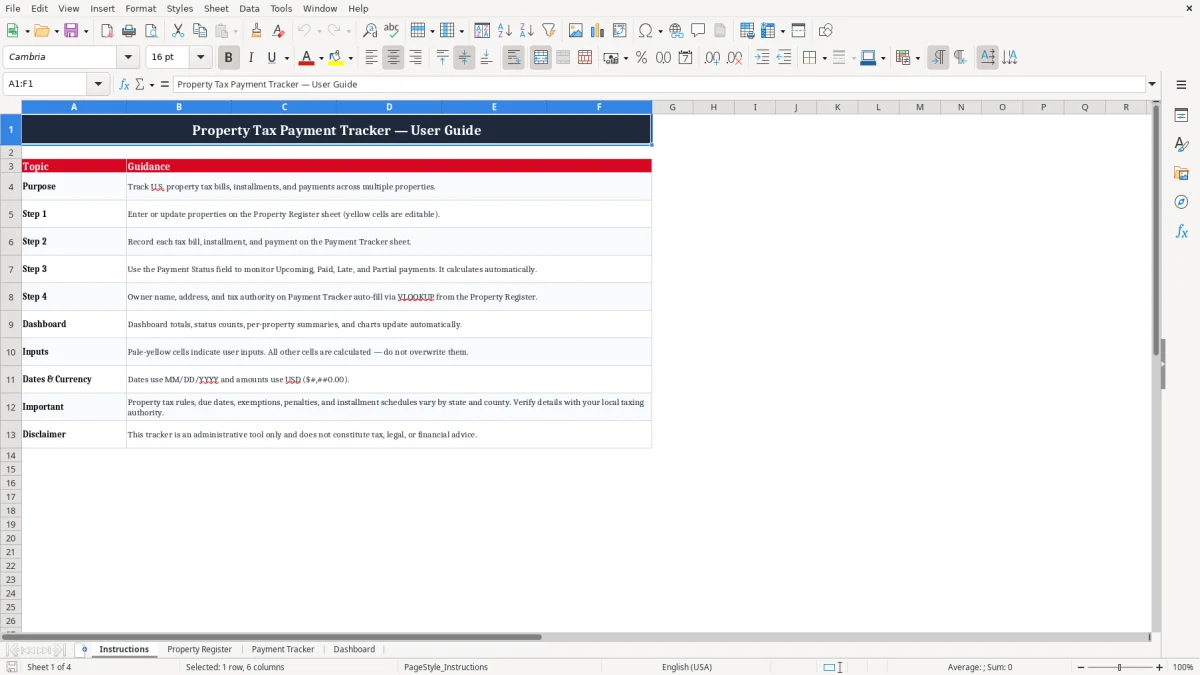
Stay organized and avoid missed property tax deadlines with the Property Tax Payment Tracker Excel Template. Designed for homeowners, landlords, and property managers, this workbook helps you record tax bills, monitor installment payments, track outstanding balances, and review payment activity across multiple properties. Enter your properties and payment details in the designated input cells, then use the calculated fields and dashboard to understand what is due, what has been paid, and which obligations may need attention.
The template uses MM/DD/YYYY dates and U.S. dollar formatting for consistent record keeping. It is a practical administrative tool for maintaining a clear overview of recurring property tax responsibilities.
Start by opening the Property Register sheet and entering each property in the pale-yellow input cells. Assign a unique Property ID to every property, then add the owner name, property address, tax authority, and any other requested identifying information. Next, open the Payment Tracker sheet and create one row for each tax bill, installment, or payment obligation.
Enter the related Property ID, tax year, installment information, due date, amount due, payment date, and amount paid. When a payment is made, update the corresponding row promptly so the calculated balance and payment status remain current. Related owner, address, and tax authority details can populate from the Property Register through the workbook formulas.
Review the calculated fields rather than replacing them manually. Finally, open the Dashboard sheet to review total amounts due, total payments, outstanding balances, and counts for upcoming, paid, late, and partial items. Use the dashboard charts and per-property summaries to identify deadlines or balances that require attention.
Pale-yellow cells are intended for user input, while other cells are generally calculated. Dates use MM/DD/YYYY formatting and amounts use U.S.
dollars. Verify all local tax rules, deadlines, installment requirements, penalties, exemptions, and payment records with the appropriate local tax authority.
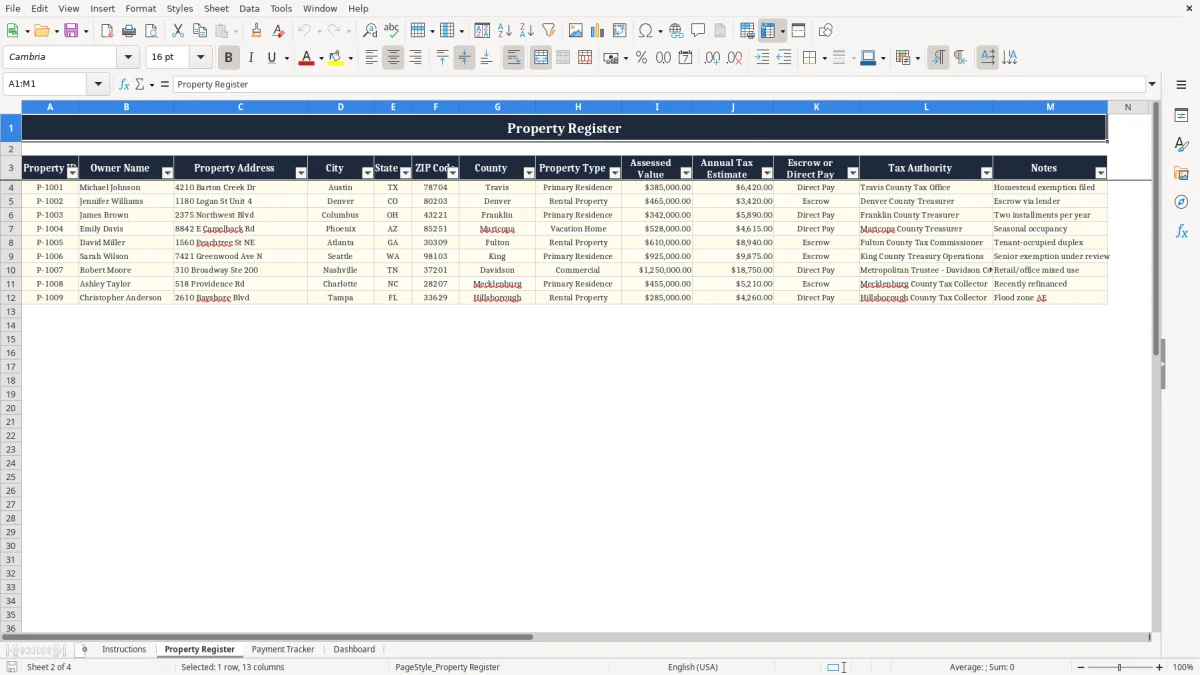
Managing property tax obligations becomes more difficult when bills, installment notices, receipts, and payment confirmations are stored in different places. A property tax payment tracker Excel template creates one structured location for recording the information connected with each property. Homeowners can use it to monitor taxes for a primary residence, while landlords and real estate investors can use it to coordinate obligations across several rental or investment properties.
The Property Register sheet provides a consistent list of properties, including a unique Property ID, owner name, property address, and tax authority. The Payment Tracker then connects each bill or installment to the correct property. This approach reduces confusion when multiple properties have similar addresses, different due dates, or different local taxing authorities.
Instead of relying on memory or searching through email and paper notices, users can review the workbook to see which records are complete and which need to be updated. The template is also useful for organizing annual tax bills alongside quarterly, semiannual, or other installment arrangements. Each obligation can be entered as a separate row with its own tax year, due date, amount due, payment date, and amount paid.
Maintaining one row per bill or installment makes it easier to compare expected costs with actual payments. Consistent data entry also helps the dashboard produce more useful summaries. Although the workbook supports practical record keeping, it does not replace official tax notices or local government records.
Property tax schedules and requirements vary by state, county, and municipality, so users should confirm all details with the appropriate tax authority. Keeping records in one workbook can also simplify conversations with bookkeepers, property partners, or household members who need a current overview.
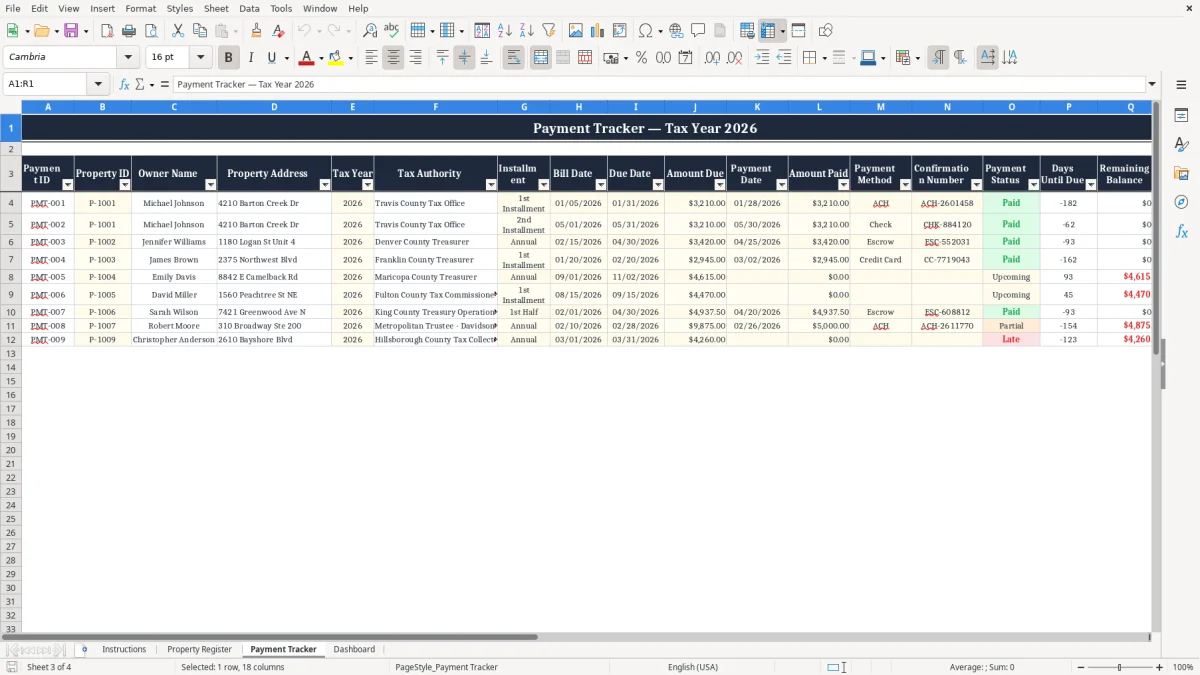
A major advantage of a property tax payment tracker is the ability to see the current condition of every recorded obligation. The Payment Tracker is designed to capture both the amount due and the amount paid, allowing the workbook to calculate an outstanding balance. This makes it easier to identify taxes that remain unpaid, payments that were only partially completed, or records that require a receipt or payment date.
The calculated Payment Status field helps organize these situations into useful categories. Upcoming items indicate obligations that have not yet been paid and are not yet due. Paid items show that the recorded payment satisfies the amount due.
Late items indicate that the due date has passed without a completed payment, while Partial items show that a payment was recorded but does not cover the full amount due. These categories can help users prioritize routine reviews and follow-up actions. A landlord may use the tracker before each month-end bookkeeping process, while a homeowner may review it before an installment deadline.
The dashboard provides an additional summary by showing totals and counts for important payment conditions. Visual fills and font colors make attention-worthy records easier to spot when scanning the worksheet. Users should update the workbook after submitting a payment, not only when a bank transaction clears, so the tracker remains a useful planning record.
It is also helpful to keep confirmation numbers, receipts, tax statements, and correspondence outside or alongside the workbook according to personal record-keeping practices. The template uses U.S. dollar formatting and MM/DD/YYYY dates to support consistent entry.
Before relying on any status, confirm that the due date, amount due, payment date, and amount paid match the official notice or receipt. Accurate updates help ensure that the dashboard reflects the real payment position.
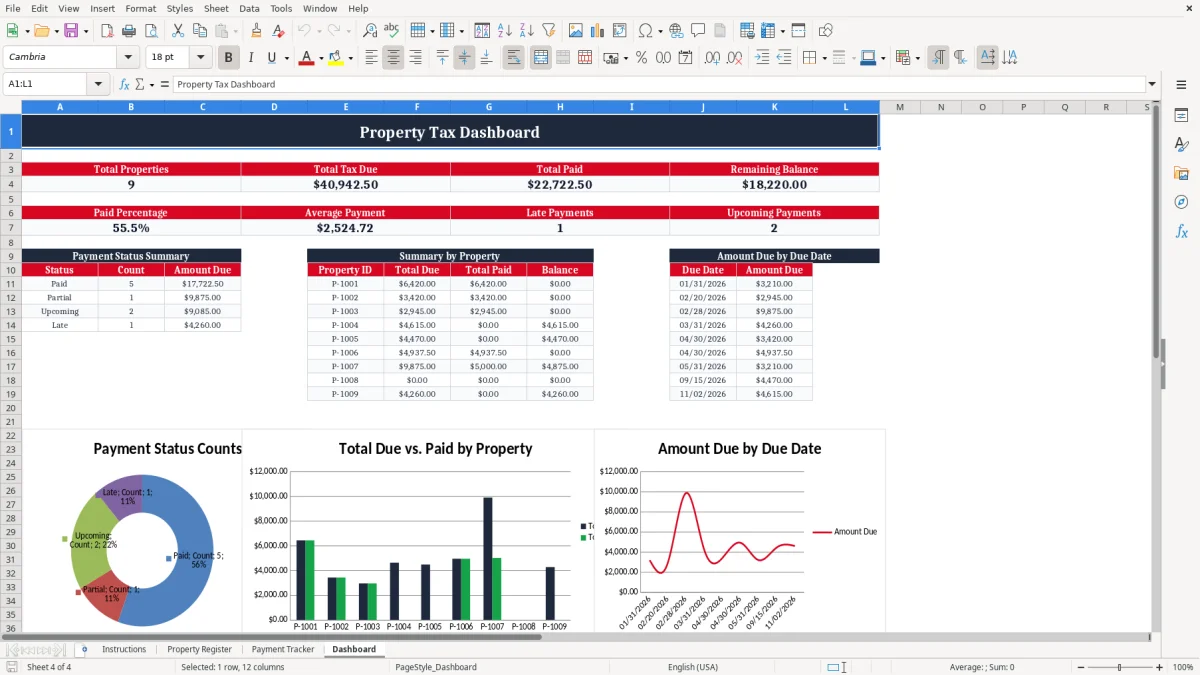
The Dashboard sheet turns detailed payment records into a concise overview of property tax activity. Rather than reviewing every row each time, users can check headline totals, status counts, property summaries, and charts to understand the overall position of their tax obligations. Dashboard information can help answer practical questions such as how much has been paid, how much remains outstanding, which items are upcoming, and whether any records are late or partial.
For users with several properties, the per-property summary makes it easier to compare obligations and identify locations with larger balances or more frequent installments. The charts provide a visual way to review activity, which can be helpful during bookkeeping, budget planning, or a periodic portfolio review. Since the dashboard depends on the underlying Property Register and Payment Tracker data, accuracy begins with consistent input.
Use a unique Property ID for every property, enter each installment as a separate record, and avoid changing calculated cells unless you understand the workbook formulas. If a property changes ownership, a tax authority sends a corrected bill, or an amount is adjusted, update the source record carefully and preserve supporting documentation. The dashboard is intended to support awareness and organization, not to make tax decisions or determine legal compliance.
Local tax offices may apply different rules for due dates, penalties, exemptions, appeals, escrow arrangements, and installment plans. Confirm those details directly with the relevant authority. Regular dashboard reviews can nevertheless reduce the risk of overlooked obligations by bringing important records into one view.
A weekly, monthly, or pre-deadline review routine can make the tracker more valuable over time and help keep payment information current. The summary is especially useful when coordinating multiple properties or preparing information for bookkeeping.
A property tax payment tracker works best when it becomes part of a repeatable record-keeping routine. Begin with clean property information in the Property Register. Give each property a clear, unique Property ID and check that the owner name, address, and tax authority are entered consistently.
When a tax bill arrives, create the payment record promptly and compare the entered amount and due date with the official notice. If the tax authority divides a bill into installments, record each installment separately rather than combining them into one approximate entry. After paying, enter the payment date and amount paid, then review the resulting balance and status.
This habit keeps the dashboard useful and makes it easier to identify missing information. Do not overwrite formulas or calculated fields with manual text unless the workbook instructions specifically call for it. Pale-yellow cells indicate intended input areas, while calculated areas should update from the source data.
Use the notes area, where available, to record relevant context such as a confirmation number, amended bill, escrow payment, or follow-up needed. Store receipts and official notices in a secure location and use the workbook as an index or summary rather than as the only evidence of payment. At the end of each tax year, review unpaid, partial, and late records and confirm that balances are explained.
You may also save an archival copy before beginning a new reporting period. Because tax practices differ across jurisdictions, verify exemptions, penalties, deadlines, payment methods, and installment rules with the local tax authority or a qualified professional.
With consistent updates and periodic reviews, this Excel template can provide a clear, practical overview of property tax responsibilities without replacing official guidance. A simple recurring review schedule can help prevent outdated information and improve confidence in the records.
Homeowners, landlords, real estate investors, and property managers can use it to organize property tax bills and payments for one or more properties.
Yes. Add each property to the Property Register and use the corresponding Property ID for payment records on the Payment Tracker sheet.
Yes. Enter each installment as a separate row with its own due date, amount due, payment date, and amount paid.
The template evaluates payment information and due dates to identify upcoming, paid, late, and partial payments.
Pale-yellow cells are intended for user input. Calculated cells and dashboard values should generally not be overwritten.
Dates use MM/DD/YYYY formatting, and monetary values use U.S. dollar formatting with two decimal places.