Tithe Offering Excel – Free Template (2026)
0
Free download
Create invoices, store customer records, track payments, balances, statuses, and aging with a three-tab XLSX invoice database workbook.


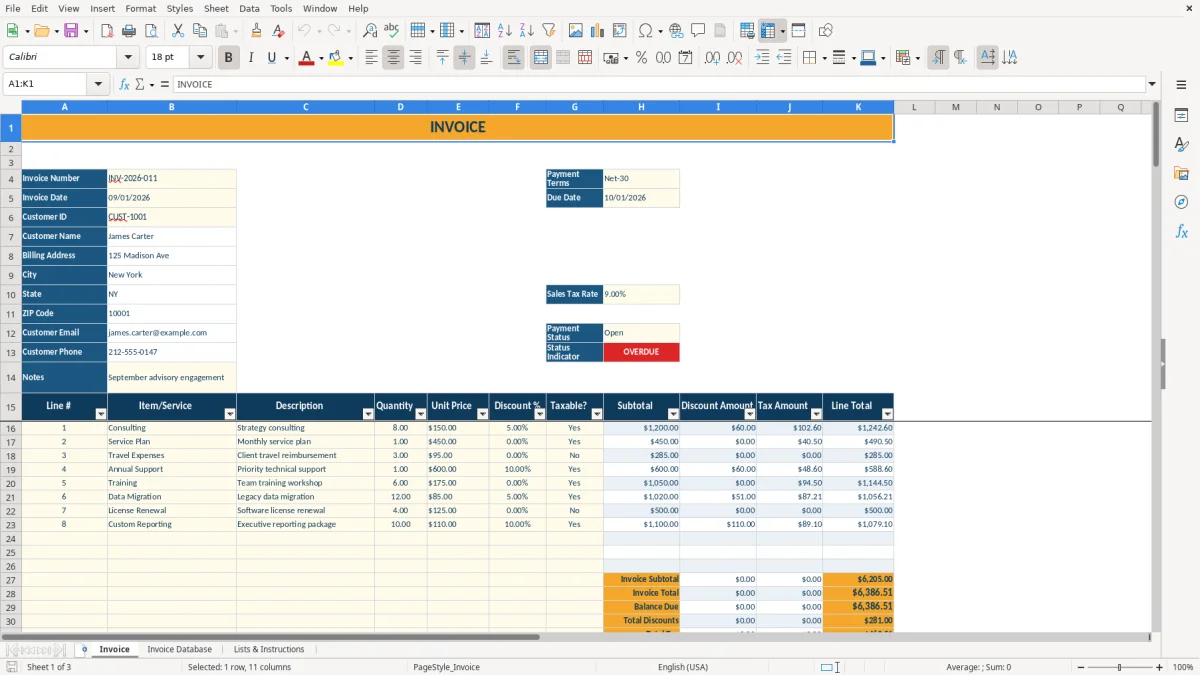
This invoice database workbook creates customer invoices, calculates line totals, discounts, sales tax, and invoice totals, then records payment activity in a searchable register. It contains three tabs: Invoice, Invoice Database, and Lists & Instructions, with space for 100 customer records and 100 database invoice rows.
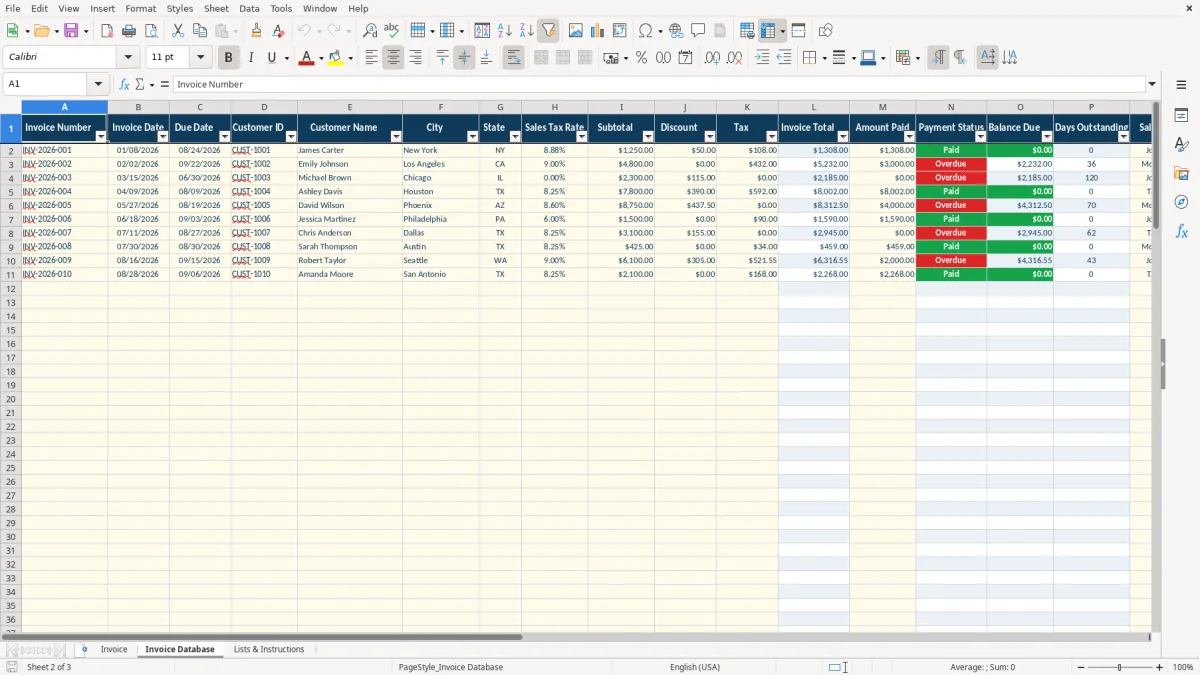
Use the Invoice tab to prepare a document for one customer at a time. The Invoice Database tab keeps invoice numbers, dates, customer details, amounts, payment status, balances, days outstanding, sales representatives, payment methods, and notes in one structured register.
A small service company can use this workbook when it needs a presentable invoice and a basic accounts receivable register without keeping customer details in several separate files. The Invoice tab is designed for one document at a time, while the Invoice Database stores the broader billing history.
A consultant can select CUST-1001, enter a consulting line with a quantity of 8 and a unit price of $150.00, and let the worksheet calculate the $1,200.00 subtotal before discount and tax. The sample workbook also shows a second service line, which demonstrates how recurring plans and project work can appear on the same invoice.
An office manager at a contractor can use the register after sending each invoice. The database includes invoice date, due date, customer, city, state, subtotal, discount, tax, invoice total, amount paid, sales representative, payment method, and notes. That is enough detail to review a customer account without reopening every invoice.
Bookkeepers can use the Invoice Database during a weekly collection review. The Payment Status column identifies Open, Paid, or Overdue records, while Balance Due and Days Outstanding show which accounts still require attention.
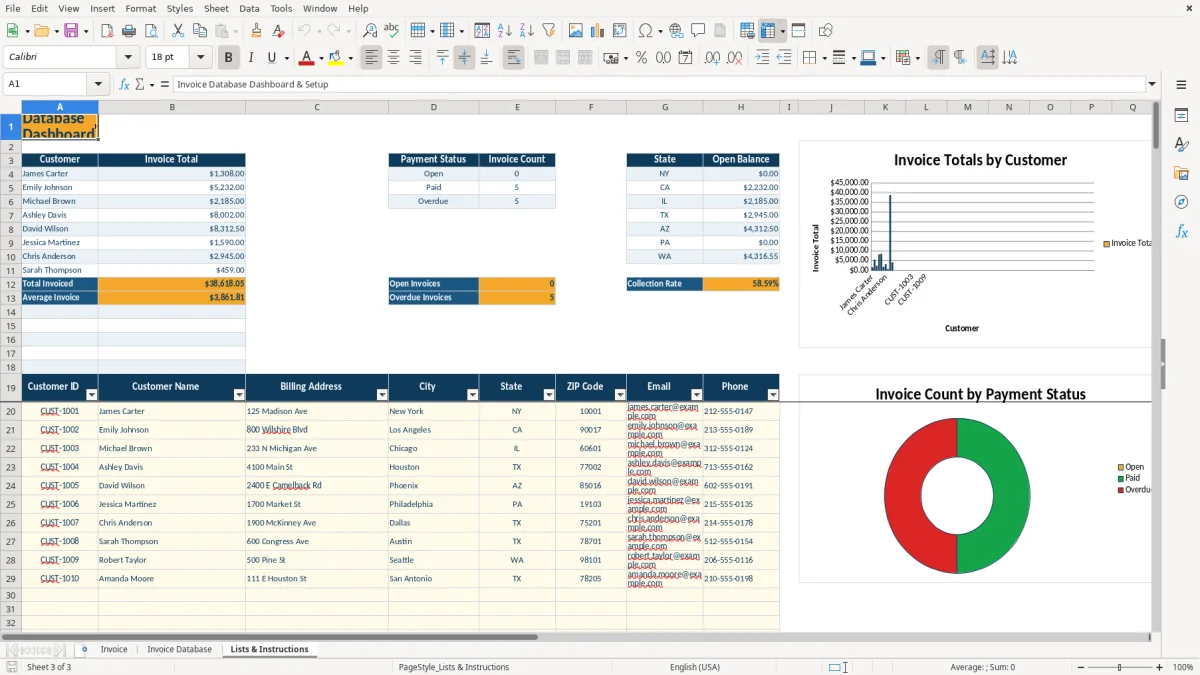
The Lists & Instructions tab adds a management view rather than another invoice form. It summarizes invoice totals by customer, counts records by payment status, and groups open balances by state. The three charts make those same ranges easier to scan during a billing meeting.
The workbook uses formulas rather than requiring you to calculate every amount manually. On the Invoice tab, the customer ID in B6 retrieves customer fields from the Lists & Instructions range with VLOOKUP. The lookup fills the customer name, billing address, city, state, ZIP Code, email, and phone fields.
For each populated line from row 16 through row 115, Subtotal is Quantity multiplied by Unit Price. Discount Amount is calculated from the discount percentage, and Tax Amount is calculated only when Taxable? is set to Yes. Line Total combines the discounted amount and tax amount.
For example, the sample consulting line uses 8 units at $150.00 and a 5% discount. Its $1,200.00 subtotal produces a $60.00 discount before the applicable tax calculation. Treat the sales tax rate as an editable workbook input; the file does not determine whether a transaction is taxable or establish a current state rate.
In Invoice Database, Invoice Total is calculated from subtotal, discount, and tax. Balance Due is Invoice Total minus Amount Paid, with a floor of zero. Payment Status returns Paid when the balance is zero, Overdue when the due date has passed, and Open otherwise.
Days Outstanding counts days from the due date while a balance remains. The register has prepared rows 2 through 101, and the customer list has records through row 119. Because the workbook is delivered in XLSX format, check formula recalculation in your spreadsheet application after changing dates or payment amounts.
The most expensive errors in a billing register usually begin with inconsistent identifiers. If you type a customer name instead of selecting the correct Customer ID, the Invoice tab may not retrieve the matching address and contact fields. Use the available customer dropdown and keep each ID unique.
Another problem occurs when an invoice is prepared but never entered into Invoice Database. The customer may receive a document, yet the dashboard will not include its total, status, or open balance. A simple control is to compare the latest invoice number on the Invoice tab with the register before closing the billing session.
Payment records also need discipline. Entering $1,308.00 as Amount Paid for a $1,308.00 invoice correctly produces a zero balance and Paid status in the sample structure. Entering a partial payment without updating the register leaves Balance Due and Days Outstanding wrong, which can lead to an unnecessary collection email.
Applying Taxable? as Yes to a non-taxable service, or entering 9% as 9 instead of 0.09, materially changes the tax calculation. The workbook formats rates as percentages, so enter a percentage value such as 9% or 0.09 rather than a whole-number 9.
Do not overwrite formula columns while correcting an invoice. On Invoice, the calculated fields are H through K for the line area; in Invoice Database, the calculated fields include Invoice Total, Payment Status, Balance Due, and Days Outstanding. Keep source inputs and calculated outputs separate so later reviews remain traceable.
Use the workbook at a fixed point in your billing cycle instead of waiting until several invoices are overdue. A practical routine is to prepare invoices, record them in Invoice Database, and review the dashboard during the same weekly administrative block.
Use the existing dropdowns to reduce spelling differences. Select payment terms from Due on receipt, Net-15, Net-30, or Net-45; select payment methods from ACH, Credit Card, Check, or Bank Transfer; and use Yes or No for taxable lines.
This file is a practical register for the prepared 100 invoice rows and customer records supplied in the workbook. If your team needs more capacity, automatic invoice delivery, bank-feed matching, user permissions, or an audit history, move the process to dedicated accounting software or an invoicing platform.
Until then, save dated copies of the XLSX file and avoid changing the formula columns. That preserves the calculations and gives you a clear month-by-month record of invoice totals, collections, balances, and aging.
The workbook contains Invoice, Invoice Database, and Lists & Instructions. Invoice prepares one invoice, Invoice Database records the billing register, and Lists & Instructions contains the customer list, summary calculations, dashboard metrics, and three charts.
Select a Customer ID in cell B6 on the Invoice tab. VLOOKUP retrieves the matching customer name, billing address, city, state, ZIP Code, email, and phone from the customer records on Lists & Instructions.
The register calculates Invoice Total, Payment Status, Balance Due, and Days Outstanding. It also stores invoice dates, due dates, customer details, sales tax rate, subtotal, discount, tax, amount paid, sales representative, payment method, and notes.
The customer list is prepared through row 119, providing 100 customer-record rows beginning at row 20. Invoice Database is prepared through row 101, providing 100 invoice-register rows beginning at row 2.
Yes. The sales tax rate on the Invoice tab is an editable percentage input, and Payment Status uses an Open, Paid, or Overdue dropdown. Review the calculated tax and balance before recording the invoice in the database.