Crypto Portfolio Excel – Free Template (2026)
5
Free download
Track eligible HDHP claims, cumulative spending, remaining maximum, and plan-year progress for a household or benefits administrator.


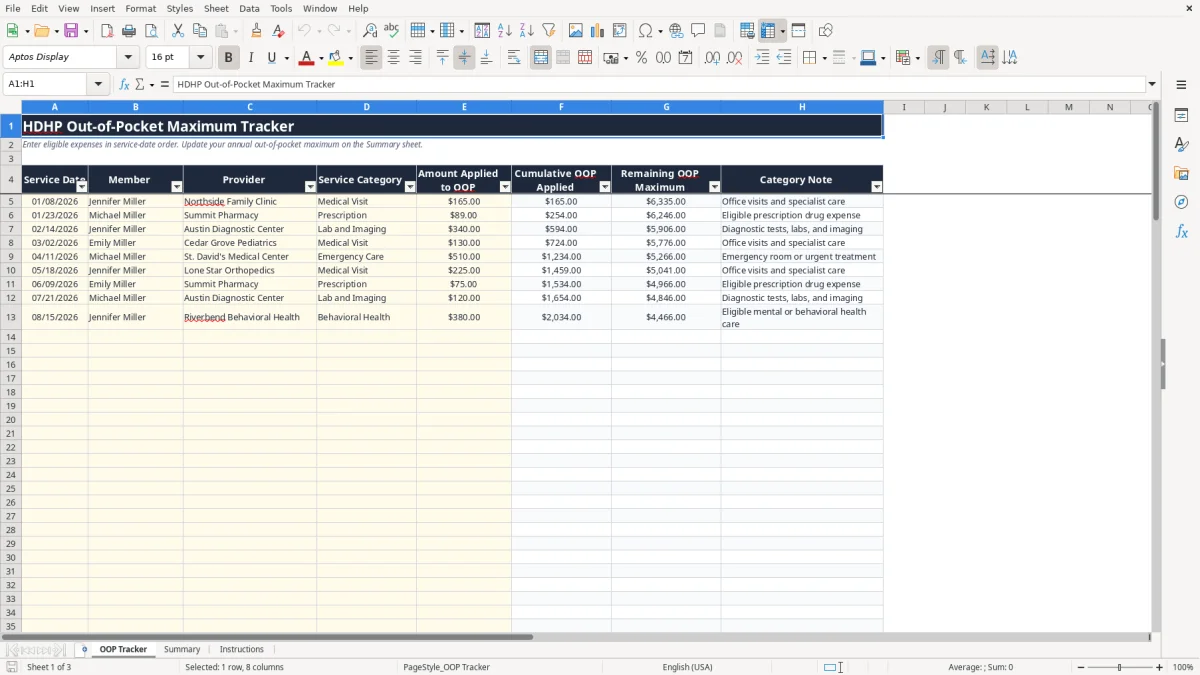
This HDHP out-of-pocket maximum tracker records eligible medical expenses by service date, member, provider, category, and amount applied. It calculates cumulative spending, remaining exposure, average claim, percentage of the maximum reached, and current status for up to 100 prepared entries.
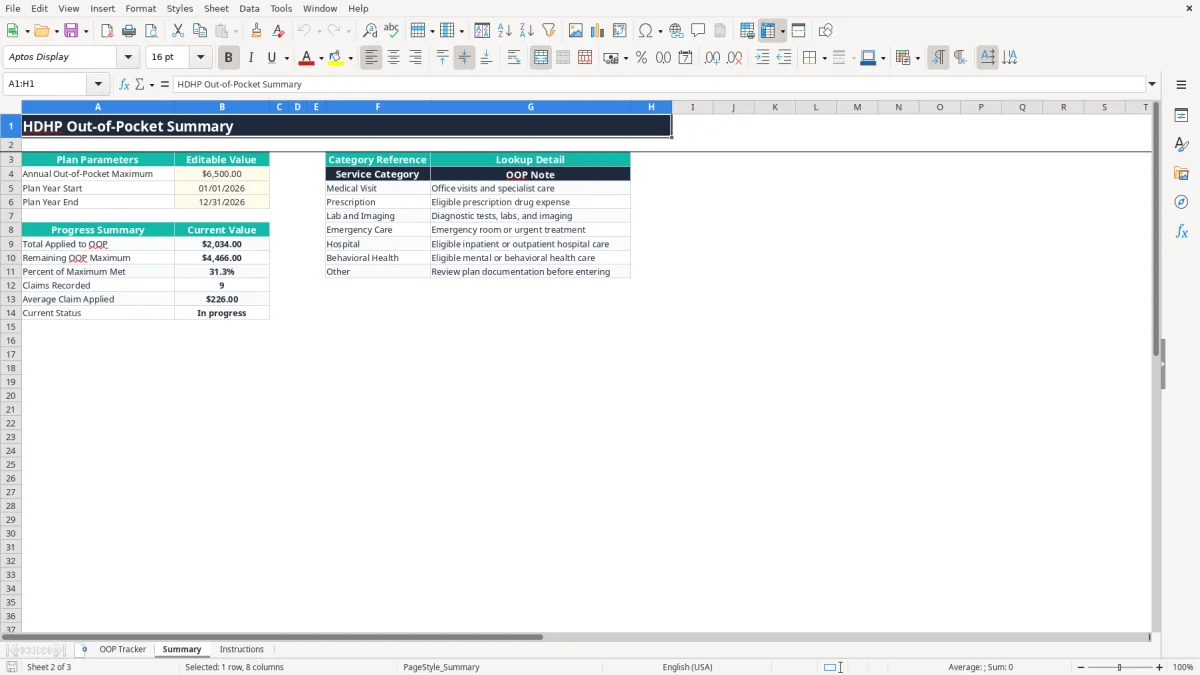
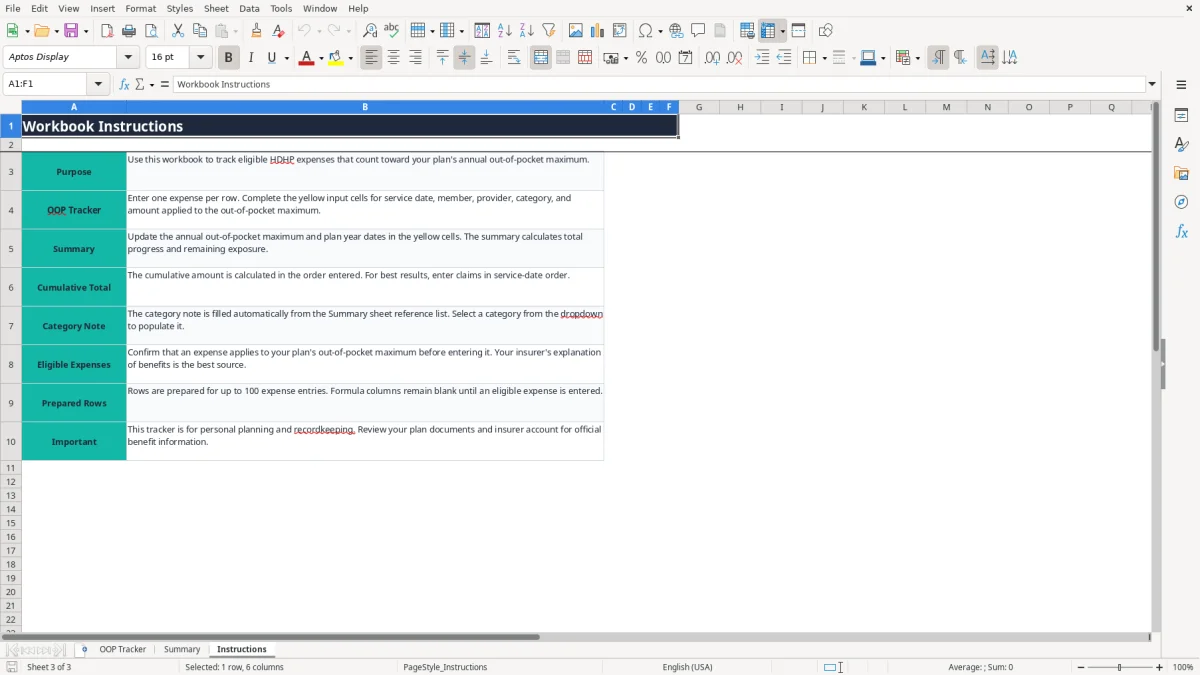
Use the yellow input cells on the OOP Tracker tab for each claim, then enter your plan's annual maximum and plan-year dates on Summary. The workbook includes OOP Tracker, Summary, and Instructions tabs; image 1 shows the transaction register, image 2 shows the progress summary, and image 3 explains the workflow.
An employee with a family HDHP often needs a running total after an emergency-room visit, a prescription refill, or a child's diagnostic test. A benefits coordinator may also use a copy during open enrollment or a midyear benefits question, but this workbook is designed for personal planning and recordkeeping rather than official claims adjudication.
Consider a household with Jennifer, Michael, and Emily Miller. The populated OOP Tracker begins with a $165 medical visit, an $89 prescription, and a $340 lab and imaging charge. Those three rows produce $594 of cumulative applied spending before later emergency-care, hospital, or pharmacy claims are added.
The practical moment to update the file is when your insurer posts an Explanation of Benefits, not simply when you swipe a card. The Amount Applied to OOP column should reflect the amount the plan says counts toward the maximum; a provider bill may include charges that do not count.
Enter claims in service-date order because the workbook's cumulative formulas add each row to all previous amounts. With a $6,500 example maximum, adding a $510 emergency-care claim after $594 raises the running total to $1,104 and leaves $5,396 before the cap.
This tracker is especially useful when several family members receive care from different providers. A self-employed household comparing an HDHP with an HSA plan can see whether a year with surgery, behavioral health care, and recurring prescriptions is approaching the limit.
Use the Summary status as a planning signal: it shows No expenses recorded, In progress, or Maximum reached. It does not prove that a claim is covered, that every family member has met an individual limit, or that the insurer has processed every charge correctly.
For 2026, IRS guidance sets the annual out-of-pocket expense limit for an HSA-qualified HDHP at $8,500 for self-only coverage and $17,000 for family coverage. The 2026 minimum deductible is $1,700 self-only and $3,400 family. Your plan's certificate controls the amount you should enter in Summary B4, so do not replace the plan figure with an IRS limit automatically.
The out-of-pocket maximum generally concerns in-network covered deductibles, copayments, and coinsurance. Premiums, noncovered services, balance-billed amounts, and expenses excluded by the plan generally do not move you toward the limit. The insurer's Explanation of Benefits identifies the amount applied, which is why column E is labeled Amount Applied to OOP rather than Amount Paid.
An HSA-qualified plan must satisfy the applicable deductible and out-of-pocket requirements, but tracking expenses does not establish HSA eligibility. For 2026, the HSA contribution limits are $4,400 for self-only coverage and $8,750 for family coverage, with a $1,000 catch-up contribution for an eligible person age 55 or older. Those are contribution rules, not maximum-spending values.
A $6,500 amount in the workbook is a populated example and an editable plan parameter. If your family plan states a $17,000 2026 maximum, enter $17,000 in B4; the formulas in the OOP Tracker and Summary will recalculate from that value.
Retain the EOB, receipt, prescription record, and relevant provider bill with the spreadsheet. The IRS generally expects tax records to be retained for 3 years, and some situations call for up to 7 years; health-plan documentation may need to be kept longer for disputes or reimbursement support.
This file has date validation from 01/01/2000 through 12/31/2100 and nonnegative decimal validation for amounts. It does not validate coverage, detect duplicate claims, or connect to your insurer, so review eligibility before entry.
The most expensive mistake is entering the provider's billed amount instead of the amount applied to the out-of-pocket maximum. Suppose a hospital bills $4,000, the insurer allows $2,600, and your EOB assigns $900 to deductible and coinsurance. Entering $4,000 overstates progress by $3,100 and can make you believe the maximum is nearly reached when it is not.
Patients often record a $75 payment made at the pharmacy even when the EOB assigns $50 to the maximum and $25 to a noncovered item. That single error seems small; 20 similar prescriptions would overstate the tracker by $500 and distort the remaining amount shown in column G.
Another failure occurs when a family member's claim is entered twice: once from the card transaction and again from the finalized EOB. The workbook has no duplicate-detection formula or conditional formatting, so duplicate review must happen against claim numbers, service dates, providers, and amounts.
Do not sort only one column. Columns F, G, and H depend on the row's service date, category, and amount, so sorting dates without the associated member, provider, and expense fields can attach a $510 emergency-care amount to the wrong person or category.
Do not overwrite formulas in F5:H104. If F is replaced with a typed total, later rows no longer provide a reliable cumulative figure; if H is replaced with a note, the category reference stops updating when D changes.
Assume your actual applied total is $5,900 against a $6,500 maximum. A mistaken $700 hospital entry makes the sheet show $6,600, or a reached maximum, even though $600 remains. You could budget for fully covered care and then face $600 of additional eligible cost, plus any noncovered or out-of-network charges that the maximum does not protect.
Use the sheet as a reconciliation aid, not as permission to stop paying a bill. Compare every material row with the insurer account and correct the source entry before relying on the Summary status.
The file works best when you update it at a fixed point in your existing financial routine. Set aside 10 minutes every Friday after checking insurer statements, or update it on the same day you reconcile the household checking account. A regular trigger prevents a January claim from being forgotten until December.
For a family entering 4 claims each month, the 100 prepared rows provide more than two years of row capacity at that pace, although the workbook is organized around one plan-year tracker. Start a new clean copy for a new plan year rather than mixing 2026 claims with another year's maximum.
Use the category dropdown instead of typing labels manually. The seven choices feed the Category Note through VLOOKUP, while the Summary formulas use the entered amounts in E5:E104. Keep the yellow cells for inputs and leave calculated columns intact.
When the household reaches 50 or more claims, perform a monthly tie-out: count EOBs, match dates and providers, and compare the spreadsheet total with the insurer's accumulator. This is more dependable than trusting a single status label.
Move to a benefits portal export or a structured health-account system when multiple plans, coordination of benefits, or hundreds of claims make manual matching burdensome. Excel remains appropriate for a household with roughly 4 to 8 monthly EOBs; it becomes risky when several people edit the file or when duplicate control requires an audit trail.
It calculates cumulative OOP applied, remaining OOP maximum, percentage of the maximum met, claim count, average claim applied, and current status. The calculations use the amounts entered in column E and the maximum entered in Summary B4.
Enter the amount your insurer's Explanation of Benefits says was applied to the out-of-pocket maximum. Do not automatically enter the provider's billed charge, your payment, or the full allowed amount.
Yes. The $6,500 value is a populated example. Replace Summary B4 with the annual maximum stated in your plan documents; the remaining balance and progress calculations update from that value.
The OOP Tracker has prepared operational rows 5 through 104, allowing up to 100 expense entries. Formula columns remain blank until the relevant service date and amount are entered.
Column H uses a VLOOKUP based on the category selected in column D. Select one of the seven dropdown categories, such as Prescription or Hospital, rather than entering a different label.
No. It is a personal planning and recordkeeping tool. Your insurer's accumulator, Explanation of Benefits, and plan documents are the official sources for covered expenses and the amount remaining.