TSP Contribution Allocation Excel – Free Template (2026)
0
Free download
Track essential expenses, a six-month savings target, monthly contributions, withdrawals, progress, and projected completion in Excel.


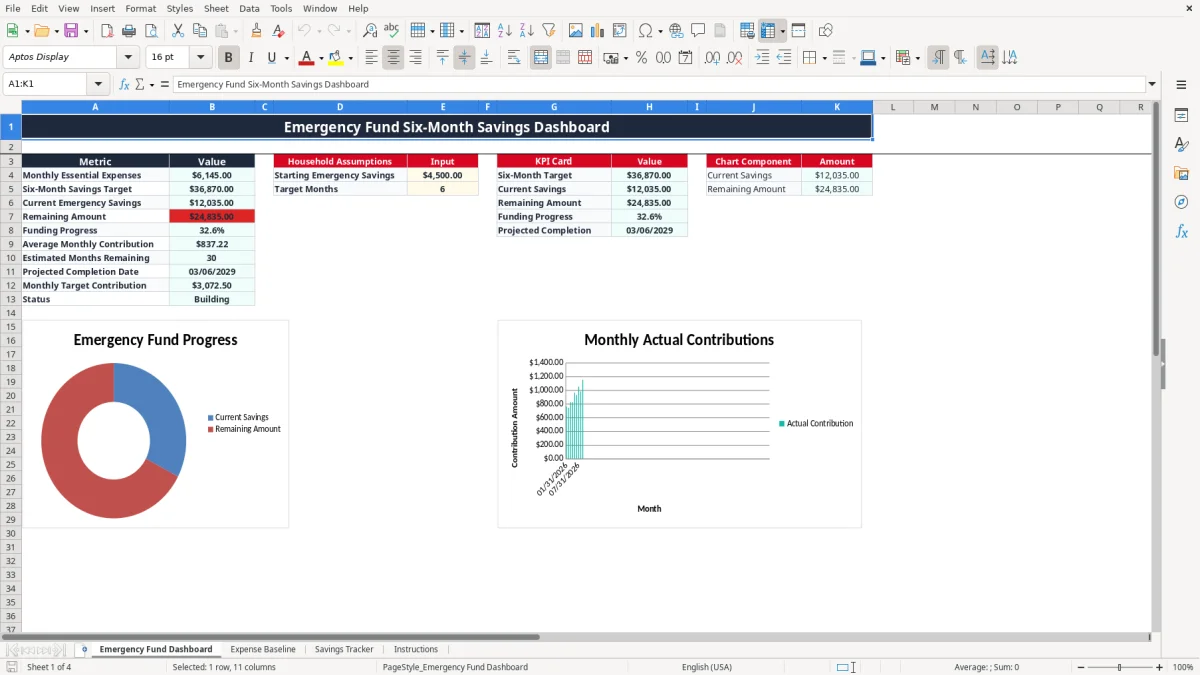
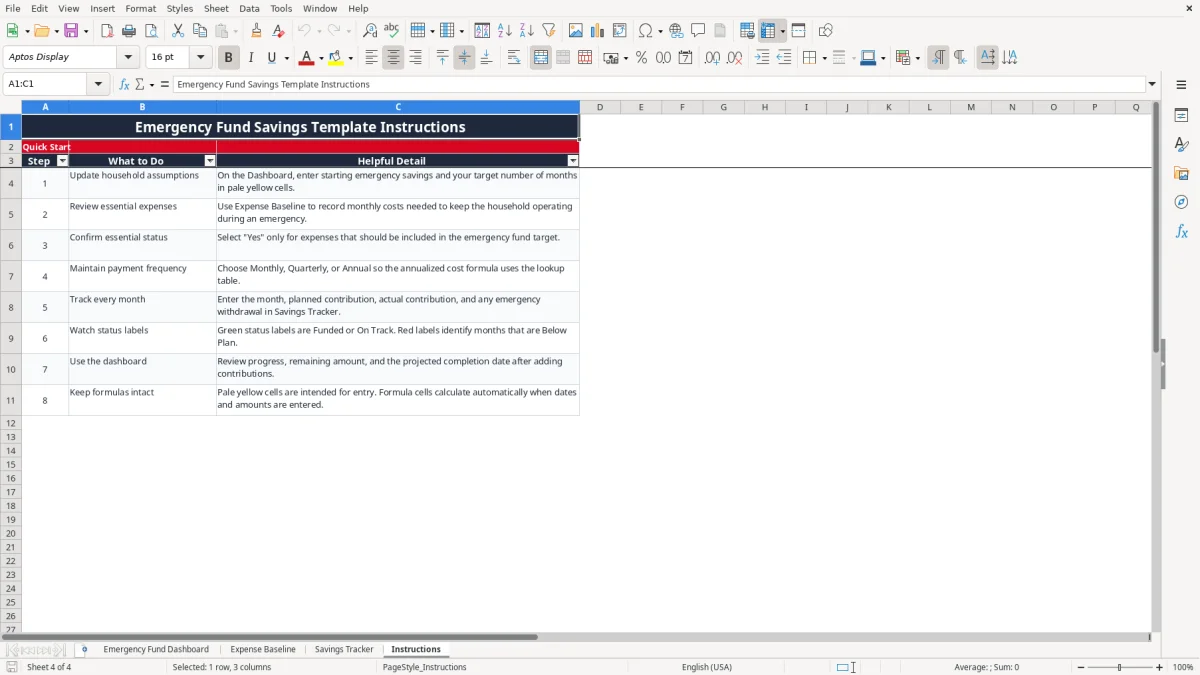
This emergency fund six-month savings Excel template calculates the cash reserve you need from monthly essential expenses, tracks contributions and withdrawals, and shows your funding progress. It includes an Emergency Fund Dashboard, Expense Baseline, Savings Tracker, and Instructions tab.
Enter starting savings and your target months on the dashboard, then mark each expense as essential or nonessential. The workbook calculates the target, remaining amount, average contribution, estimated completion date, and status while you record up to 100 expense or savings rows.
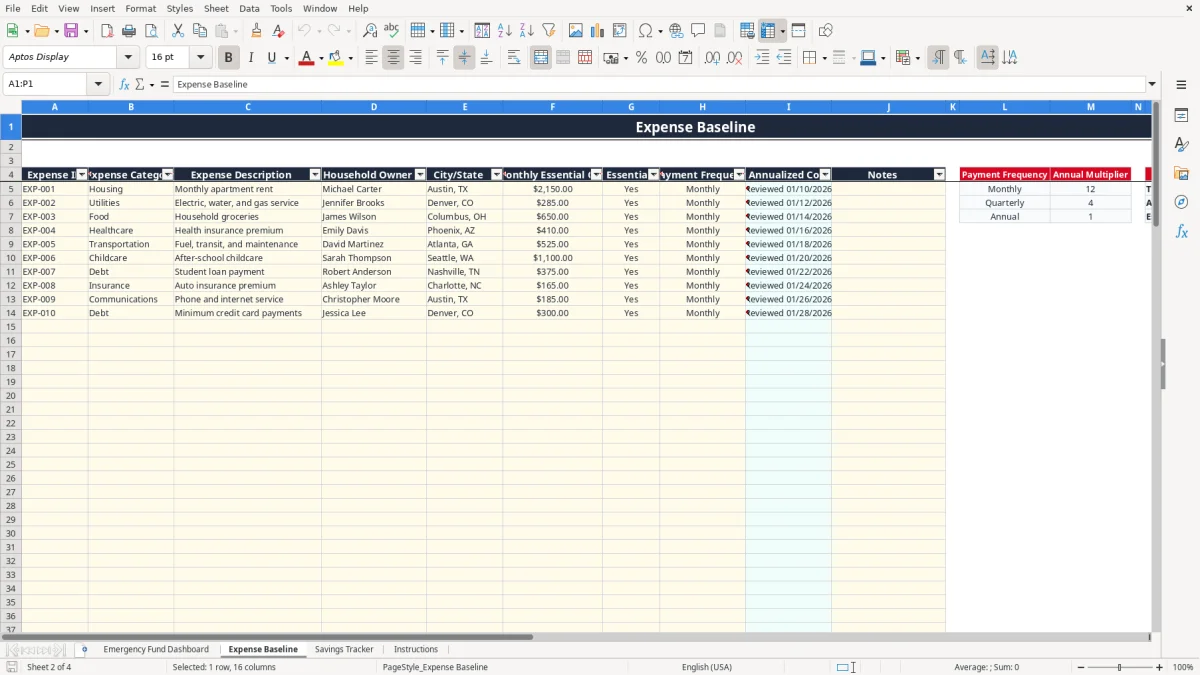
Image 1 shows the Emergency Fund Dashboard with summary metrics, household inputs, KPI cards, and chart components. Image 2 shows the Expense Baseline columns for category, description, owner, location, monthly cost, essential status, payment frequency, annualized cost, and notes.
A household with two incomes can use this workbook during a monthly budget meeting to decide how much cash should remain available if one paycheck stops. A sole proprietor can also use it personally, but do not mix this household reserve with business operating cash or a tax account.
Start with expenses that keep the household operating: rent or mortgage, utilities, groceries, insurance, transportation, and required debt payments. In the populated example, monthly apartment rent is $2,150, utilities are $285, and groceries are $650. Those figures are examples in the file, not a recommendation for your household.
If those three items were the only essential costs, the monthly baseline would be $3,085 and a six-month target would be $18,510. The dashboard performs this type of calculation from the rows marked Yes, so you can add medical premiums, child care, or a car payment when those costs are genuinely necessary.
Update the Expense Baseline after a lease renewal, insurance change, annual premium payment, or major move. Review Savings Tracker after each transfer into the emergency account and immediately after a withdrawal.
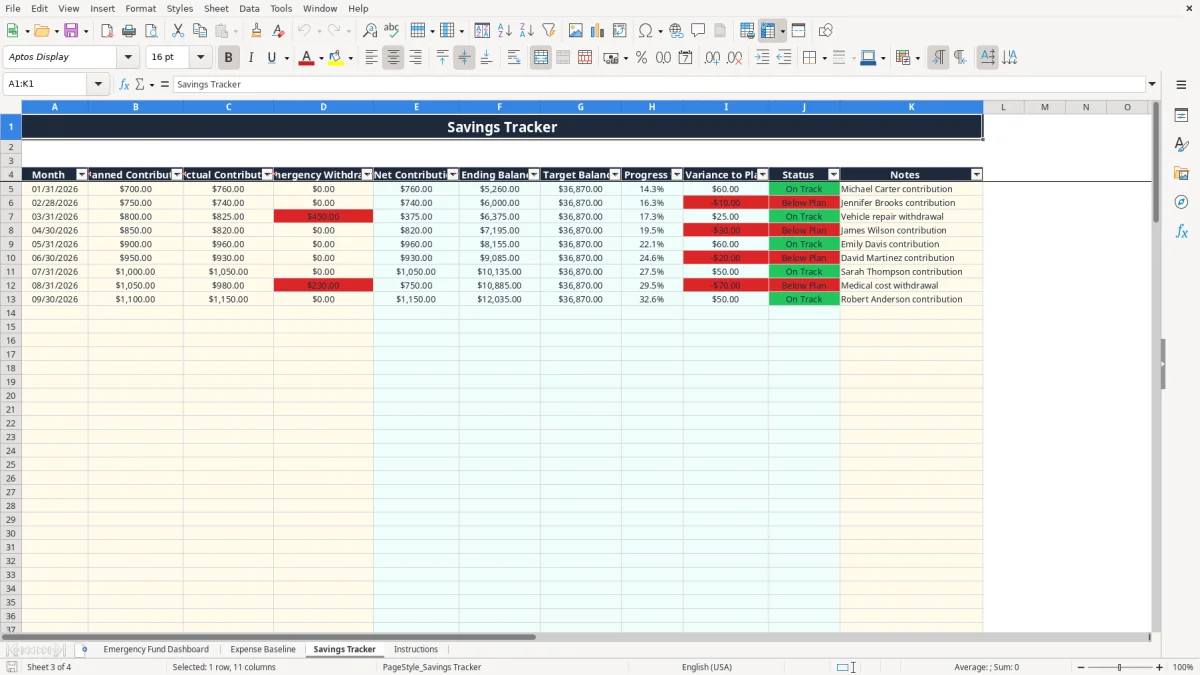
Image 3 shows the Savings Tracker layout: Month, Planned Contribution, Actual Contribution, Emergency Withdrawal, calculated Net Contribution, Ending Balance, Target Balance, Progress %, Variance to Plan, Status, and Notes. A household planning $700 per month should record the planned amount even when the actual transfer is $760; the variance then shows $60 above plan.
Freelancers, contractors, and hourly workers benefit from the same view because their deposits fluctuate. If a $450 vehicle repair is paid from the reserve, enter it as an Emergency Withdrawal rather than reducing the contribution to hide the event. That preserves the history of what happened and shows the effect on the projected completion date.
A six-month reserve is a planning choice, not an IRS requirement. The workbook lets you enter any whole-number target from 1 through 120 months, so you can use three months for a dual-income household with stable jobs or six months for a single-income, commission-based, or self-employed household.
Mark only costs needed to keep the household functioning during an interruption. The Expense Baseline dropdown restricts the answer to Yes or No. Its monthly-cost column feeds the dashboard's SUM formula, while the annualized-cost formulas use VLOOKUP against the payment-frequency multipliers: 12 for Monthly, 4 for Quarterly, and 1 for Annual.
For example, a $1,200 quarterly insurance payment has an annualized cost of $4,800, but it should not automatically be treated as a $1,200 monthly expense. Enter the monthly essential amount you actually want included in the reserve target, and use payment frequency to document the billing pattern.
The six-month target equals monthly essential expenses multiplied by the target-month input. Current savings equals starting emergency savings plus the sum of Net Contribution in Savings Tracker. Net Contribution equals Actual Contribution minus Emergency Withdrawal, so a $900 deposit followed by a $450 withdrawal produces $450 of net growth.
The dashboard calculates progress as current savings divided by the target. Status is Not Started at zero, Building when savings are positive but below 75%, On Track at 75% or more, and Fully Funded when current savings reach the target. These are workbook labels, not federal standards.
Keep emergency savings liquid and separate from long-term investments. A $20,000 reserve in a volatile investment account can fall when you need it; this spreadsheet measures dollars available for the plan, not market value, interest, or investment risk.
The most expensive mistake is building the target from total spending instead of necessary spending. If monthly spending is $6,000 but only $4,000 keeps the household operating, a six-month target based on the wrong figure is $36,000 instead of $24,000. That extra $12,000 can delay debt repayment or retirement contributions for months.
Users often mark subscriptions, restaurant spending, gifts, and discretionary shopping as essential because those charges appear every month. The dashboard does exactly what the Yes selections tell it to do. Review the Essential? column line by line rather than relying on the category name.
Another error is entering an annual insurance bill as though it were a monthly cost. A $2,400 annual premium entered as $2,400 per month adds $14,400 to a six-month target. Use the frequency field and verify the monthly figure before trusting the dashboard.
When a repair or medical bill uses the reserve, some people reduce the next contribution to compensate. That hides the event and makes the savings history difficult to explain. Enter a $1,000 actual contribution and a $450 withdrawal separately; the calculated net contribution becomes $550, and the ending balance remains auditable.
The projected completion date uses the average of entered Net Contribution values. Early rows with unusually large deposits can make the forecast optimistic. If three months contain net contributions of $700, $750, and $50, the average is $500, not the $700 you may expect from your normal plan.
Do not delete formulas to make a status look better. Blank months, negative entries, or overwritten formulas can produce an inaccurate progress percentage and completion estimate. Keep the original file, and use a new copy when testing a different savings scenario.
Use the workbook on the same day you reconcile your checking account or receive the final paycheck of the month. A fixed appointment prevents the tracker from becoming a one-time exercise. For a household whose target is $18,510 and whose average net contribution is $750, the dashboard estimates about 19 months remaining when no further withdrawals occur.
Every three months, review the Expense Baseline for rent changes, insurance renewals, utility shifts, and household changes. A $300 monthly increase in essential costs raises a six-month target by $1,800, so postponing the review can leave the reserve short without an obvious error.
Enter data only in intended input cells and leave calculated columns intact. The workbook uses formulas such as SUM, AVERAGE, COUNTIF, IF, IFERROR, VLOOKUP, and EDATE; changing a formula can break the link between the expense baseline, tracker, and dashboard.
Move to a dedicated budgeting or banking system when several people need simultaneous access, transaction imports, account reconciliation, or audit history. Excel is the better choice for a single household that needs a transparent plan with 100 prepared entry rows, not a replacement for full personal-finance software.
It calculates monthly essential expenses, a target based on the target-month input, current savings, remaining amount, funding progress, average monthly contribution, estimated months remaining, projected completion date, monthly target contribution, and status.
Yes. Enter a whole number from 1 through 120 in Target Months on Emergency Fund Dashboard. Entering 6 produces a six-month target; entering 3 or 9 changes the calculation without changing the expense records.
The dashboard sums the Monthly Essential Cost values in Expense Baseline. Only rows with Essential? set to Yes should be included in the target, so review each selection rather than assuming every listed household expense belongs in the reserve.
Enter the amount in Emergency Withdrawal for the applicable month in Savings Tracker. The Net Contribution formula subtracts the withdrawal from Actual Contribution, and the Ending Balance rolls that net amount into the running savings balance.
The estimate uses the average of entered Net Contribution values and the remaining amount. A large deposit or a withdrawal changes that average, so the projected date can move even when the target itself has not changed.
Yes. Enter the planned amount for each month and the actual amount when it posts. The tracker compares them through Variance to Plan, while the dashboard uses the recorded contribution history to estimate the remaining months.