TSP Contribution Allocation Excel – Free Template (2026)
0
Free download
Track envelope budgets, allocations, expenses, balances, alerts, and monthly spending with four connected Excel sheets for household budgeting.


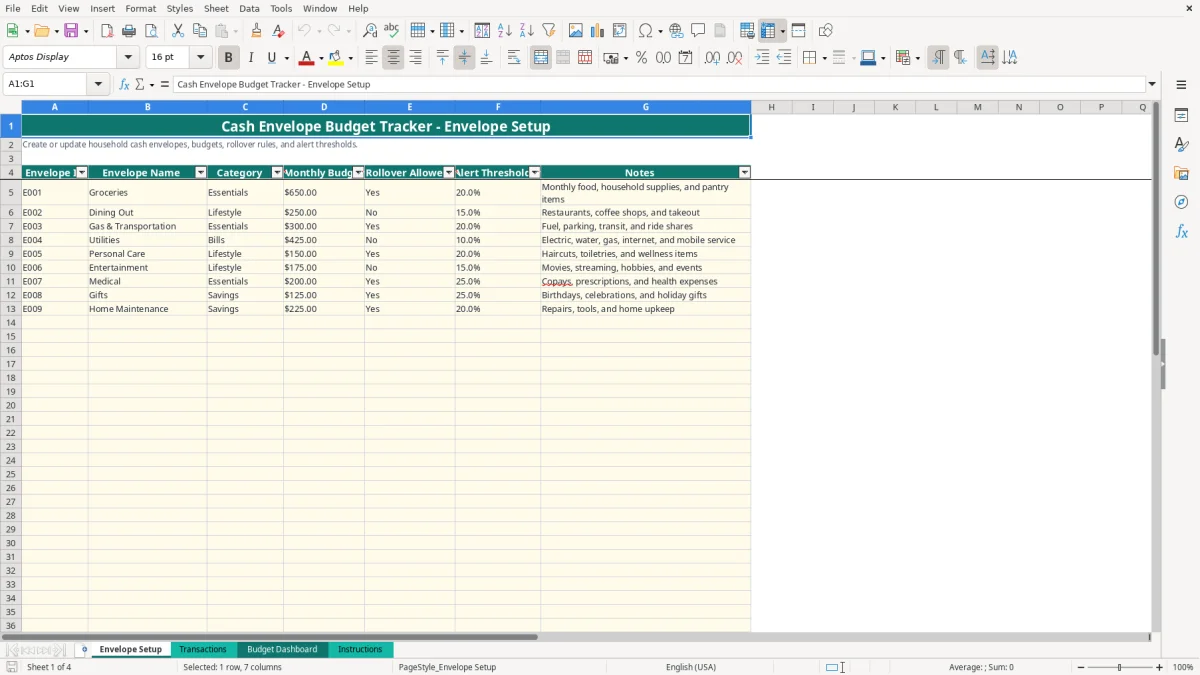
A cash envelope budget tracker Excel spreadsheet organizes household spending by envelope, records allocations and expenses, and shows what remains for the selected month. This workbook contains Envelope Setup, Transactions, Budget Dashboard, and Instructions tabs, with formulas that connect envelope IDs to monthly summaries and status alerts.
Use it for a physical cash system or a digital version that tracks debit cards, credit cards, bank transfers, and cash. The Transactions tab accepts positive amounts, while the transaction type determines whether the entry adds funding or reduces available cash.
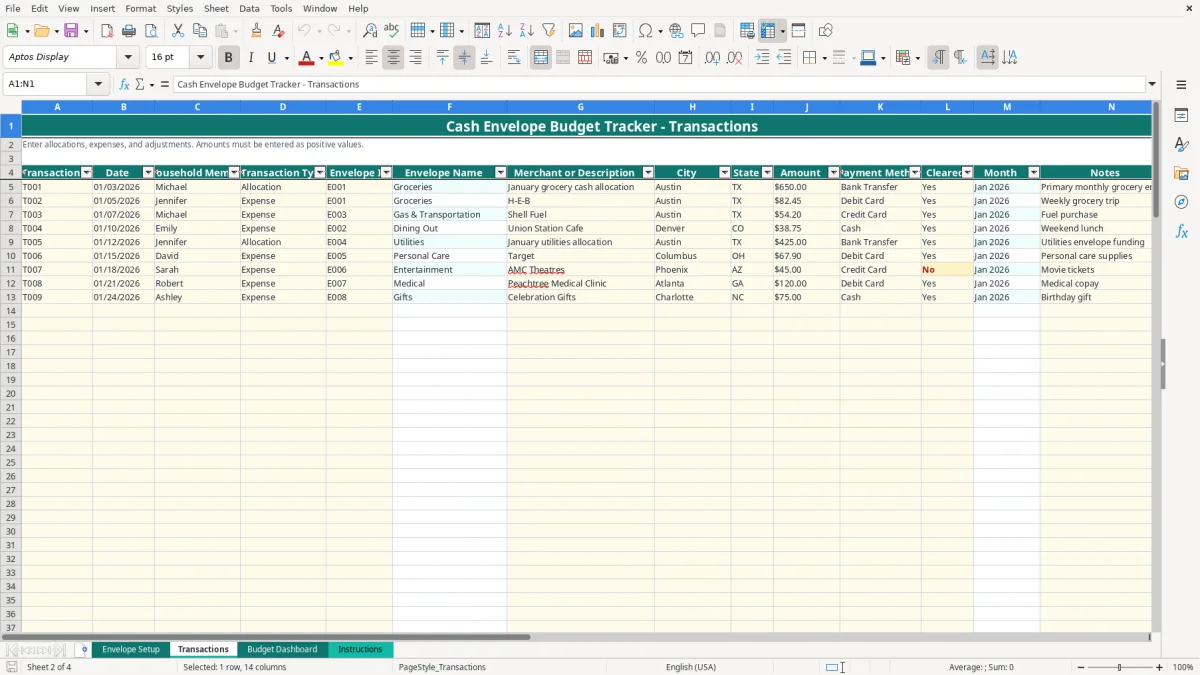
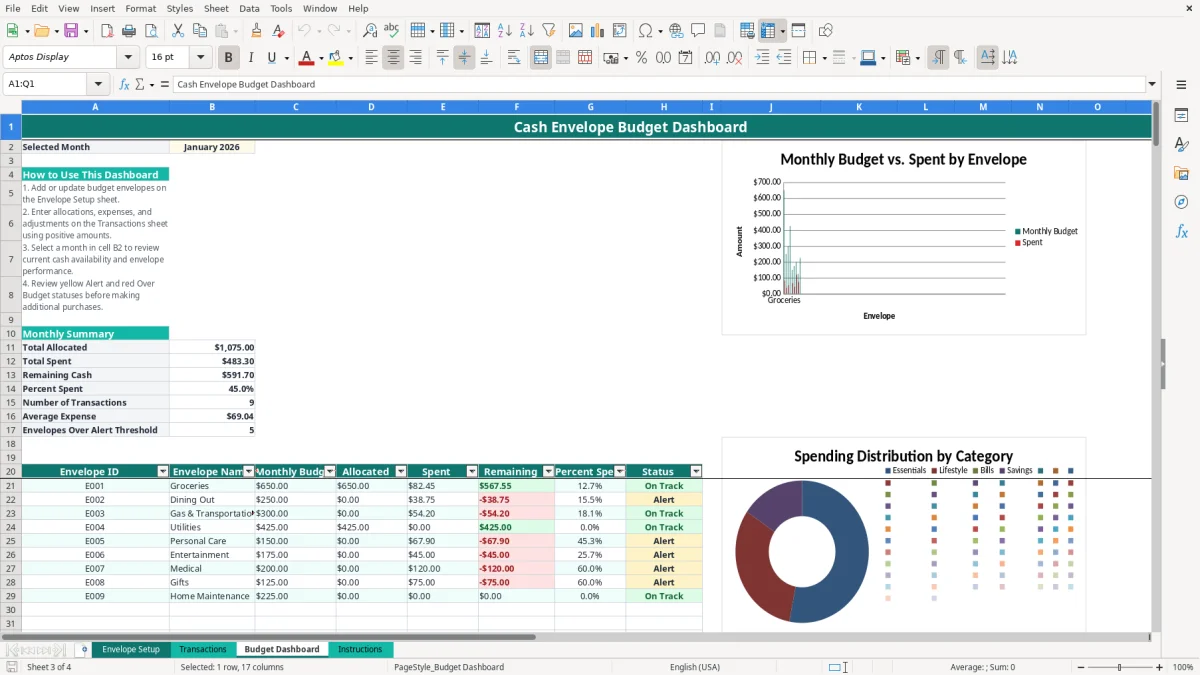
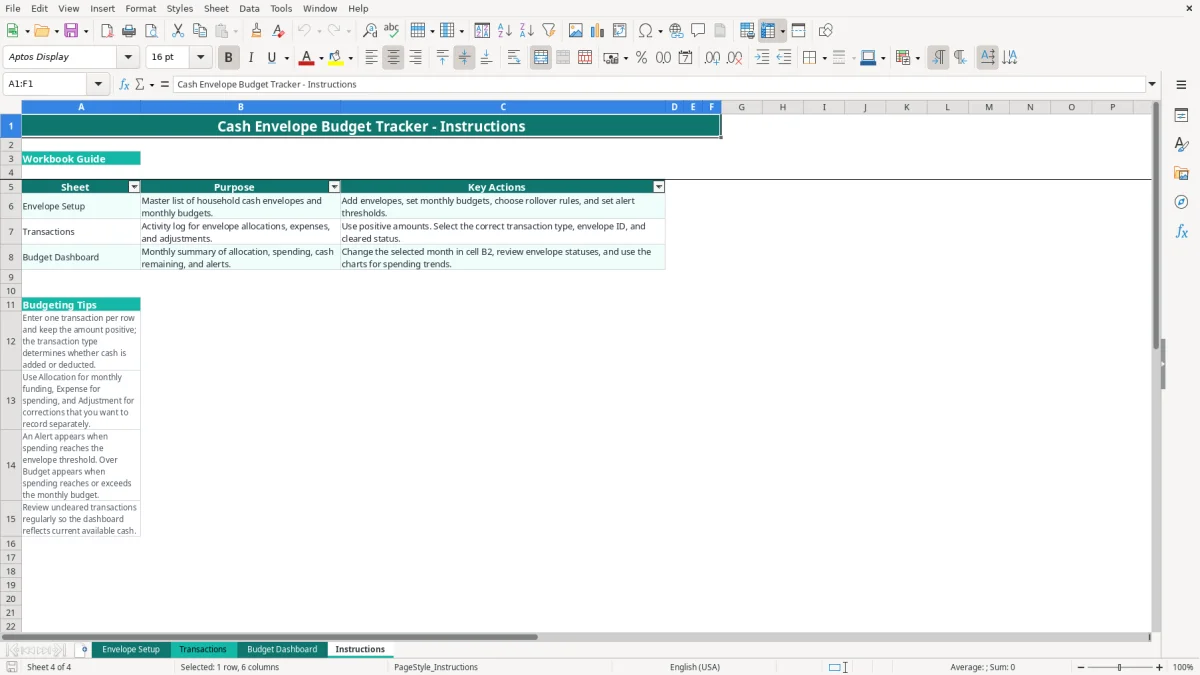
Image 1 shows the Envelope Setup tab with fields for envelope names, categories, monthly budgets, rollover choices, alert thresholds, and notes. Image 2 shows the transaction log; image 3 shows the monthly dashboard; image 4 shows the workbook guide.
A household using cash envelopes usually needs the tracker at three moments: when income arrives, when a purchase is made, and when the month closes. You can assign $650 to Groceries, $300 to Gas & Transportation, and $175 to Entertainment, then record each purchase against the correct envelope instead of relying on a bank balance that mixes every purpose together.
The workbook suits a couple with two incomes, a parent managing several allowance or activity categories, or a household that uses cash for some spending and cards for the rest. The Payment Method field includes Cash, Debit Card, Credit Card, and Bank Transfer, so you can preserve the envelope discipline even when the money never leaves a physical envelope.
Enter an Allocation when you fund an envelope. For example, if you assign $250 to Dining Out and $150 to Personal Care on the first payday, record two rows rather than one combined transfer. The dashboard can then compare funding with actual expenses for each envelope.
Record the date, household member, merchant or description, city, state, payment method, and amount. A $82.45 H-E-B grocery purchase belongs in the Groceries envelope, while a $54.20 fuel purchase belongs in Gas & Transportation. Selecting the Envelope ID lets the formula-filled Envelope Name column identify the category without retyping it.
Change the selected month in Budget Dashboard cell B2 and review the monthly summary. If a family allocated $1,800 and spent $1,420, Remaining Cash shows $380; the envelope table explains exactly where that balance sits. The category summary also separates Essentials, Lifestyle, Bills, and Savings, which is useful when you decide whether a shortfall came from necessities or discretionary spending.
This is a household planning tool, not a bank ledger or tax form. Its dashboard uses the selected month in B2 and the Month helper column on Transactions to total rows by transaction type and envelope ID. Entering a date of 01/05/2026 produces a month value based on the first day of that month, allowing the monthly formulas to group the entry consistently.
Total Allocated uses SUMIFS for rows marked Allocation. Total Spent uses the same approach for rows marked Expense, and Remaining Cash is calculated as allocated money minus spent money. If January contains $2,000 of allocations and $1,650 of expenses, the displayed remaining cash is $350 before considering any correction entries.
Every amount on Transactions must be positive. A $100 funding entry is recorded as Allocation for $100, while a $37.50 purchase is recorded as Expense for $37.50. The workbook's design uses the type field to distinguish additions from deductions; entering -$37.50 would reverse the intended logic and distort Percent Spent.
On Envelope Setup, Alert Threshold % accepts a decimal from 0 to 1. A threshold of 0.20 means the dashboard labels the envelope Alert when spending reaches 20% of its monthly budget, while spending at or above 100% is labeled Over Budget. With a $250 dining budget, a 20% threshold produces an Alert at $50, even though the envelope still has $200 available.
Rollover Allowed? is a setup field, not an automatic carry-forward calculation. If Groceries is marked Yes, you can use the Notes field or a new Allocation to reflect your household's carryover decision; the dashboard still reports the selected month's recorded transactions. For a strict cash system, reconcile the physical envelope or account balance before treating last month's remainder as available.
The most expensive failure is recording the right purchase in the wrong envelope. A $240 annual insurance payment entered under Utilities may make Utilities appear over budget while hiding the real pressure in Bills. The dashboard will calculate exactly what you entered, so a clean status color does not correct an incorrect classification.
Some users enter the monthly allocation as an Expense because money moved from checking to a cash wallet. That makes a $650 grocery allocation look like spending before the first grocery trip. If the household then records $82.45 at the store, the dashboard reports $732.45 spent against a $650 budget—a false overage of $82.45.
A cash envelope method often includes card purchases earmarked for the same category. Leaving a $54.20 fuel charge out of Transactions creates a misleading available balance. Three omitted $50 purchases over a month leave the dashboard overstated by $150, which can lead to a declined payment or an unnecessary transfer from savings.
A transaction dated 02/01/2026 falls into February, not January, even if the receipt was discovered during a January review. Likewise, changing an Envelope ID in Envelope Setup after transactions exist can cause the lookup to return Unassigned when the old ID no longer matches. That breaks the visible envelope name and makes the row harder to audit.
The Cleared? field does not remove a transaction from the dashboard. If you enter a $125 debit-card purchase but mark it No, the dashboard still includes it, because the formulas total by transaction type and month rather than cleared status. Treating the displayed balance as spendable cash before reconciling those rows can produce a second payment or an avoidable overdraft.
Duplicate entries are another practical problem. A receipt entered once by each household member inflates spending by the duplicate amount; five duplicated $30 purchases turn a manageable $150 discrepancy into a full $300 reporting error.
A spreadsheet works when you give it a fixed appointment. Set aside 10 minutes after the weekly grocery trip or every Friday evening, open Transactions, and enter receipts while the details are still available. A household with 20 purchases a week will spend far less time correcting vague end-of-month memories than reconstructing 80 rows at once.
Use the Instructions tab as the household's operating rule: one transaction per row, positive amounts, and a clear distinction between Allocation, Expense, and Adjustment. Keep the sample structure intact and add your own rows within the prepared ranges rather than moving formula columns F and M on Transactions.
Do not overwrite formula-filled Envelope Name or Month cells on Transactions. If you add an envelope, complete its setup row first so the Envelope ID list and VLOOKUP logic have a valid source. Keep dates as real Excel dates, not text, because the Month formula depends on DAY(B5) and the dashboard depends on matching month values.
This workbook is a good fit for one household with up to 110 prepared transaction rows and 110 envelope rows. If you regularly exceed 80 transactions a month, need automatic bank imports, or have several users editing simultaneously, move to a budgeting application or a system such as QuickBooks rather than stretching a manual log indefinitely.
Yes. The Payment Method field includes Cash, Debit Card, Credit Card, and Bank Transfer. Record the purchase against the appropriate envelope and enter the amount as a positive Expense.
Use Allocation when you fund an envelope, Expense when money is spent, and Adjustment for a correction you want recorded separately. The dashboard totals Allocation and Expense rows separately.
The Transactions tab uses a VLOOKUP formula to match the Envelope ID with the Envelope Setup range. If the ID is blank or does not match, the formula leaves the name blank or returns Unassigned.
Cell B2 on Budget Dashboard controls the monthly calculations. The Month column on Transactions converts each date to the first day of its month, so a date such as 01/05/2026 is included when B2 is set to 01/01/2026.
Alert means spending has reached the percentage entered in Alert Threshold % for that envelope. A threshold of 0.15 on a $250 budget produces an Alert at $37.50; spending at or above the full budget is labeled Over Budget.
No. Rollover Allowed? records your household policy, but it does not create an automatic carry-forward balance. Use a new Allocation or an Adjustment to reflect the amount you decide to carry into the selected month.