Tithe Offering Excel – Free Template (2026)
0
Free download
Track invoices, payments, open balances, aging buckets, collection status, and customer details with this accounts receivable Excel workbook.


An accounts receivable aging report Excel spreadsheet tracks unpaid invoices by customer, due date, open balance, days past due, and aging bucket. This workbook contains an AR Aging entry sheet, a Summary dashboard, a Customer Reference list, and Instructions for a weekly collections routine.
Enter invoice and payment details in AR Aging; customer information and aging calculations fill from the supporting sheets. The Summary tab turns the entries into total receivables, collection-rate metrics, five aging categories, and two balance charts.
An accounts receivable aging spreadsheet is most useful when a business has invoices outstanding but does not need a full collections system. A bookkeeper at an LLC, an office manager for a contractor, or a controller closing the month can use the AR Aging tab to connect each invoice to its customer, due date, balance, and next collection action.
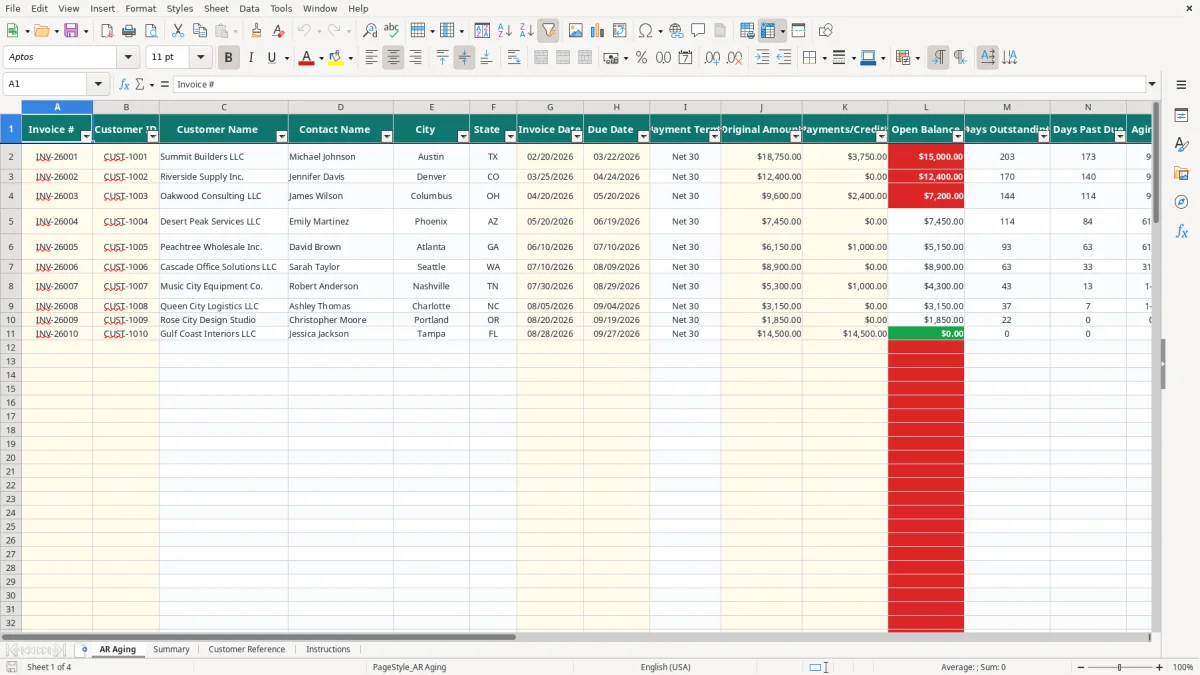
Image 1 shows the AR Aging tab with 17 columns, from Invoice # and Customer ID through Collection Status and Collector Notes. The sheet has prepared rows 2 through 101, an auto-filter on row 1, and frozen headers so you can review a long list without losing the field names. The visible sample includes INV-26001 for $18,750 with a $3,750 credit, leaving a $15,000 open balance.
Use the report after the weekly cash application or billing run. A plumbing company with four employees might have 35 customer invoices totaling $86,400; the owner needs to know whether $12,000 is Current or already more than 60 days past due before approving another materials purchase.
Enter the Customer ID rather than typing customer details repeatedly. The formulas use VLOOKUP against Customer Reference to return the name, contact, city, state, and payment terms. That is especially useful for a business with 40 active customers and several invoices per customer.
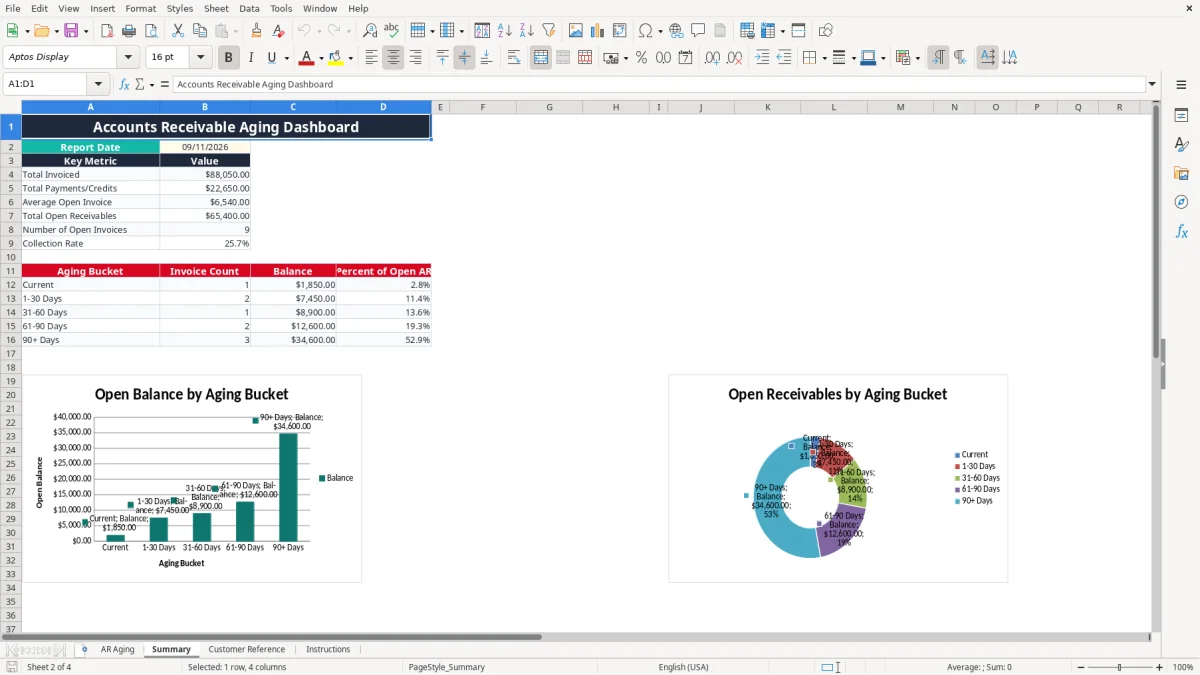
Image 2 shows the Summary tab: a merged dashboard heading, the Report Date, key metrics, an aging-bucket table, and two charts based on the five bucket balances. At month-end, compare Total Open Receivables with the accounts receivable balance in your general ledger. If the spreadsheet shows $42,500 but the ledger shows $45,000, investigate unapplied cash, credit memos, or invoices missing from the report.
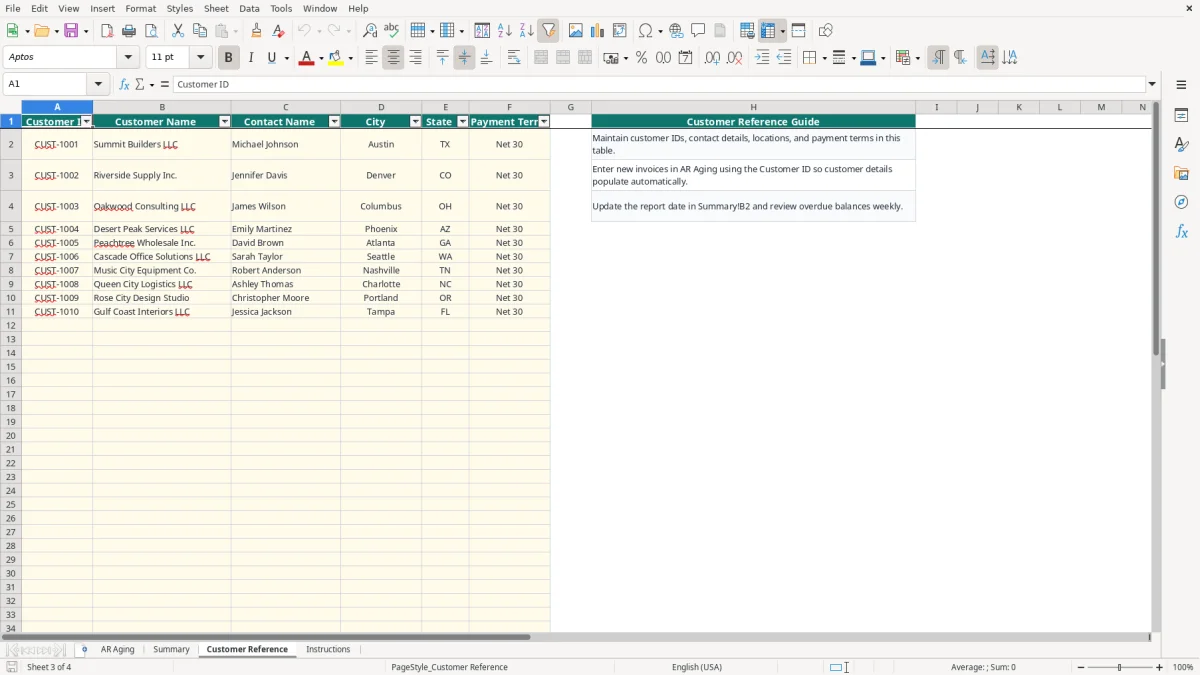
Image 3 shows Customer Reference, where each ID connects to customer name, contact, city, state, and payment terms such as Net 30. Image 4 shows Instructions, including the weekly workflow and the input-cell key. Together, the four tabs support a repeatable process without turning the report into a second accounting system.
U.S. businesses should be able to support the amount and age of each receivable with an invoice, payment record, credit memo, and customer account history. This workbook is an operational aging tool; it does not replace the accounts receivable subsidiary ledger or the financial statements prepared under GAAP.
Image 1 separates Original Amount, Payments/Credits, and Open Balance. For example, an invoice for $18,750 less $3,750 in payments produces a $15,000 open balance. The formula uses MAX to prevent a negative balance, so an overpayment must be investigated rather than displayed as negative receivables.
The workbook calculates Days Past Due by comparing Due Date with Summary!B2. If the report date is 09/11/2026 and an invoice was due 08/12/2026, the balance is 30 days past due and belongs in the 1-30 Days bucket. A balance due on 09/11/2026 is Current, while a paid invoice is labeled Paid.
Do not confuse aging with an allowance decision. The IRS does not prescribe these five spreadsheet buckets for recognizing bad-debt expense, and the workbook does not calculate an allowance for doubtful accounts. Under GAAP, management may need a documented estimate based on historical losses, current conditions, and specific customer risk.
For each row, retain the invoice, remittance information, and credit support in your accounting records. The report stores only the operational fields: invoice number, dates, amounts, customer reference, status, and notes. It has no attachment field, no accounting-system connection, and no automated write-off approval.
The Customer Reference sheet offers payment-term choices of Due on Receipt, Net 15, Net 30, Net 45, and Net 60. Those terms are reference data; they do not automatically calculate the due date. You must enter the actual Due Date shown on the invoice or contract, because a Net 30 invoice dated 03/25/2026 should normally be due 04/24/2026, subject to the agreement's wording.
The most expensive aging-report errors usually begin before anyone opens the Summary tab. A bookkeeper copies an invoice into the file twice, applies a payment to the wrong customer, or leaves a credit out of Payments/Credits. The result is not merely a spreadsheet error: a $6,000 duplicate can make a customer look delinquent and trigger an unnecessary collection call.
Entering the billing date in Due Date is a common failure. A $9,600 invoice issued 04/20/2026 with a $2,400 payment has a $7,200 balance. If its actual due date is 05/20/2026 but you enter 04/20/2026, the report can show 144 days past due on 09/11/2026 instead of 114 days. That changes the bucket and may push the account into an unjustified escalation.
Another mistake is using a blank payment as though it were a payment of zero while also leaving the original amount blank. The workbook handles blank Payments/Credits as zero in its open-balance formula, but a missing Original Amount still means the row is incomplete. Review invoice number, date, due date, and amount together before relying on the totals.
Columns C-F, I, and L-O contain formulas. If someone types over Open Balance or Aging Bucket, the Summary formulas may still calculate but will be based on corrupted row data. A $15,000 balance moved manually from 1-30 Days to Current can distort both the dashboard and the collection meeting.
Collector Notes should identify the next event, not just say called. Compare the sample note about discussing a payment plan with Michael Johnson to a vague note such as follow up later. Without a promised date or customer commitment, the collector cannot tell whether an account actually moved forward.
Finally, do not treat Collection Rate as cash collected from every historical invoice. In this workbook it is Total Payments/Credits divided by Total Invoiced. If invoices total $100,000 and credits or payments total $25,000, the displayed rate is 25%, even if some older invoices were excluded from the 100 prepared rows.
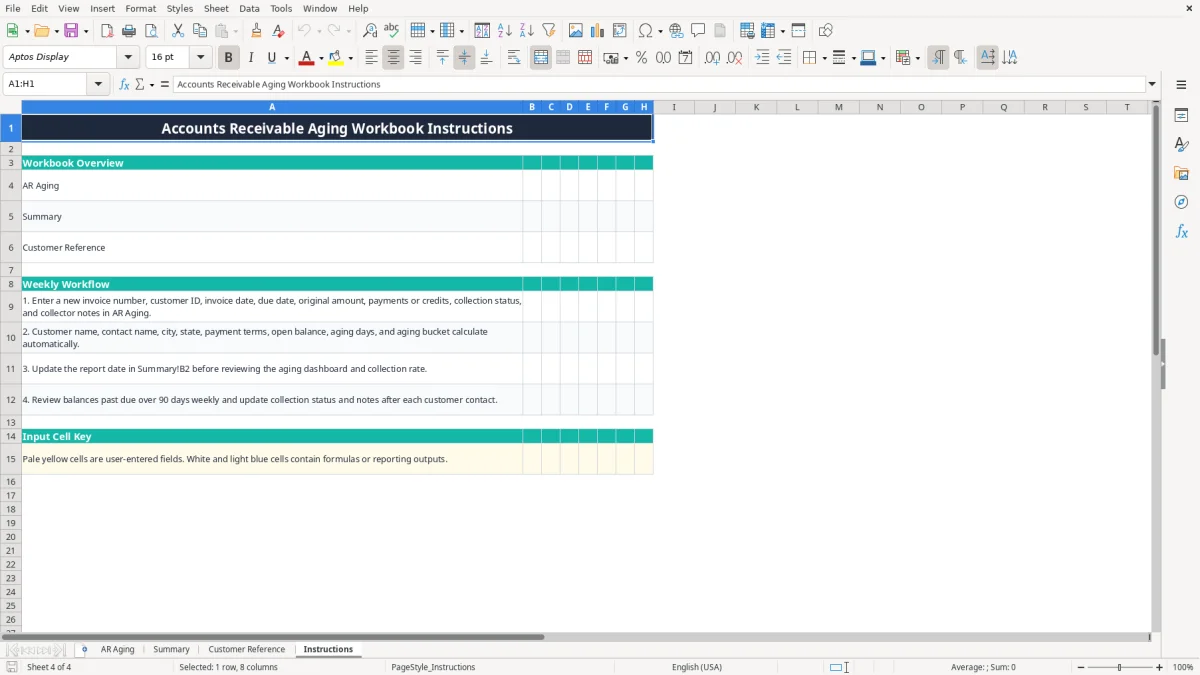
The spreadsheet works best when one person owns the update and the review happens at a fixed time. Tie the process to the weekly cash-application or billing run: update new invoices, post payments and credits, record the customer contact, then refresh the report date before discussing overdue balances.
For example, a distributor with 60 invoices can spend 20 minutes each Friday reviewing the five buckets. If $18,000 of its $74,000 open receivables sits in 90+ Days, the collector should work those accounts first rather than calling every customer in invoice-number order.
Use the pale yellow input cells for invoice and collection information and leave the white or light-blue formula cells unchanged. Keep customer IDs consistent; adding a new spelling such as CUST1001 instead of CUST-1001 can cause VLOOKUP to return a blank customer record.
Save a dated copy at month-end, such as AR-Aging-2026-09-30.xlsx, so you can explain changes in receivables later. Do not insert rows inside the prepared range without checking formulas and filters, because the workbook is configured for rows 2 through 101.
This workbook is appropriate for a modest invoice list and a hands-on weekly process. Move to QuickBooks or an integrated receivables system when several employees apply cash, you exceed the prepared 100 invoice rows regularly, or you need customer statements, automated reminders, audit trails, or real-time ledger reconciliation.
It calculates Open Balance, Days Outstanding, Days Past Due, and Aging Bucket for each invoice. The Summary tab also calculates total invoiced, total payments or credits, average open invoice, total open receivables, open-invoice count, collection rate, and five aging-bucket totals.
Enter Invoice #, Customer ID, Invoice Date, Due Date, Original Amount, Payments/Credits, Collection Status, and Collector Notes. Customer details, Payment Terms, Open Balance, aging days, and Aging Bucket are calculated or looked up automatically.
It compares Due Date with the Report Date in Summary!B2. A positive difference becomes Days Past Due, and the result is classified as Current, 1-30 Days, 31-60 Days, 61-90 Days, or 90+ Days. A zero open balance is labeled Paid.
The prepared AR Aging area covers rows 2 through 101, providing 100 operational invoice rows. The file has no table expansion feature, so check formulas, filters, and formatting before extending the range beyond row 101.
The selected Customer ID must exactly match an ID in Customer Reference, such as CUST-1001. The lookup formulas use VLOOKUP; a missing ID, spelling difference, or blank reference row can leave Customer Name, Contact Name, location, and Payment Terms blank.
No. It is a tracking and collections worksheet with a Summary dashboard, not a ledger integration. Reconcile its invoice, payment, and credit totals to your accounting system and retain the supporting invoices, remittances, credit memos, and customer correspondence.