HR KPI Excel – Free Template (2026)
5
Free download
Track rental units, vacancy status, applicants, lost rent, and occupancy metrics with a three-tab XLSX workbook for property managers.


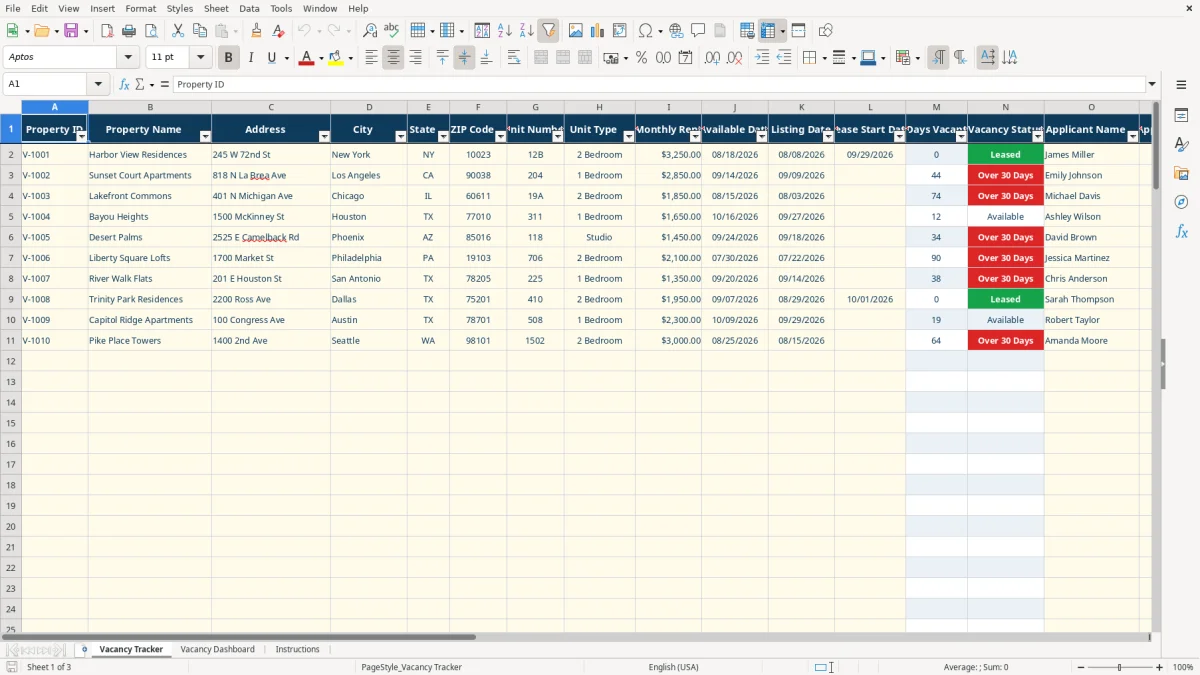
A vacancy tracker records rental units, availability dates, applicants, leasing progress, and estimated lost rent in one XLSX workbook. This template includes a Vacancy Tracker tab for unit-level entries, a Vacancy Dashboard for occupancy metrics and charts, and an Instructions tab for setup.
Use the 21-column tracker to manage property details, monthly rent, dates, concessions, application status, and leasing agents. The workbook calculates Days Vacant, Vacancy Status, and Estimated Lost Rent from your entries and the current Excel date.
A property manager, leasing coordinator, or owner usually needs this workbook during the weekly leasing meeting, after a tenant gives notice, and at month-end when management reviews occupancy. The Vacancy Tracker tab keeps one record per unit, so a portfolio with apartments in New York, Los Angeles, and Chicago can be reviewed without combining separate building lists.
The row structure captures Property ID, Property Name, Address, City, State, ZIP Code, Unit Number, and Unit Type before moving into leasing information. A leasing agent can then record Monthly Rent, Available Date, Listing Date, Applicant Name, Application Status, Target Move-In Date, Concession, and Notes. That makes the row useful during a listing review as well as a leasing call.
The sample workbook shows V-1001 at Harbor View Residences, unit 12B, with monthly rent of $3,250 and an Approved applicant. It also shows V-1002 at Sunset Court Apartments with a $2,850 rent, a Screening status, and a $250 concession. These are populated examples to replace, not additional live records.
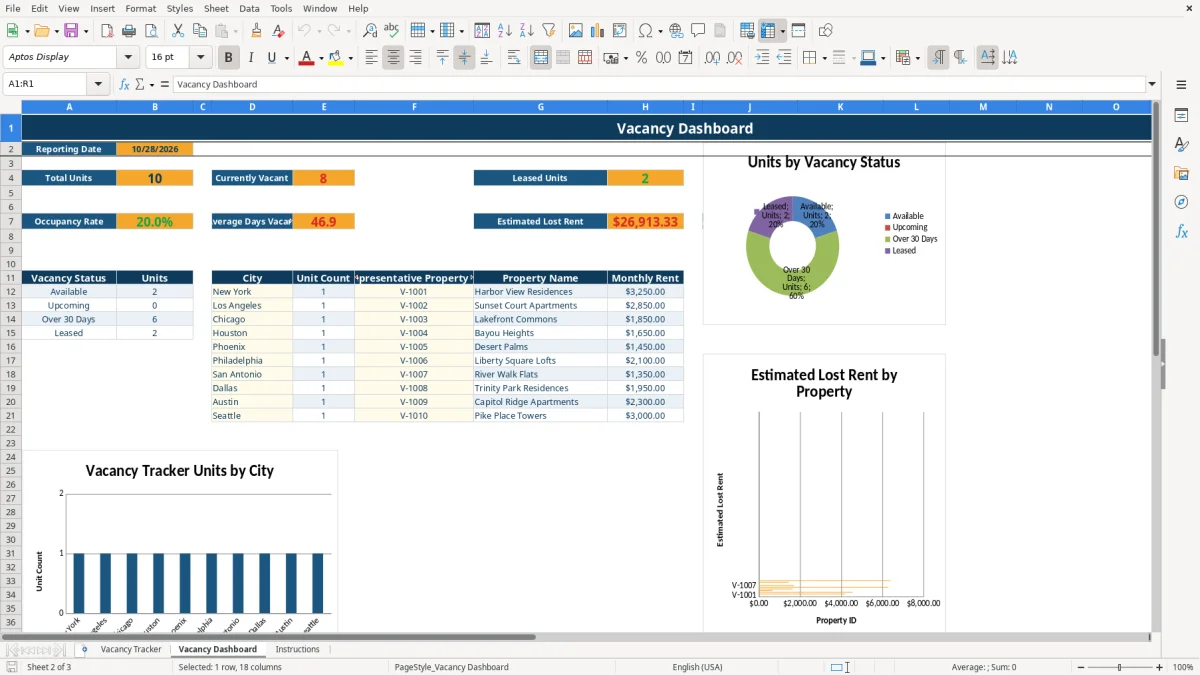
The Vacancy Dashboard turns the row-level entries into operating measures. It displays Total Units, Currently Vacant, Leased Units, Occupancy Rate, Average Days Vacant, Estimated Lost Rent, and Average Monthly Rent. The dashboard also summarizes vacancy status and provides city-level counts for listed cities such as New York, Los Angeles, Chicago, Houston, Phoenix, Philadelphia, San Antonio, Dallas, Austin, and Seattle.
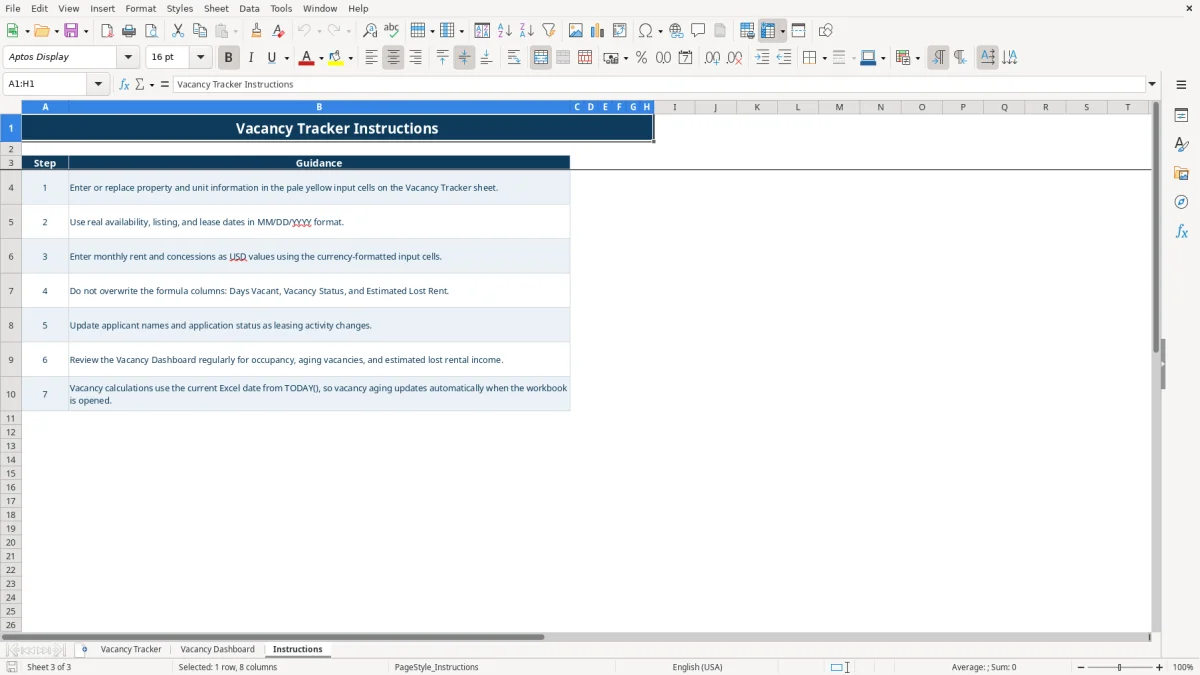
Image 1 shows the detailed tracker layout with 21 visible fields. Image 2 shows the dashboard summary and charts, while image 3 shows the step-by-step Instructions tab. Together, the three tabs support daily entry and a short weekly review without separating applicant activity from unit performance.
The workbook uses formulas rather than manually typed aging labels. In the Vacancy Tracker tab, Days Vacant uses the Available Date and Excel's TODAY() function. If the Available Date is blank or a Lease Start Date exists, the formula returns 0; otherwise it calculates the elapsed days, never allowing a negative result for a future date.
Vacancy Status follows a clear sequence. A completed Lease Start Date produces Leased. Without a lease date, a blank Available Date leaves the status blank; a future Available Date produces Upcoming; a vacancy of more than 30 days produces Over 30 Days; and the remaining active vacancy produces Available.
This 30-day boundary is a workbook classification, not a federal housing rule. A unit at $2,850 per month that remains vacant for 10 days produces an estimated lost-rent calculation of $950 before any concession or other business adjustment, because the formula uses $2,850 divided by 30 and multiplied by 10. The workbook's formula uses Monthly Rent and Days Vacant; it does not subtract the Concession field from that calculation.
The dashboard counts units from the tracker range, counts Available and Over 30 Days together as Currently Vacant, and counts Leased units separately. Occupancy Rate is calculated as Leased Units divided by Total Units. Average Days Vacant uses non-Leased records, Estimated Lost Rent sums the tracker output, and Average Monthly Rent averages the Monthly Rent column.
Do not overwrite the three calculated columns. If you change a date or enter a Lease Start Date, the calculated results update when Excel recalculates. The reporting date on the dashboard also comes from TODAY(), so the display changes as the calendar advances.
The most damaging errors usually begin with dates. If you enter a listing date in the Available Date column, a unit can appear to have been vacant before it was actually ready. For example, moving a unit's Available Date from 09/14/2026 to 09/01/2026 adds 13 days to the aging calculation and can materially increase the displayed lost-rent estimate.
A common mistake is leaving Lease Start Date blank after the lease is signed. The formula then continues treating the unit as Available or Over 30 Days, and the dashboard can understate leased units while overstating vacancy. Entering the actual lease start date is the practical fix because the status formula gives that field priority.
The opposite problem is entering a lease date too early. If a lease has been approved but has not started, entering a future or provisional date changes the row to Leased immediately. Keep Application Status as Approved while the lease date remains blank if the unit should continue appearing as unleased in the dashboard.
Typing a dollar amount as text can prevent reliable calculations. Enter 3250 as a currency-formatted value, not a note such as $3,250 plus concession, and place the concession in its separate field. The sample includes a $500 concession for V-1003; that value is recorded for reference, but Estimated Lost Rent does not deduct it.
Another failure is replacing a controlled status with inconsistent text such as In Review or Applied. The available dropdown choices are Not Started, Received, Screening, Approved, Denied, and Withdrawn. Consistent values make the applicant column usable for follow-up, even though the dashboard's vacancy metrics are driven by Vacancy Status rather than Application Status.
Set one fixed review time each week, preferably before the leasing meeting or property-owner update. Start on the Vacancy Tracker tab, update only changed units, then open the Vacancy Dashboard and record the current occupancy rate, vacant count, and estimated lost rent in your management notes.
Use the dashboard as a short exception report rather than rebuilding a separate presentation. If the table shows 20 units and 4 are currently vacant, the displayed vacancy share is 20%; if the four units have an average rent of $2,000, the potential monthly exposure is approximately $8,000 before the workbook's day-based estimate and any lease activity are considered.
This XLSX workbook is appropriate for a controlled list with regular manual updates. Move to property-management software when several people need simultaneous editing, applicants require secure document handling, leases must generate recurring charges, or your portfolio exceeds the prepared tracker range and manual reconciliation becomes a recurring task.
Keep the workbook as a review export only if a larger system becomes the source of truth. The Instructions tab specifically directs you to protect the formula columns and review the dashboard regularly; following that routine prevents accidental replacement of the calculations that make the tracker useful.
The workbook contains Vacancy Tracker, Vacancy Dashboard, and Instructions. The tracker holds unit-level entries, the dashboard summarizes occupancy and vacancy measures, and Instructions explains setup and review steps.
Days Vacant uses the Available Date and TODAY(). It returns 0 when the available date is blank or a Lease Start Date has been entered; otherwise it calculates elapsed days without allowing a negative result for a future date.
Enter a Lease Start Date for the unit. The Vacancy Status formula gives that field priority and displays Leased, regardless of the calculated number of days vacant.
No. Estimated Lost Rent uses Monthly Rent divided by 30 and multiplies that amount by Days Vacant. The Concession field records the concession separately but is not deducted by the formula.
Unit Type, State, and Application Status use dropdown validation. Application Status includes Not Started, Received, Screening, Approved, Denied, and Withdrawn.
The dashboard shows the reporting date, Total Units, Currently Vacant, Leased Units, Occupancy Rate, Average Days Vacant, Estimated Lost Rent, and Average Monthly Rent. It also includes vacancy-status and city summaries plus three charts.