HR KPI Excel – Free Template (2026)
5
Free download
Track employee course status, completion rates, renewal dates, costs, departments, and action items with a four-tab XLSX training matrix.


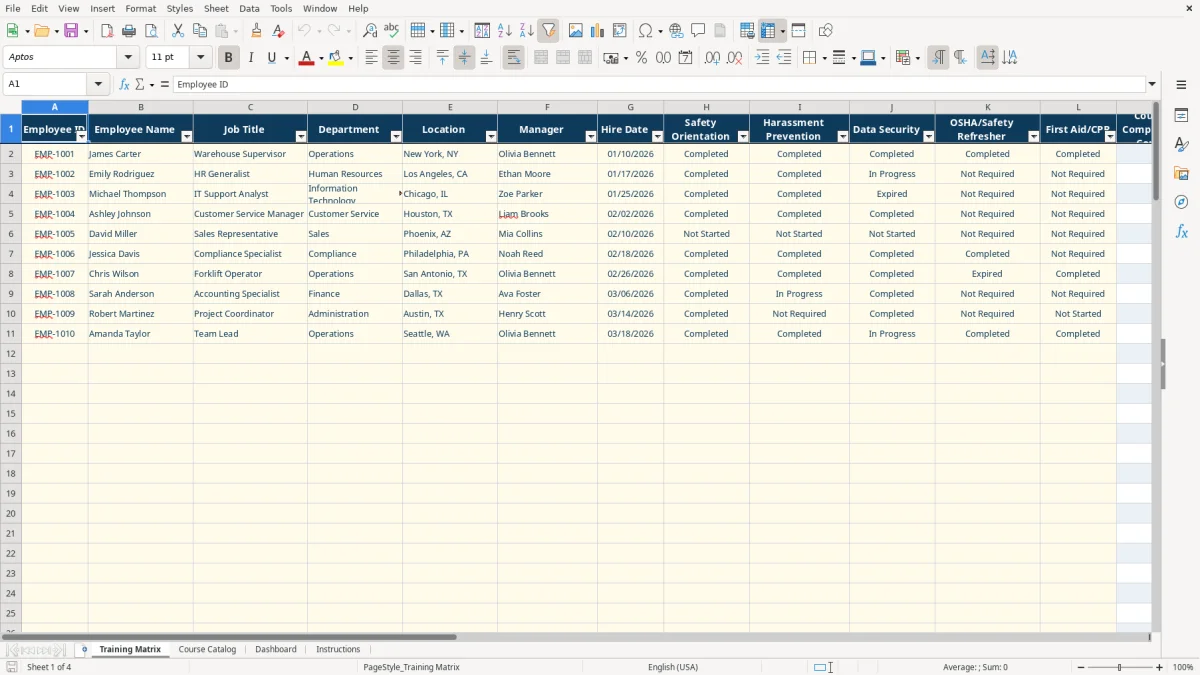
A training matrix organizes employee details, required courses, course statuses, completion percentages, overall status, and next training dates in one XLSX workbook. It includes a Training Matrix, Course Catalog, Dashboard, and Instructions tab for managing up to 100 employee and course records in the prepared ranges.
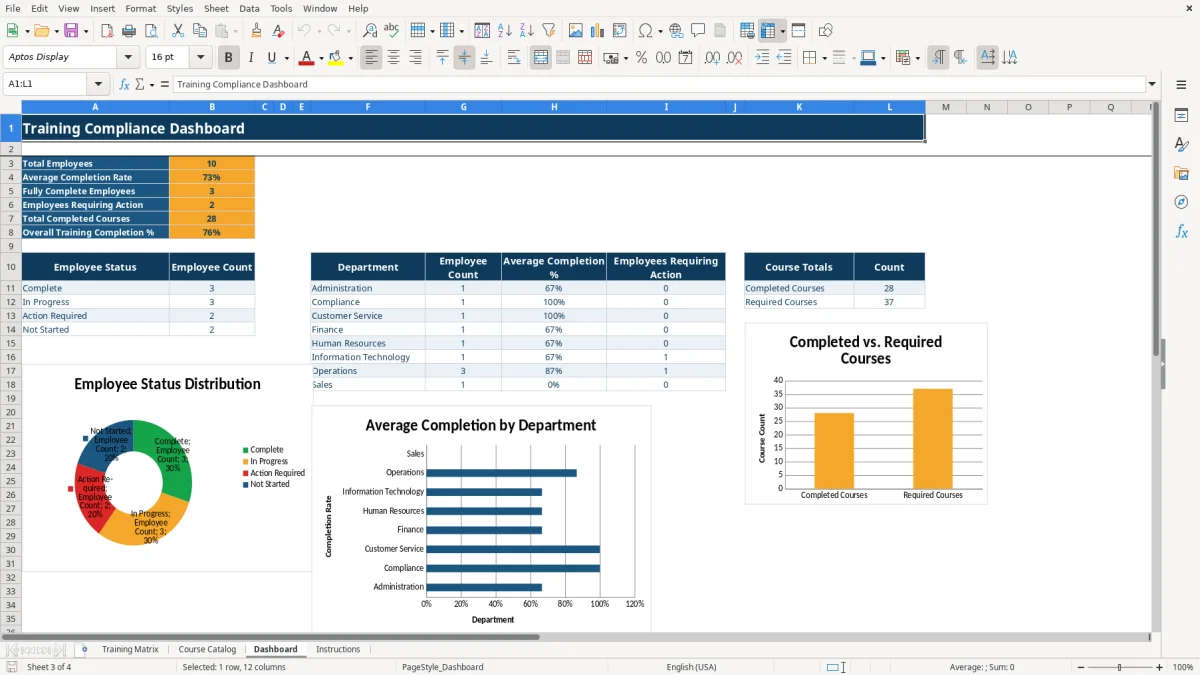
Enter employee information and select course statuses such as Completed, In Progress, Not Started, Expired, or Not Required. The workbook calculates completion counts and status, while the Dashboard summarizes employee progress, department completion rates, course totals, and employees requiring action.
Human resources coordinators, operations managers, safety administrators, and department supervisors use a training matrix when they need a current view of employee readiness. A warehouse with 20 employees may need to track Safety Orientation, OSHA/Safety Refresher, First Aid/CPR, Data Security, and Harassment Prevention without maintaining five separate lists.
The Training Matrix tab combines employee profile fields in columns A through G with course status fields in H through L. A new hire can be entered with an employee ID, job title, department, location, manager, and hire date, then assigned statuses for the five visible courses. The sample records show how a completed onboarding record differs from an employee with an In Progress module or an Expired course.
Supervisors can use the Dashboard during a weekly HR review or monthly operations meeting. It counts employees, calculates average completion, identifies fully complete employees, and counts employees requiring action. Department summaries cover Administration, Compliance, Customer Service, Finance, Human Resources, Information Technology, Operations, and Sales.
The workbook is prepared for up to 100 employee records and 100 course records. That makes it suitable for a small business, local nonprofit, or individual site before a larger learning-management system becomes necessary.
The workbook uses visible Excel formulas rather than requiring manual percentage calculations. For each employee, the Course Completion Count uses COUNTIF to count Completed entries across the five course columns. Required Course Count counts every course status except Not Required, so a course that does not apply does not reduce the employee's completion percentage.
Completion % divides completed courses by required courses and uses IFERROR to avoid a division error when no required course is recorded. Overall Status returns Complete when the percentage reaches 100%; otherwise, Expired produces Action Required, In Progress produces In Progress, and remaining records show Not Started.
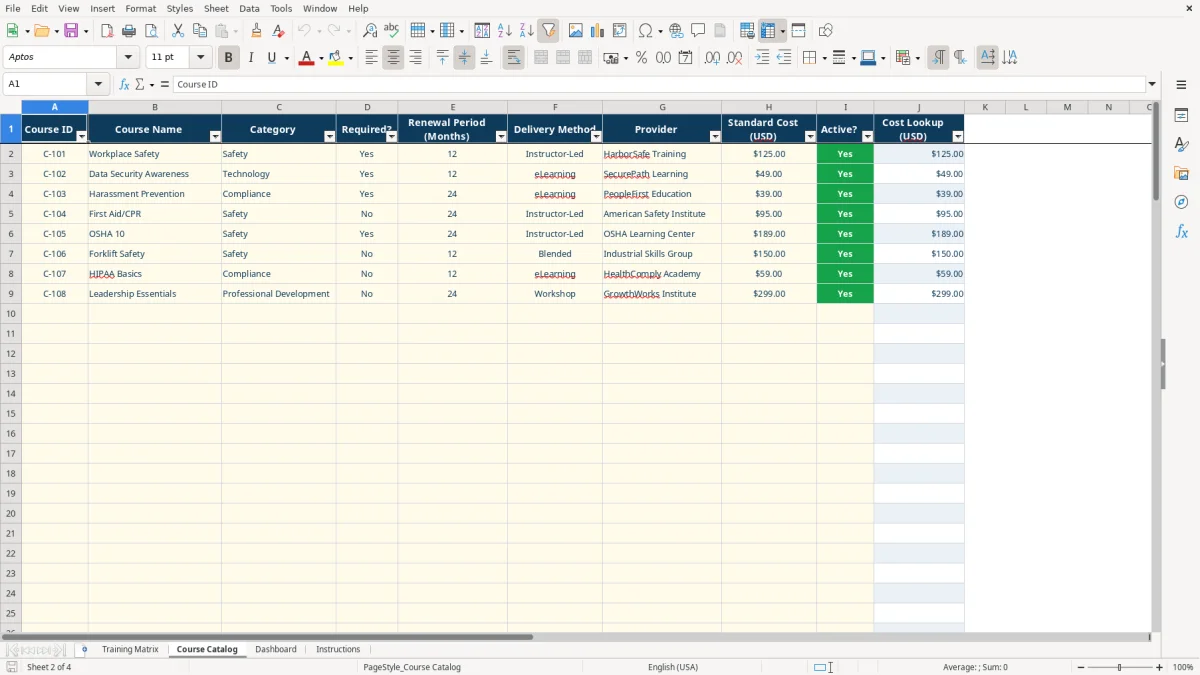
The Course Catalog provides Yes or No choices for Required? and Active?, plus eLearning, Instructor-Led, Blended, or Workshop for Delivery Method. Its Cost Lookup column uses VLOOKUP against the Course ID and catalog range. For example, the populated catalog shows Workplace Safety at $125.00, Data Security Awareness at $49.00, and Harassment Prevention at $39.00; these are workbook values, not universal market rates.
Next Training Due is formula-driven: an expired record uses TODAY()-7, a record with completed training uses TODAY()+90, and other populated records use TODAY()+30. Treat those dates as the workbook's planning logic and adjust the formulas if your organization's renewal policy uses different intervals.
The most damaging error is overwriting formula columns M through Q on the Training Matrix. If someone types a number over Completion %, the Dashboard may still display a value, but the employee-level result will no longer respond correctly to course status changes. Keep calculated columns separate from pale yellow input cells.
Typing variations such as Complete, Done, or Pending breaks the COUNTIF logic because the formulas recognize the listed status values. Use the dropdown in H2:L101 so each entry remains Completed, In Progress, Not Started, Expired, or Not Required. A single wrong label can change both the employee's percentage and the department average.
Not Required removes a course from the denominator. Marking three of five courses Not Required leaves only two required courses, so one completion equals 50% and two completions equal 100%. That is useful when assignments genuinely differ by job, but it can overstate readiness if the status is chosen merely to improve the percentage.
Another failure occurs when a Course ID is changed in the catalog but not kept consistent with the lookup range. The Cost Lookup formula may return zero when it cannot find a match. Review course IDs, providers, renewal periods, and active status together during each catalog update instead of changing only the course name.
Assign one owner for the workbook and give that person a fixed review time, such as the first Monday of each month. During the review, update employee statuses, check records marked Action Required, and compare the Dashboard's department averages with the prior review. The workbook's formulas recalculate when the underlying entries change.
Use the existing dropdowns rather than free-typing statuses, and preserve the MM/DD/YYYY date format. Update the Course Catalog before changing employee assignments so course names, providers, renewal periods, and costs remain aligned.
The prepared ranges contain 100 rows for employees and courses. When your organization exceeds those ranges, do not assume formulas, formatting, and validation will continue automatically; test the added rows before relying on the results. For larger teams, frequent assignment changes, or certificate storage, a dedicated learning-management system will be more reliable than a manually maintained XLSX file.
The XLSX workbook includes four tabs: Training Matrix, Course Catalog, Dashboard, and Instructions. It tracks employee details, five course statuses, calculated completion results, course catalog information, department summaries, and three Dashboard charts.
The Training Matrix and Course Catalog each contain prepared rows 2 through 101, or 100 records. The Instructions tab notes that additional rows may require added formulas, formatting, and validation.
The course status dropdown includes Completed, In Progress, Not Started, Expired, and Not Required. Use Not Required only when a course does not apply to that employee because it is excluded from the completion denominator.
Overall Status returns Action Required when at least one course is marked Expired and the employee is not already Complete. The Dashboard also counts employees with that status.
Yes. Update the Course Catalog fields for Course ID, Course Name, Category, Required?, Renewal Period, Delivery Method, Provider, Standard Cost, and Active?. Keep Course IDs consistent so the VLOOKUP-based Cost Lookup returns the intended value.
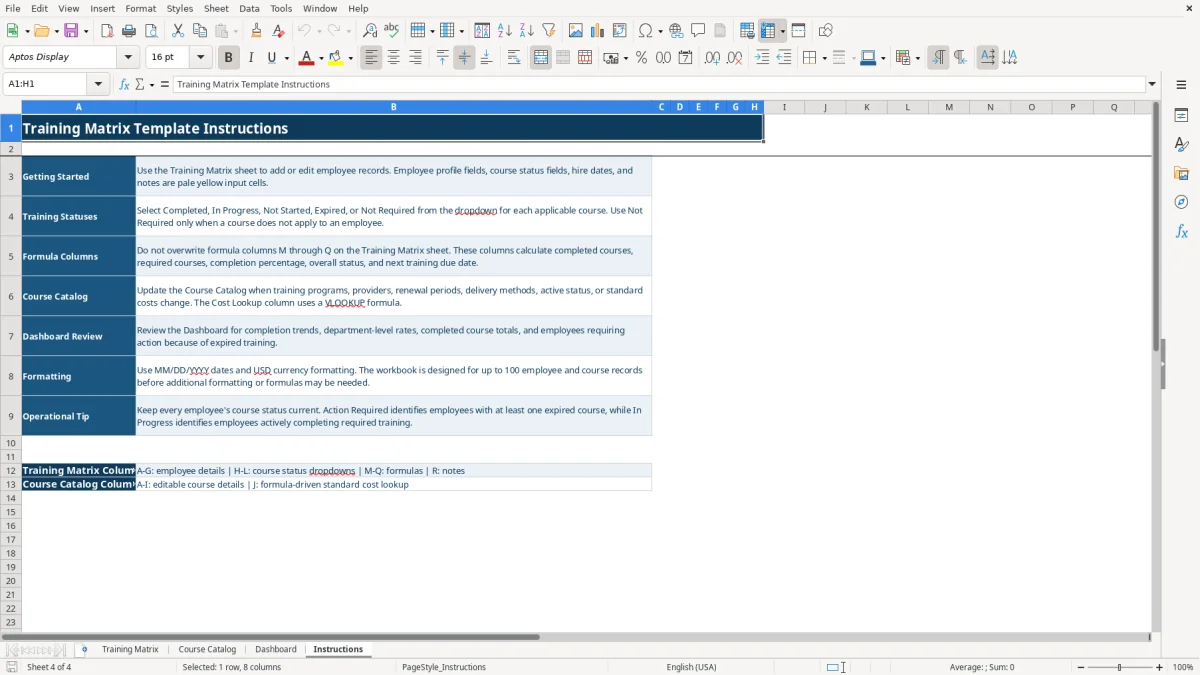
Do not overwrite formula columns M through Q on the Training Matrix or the formula-driven Cost Lookup column J in the Course Catalog. Enter information in the designated input cells and use the Instructions tab to distinguish inputs from calculated outputs.