Tithe Offering Excel – Free Template (2026)
0
Free download
Track startup estimates, actual spending, recurring costs, funding, revenue, variances, and category totals in an XLSX budget workbook.


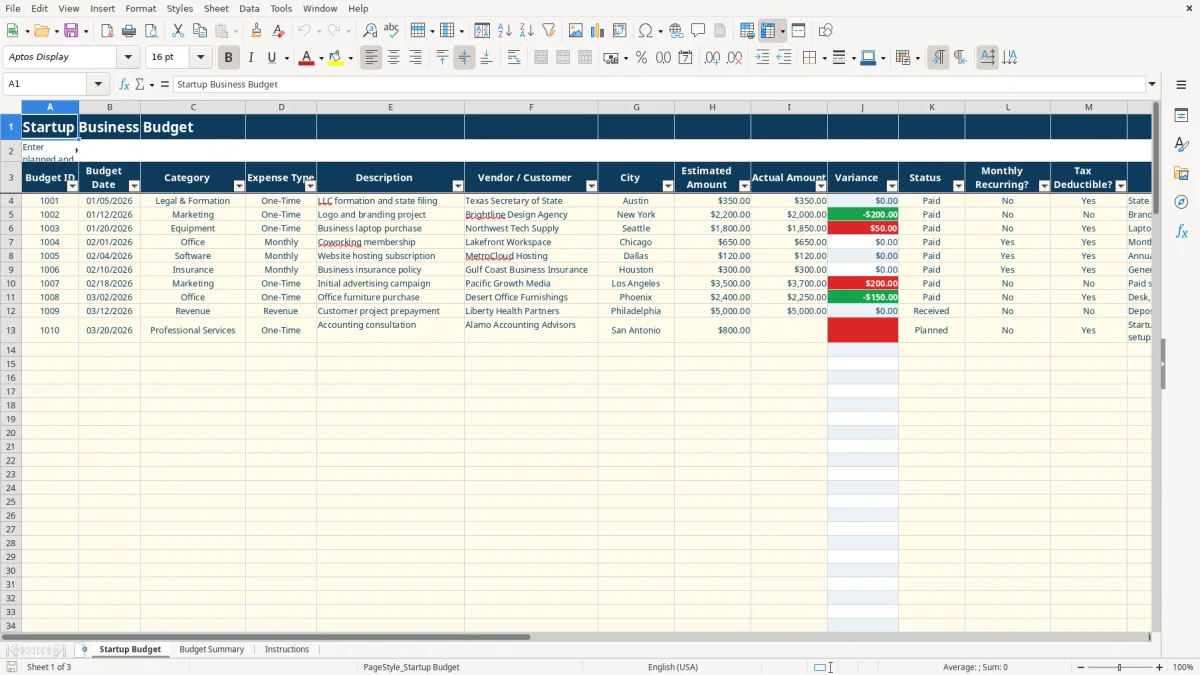
This startup business budget workbook records planned and actual costs, revenue receipts, vendors, dates, recurring items, and tax-deductible classifications. It includes a detailed Startup Budget table, a formula-driven Budget Summary, and an Instructions tab for maintaining consistent entries.
Use the Startup Budget tab to enter amounts in the pale-yellow input cells. The workbook calculates Variance and Budget Check results, while the Budget Summary tab organizes funding, revenue, break-even, category, and over-budget information.
A new sole proprietor, LLC owner, or small-business bookkeeper can use this workbook while turning a business idea into a spending plan. It is suited to the period before launch, when formation fees, equipment, marketing, software, insurance, office costs, and professional services compete for limited funding.
Enter expected purchases on the Startup Budget tab before money leaves the business account. The sample workbook shows $350 for LLC formation and state filing, $2,200 estimated for branding, and $1,800 estimated for a laptop. Those entries demonstrate how to compare the original plan with the eventual payment rather than relying on memory.
An office manager can record the vendor, city, date, expense type, and notes for each purchase. A startup with available funding of $25,000 and a target monthly revenue of $8,000 can place those assumptions on Budget Summary, then compare estimated startup costs with the available amount.
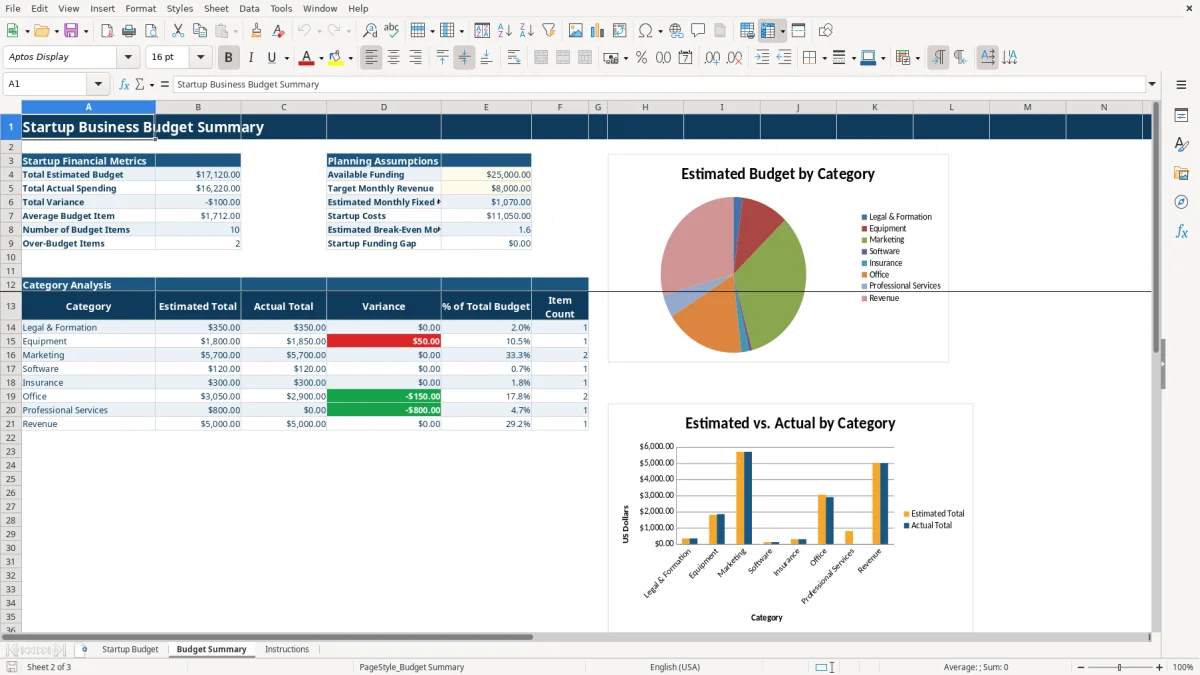
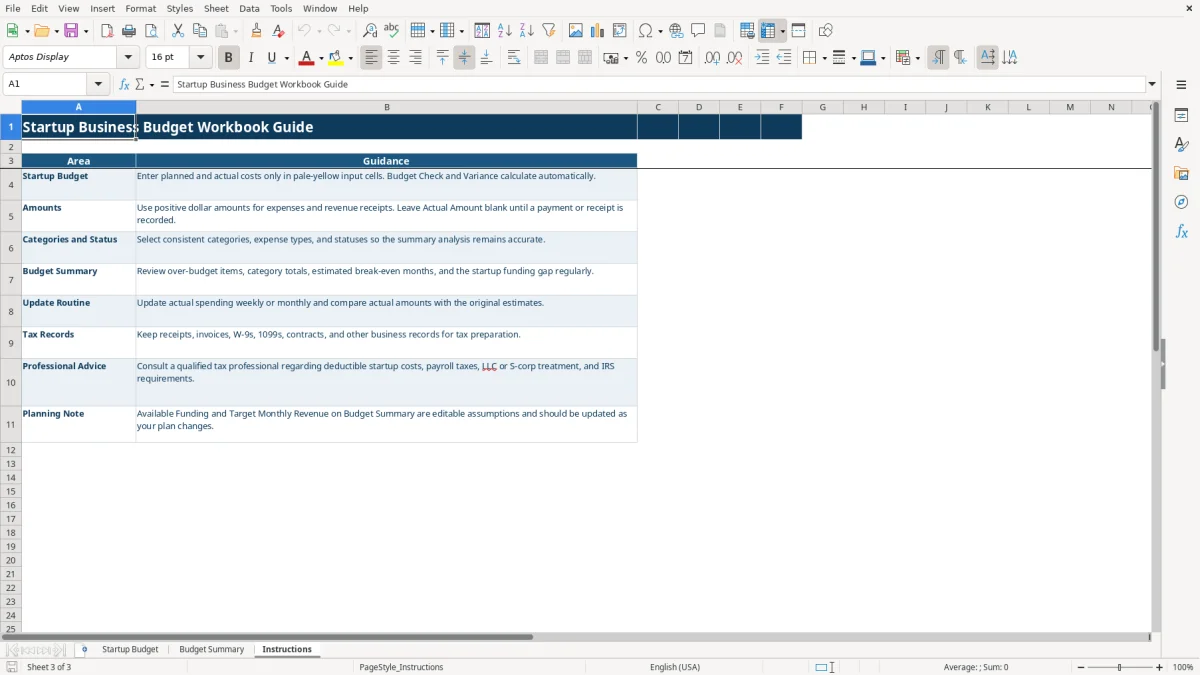
Image 1 shows the Startup Budget tab with 15 columns, including Estimated Amount, Actual Amount, Variance, Status, and Budget Check. Image 2 shows Budget Summary with financial metrics, planning assumptions, category analysis, and two charts. Image 3 shows Instructions, which explains positive amounts, blank actual amounts before payment, consistent classifications, and the update routine.
The Budget Summary tab turns entries from Startup Budget into planning measures. Its formulas use SUM, SUMIF, AVERAGE, and COUNTIF to calculate totals from the prepared table rather than requiring manual additions.
Available Funding and Target Monthly Revenue are editable assumptions. The sample values are $25,000 and $8,000. Estimated Monthly Fixed Costs are calculated from rows labeled Monthly, while Startup Costs are calculated from rows labeled One-Time.
Estimated Break-Even Months divides startup costs by the difference between target monthly revenue and estimated monthly fixed costs. If that difference is $4,000 and startup costs are $12,000, the result would be 3 months; the workbook calculates the value from your entries. Startup Funding Gap uses the difference between actual spending and available funding, with a minimum of zero.
Use the supplied dropdowns instead of typing variations such as Monthly Cost or one-time. The categories include Legal & Formation, Equipment, Marketing, Software, Insurance, Office, Professional Services, and Revenue. Consistent labels matter because the category analysis uses SUMIF and COUNTIF against those exact classifications.
The first failure is mixing estimates and completed transactions. If a laptop is estimated at $1,800 and the final invoice is $1,850, entering both figures correctly produces a $50 variance and an Over Budget result. Replacing the estimate with $1,850 hides the planning miss and makes the summary less useful.
The Instructions tab says to leave Actual Amount blank until a payment or receipt is recorded. Entering an expected payment as actual spending inflates Total Actual Spending and can create a misleading funding gap before the business has actually paid.
Typing Software in one row and Software Expense in another separates amounts from the category formulas. The same problem occurs when a recurring cost is labeled One-Time. A startup with 20 entries can have a materially distorted fixed-cost total from just a few inconsistent classifications.
Revenue receipts belong in the Revenue category and should use positive amounts, as directed by the workbook. Mixing anticipated sales with expenses or leaving the Expense Type blank prevents the summary from separating startup costs, monthly costs, and revenue planning.
Choose one fixed review time each week during the launch period. Open Startup Budget after reviewing the business checking account, enter newly paid costs or received revenue, and compare the calculated Variance and Budget Check results before closing the file.
This sequence keeps a $2,200 branding estimate and a $2,000 actual payment visibly connected, producing a favorable $200 variance instead of an unexplained total.
At month-end, update Available Funding and Target Monthly Revenue if the plan changed. Review the category charts, over-budget item count, estimated break-even months, and funding gap; then preserve receipts and invoices with the business records.
This XLSX workbook is appropriate for a structured startup budget with the prepared table and summary calculations. When transaction volume, payroll, inventory, or bank reconciliation becomes difficult to manage manually, move operational bookkeeping to a dedicated accounting system while retaining the workbook as a planning reference.
The XLSX workbook contains Startup Budget, Budget Summary, and Instructions tabs. It tracks estimates, actual amounts, variances, statuses, recurring classifications, tax-deductible classifications, funding assumptions, revenue targets, category totals, and two summary charts.
Enter positive dollar amounts for planned expenses and revenue receipts. Put the expected amount in Estimated Amount, and leave Actual Amount blank until the payment or receipt is recorded.
Variance is calculated as Actual Amount minus Estimated Amount. For example, the sample laptop estimate of $1,800 and actual amount of $1,850 produce a $50 variance.
Budget Check compares actual and estimated amounts. It displays Over Budget when the actual amount is greater than the estimate and Within Budget otherwise, provided the row has an ID and actual amount.
Yes. Available Funding and Target Monthly Revenue on Budget Summary are editable planning assumptions. The sample values are $25,000 and $8,000, and you should replace them with figures appropriate to your plan.
No. The Tax Deductible? column records your classification, but the workbook does not determine whether an item is deductible. Keep receipts, invoices, contracts, W-9s, and other records, and use the Instructions guidance when preparing your business records.