Tithe Offering Excel – Free Template (2026)
0
Free download
XLSX plumbing invoice workbook with customer lookup, service line items, tax fields, payment tracking, invoice history, and summary metrics.


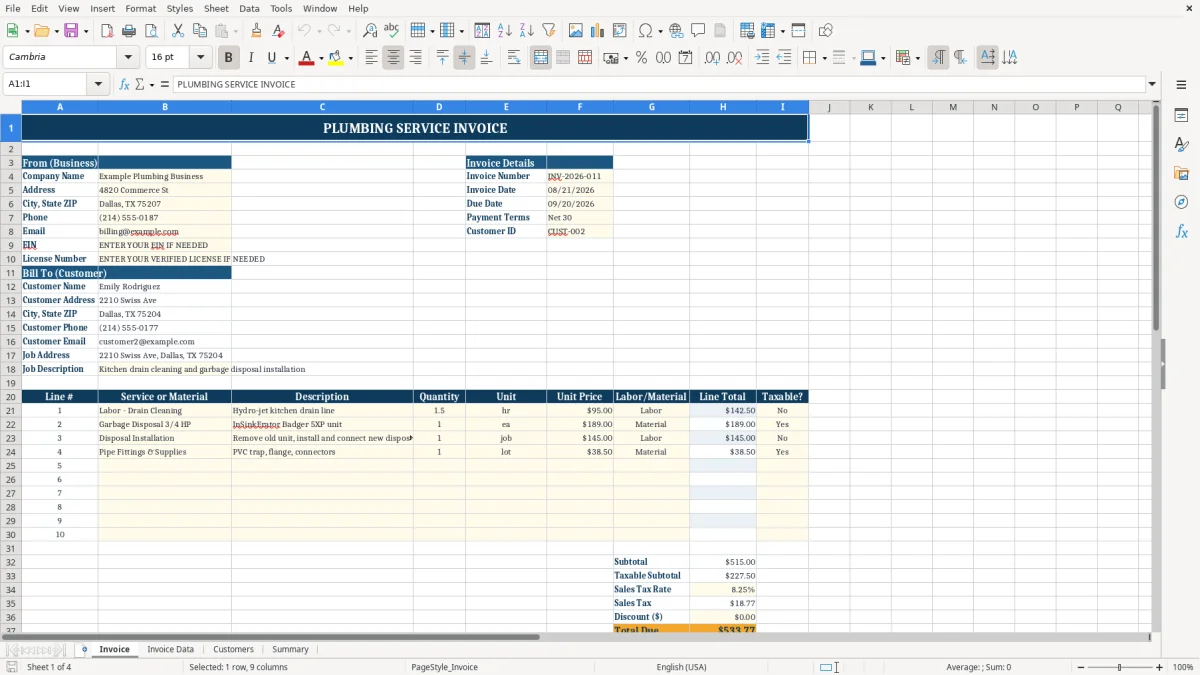
This plumbing invoice workbook is an XLSX file for creating service invoices, recording labor and materials, tracking customer payments, and reviewing outstanding balances. It contains an Invoice tab, Invoice Data register, Customers list, and Summary page with calculated totals and charts.
Use the Invoice tab for a drain cleaning, water heater replacement, disposal installation, or other plumbing job. Customer details can populate from a Customer ID, while line totals, taxable subtotal, sales tax, discount, amount due, balance, and payment status calculate from your entries.
A small plumbing company can use this workbook after each service call, especially when the office manager needs to turn a technician’s handwritten job details into a clean bill. The Invoice tab separates business information from customer information, then provides fields for the job address, job description, service or material, quantity, unit, unit price, and line total.
For a drain cleaning job, enter a labor line such as Hydro-jet kitchen drain line, select hr or job as the unit, and classify it as Labor. A water heater replacement can include separate labor and material lines, making the invoice easier for a homeowner to understand than one unexplained total.
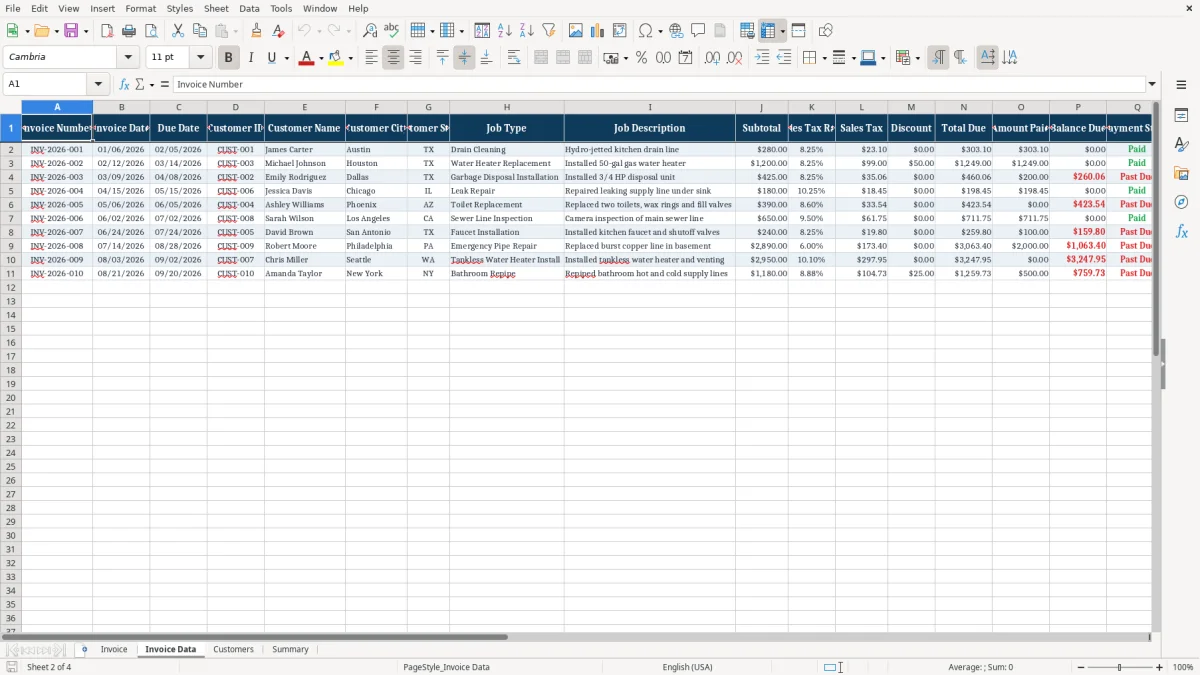
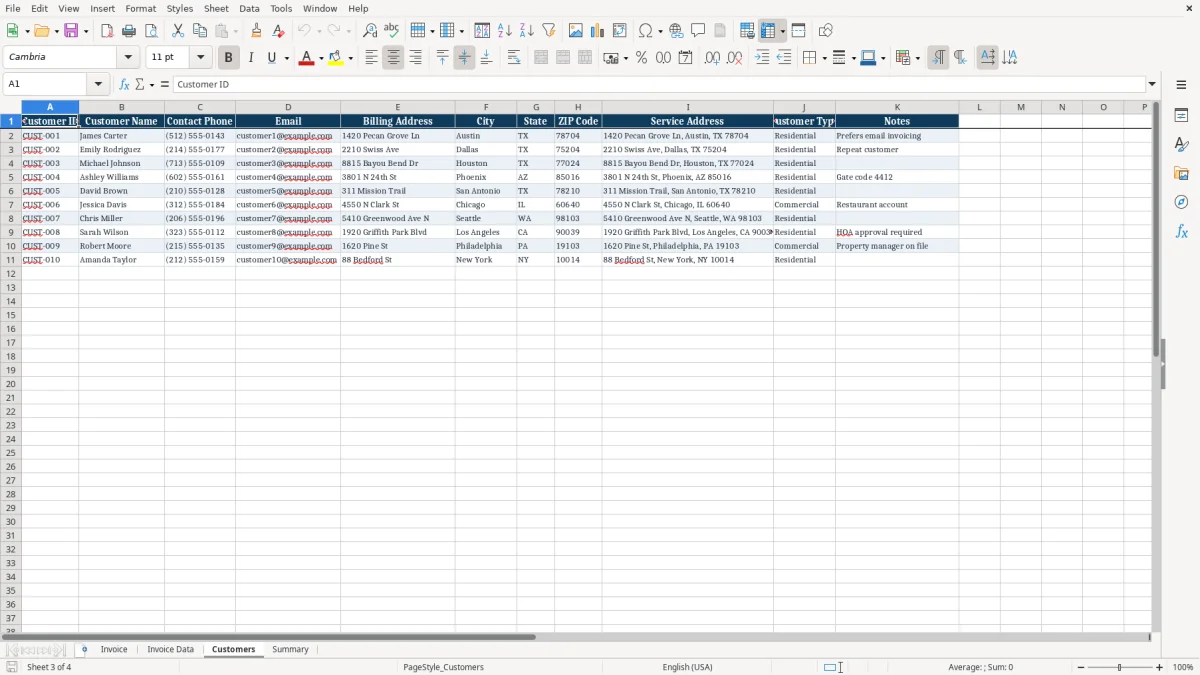
The Customers tab holds Customer ID, contact information, billing address, service address, customer type, and notes. When you enter a matching ID such as CUST-002, the Invoice tab uses VLOOKUP to bring the customer information into the bill. Image 1 shows the formatted invoice layout, while image 2 shows the separate history fields used after the invoice is prepared.
The Invoice Data tab is useful for an office that wants one row per invoice. It has 20 columns, including Job Type, Technician, Payment Method, Service Address, Amount Paid, and Balance Due. The workbook has 10 prepared register rows, so treat the supplied examples as sample records and maintain the register deliberately rather than assuming that a new invoice saves itself.
The invoice calculates each line total as quantity multiplied by unit price. It then uses SUM for the full subtotal and SUMIF for the taxable subtotal, including only rows whose Taxable? field is marked Yes. That design is useful when a plumbing bill contains a mixture of taxable materials and non-taxable labor, but you must verify the correct treatment and rate for the job’s jurisdiction.
Enter the sales tax rate as a percentage in the tax-rate field and mark each line separately. For example, a bill with two taxable material lines and one labor line marked No will calculate tax from the two Yes lines rather than from the entire invoice subtotal. The Invoice Data register works differently: its tax formula applies the entered rate to the whole entered subtotal, so a mixed-tax invoice requires manual reconciliation before you rely on the register total.
Payment status is calculated from the balance and due date. A zero or negative balance displays Paid; an unpaid invoice past its due date displays Past Due; otherwise it displays Open. Image 2 shows these register columns, including Total Due, Amount Paid, Balance Due, and Payment Status.
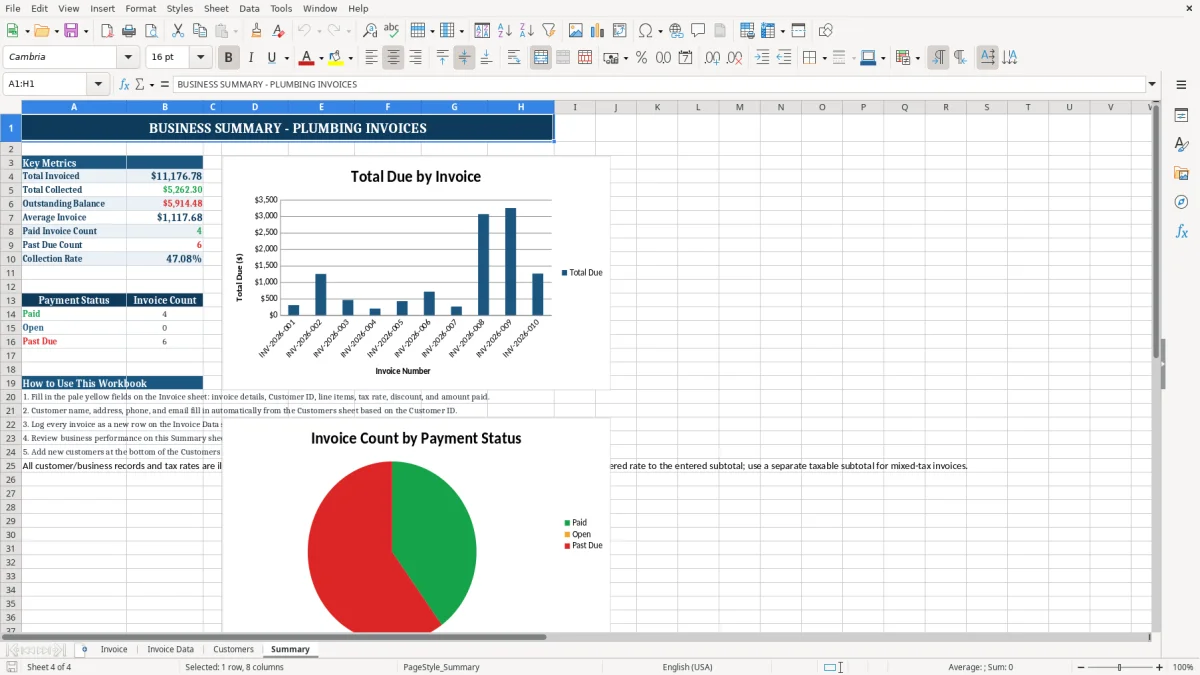
The Summary tab uses SUM, AVERAGE, and COUNTIF to show Total Invoiced, Total Collected, Outstanding Balance, Average Invoice, Paid Invoice Count, Past Due Count, and Collection Rate. Image 4 shows the summary layout and its charts. The workbook’s customer records, tax rates, and invoice amounts are illustrative; replace them with verified business data.
The most expensive errors usually begin when the invoice and the history register are treated as the same thing. They are not. Entering a new invoice on the Invoice tab does not automatically create a row on Invoice Data, so an office that skips the manual history entry will have an incomplete collection report and understated outstanding balance.
A common problem is entering a blended plumbing job total into Invoice Data and applying one rate without checking the underlying lines. If a $425 disposal installation includes differently treated labor and material, the register’s whole-subtotal tax formula can produce a number that does not match the detailed invoice. Reconcile the taxable lines before recording the register row.
A wrong Customer ID can populate the wrong name, address, phone, and email on the Invoice tab. Sending a bill to the wrong address creates rework even when the arithmetic is correct. Check the Customer ID against the job address, especially when a property owner has several service locations.
Entering a payment in the invoice but forgetting Amount Paid in Invoice Data makes the Summary page show money as outstanding. For example, a $1,249 total with a $1,249 payment should produce a zero balance and Paid status; leaving the register payment blank leaves the collection report wrong. Review the invoice number, amount paid, due date, and status together before closing the day.
Use one fixed point in the workday for billing instead of waiting until the end of the week. A practical routine is to prepare the Invoice tab after the technician’s job notes arrive, then copy the completed facts into Invoice Data before the payment conversation is forgotten.
Use the existing dropdowns for hr, ea, job, lot, or ft; Labor or Material; and Yes or No. Consistent values prevent a list such as Labor, labor, and L from becoming three different classifications in your records. Keep the sample customer and invoice entries only until you have replaced them with your own records.
Image 3 shows the Customers tab, where maintaining one accurate row per customer supports the lookup formulas. Image 4 provides the monthly review point: total invoiced, collected cash, outstanding balance, average invoice, and payment-status counts. When the prepared register no longer matches your volume or you need automated saving, permissions, or integrated payment processing, move to a dedicated bookkeeping or field-service system rather than forcing this workbook to serve as a database.
The workbook contains Invoice, Invoice Data, Customers, and Summary. Invoice creates the detailed bill, Invoice Data stores manual invoice history, Customers holds lookup records, and Summary calculates collection and payment-status metrics.
No. Invoice Data is a separate manual history. After preparing an invoice, copy the relevant details into a new prepared row so the totals and status counts on Summary include that invoice.
The Invoice tab calculates tax from the subtotal of rows marked Yes in the Taxable? column. The Invoice Data tax formula applies its entered rate to the whole entered subtotal, so mixed-tax invoices require manual reconciliation.
Yes. Each Invoice line has a Labor/Material field with Labor and Material selections. Use separate rows for technician time, fittings, equipment, disposal units, water heaters, or other materials so the bill explains what the customer is paying for.
Enter a Customer ID on the Invoice tab that matches the Customers tab. VLOOKUP formulas then bring in the customer name, address, city, state, ZIP code, phone, and email from the matching customer record.
Summary calculates Total Invoiced, Total Collected, Outstanding Balance, Average Invoice, Paid Invoice Count, Past Due Count, and Collection Rate. It also shows payment-status counts and includes charts based on the prepared Invoice Data rows.