Crypto Portfolio Excel – Free Template (2026)
5
Free download
Plan meals, track grocery quantities and costs, set category budgets, and review calories, prep time, and spending in an XLSX workbook.


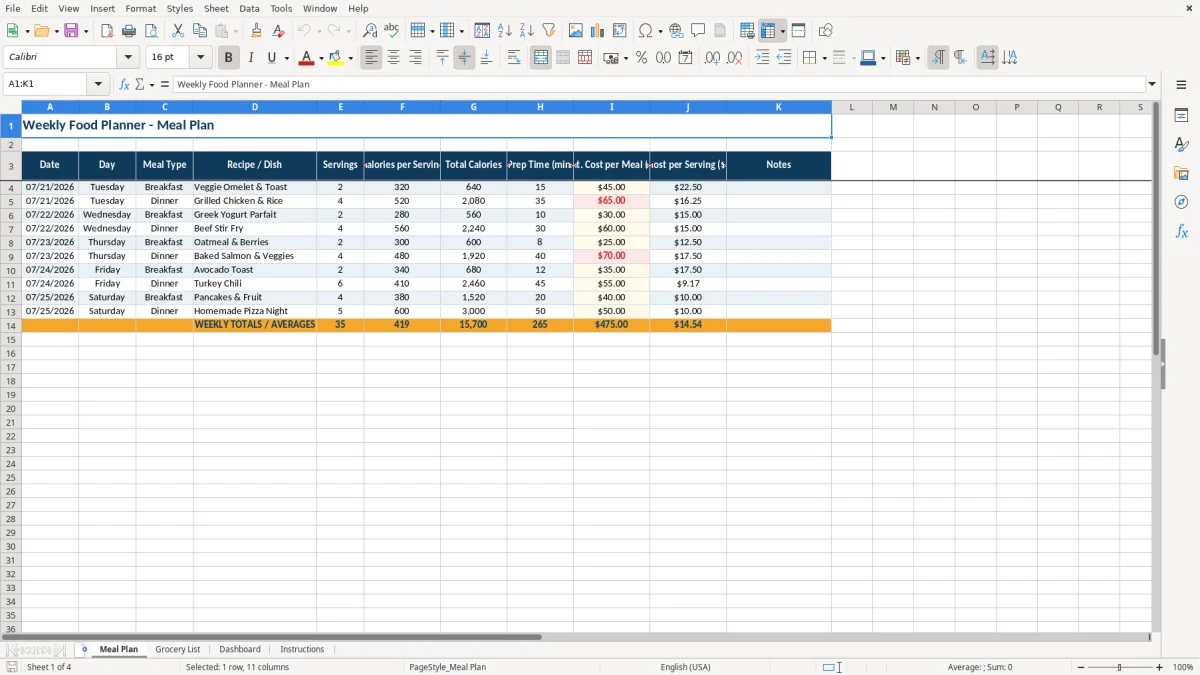
This meal prep grocery list planner organizes a week of meals, shopping items, estimated costs, and category budgets in one XLSX workbook. It includes Meal Plan, Grocery List, Dashboard, and Instructions tabs, with formulas for servings, calories, meal costs, items still needed, and budget status.
Use the Meal Plan tab to enter dates, meal types, recipes, servings, calories, prep time, and estimated meal costs. The Grocery List tab calculates each item’s total cost and uses a Yes/No dropdown for inventory status, while the Dashboard summarizes the week.
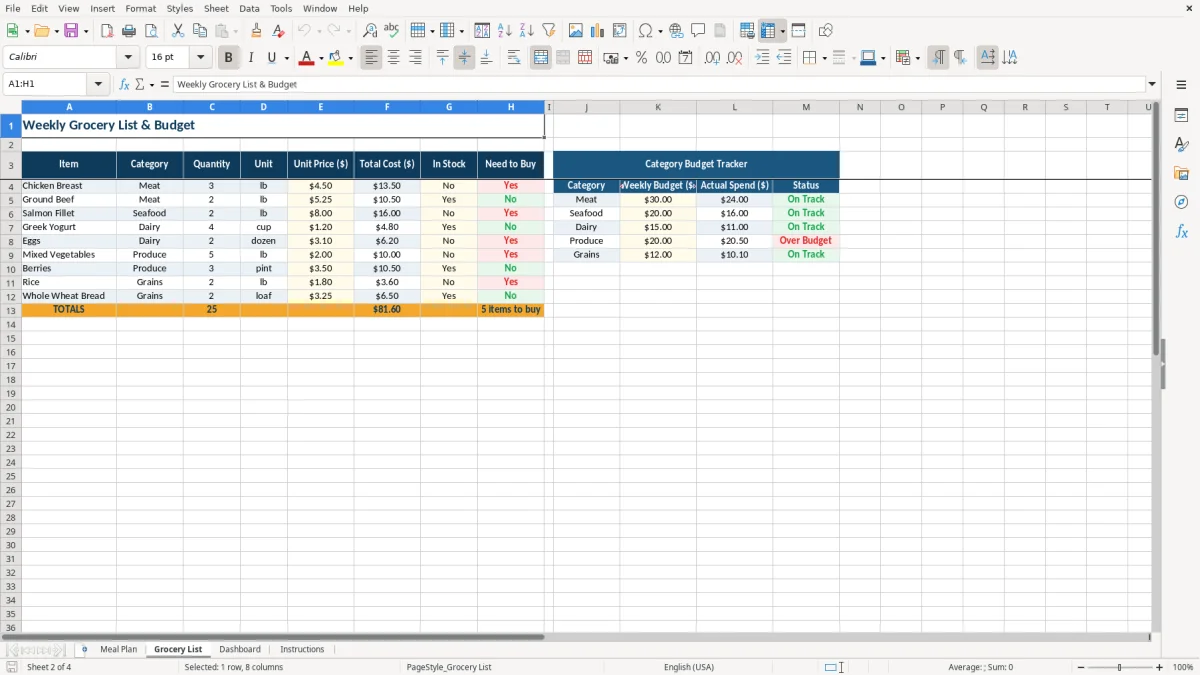
The workbook contains sample entries such as Grilled Chicken & Rice, 4 servings, 520 calories per serving, and an estimated $65 meal cost. Image 1 shows the meal-entry layout; image 2 shows grocery quantities, prices, stock status, and category budgets.
A household planning Sunday shopping can use this workbook to connect the week’s meals with the items needed at the store. A two-income family might enter breakfast and dinner rows for Tuesday through Thursday, then use servings and estimated meal costs to see whether the plan fits its grocery budget before shopping.
The Meal Plan tab is useful when one recipe serves more than one person. In the populated example, Grilled Chicken & Rice has 4 servings, 520 calories per serving, 35 minutes of prep time, and a $65 estimated meal cost. The calculated cost per serving is $16.25, which gives you a practical comparison with meals such as the 2-serving Veggie Omelet & Toast entry.
The Grocery List tab gives you one place to consolidate food purchases. Chicken Breast is listed as 3 lb at $4.50 per pound, producing a calculated $13.50 total; Ground Beef is 2 lb at $5.25 per pound, producing $10.50. Those values make the shopping list more useful than a recipe-only plan because quantity and price are visible together.
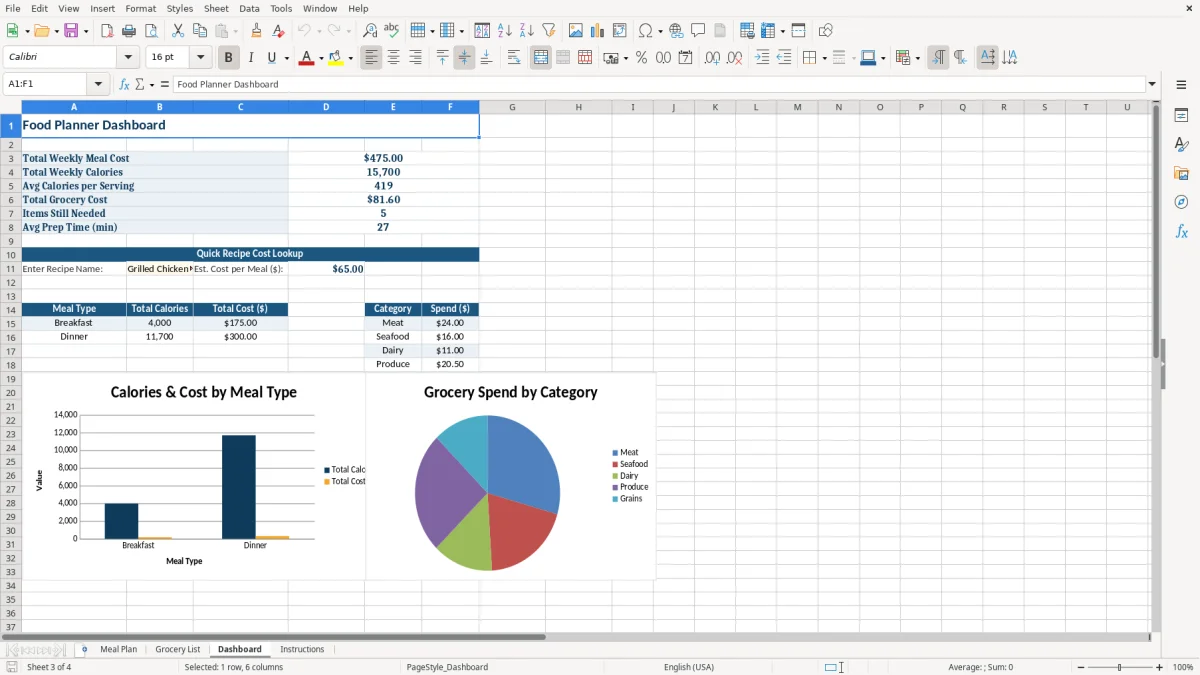
This layout also suits a household member responsible for meal preparation, a parent coordinating food for several people, or anyone trying to reduce last-minute purchases. The Dashboard then provides a short weekly review: total grocery cost, items still needed, average prep time, and meal-type totals.
This workbook uses straightforward Excel formulas rather than external prices or live grocery data. On Meal Plan, Total Calories equals Servings multiplied by Calories per Serving. For the sample Veggie Omelet & Toast row, 2 servings multiplied by 320 calories produces 640 total calories.
Cost per Serving divides Est. Cost per Meal by Servings and uses IFERROR to return 0 when a division error would occur. The sample Grilled Chicken & Rice entry calculates $65 divided by 4, or $16.25 per serving. The totals row uses SUM for servings, total calories, meal costs, and prep-time values, while the average-calorie field uses AVERAGE.
On Grocery List, Total Cost uses quantity multiplied by unit price. The In Stock field has a Yes/No dropdown, and Need to Buy uses IF: selecting Yes for stock changes the result to No; selecting No changes it to Yes.
The budget tracker uses SUMIF to add grocery costs matching each category. If Actual Spend exceeds Weekly Budget, the Status formula displays Over Budget; otherwise it displays On Track. For example, the Meat budget is $30, while the populated chicken and ground-beef rows total $24.00 before any other meat entries are included.
The workbook is an XLSX planning tool, not a live store-price connection. You must update unit prices and quantities when prices change.
The most expensive mistake in a grocery planner is treating an estimate as a completed shopping list. If you enter a recipe but omit its ingredients from Grocery List, the Dashboard can show a lower grocery cost than the actual store trip. The workbook calculates only the rows and prices you enter.
A serving error can distort both nutrition and cost. If a meal costs $45 and you enter 2 servings, the workbook calculates $22.50 per serving; entering 4 servings for the same meal changes the result to $11.25. Decide whether each quantity is pounds, cups, dozen, or another unit before comparing rows.
The Need to Buy column depends on the In Stock selection. If an item remains marked Yes after it has been used, the planner reports No for Need to Buy and can leave that item off the shopping trip. Conversely, marking every item No can make the list look larger than the actual purchase.
Budget status can also mislead when category names are inconsistent. SUMIF matches the category text, so Meat and meat are not a reliable substitute for one consistent label in a manually maintained list. A $30 Meat budget will not properly summarize an item placed under a different spelling or category name.
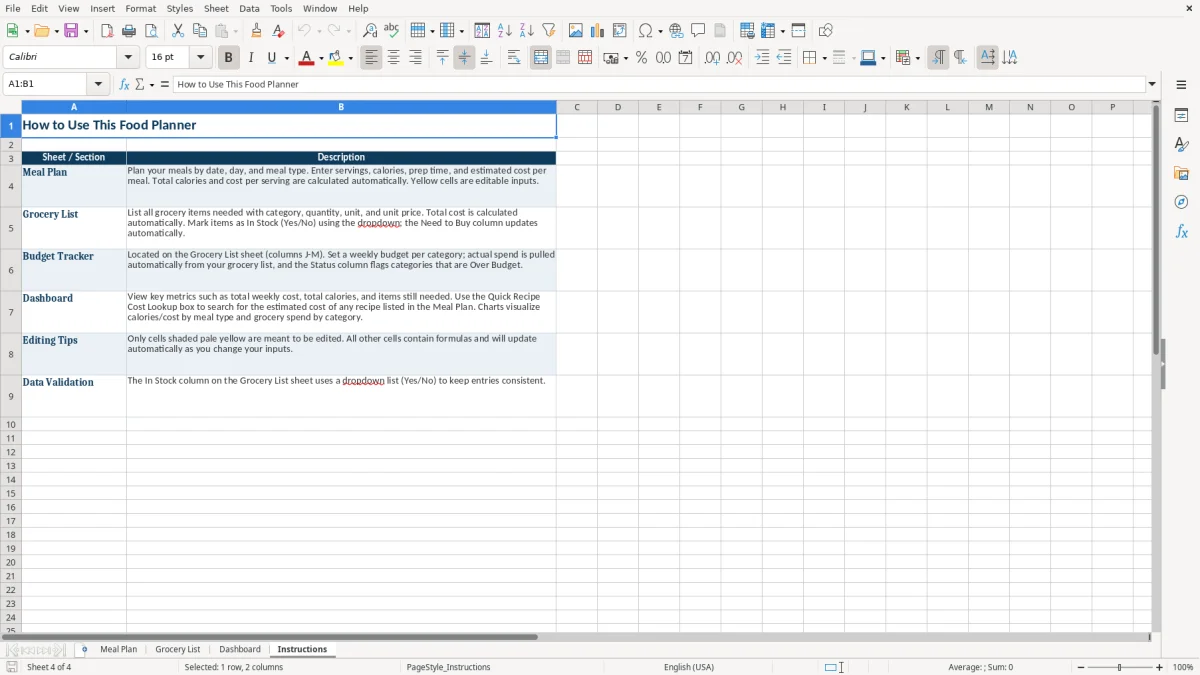
Another practical problem is overwriting calculated cells. The Instructions tab identifies editable pale-yellow cells; changing formula cells can stop Total Cost, Need to Buy, or Dashboard figures from updating correctly.
Use the workbook at one fixed time each week, preferably before your grocery order or store trip. A practical routine is to choose meals first, enter servings and estimated costs, then build the Grocery List from the final recipes instead of shopping while the plan is still changing.
After the list is complete, review Total Weekly Meal Cost against Total Grocery Cost. These figures measure different parts of the plan, so a large difference is a reason to inspect missing ingredients, duplicate items, or estimates that were not updated.
Use the Quick Recipe Cost Lookup for a fast check of a recipe already listed on Meal Plan. The two Dashboard charts provide a compact comparison of meal-type totals and category spending, but they do not replace checking the underlying rows.
This XLSX workbook is a good fit for a weekly household plan with a limited number of entries. If you routinely manage far more than the prepared rows, need recipe ingredients to flow automatically into shopping quantities, or require shared real-time editing, move to a dedicated meal-planning or household budgeting system rather than relying on manual expansion.
The workbook includes Meal Plan, Grocery List, Dashboard, and Instructions. Meal Plan holds meal details, Grocery List tracks shopping items and budgets, Dashboard summarizes results, and Instructions explains the editable and calculated areas.
Total Cost multiplies Quantity by Unit Price. For example, the populated Chicken Breast row calculates 3 lb multiplied by $4.50, producing $13.50.
Select Yes or No in the In Stock dropdown. The Need to Buy formula returns No when the item is in stock and Yes when the item is not in stock.
Yes. Enter a weekly budget in the Category Budget Tracker on Grocery List. The workbook uses SUMIF to calculate Actual Spend for each category and displays Over Budget or On Track in Status.
The Dashboard shows total weekly meal cost, total weekly calories, average calories per serving, total grocery cost, items still needed, average prep time, a recipe cost lookup, and two charts for meal-type and category spending.
Yes. Replace the sample values in the editable pale-yellow cells with your own dates, dishes, servings, prices, quantities, and notes. Leave calculated cells unchanged so the formulas continue to update the workbook.