Crypto Portfolio Excel – Free Template (2026)
5
Free download
Track prescribed medications, daily doses, refill dates, pills remaining, adherence percentages, and status summaries in an XLSX workbook.


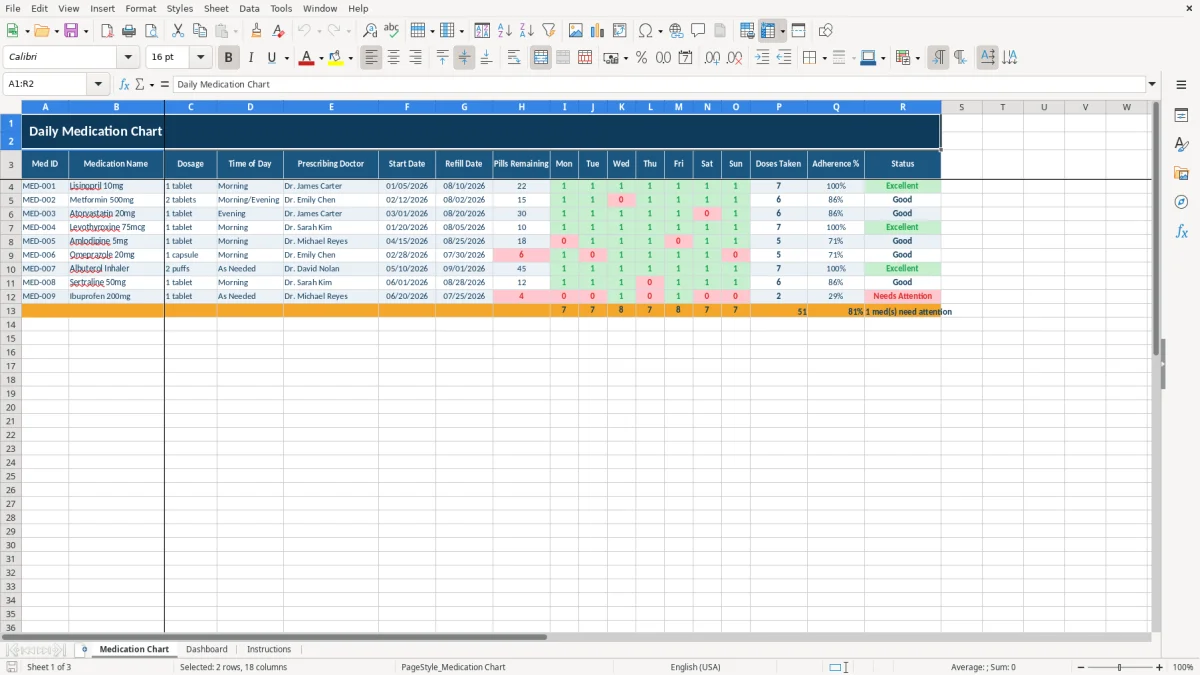
This medication and prescription refill tracker is an XLSX workbook for recording an existing prescribed schedule, marking doses taken or missed, and watching refill needs. It includes a Medication Chart with medicine details and weekly entries, a Dashboard with adherence summaries and charts, and an Instructions tab.
Replace the illustrative sample entries with the prescribed information you need to track. The workbook records your entries; it does not provide dosing advice, diagnose conditions, or recommend a medication regimen.
A household member managing several prescriptions can use the Medication Chart during a morning or evening routine. Each row represents one medication, so a person tracking the three illustrative entries can keep Lisinopril 10mg, Metformin 500mg, and Atorvastatin 20mg visible together rather than relying on separate notes or containers.
The workbook is useful when a caregiver records an existing schedule for another person, especially when different prescriptions have different times of day. The Time of Day column distinguishes entries such as Morning, Evening, and Morning/Evening, while Prescribing Doctor keeps the source of the prescription beside the schedule.
Use the Mon-Sun cells as a seven-day record. In the sample data, the first medication has seven daily entries of 1, while the second includes a 0 on Wednesday. That makes the weekly record concrete without requiring you to calculate the result by hand.
The refill fields serve a separate purpose from adherence. Start Date and Refill Date record the schedule information you enter, while Pills Remaining helps you notice when a prescription is approaching the workbook's fewer-than-10-pills reminder. This is a tracking aid, not a replacement for instructions from a healthcare provider or pharmacy.
The Medication Chart uses seven daily cells, I through O, for Monday through Sunday. The Doses Taken result uses SUM across those cells, so seven entries of 1 produce 7 and one missed entry represented by 0 produces 6.
Adherence % divides Doses Taken by 7. The Status formula labels a result of at least 90% as Excellent, at least 70% but below 90% as Good, and anything below 70% as Needs Attention. With 6 of 7 doses recorded, the result is approximately 86%, which falls into Good under these workbook thresholds.
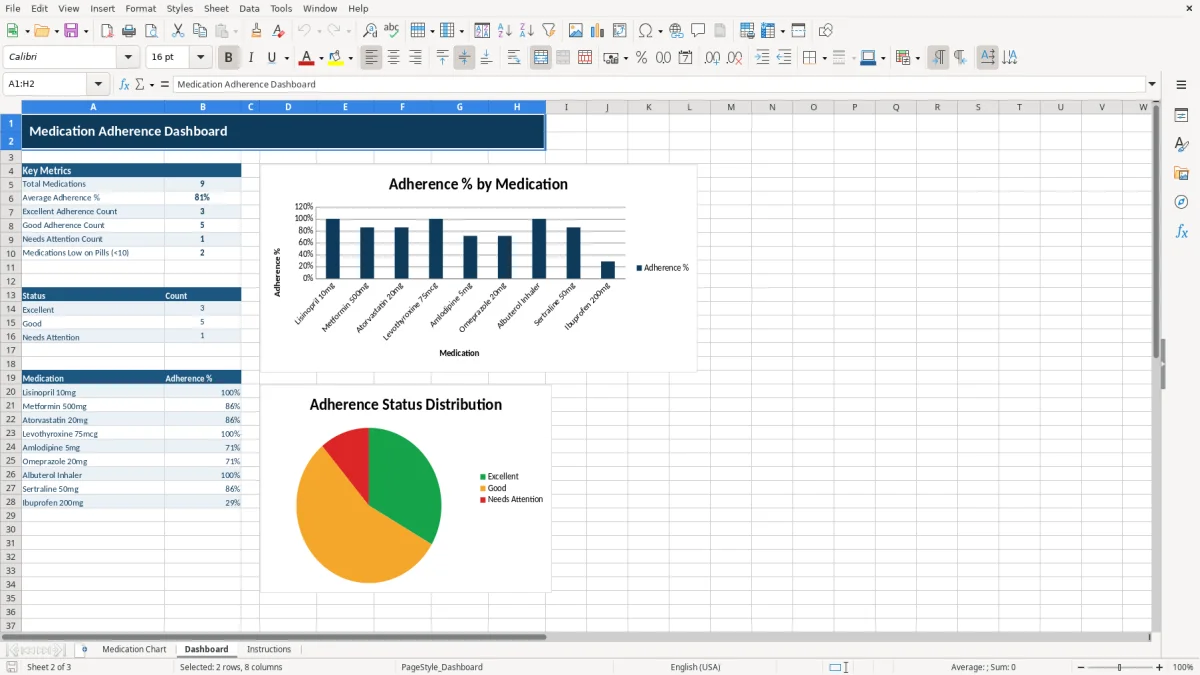
The Dashboard uses COUNTA to count medication names, AVERAGE to calculate average adherence, and COUNTIF to count each status. It also counts Pills Remaining values below 10. The displayed values are calculated from the Medication Chart rows, not from a live pharmacy connection.
The Dashboard contains a bar chart using medication names and adherence percentages, plus a pie chart using the three status categories. These charts summarize the current workbook entries; they do not validate whether a prescribed schedule is clinically appropriate.
The most serious tracking error is entering a value that does not match what happened. A 1 means the dose was taken and a 0 means it was missed in this workbook. If a row contains six 1s and one accidental 0, the calculated result is about 86% even if the dose was actually taken.
Do not use the Dosage column to invent or adjust instructions. The sample rows contain values such as 1 tablet and 2 tablets, but those are illustrative entries to replace with the prescribed details you are recording. Changing a schedule because a spreadsheet looks inconvenient can make the record inaccurate.
A medication can show Excellent adherence while still approaching a refill need. The sample Lisinopril row has seven recorded doses and 22 pills remaining, while the Dashboard separately counts rows below 10 pills. Treating adherence and supply as the same measurement is a practical mistake: one measures recorded weekly entries, and the other records quantity remaining.
Another error is overwriting formula cells in Doses Taken, Adherence %, or Status. That breaks the calculation chain and can make the Dashboard disagree with the Medication Chart. Keep the daily 1-or-0 cells for tracking and let the calculated columns remain formula-driven.
Choose one fixed review time that fits the existing medication routine, such as checking the workbook after the evening entry. A consistent weekly review gives you seven daily cells to verify and makes an unusual result easier to investigate while the week is still familiar.
Use one row per medication and keep the Med ID consistent. Do not use a single row for two prescriptions merely because they share a time of day; the workbook's formulas and dashboard summaries are organized by medication row.
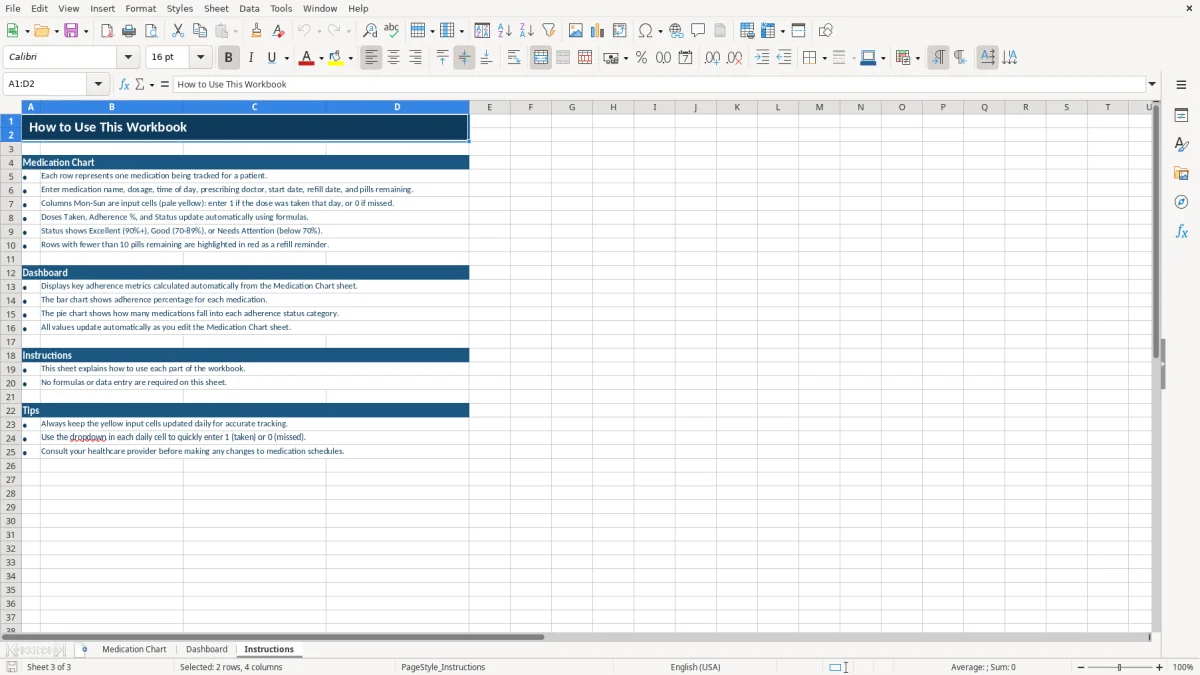
The Instructions tab is the best starting point when another caregiver will maintain the file. Keep the workbook in its XLSX format and avoid editing calculated cells unless you understand the formulas. This spreadsheet is appropriate for a focused personal record; a larger care operation with many people, permissions, or audit requirements should use a system designed for those controls.
It records one medication per row, including medication name, dosage, time of day, prescribing doctor, start date, refill date, pills remaining, seven daily dose entries, calculated doses taken, adherence percentage, and status.
Enter 1 when the tracked dose was taken and 0 when it was missed. The available dropdown covers the prepared daily input range, and the workbook calculates the weekly total from those entries.
Excellent means 90% or higher, Good means 70% through below 90%, and Needs Attention means below 70%. Adherence % is calculated from Doses Taken divided by 7.
Rows with Pills Remaining below 10 are highlighted in red in the Medication Chart, and the Dashboard counts those rows. It is a recordkeeping reminder, not a pharmacy notification or a recommendation to change treatment.
No. It is for recording an existing prescribed schedule and reviewing your entries. Replace the illustrative sample information with prescribed details and consult your healthcare provider before making any medication changes.