Tithe Offering Excel – Free Template (2026)
0
Free download
Track facility budgets, invoices, actual spend, variances, payment status, sites and categories with a four-tab XLSX workbook.


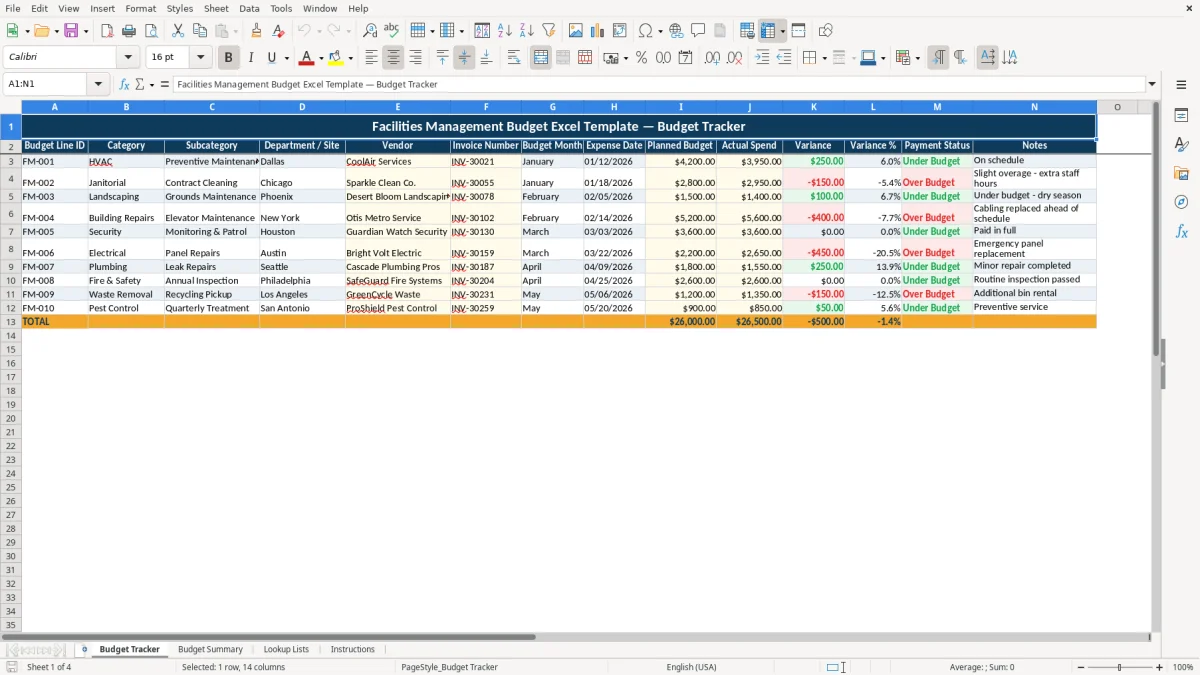
This facilities management budget workbook tracks planned budgets, actual spending, invoices, vendors, sites, dates, variances and payment status. It includes a Budget Tracker, Budget Summary, Lookup Lists and Instructions tab for organizing facility expenses in an XLSX file.
Enter each expense on the Budget Tracker tab, then review calculated variance, variance percentage and payment status. The Budget Summary tab rolls the entries into key performance indicators, category comparisons and two charts.
A facilities coordinator can use this workbook during the monthly invoice review to connect each charge with a building, vendor and expense category. The Budget Tracker includes fields for Department / Site, Vendor, Invoice Number, Budget Month and Expense Date, so a Dallas HVAC charge and a Chicago janitorial charge remain separate even when they are reviewed together.
Property managers, office managers and operations teams can use the same layout for recurring maintenance, cleaning, grounds work, repairs and safety services. The sample data shows CoolAir Services assigned to Dallas for HVAC preventive maintenance, Sparkle Clean Co. assigned to Chicago for contract cleaning and Desert Bloom Landscaping assigned to Phoenix for grounds maintenance.
Start with the invoices received during the month and enter the planned and actual amounts on the matching rows. The sample HVAC entry has $4,200 in Planned Budget and $3,950 in Actual Spend, producing a $250 favorable variance; the Janitorial sample has $2,800 planned and $2,950 actual, producing a negative variance.
Use Department / Site to compare locations such as Dallas, Chicago, Phoenix, New York, Houston, Austin and Seattle. This is useful when one facilities budget covers several buildings and you need to identify whether a variance is tied to a location, vendor or category.
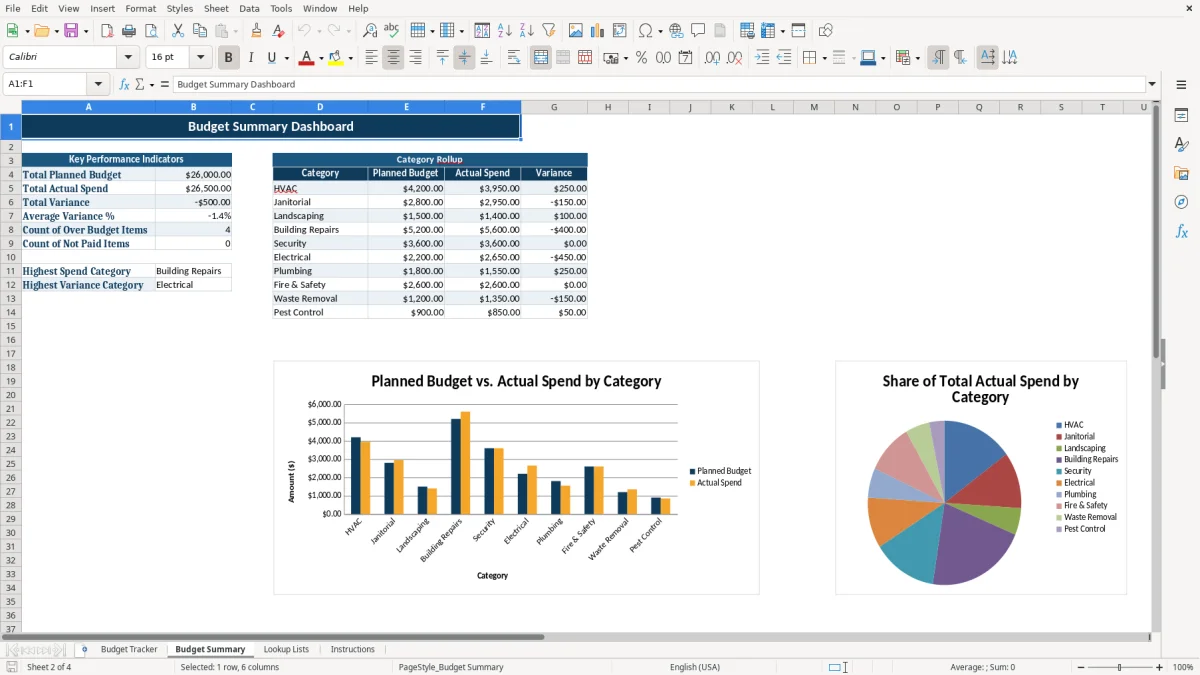
After entering invoices, open Budget Summary. Its KPI block shows total planned budget, total actual spend, total variance, average variance percentage, count of over-budget items and count of not-paid items, while the category rollup compares each listed category.
The workbook uses a straightforward budget-control convention: Variance equals Planned Budget minus Actual Spend. A positive result means spending is below the plan, while a negative result means actual spending is higher. The formula in the Budget Tracker applies this calculation across the prepared expense rows.
Variance % divides the dollar variance by Planned Budget. The formula uses IFERROR, so a row with a zero planned amount returns 0 instead of displaying an Excel error. The displayed number format is a percentage with one decimal place, and monetary columns use dollar formatting with two decimals.
Payment Status is calculated from Actual Spend and Planned Budget. When Actual Spend is zero, the result is Not Paid. When Actual Spend is less than or equal to Planned Budget, the result is Under Budget; otherwise, it is Over Budget. The status list also appears as a controlled option in the prepared status range.
Budget Summary uses SUM for total planned and actual amounts, SUM for total variance, AVERAGE for average variance percentage, and COUNTIF for Over Budget and Not Paid counts. Its category rollup uses SUMIF to calculate planned budget, actual spend and variance for HVAC, Janitorial, Landscaping, Building Repairs, Security, Electrical, Plumbing, Fire & Safety, Waste Removal and Pest Control.
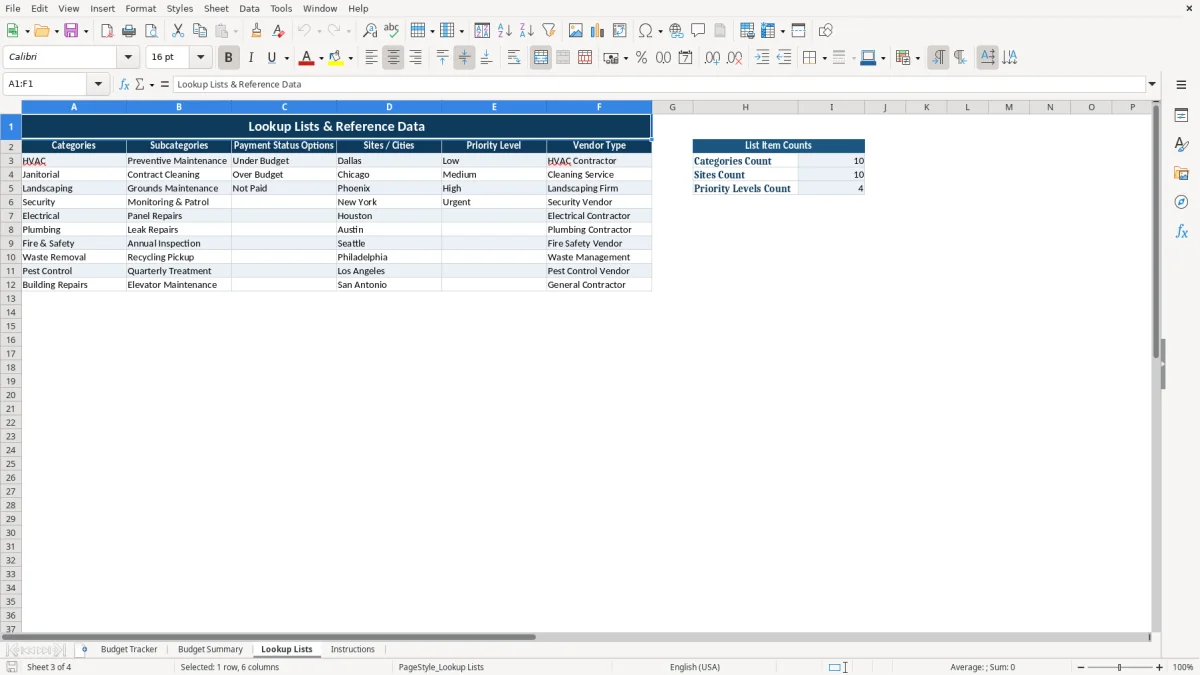
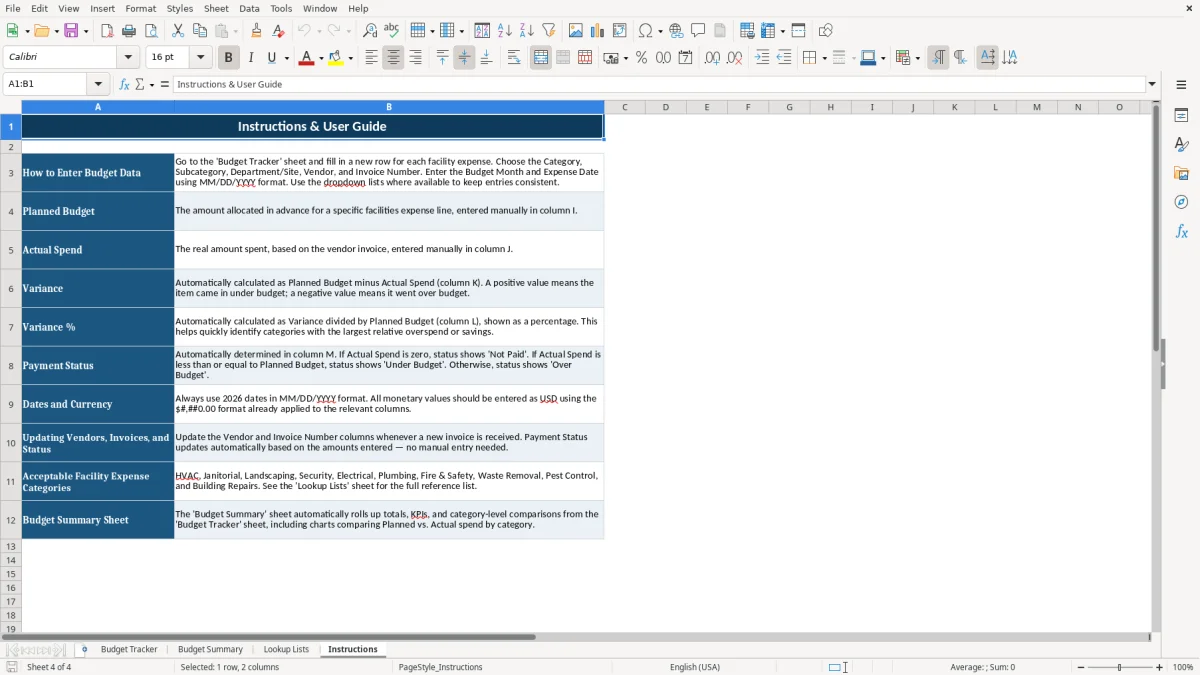
Lookup Lists holds categories, subcategories, payment status options, sites / cities, priority levels and vendor types. The Instructions tab specifies 2026 dates in MM/DD/YYYY format and USD monetary values; preserve those formats when replacing the sample entries.
The most damaging mistake is entering actual spending without a matching planned amount. Because Variance % divides by Planned Budget, a blank or zero plan cannot show a meaningful percentage comparison. Enter the approved allocation before recording the invoice amount so the row can support both dollar and percentage review.
A second problem occurs when an invoice is entered against the wrong site or category. A $2,950 janitorial charge entered under HVAC will distort both the facility-level record and the category rollup. The summary may still calculate correctly, but it will answer the wrong management question because SUMIF groups by the text in Category.
Payment Status shows Not Paid whenever Actual Spend is zero. If you enter a planned amount but leave Actual Spend at zero while waiting for an invoice, that status is useful; if you forget to enter a received invoice, the same status becomes a warning that the row is incomplete. Review the Not Paid count before closing the period.
Leaving Invoice Number, Vendor or Expense Date blank makes later verification slower. The tracker has dedicated columns for each item, so do not bury invoice identifiers in Notes. For example, the sample entry uses invoice number INV-30021 and date 01/12/2026 separately from the note On schedule.
Budget Summary is formula-driven from the prepared tracker ranges. If you review the dashboard before entering or correcting the source rows, the totals and charts will reflect incomplete information. Treat the tracker as the source record and the summary as the review output.
Set a fixed monthly checkpoint for facilities invoices, such as the final business day after vendor statements arrive. At that meeting, update Vendor, Invoice Number, Expense Date, Planned Budget and Actual Spend together; then review the Budget Summary rather than checking individual rows in isolation.
This sequence reduces the chance of comparing a real invoice with the wrong site or facility category. The Lookup Lists tab provides the available categories and locations, including Dallas, Chicago, Phoenix, New York, Houston, Austin and Seattle.
Start with negative variances and Not Paid items. In the sample data, the Chicago janitorial line is over plan by $150, while the Phoenix landscaping line is under plan by $100. Those exceptions deserve a note explaining whether the difference came from extra staff hours, seasonal conditions or another documented reason.
Do not casually rename categories after entries have been recorded. The Budget Summary uses category text to build its rollup, so inconsistent labels can split what should be one category into separate results. Update the Lookup Lists values deliberately, then use the same wording in Budget Tracker.
The workbook is well suited to a small, controlled set of facility expense rows. When the volume or approval process requires more extensive invoice workflows, permissions or vendor history than these four tabs provide, move the source process to a dedicated accounting or facilities system and retain this workbook for a focused budget review.
Budget Tracker records Budget Line ID, Category, Subcategory, Department / Site, Vendor, Invoice Number, Budget Month, Expense Date, Planned Budget, Actual Spend, Variance, Variance %, Payment Status and Notes.
Variance, Variance % and Payment Status are calculated in Budget Tracker. The Budget Summary also calculates totals, average variance percentage, over-budget and not-paid counts, plus category-level planned, actual and variance amounts.
When Actual Spend is greater than Planned Budget, the Payment Status formula returns Over Budget and Variance becomes negative. For example, the sample Janitorial line has $2,800 planned and $2,950 actual.
Yes. The Lookup Lists tab contains the reference values for categories and sites / cities. Category and Department / Site dropdowns in the prepared Budget Tracker range use those lists, so keep the wording consistent with the values you maintain there.
Budget Summary includes KPI values for total planned budget, total actual spend, total variance, average variance percentage, count of over-budget items and count of not-paid items. It also includes a category rollup and two charts comparing planned and actual spending.