HACCP Excel – Free Template (2026)
5
Free download
Track vehicle repairs, labor, parts, taxes, approvals, payments, balances, and service performance in an XLSX job card workbook.


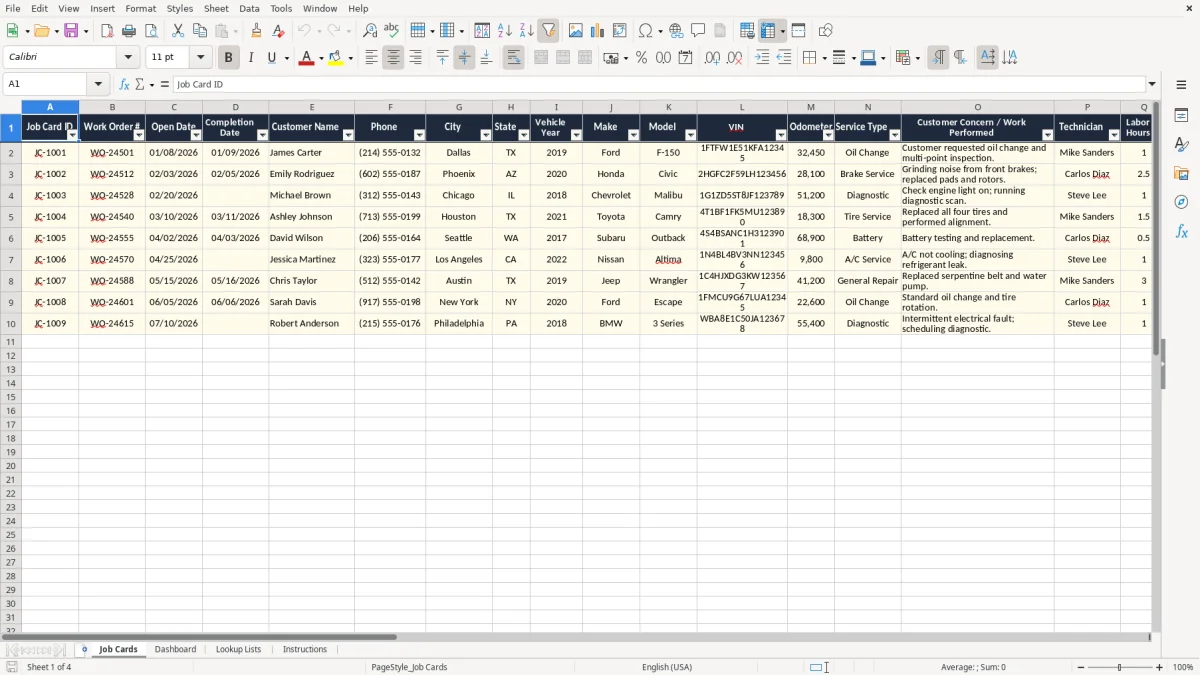
A vehicle job card Excel template records one vehicle visit per row, including the work order, customer, vehicle details, service performed, labor, parts, sales tax, approval, and payment status. This workbook contains Job Cards, Dashboard, Lookup Lists, and Instructions tabs for a small repair shop or fleet service team.
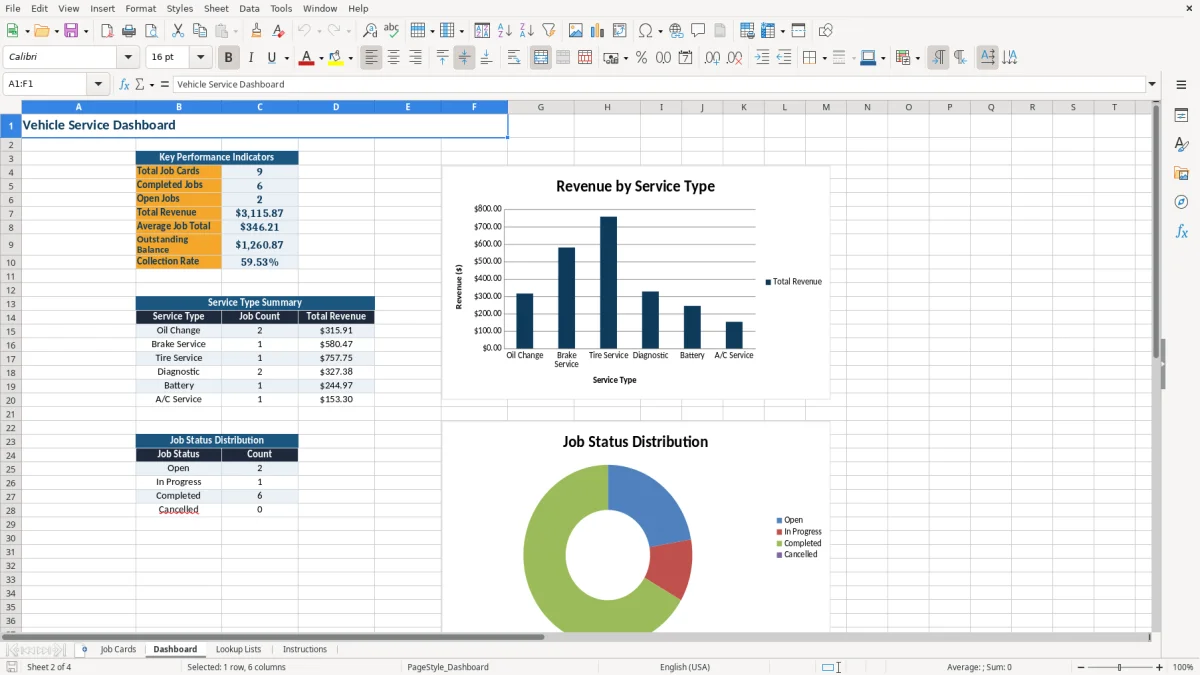
Enter records in the pale yellow input cells on the Job Cards tab. The workbook calculates labor amounts, subtotals, sales tax, total due, balance due, and payment status, while the Dashboard summarizes completed and open work, revenue, service types, and collections.
A service advisor at an independent repair shop can use the Job Cards tab during intake, while a fleet coordinator can record scheduled maintenance for company vehicles. The sheet has fields for work order number, open date, completion date, customer, VIN, odometer, service type, technician, labor hours, and the work performed, so the operational record stays connected to the invoice calculation.
A small shop might enter JC-1001 for a Ford F-150, record 1 labor hour, $45.00 in parts, and select Oil Change. The sample workbook then uses the Lookup Lists rate for that service and calculates the labor amount, subtotal, sales tax, total due, and balance due.
The same structure works for a brake inspection, diagnostic visit, tire service, battery replacement, or A/C repair. A fleet office manager can use the odometer and completion date to identify what was performed on each vehicle rather than relying on a paper ticket or a text message.
Enter the customer concern before work begins, update the technician and completion date when the vehicle is finished, and record Customer Approval before non-emergency repair work. The Dashboard then counts records by status and service type, giving the owner a quick view after the daily closeout.
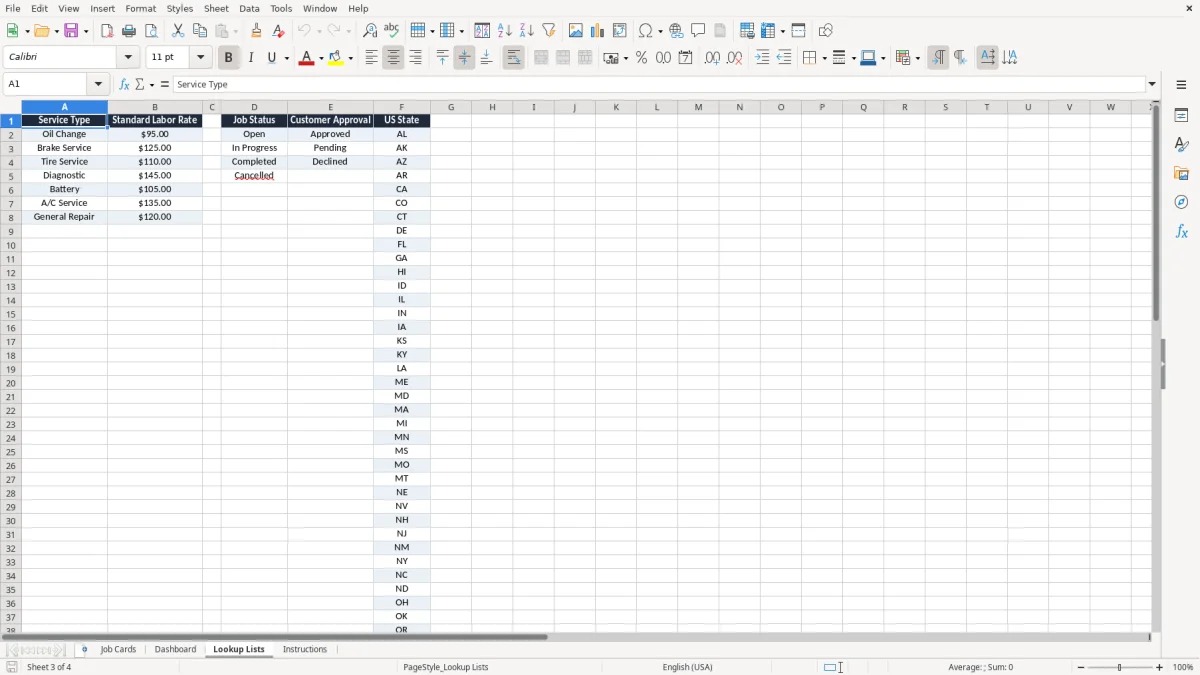
The Job Cards sheet separates editable inputs from calculated outputs. Labor Rate is retrieved with VLOOKUP from Lookup Lists, Labor Amount multiplies Labor Hours by Labor Rate, and Subtotal adds Labor Amount, Parts Cost, and Shop Supplies. Sales Tax is calculated from the entered Sales Tax Rate, not from a fixed national rate.
Total Due equals Subtotal plus Sales Tax. Balance Due subtracts Amount Paid from Total Due, and Payment Status returns Paid, Partial, or Unpaid based on the balance and payment entered. For example, a $400.00 total with $150.00 paid produces a $250.00 balance and a Partial status.
Sales tax is entered for each job because the workbook is designed for U.S. businesses serving different locations. The Lookup Lists tab provides state abbreviations, but it does not determine state or local tax rates. Confirm the rate you enter for the transaction and retain the supporting sales record.
Do not overwrite Labor Rate, Labor Amount, Subtotal, Sales Tax, Total Due, Balance Due, or Payment Status. If you change the service list or standard labor rates, review the resulting calculations before using the workbook for customer billing.
The most expensive errors usually begin at intake. A missing VIN, incorrect odometer reading, or vague description such as repair instead of customer reports grinding noise makes the record harder to match to the vehicle and harder for a technician to verify.
If a technician worked 2.5 hours but the entry says 1.5, the labor amount is understated by one hour at the selected rate. If Parts Cost is left blank or entered in Shop Supplies, the Subtotal and Total Due will not represent the actual repair economics.
A blank or incorrect Sales Tax Rate also changes the customer total. Because the workbook accepts the rate as a user input, the billing clerk must check the job location and the rate used for that invoice rather than assuming the state abbreviation supplies the answer.
Marking a job Completed without entering Amount Paid can leave an outstanding balance that is easy to miss. Conversely, entering a payment but leaving the job status Open can distort the Dashboard's completed and open counts. Reconcile the Job Cards rows to the payment record at the end of each day, especially when several vehicles close at once.
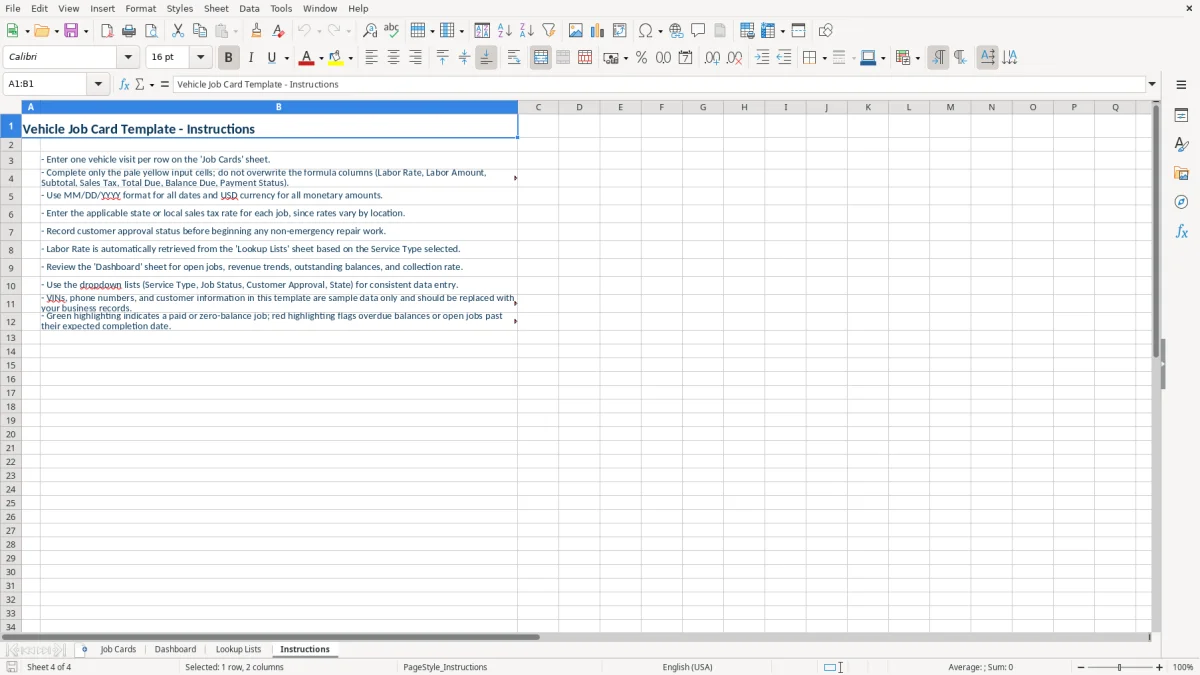
Use a fixed sequence for every vehicle: create the ID, enter the work order and customer details, record the concern, select the service type, enter costs, and update approval and payment fields. A consistent sequence prevents the common mistake of calculating an invoice before the parts, supplies, and tax inputs are complete.
Use the dropdown lists rather than typing status labels manually. A consistent value such as In Progress allows COUNTIF to count the record correctly, while a spelling variation would separate it from the Dashboard category.
The workbook has prepared rows through row 10 and formulas covering those rows. If your shop regularly handles more than nine active records in this file, test any added rows carefully and verify every formula and validation range before relying on the expanded workbook.
It tracks work orders, dates, customers, phone numbers, locations, vehicle year, make, model, VIN, odometer, service type, technician, labor, parts, supplies, sales tax, approval, payment, job status, and balance due.
Labor Rate, Labor Amount, Subtotal, Sales Tax, Total Due, Balance Due, and Payment Status are formula-driven. Enter the related inputs without overwriting these calculated columns.
Yes. Edit the standard labor rates on Lookup Lists. The Job Cards labor rate is retrieved from that list according to the selected Service Type.
It calculates the Sales Tax amount from the rate you enter for each job. It does not determine the applicable state or local rate, so verify the rate before billing.
The Job Cards sheet contains prepared operational rows 2 through 10, with formulas and dropdown validation covering those rows. Review and test any additional rows before using them for live records.