Vehicle Job Card Excel – Free Template (2026)
4
Free download
HACCP workbook with hazard analysis, temperature monitoring log, pass/fail formulas, dashboard metrics, charts, and instructions for food operations.


This HACCP Excel workbook helps a food-service or food-manufacturing team document hazards, define operator-supplied critical limits, record temperature checks, and review pass/fail results. It contains CCP Hazard Analysis, Monitoring Log, Dashboard, and Instructions tabs for a connected food-safety record.
Enter your facility details and process steps first, then record each check in the Monitoring Log. The workbook pulls limits into the log with VLOOKUP, calculates status with IF, and summarizes results by CCP step on the Dashboard.
A restaurant kitchen manager, commissary supervisor, caterer, food truck operator, or small processing facility can use this workbook to keep the food-safety team working from the same process record. A receiving clerk can document a delivery check, while a production employee can record cooking, cooling, hot-holding, or cold-holding measurements.
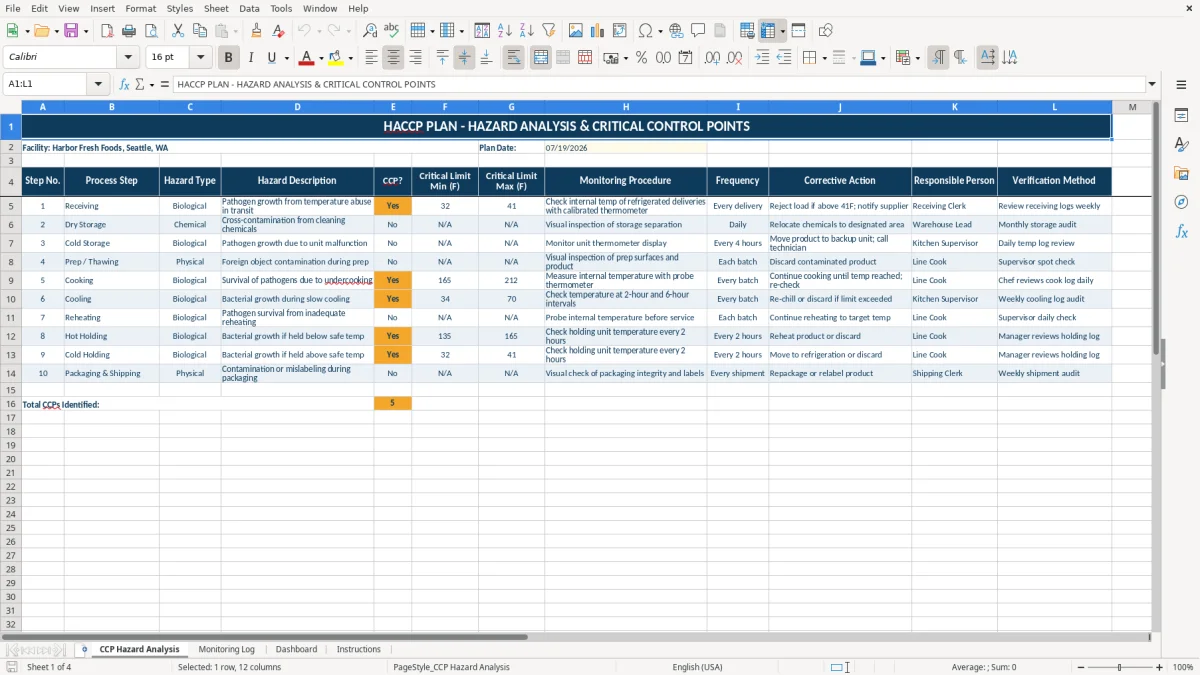
The CCP Hazard Analysis tab gives each process step one row with a hazard type, description, limit range, monitoring procedure, frequency, corrective action, responsible person, and verification method. Image 1 shows the 12-column layout, including the sample Receiving row with a 32°F minimum and 41°F maximum entered as facility-plan values.
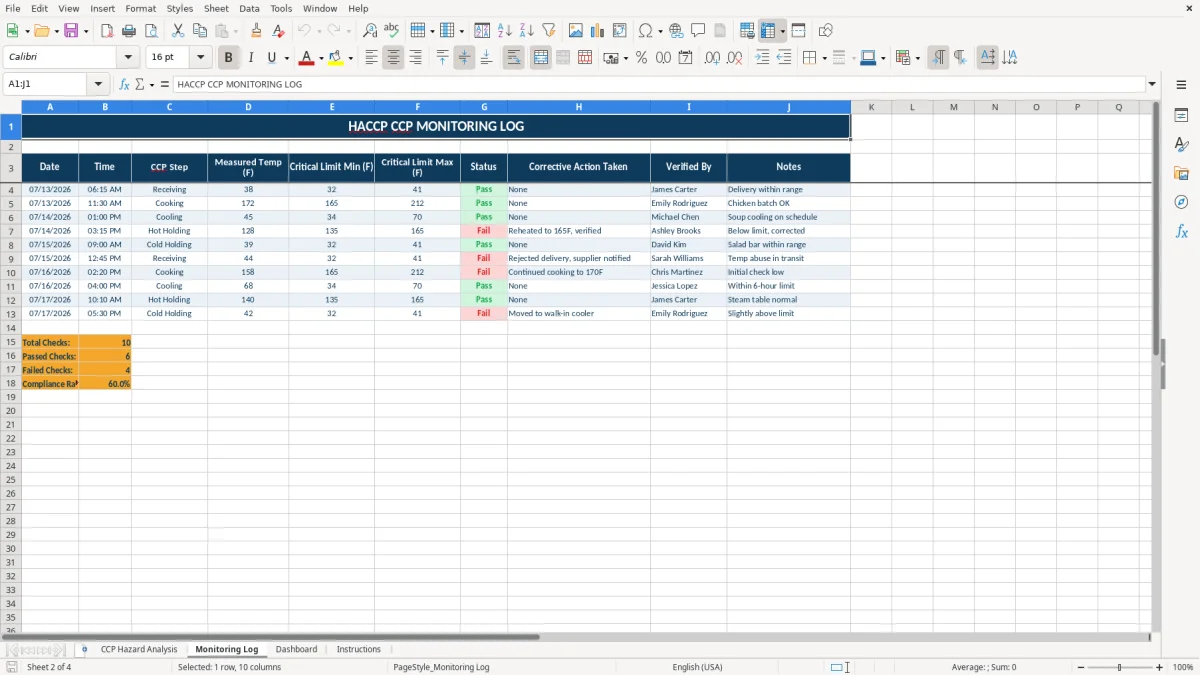
The Monitoring Log is designed for repeated checks in its prepared entry area. Image 2 shows entries such as 38°F for Receiving, 172°F for Cooking, and 45°F for Cooling; these are populated workbook samples, not universal operating limits. The Dashboard then groups results across five named CCP steps, so a supervisor can see where follow-up is needed.
This workbook is a documentation and calculation aid, not an FDA certification or a determination that your plan meets every applicable requirement. Enter the limits and check frequencies approved for your operation; the sample values illustrate the layout and should be replaced when they do not apply.
In CCP Hazard Analysis, the minimum and maximum temperature fields are manual inputs. The Monitoring Log retrieves those values with VLOOKUP from the selected CCP Step. For example, if Receiving has a 32°F minimum and 41°F maximum, a recorded 38°F is evaluated against that range.
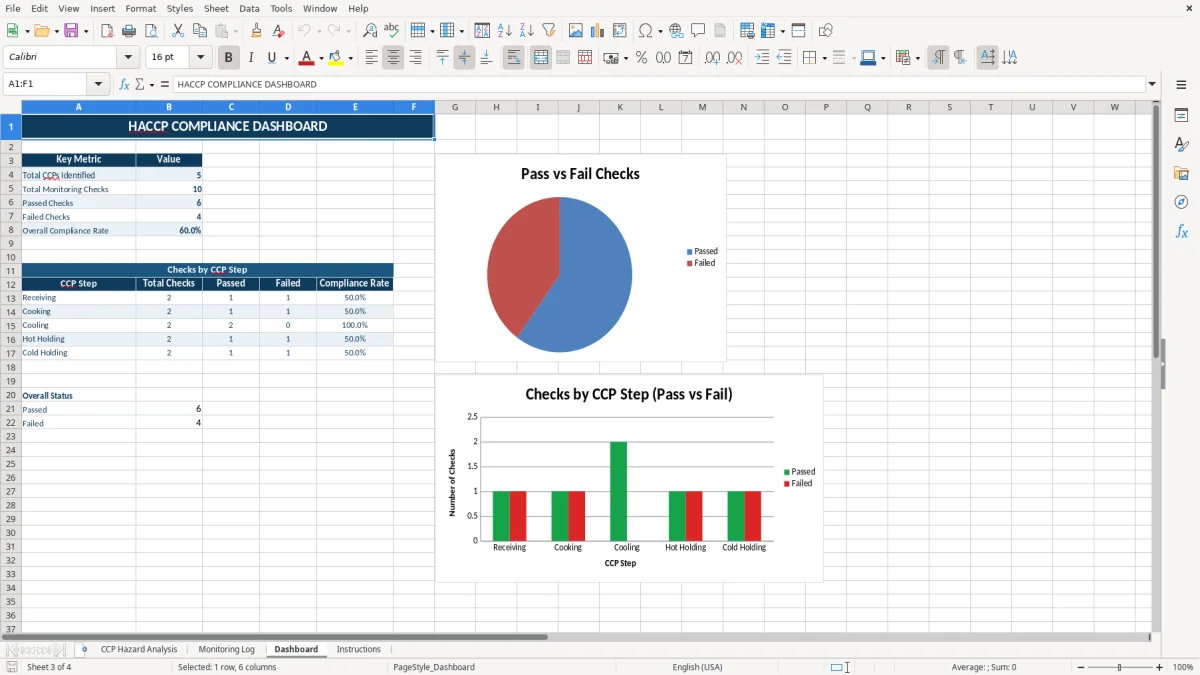
The Status column returns Pass when the measured temperature is greater than or equal to the minimum and less than or equal to the maximum; otherwise it returns Fail. Image 3 shows the Dashboard's key metrics, including total CCPs, total checks, passed checks, failed checks, and overall compliance rate. Review your facility's applicable food-safety requirements separately and retain supporting records according to your operating policy.
The most expensive failures are often simple: the employee records a measurement but leaves the CCP Step blank, types a step name that is not in the dropdown, or replaces a formula with a hard-coded number. In this workbook, the limit lookup depends on the selected step matching a process step in CCP Hazard Analysis.
If a facility changes a limit but updates only the Monitoring Log, later entries can pull the old value from the analysis tab. The safer position is to maintain the approved limit in one place—CCP Hazard Analysis—and let the formulas retrieve it. A 38°F reading may show Pass under one range and Fail under another, so the plan input must be reviewed before relying on the result.
A Fail result without a completed Corrective Action Taken field leaves the record difficult to interpret. Image 2 shows a sample Hot Holding entry with a corrective action describing reheating to 165°F and verification; use that field to document what your team actually did, rather than leaving a vague note such as “fixed.”
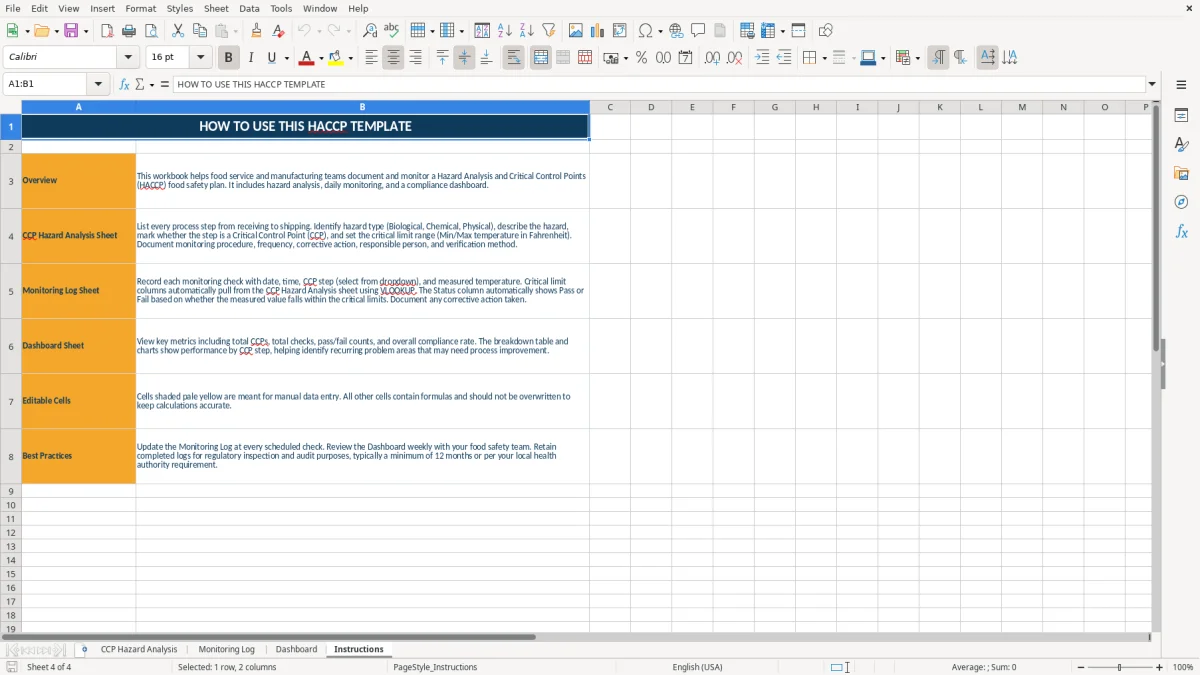
Assign one person to enter each check immediately after it is taken and one reviewer to inspect the Dashboard at a fixed weekly meeting. The Instructions tab specifically points users toward updating the Monitoring Log at every scheduled check and reviewing the Dashboard weekly.
Use the dropdown for CCP Step rather than typing variations such as “cold storage” when the prepared list expects Cold Holding. Keep formula cells intact, save a dated copy according to your record policy, and test the workbook with a known measurement such as 38°F against the applicable entered range before putting it into routine use.
It includes CCP Hazard Analysis, Monitoring Log, Dashboard, and Instructions. Image 1 shows the analysis fields, image 2 shows the monitoring columns, image 3 shows the summary metrics and charts, and image 4 shows the usage guidance.
Yes. The Monitoring Log uses VLOOKUP to retrieve the selected step's minimum and maximum limits, then uses IF and AND to return Pass or Fail. The limits themselves are entered by the operator in CCP Hazard Analysis.
Yes. Replace the sample process steps, hazard descriptions, frequencies, corrective actions, responsible people, verification methods, and temperature limits with the values approved for your operation. The sample values are illustrations, not universal requirements.
The prepared list includes Receiving, Cooking, Cooling, Hot Holding, and Cold Holding. The selected name must match the corresponding process step in CCP Hazard Analysis so the lookup formulas can return the intended limits.
No. It organizes hazard analysis and monitoring records, but it does not provide FDA certification or determine whether your operation satisfies every applicable food-safety requirement. Treat the limits, frequencies, corrective actions, and verification methods as operator-supplied plan inputs.