Tithe Offering Excel – Free Template (2026)
0
Free download
Track overseas VAT sales and purchases in XLSX, reconcile input and output VAT, review invoice status, and summarize categories and months.


This VAT Excel template is an XLSX transaction register for U.S.-based businesses recording overseas VAT invoices. It contains input fields for sales and purchases, calculated VAT and totals, payment follow-up checks, an invoice lookup, category totals, monthly summaries, and charts.
Use the VAT Transactions tab for invoice-level entries and the VAT Summary tab for reconciliation. The workbook uses one transaction currency and illustrative sample rows; replace those examples with your actual invoices and verify the applicable foreign VAT treatment.
A U.S.-based online store, consulting firm, or distributor may record invoices that include foreign VAT even though its domestic bookkeeping uses U.S. dollars and U.S. tax terminology. The workbook gives that team one place to distinguish sales from purchases and preserve the invoice-level evidence behind each VAT amount.
An office manager can enter an overseas supplier invoice as Purchase, record the taxable amount and rate, and mark whether the invoice is paid. A bookkeeper can then compare the purchase line with the original document instead of relying on a bank description that contains no VAT detail.
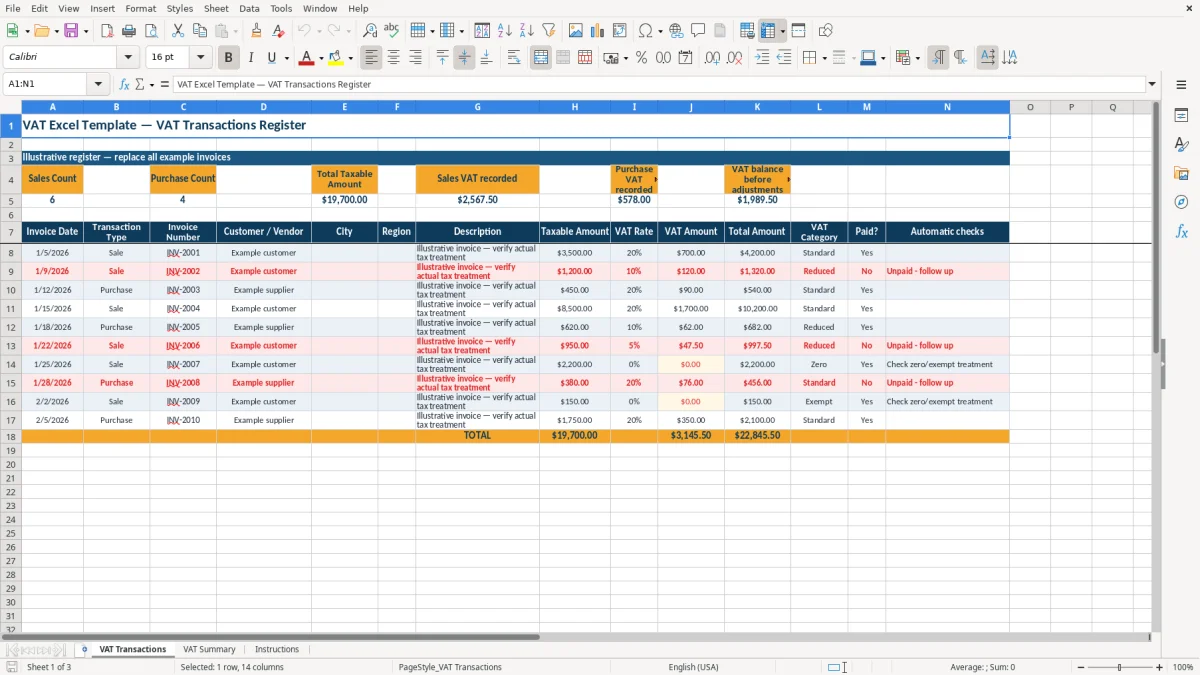
The VAT Transactions tab, shown in image 1, has ten prepared entry rows from row 8 through row 17. Its columns cover the date, invoice number, customer or vendor, location, description, taxable amount, VAT rate, category, and payment status. The calculated columns show VAT Amount and Total Amount, while Automatic checks display review messages.
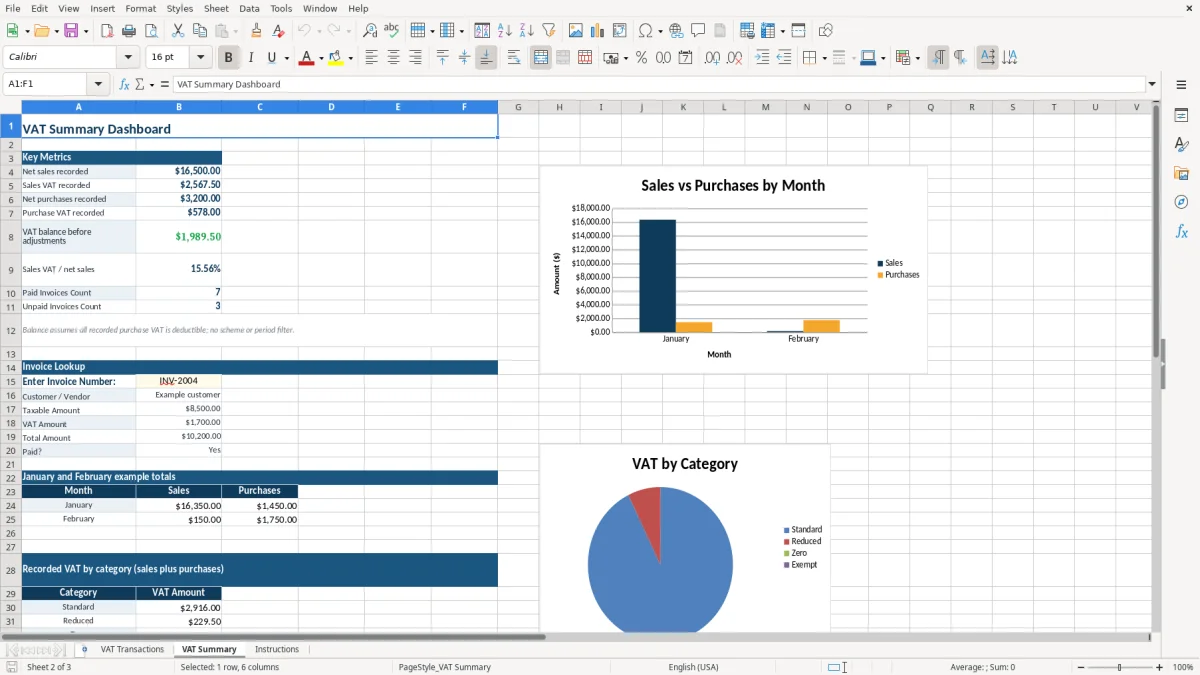
During a month-end close, a finance lead can open VAT Summary and compare net sales, sales VAT, net purchases, purchase VAT, and the VAT balance before adjustments. Image 2 shows the dashboard layout, including the invoice lookup, January and February example totals, and category totals.
This is not a U.S. sales-tax worksheet. VAT is a consumption-tax concept used by many foreign jurisdictions; U.S. sales tax is generally imposed at the state or local level. Keep the VAT register focused on the overseas invoices it is intended to document.
The workbook uses a straightforward transaction calculation. For each populated row, VAT Amount equals the taxable amount multiplied by the entered VAT rate and rounded to two decimal places; Total Amount equals taxable amount plus VAT Amount. For example, the sample row with a taxable amount of $3,500 and a 20% rate calculates $700.00 VAT and a $4,200.00 total.
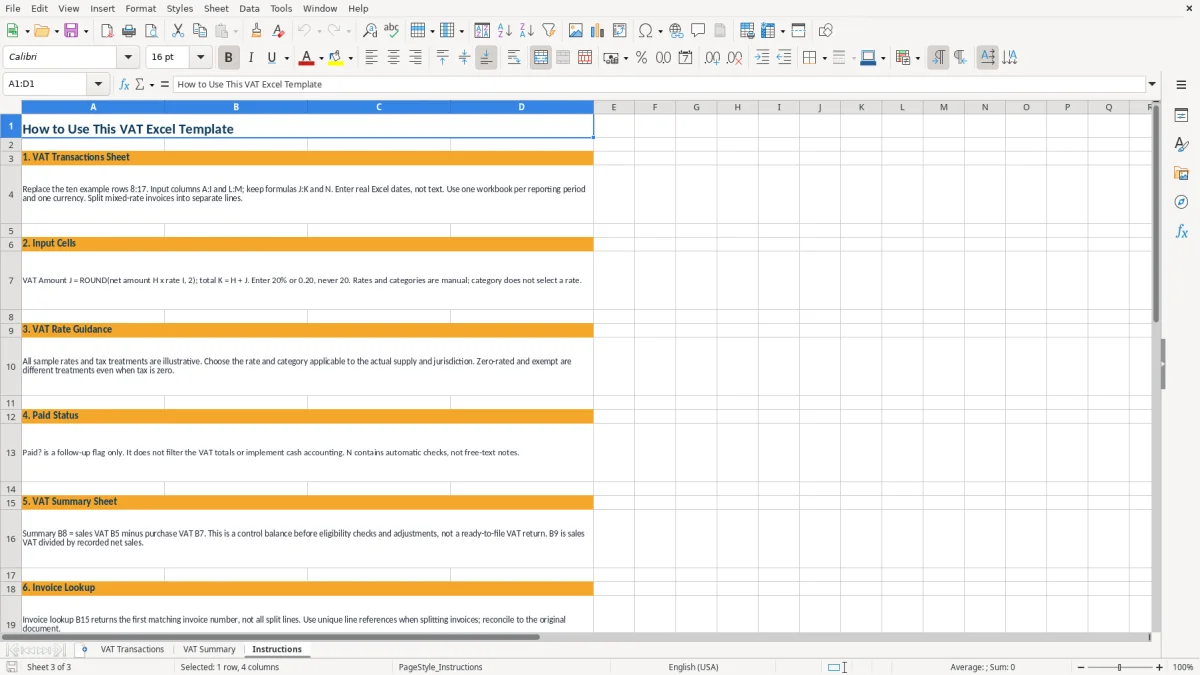
You enter columns A:I and L:M on VAT Transactions. Columns J, K, and N are calculated outputs, so replacing those formulas would weaken the reconciliation. The rate and category are separate manual choices: selecting Standard does not automatically select a rate.
At the top of the register, Sales Count and Purchase Count use COUNTIF, while VAT totals use SUM and SUMIFS. VAT balance before adjustments is sales VAT recorded minus purchase VAT recorded. The Summary tab repeats that calculation in B8 as sales VAT in B5 less purchase VAT in B7.
The Summary note states that the balance assumes all recorded purchase VAT is deductible and does not apply a scheme or period filter. The workbook therefore provides a control balance, not a ready-to-file foreign VAT return. Its monthly section covers January and February examples only, and its charts do not provide a year filter.
Use one transaction currency as directed by the Instructions tab. No exchange-rate conversion is built in. Also distinguish zero-rated from exempt treatment in your source records rather than assuming both produce the same result.
The most damaging errors usually begin with replacing a calculated field or treating a sample row as a real invoice. The workbook is populated with illustrative examples, including invoice numbers such as INV-2001 and sample descriptions that say to verify actual tax treatment. Leaving those rows in place can overstate both transaction counts and VAT totals.
A user may type 20 instead of 20%, causing the formula to treat the rate as twenty times the taxable amount rather than one-fifth. On a $3,500 taxable amount, the intended $700.00 VAT would instead calculate as $70,000.00. The Instructions tab explicitly directs you to use 20% or 0.20.
Another frequent problem is treating the category as a rate selector. Standard, Reduced, Zero, and Exempt are manually selected labels; none changes the number entered in the VAT Rate column. If the label and rate disagree, the category chart can still summarize the wrong classification without correcting it.
Paid? is a follow-up flag only. Marking an invoice No does not remove it from sales or purchase VAT totals and does not implement cash accounting. A sample unpaid sale therefore remains included in the balance while the Automatic checks column displays Unpaid - follow up.
Invoice lookup also returns the first matching invoice number, not every split line. Reusing one invoice number across multiple lines can make the lookup incomplete. Reconcile split entries to the original invoice and review the source document before relying on the summary.
Make the workbook part of the same routine as your overseas invoice review rather than treating it as a one-time report. Enter invoices when they are approved or received, then perform a short reconciliation at month-end. For a small business with ten prepared rows, that review is manageable; the Instructions tab warns that every summary and lookup range must be verified if you extend the register.
Use the invoice lookup after entry to test a few invoice numbers. If the result says Not found, check spelling and whether the invoice number exists in the prepared range. If an invoice is split across lines, use unique line references as directed by the Instructions tab.
Do not treat the charts as a filing report. The monthly chart covers only January and February, and the category chart combines sales and purchases by VAT category rather than showing their difference.
When your register needs more rows, more currencies, multiple reporting periods, or jurisdiction-specific treatment, the workbook requires careful range and formula maintenance. At that point, a dedicated accounting or indirect-tax system is preferable to copying formulas manually.
No. It is designed for U.S.-based businesses recording overseas VAT invoices. VAT and U.S. state or local sales tax are different systems, so do not use the workbook as a U.S. sales-tax return.
Enter columns A:I and L:M: invoice date, transaction type, invoice number, customer or vendor, city, region, description, taxable amount, VAT rate, VAT category, and paid status. Leave columns J, K, and N as formulas.
VAT Amount is the taxable amount multiplied by the entered VAT rate, rounded to two decimal places. The sample $3,500.00 amount at 20% produces $700.00 VAT and a $4,200.00 total.
No. Paid? is a follow-up flag only and does not filter the VAT totals or implement cash accounting. An unpaid row remains included, while Automatic checks displays Unpaid - follow up.
No. The Instructions tab directs you to use one transaction currency, and no exchange-rate conversion is included. The charts are internal views: the monthly chart covers January and February, and neither chart is a VAT return.