Tithe Offering Excel – Free Template (2026)
0
Free download
Track 501(c)(3) gifts, fees, restrictions, acknowledgments, receipts, campaigns, and dashboard totals in a prepared Excel workbook.


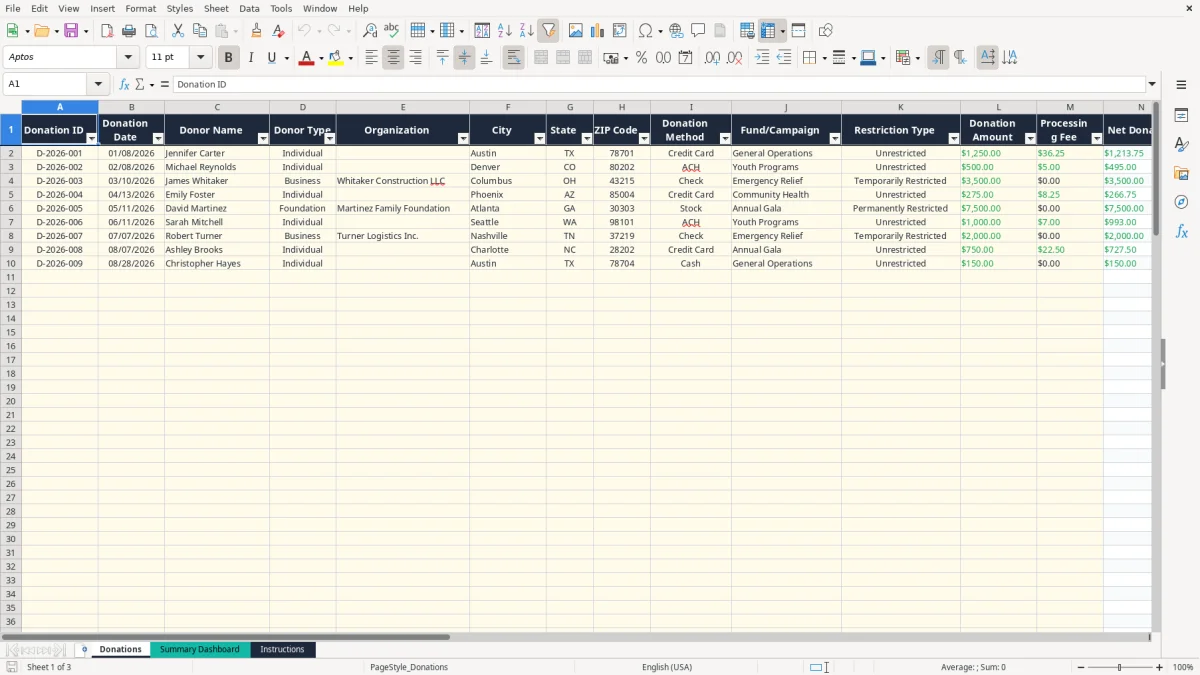
This nonprofit 501(c)(3) donation tracker Excel template records one gift per row, including donor details, date, payment method, campaign, restriction type, gross amount, processing fee, receipt number, and acknowledgment status. It also calculates net donations, tax-deductible amounts, and follow-up status.
Enter records on the Donations tab, review totals and campaign breakdowns on the Summary Dashboard, and use the Instructions tab for field guidance. The workbook includes 100 prepared entry rows, dropdown lists, two dashboard charts, and sample donations dated in 2026.
A small nonprofit’s development coordinator, bookkeeper, or volunteer treasurer can use this workbook whenever a gift arrives. A community organization receiving 25 gifts during a monthly appeal can enter each contribution on the Donations tab instead of keeping separate email, bank, and receipt lists.
The file fits several operating moments. A volunteer may enter checks after the weekly mail opening, a development manager may reconcile online gifts after a campaign, and the treasurer may review the dashboard before a board meeting. The workbook has 100 prepared rows, so it is practical for a small organization with a modest donor file, not a replacement for a donor-management database.
Image 1 shows the Donations tab. The columns run from Donation ID, Donation Date, and Donor Name through Donor Type, Organization, City, State, ZIP Code, Donation Method, Fund/Campaign, and Restriction Type. The financial fields then show Donation Amount, Processing Fee, and calculated Net Donation, followed by acknowledgment, receipt, tax-deductible, notes, and follow-up fields.
For example, a $1,250 credit-card gift with a $36.25 processing fee produces a $1,213.75 Net Donation. The sample row demonstrates how a monthly supporter contribution can be tied to a receipt number and an acknowledgment date.
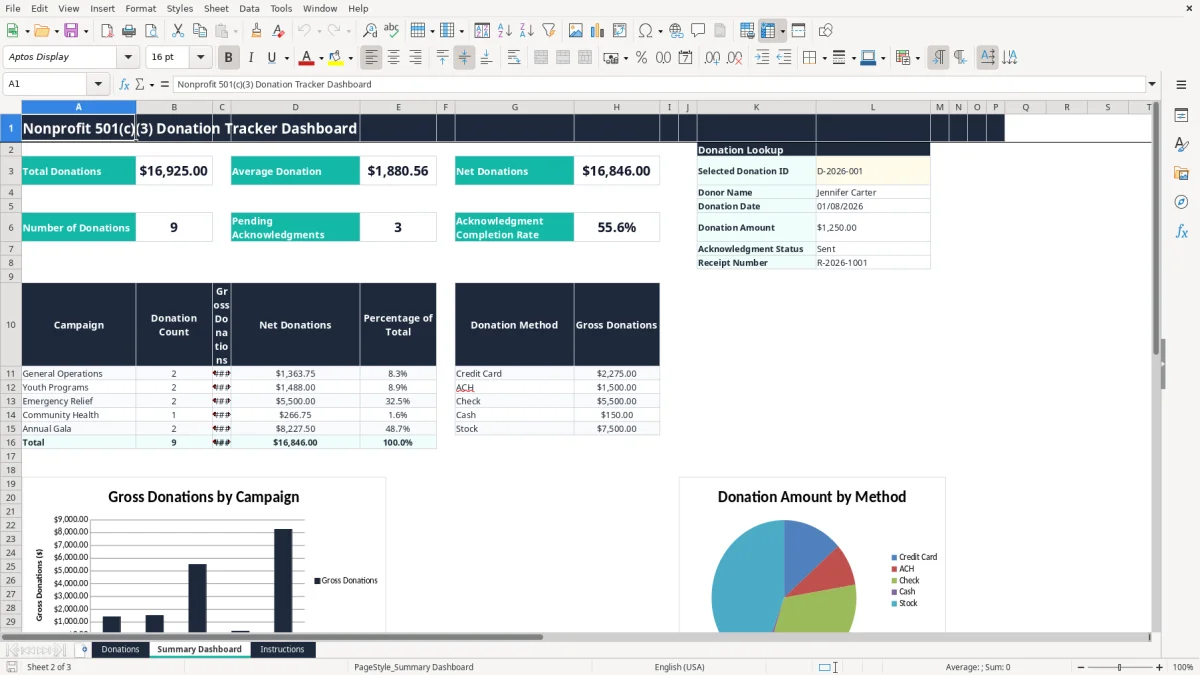
The Summary Dashboard in image 2 gives the treasurer a quick control view: total donations, average donation, net donations, number of donations, pending acknowledgments, and completion rate. It also breaks results across five listed campaigns and five payment methods.
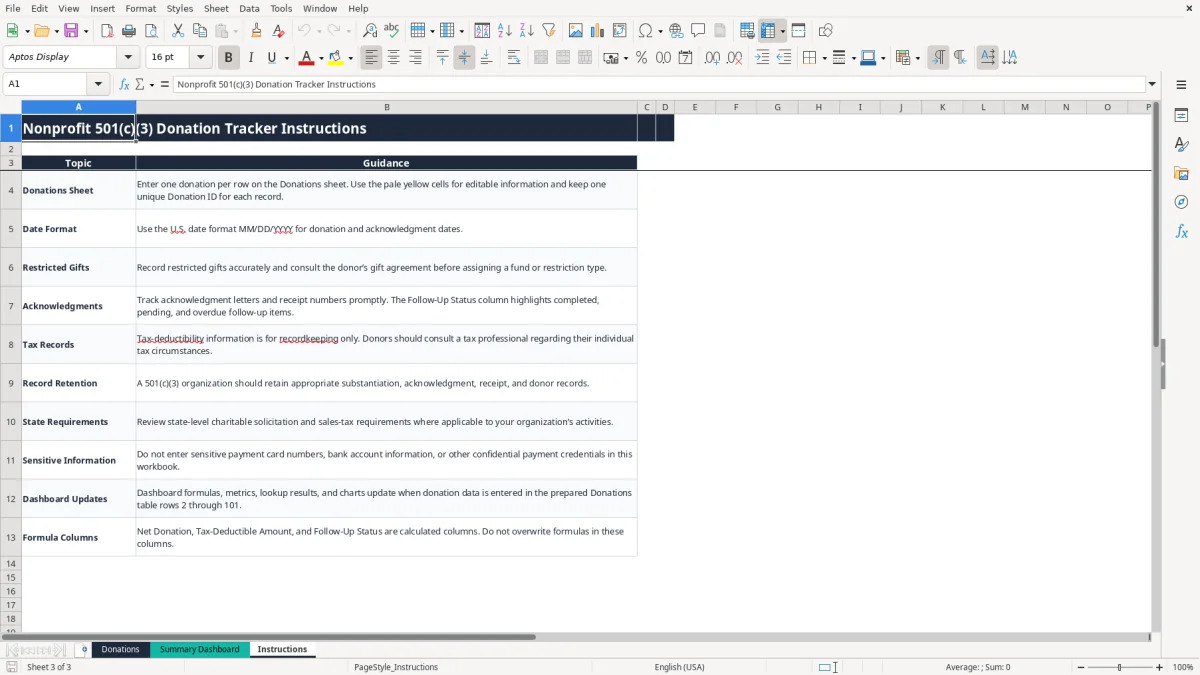
The Instructions tab shown in image 3 is useful when a new volunteer takes over. It explains the MM/DD/YYYY date format, restricted-gift handling, record retention, sensitive information, and the calculated columns.
A spreadsheet supports a nonprofit’s internal recordkeeping, but it does not by itself create a donor acknowledgment that satisfies every federal requirement. The organization should preserve the gift record, acknowledgment correspondence, receipt number, and any donor restriction or gift agreement that supports the entry.
For a cash contribution of $250 or more, the donor generally needs a contemporaneous written acknowledgment from the charitable organization to substantiate the deduction. The acknowledgment should identify the organization, state the amount of cash or describe noncash property, and state whether goods or services were provided. This workbook records the acknowledgment status, date, and receipt number; it does not generate the acknowledgment letter.
The Donations tab offers three restriction choices: Unrestricted, Temporarily Restricted, and Permanently Restricted. The Tax-Deductible Amount formula returns Net Donation only for an Unrestricted entry and returns zero for either restricted category. That is a workbook classification rule, not a final determination of the donor’s federal deduction.
Consider a $3,500 check restricted to emergency family assistance. With a $0 processing fee, Net Donation is $3,500, but the calculated tax-deductible field is $0 because the gift is marked Temporarily Restricted. The nonprofit should retain the donor’s written terms and apply its accounting policy separately.
A 501(c)(3) organization should keep appropriate books and supporting records for its annual information return, commonly Form 990, and for any audit or grant review. Donor records should generally be retained according to the organization’s document-retention policy and applicable federal and state requirements.
Charitable solicitation registration, sales-tax treatment, and fundraising rules are state-level matters. The Instructions tab correctly directs the organization to review state requirements; the workbook does not calculate sales tax, Form 990 figures, donor deductions, or state filings.
The first failure I see in small nonprofit files is a mismatch between the bank deposit and the donor ledger. A processor may deposit $1,213.75 after a $36.25 fee, while the fundraising report shows a $1,250 gift. If the organization records only the deposit, it understates contributed revenue; if it records only the gross amount, it loses visibility into processing cost.
A second problem is treating every dollar as available for general operations. A $3,500 emergency-relief gift is not interchangeable with a $3,500 unrestricted gift merely because both reached the bank account. In this workbook, the restriction field and Notes column preserve the distinction, while the calculated tax-deductible field does not pretend to resolve every tax question.
Duplicate entries are another expensive mistake. If a $500 ACH gift is entered twice, the dashboard shows $1,000 of gross donations, two gifts, and an inflated campaign percentage. Give each record a unique Donation ID and search the existing IDs before adding a recurring contribution.
Small charities often acknowledge the first large gifts and forget the routine monthly ones. A donor who gives $125 each month may have contributed $1,500 by year-end, yet still have no complete acknowledgment history if the office waits until tax season.
The Follow-Up Status formula marks an entry Complete when acknowledgment status is Sent or Not Required. Otherwise, it marks a gift Pending until the donation date is more than 14 days old, then marks it Overdue. That gives the development manager a practical queue, but it does not replace a review of the actual letter or receipt.
Do not paste full card numbers, bank account numbers, or payment credentials into Notes. A file emailed to three board members can become a privacy incident even when the donation totals are correct. Keep payment evidence in the processor or bank system and use this workbook for donation-level tracking.
The best routine is short and tied to an existing control. Set a fixed entry time after each weekly deposit or online-giving export, then spend 10 minutes checking Donation IDs, dates, amounts, fees, and acknowledgment status. A nonprofit receiving 15 gifts each week will have 60 entries after a month; delaying all of them until year-end makes errors much harder to trace.
Enter the donor and gift information first, then perform a separate review before sending acknowledgments. Compare the gross amount with the processor or bank report, verify the campaign and restriction, and enter the receipt number after the acknowledgment is issued.
Do not overwrite Net Donation, Tax-Deductible Amount, or Follow-Up Status. For a $2,000 gift with a $58 fee, the formula should show $1,942 net; typing over that result removes the control and can distort dashboard totals.
Keep a dated backup before major edits and restrict editing access to the staff or volunteers who enter gifts. The Instructions tab states that dashboard formulas, lookup results, and charts update from rows 2 through 101, so a growing organization should monitor whether 100 prepared rows remain sufficient.
Once gifts regularly exceed the prepared range, multiple staff members need simultaneous access, or you require recurring-gift management, pledge schedules, donor communications, and audit trails, move to a donor-management or accounting system. Use this workbook as a controlled small-file process, not as a substitute for a system designed for thousands of transactions.
It records Donation ID, date, donor and organization details, location, donation method, campaign, restriction type, gross amount, processing fee, acknowledgment information, receipt number, notes, and calculated follow-up status. The Donations tab has 100 prepared entry rows.
Net Donation equals Donation Amount minus Processing Fee. For example, a $1,250 gift with a $36.25 fee produces $1,213.75. The formula is already prepared in column N for rows 2 through 101.
No. The Tax-Deductible Amount column is a recordkeeping calculation: it returns Net Donation for Unrestricted gifts and zero for restricted gifts. Donor deduction rules and substantiation should be evaluated using the donor’s facts and the organization’s records.
Select Pending, Sent, or Not Required in the Acknowledgment Status column. Follow-Up Status shows Complete for Sent or Not Required, Pending for newer uncompleted gifts, and Overdue when an uncompleted gift is more than 14 days old.
Image 2 shows total donations, average donation, net donations, donation count, pending acknowledgments, and acknowledgment completion rate. It also summarizes five campaign labels, five donation methods, and provides a Donation ID lookup for donor, date, amount, status, and receipt number.
No. Use the Donation Method field and Notes for non-sensitive context only. The Instructions tab specifically says not to enter payment-card numbers, bank-account information, or other confidential payment credentials.