Tithe Offering Excel – Free Template (2026)
0
Free download
Create invoices with itemized discounts, taxable lines, sales tax lookup, payment status, summaries, and category revenue tracking.


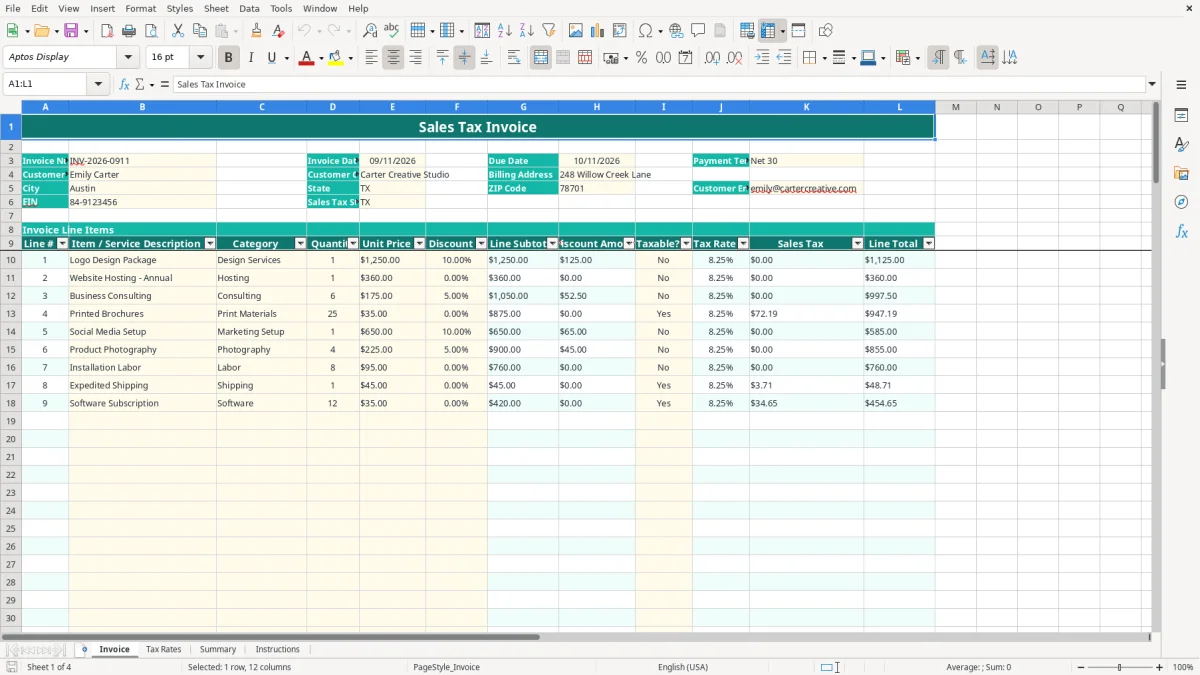
This sales tax invoice Excel spreadsheet creates a customer-ready invoice with 100 prepared line-item rows, automatic discounts, taxable-line calculations, a state-based tax-rate lookup, payment tracking, and a summary dashboard. You enter customer, product, service, and payment information; the workbook calculates subtotals, sales tax, totals, and balance due.
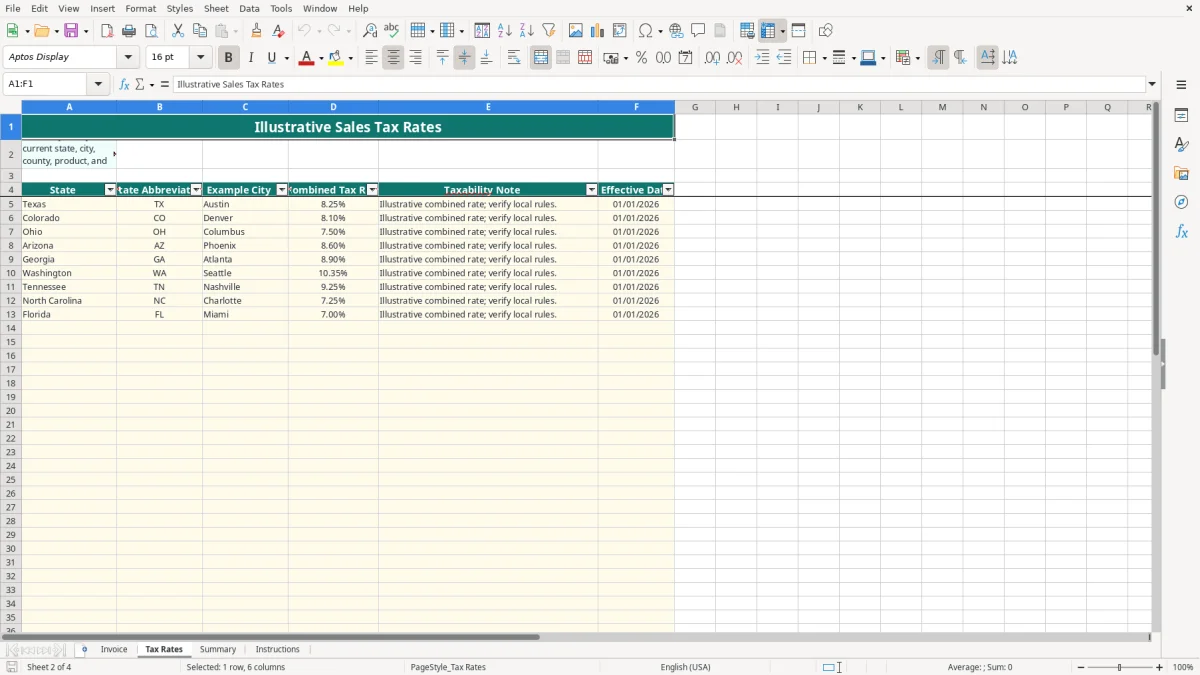
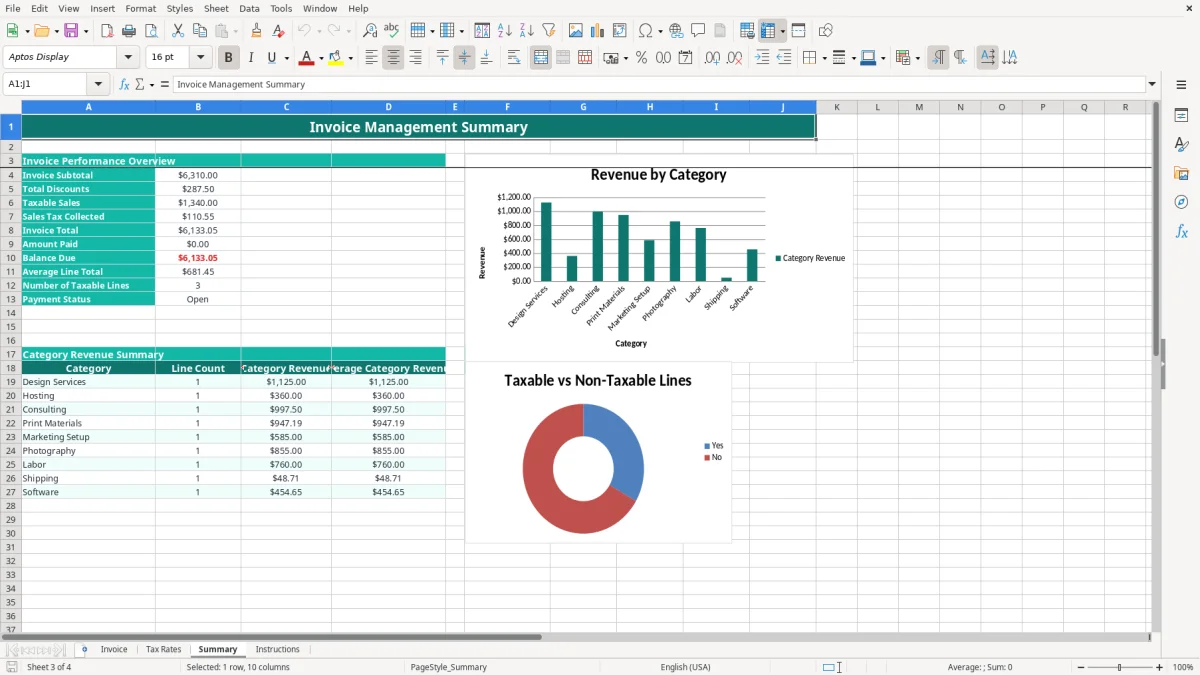
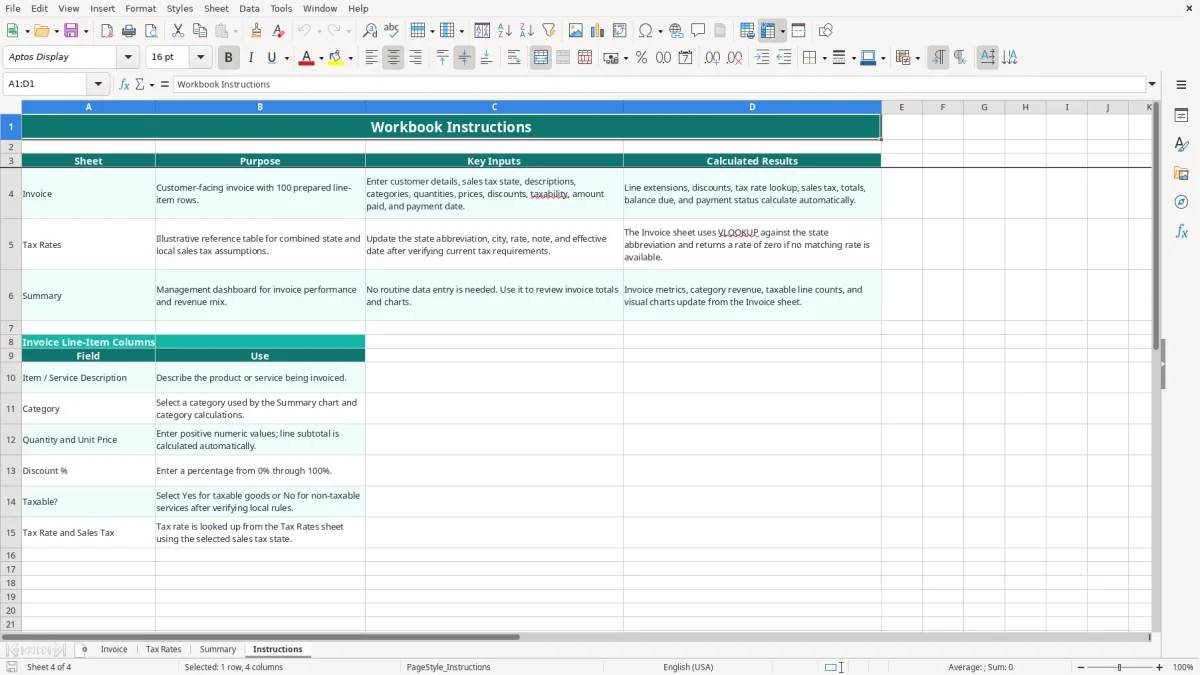
The workbook contains four tabs: Invoice, Tax Rates, Summary, and Instructions. Image 1 shows the Invoice tab with customer fields and line-item columns; image 2 shows the illustrative tax-rate reference; image 3 shows the management summary with two charts; image 4 explains the workbook fields and workflow.
A small service company, online seller, freelancer, or office manager can use this spreadsheet when one invoice needs clear line extensions and a separate sales tax line. A design studio might bill a $1,250 logo package with a 10% discount, add annual hosting, and mark each line separately because the service and product may not share the same tax treatment.
The Invoice tab is built for this kind of mixed transaction. Image 1 shows fields for invoice number, invoice date, due date, payment terms, customer name, company, address, email, EIN, and sales tax state. Below that, rows 10 through 109 provide 100 prepared rows with description, category, quantity, unit price, discount percentage, taxable flag, tax rate, sales tax, and line total.
An office manager can prepare several invoices on Friday after reviewing completed work orders. For example, three lines at $500 each produce $1,500 before discounts; a 10% discount on one $500 line reduces the taxable base for that line to $450. The workbook keeps the discount amount and sales tax visible instead of burying them in a single total.
The category list includes Design Services, Hosting, Consulting, Print Materials, Marketing Setup, Photography, Labor, Shipping, and Software. This is useful for a contractor or creative business that wants its invoice to remain customer-facing while the Summary tab groups revenue by category.
Image 3 shows the Summary layout: invoice performance metrics appear above category revenue and taxability tables, followed by charts. A business owner can use it at month-end to compare the invoice total with the balance due and see whether taxable or non-taxable lines dominate the transaction.
Sales tax in the United States is imposed at the state and often local level. There is no national VAT, and some states have no general sales tax. The correct rate can depend on the customer location, seller obligations, product or service, exemption status, and local jurisdiction, so the Tax Rates tab must be treated as an editable reference rather than a legal determination.
Image 2 shows columns for state, abbreviation, example city, combined tax rate, taxability note, and effective date. The sample Texas row shows an illustrative 8.25% rate for Austin, while Colorado, Ohio, Arizona, Georgia, Washington, and Tennessee are also represented. The workbook does not claim that these sample rates apply to every transaction in those states.
On Invoice, the selected sales tax state in E6 drives a VLOOKUP across Tax Rates B5:D104. If no matching abbreviation is found, the formula returns a zero rate. For a $1,000 discounted taxable base and an 8.25% illustrative rate, the displayed sales tax would be $82.50; confirm the applicable jurisdiction before relying on that amount.
Keep the customer invoice, exemption documentation, jurisdiction research, and rate effective date together. A taxable item marked No can understate tax, while marking a non-taxable service Yes can overcharge the customer. The workbook provides the calculation mechanics, but you remain responsible for verifying collection and filing obligations, including any sales-tax registration and return requirements.
Do not confuse sales tax with federal income tax reported on Form 1040 or business profit on Schedule C. Sales tax collected is generally a liability to the taxing authority, not ordinary revenue. Use the separate tax note and effective-date columns to document why a rate was used on a particular invoice.
The most expensive mistake is treating every line as taxable because it is faster. Suppose a $4,000 invoice contains $3,000 of taxable materials and $1,000 of non-taxable labor, but all lines are marked Yes at an 8% rate. The invoice adds $320 instead of $240, creating an $80 customer correction before considering the filing and relationship cost.
A user may select TX because the business is located in Texas even when the transaction requires a different customer or delivery jurisdiction. Another user may copy a rate from an old invoice. The Tax Rates tab labels entries illustrative and includes an effective date specifically because a saved percentage is not permanent evidence that the rate is correct.
Manual invoices often calculate tax on the pre-discount price. In this workbook, a $2,000 taxable line with a 15% discount has a $1,700 discounted base; at an illustrative 8% rate, tax is $136, not $160. Check the Discount Amount, Sales Tax, and Line Total columns rather than comparing only the final invoice total.
Entering a payment without updating the payment date or status can leave the Summary tab showing an inaccurate balance picture. A $2,500 invoice with $1,000 paid should show $1,500 due; marking it Paid turns a collection issue into a reporting error that can survive into month-end review.
Another failure is changing a category label manually so it no longer matches the validated list. The Summary formulas use COUNTIF, SUMIF, and AVERAGEIF against the listed categories. A spelling variation can move revenue out of the intended category even though the invoice itself still looks correct.
Use a fixed billing checkpoint instead of opening the workbook only when a customer asks for an invoice. For a small contractor, the best routine is often immediately after the weekly work-order review: enter completed quantities, verify taxable flags, set the due date, and inspect the balance before emailing the document.
Keep the calculated columns intact in rows 10 through 109. Enter data only in the intended input fields, and use the existing validation lists for categories, state abbreviations, payment terms, and taxability. The Invoice tab freezes the view at row 10 and filters A9:L109, which makes a long line-item list easier to inspect.
At month-end, use Summary to review category revenue and taxability mix. For example, if 20 invoices average $1,800, expected billings are $36,000; compare that figure with collected amounts and balances due rather than relying on the invoice count alone.
Move to QuickBooks or an invoicing system when multiple users need simultaneous access, customers require recurring billing, you need an accounts-receivable aging report, or sales-tax filings must reconcile across many jurisdictions. This workbook is a practical single-invoice calculator and review tool, not a substitute for a tax engine or general ledger.
Yes. Select the sales tax state in Invoice cell E6, mark each line Yes or No in the Taxable? column, and enter the item details. The workbook looks up a rate with VLOOKUP and calculates tax on the discounted amount for taxable lines.
No. Tax Rates contains illustrative combined rates and notes that you must verify current state, city, county, product, and service rules. The sample rates are reference inputs, not a guarantee of the rate required for your invoice.
The Invoice tab has 100 prepared operational rows, from row 10 through row 109. Each row supports a description, category, quantity, unit price, discount percentage, taxable flag, and calculated tax and total fields.
Yes. Select Yes or No for each line. For example, a $1,000 taxable materials line and a $1,000 non-taxable service line can be shown separately, allowing the sales-tax calculation to apply only to the line marked taxable.
Summary shows invoice subtotal, total discounts, taxable sales, sales tax collected, invoice total, amount paid, balance due, average line total, number of taxable lines, and payment status. It also summarizes category revenue and displays two charts.
The lookup returns zero when the selected state abbreviation does not match a Tax Rates entry. Check the state selection, then verify or add the relevant reference rate in Tax Rates. A zero result should not be treated as proof that no sales tax is due.