Tithe Offering Excel – Free Template (2026)
0
Free download
Track business expenses by category, deductible amount, receipt status, payment method, and month with a dashboard for small businesses.


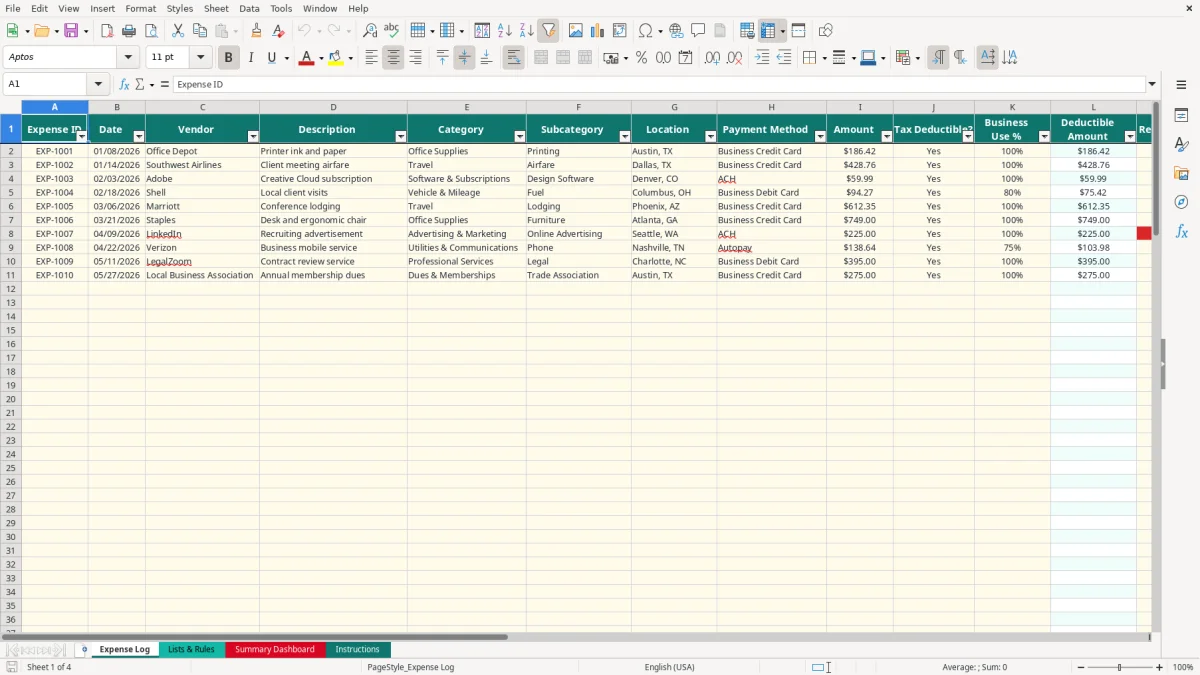
This business expense category tracker records each purchase by vendor, category, amount, tax-deductible status, business-use percentage, receipt status, and month. The workbook includes an Expense Log with 100 prepared rows, reference lists, a dashboard, and instructions.
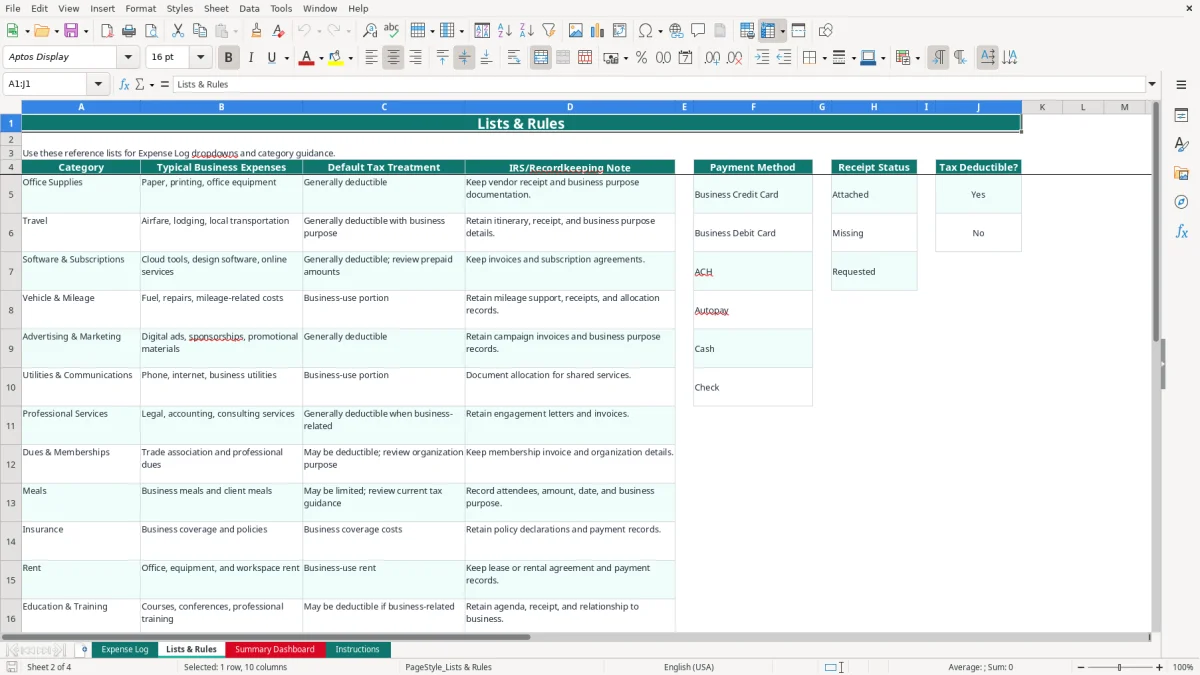
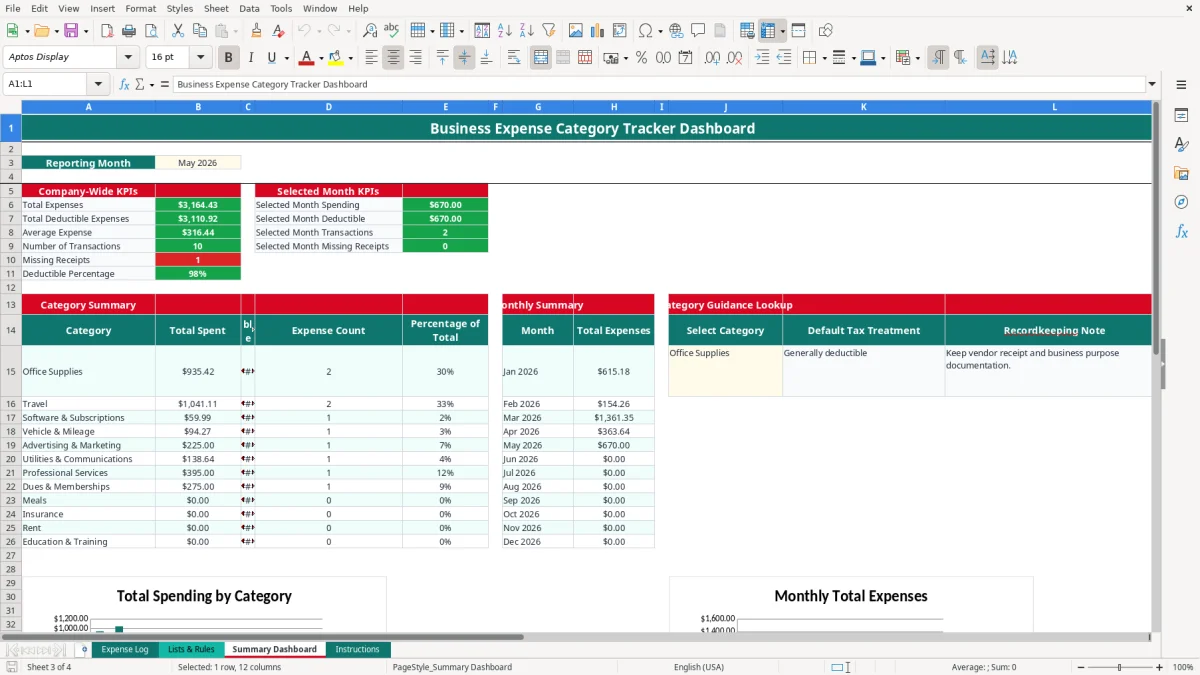
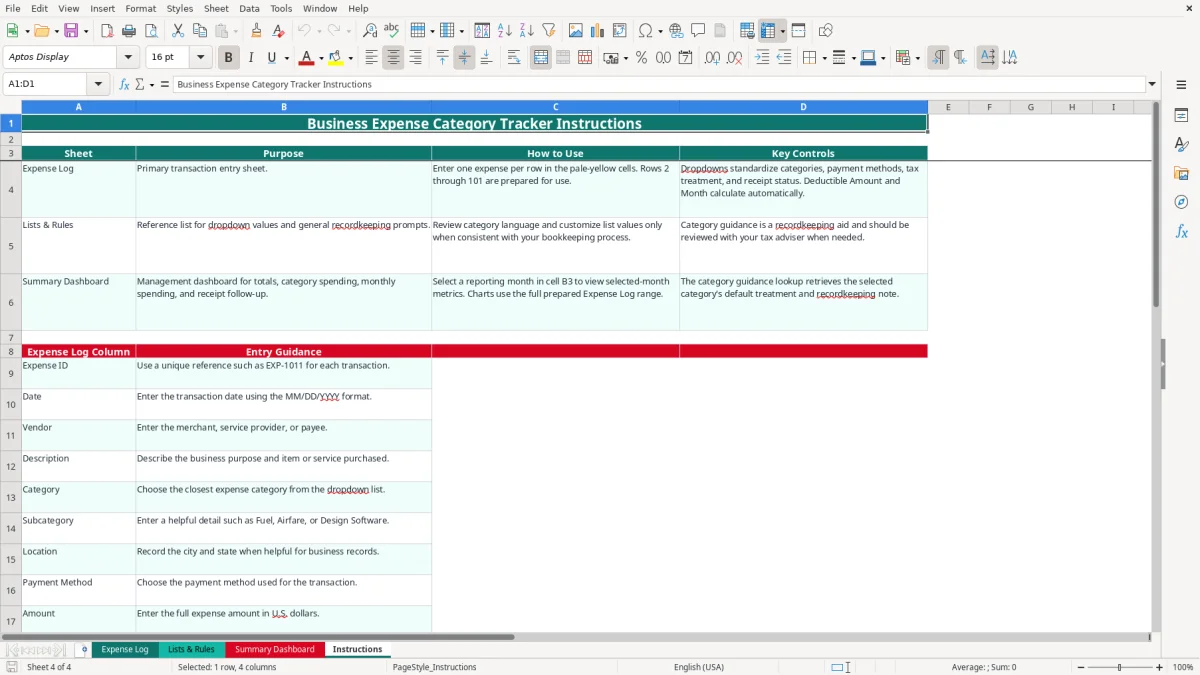
Enter transactions in the pale-yellow cells on Expense Log, then use Summary Dashboard to review total spending, deductible amounts, category percentages, monthly totals, transaction counts, and missing receipts. Image 1 shows the 15-column entry table, while images 2 through 4 show the reference, dashboard, and instructions tabs.
A sole proprietor often reaches for an expense tracker after a busy month of client work, when bank transactions show money leaving but the tax categories are unclear. A bookkeeper for a small LLC may use it during the weekly transaction review, while an office manager at a four-employee contractor may enter fuel, tools, insurance, phone service, and supplier purchases before the Friday payroll run.
This workbook is especially useful when the business has enough activity to need consistency but not enough volume to justify a full accounting workflow. An online store with 300 orders a month, for example, can record advertising, software, shipping supplies, merchant fees, and professional services in one place before the monthly close.
Image 1 shows the Expense Log columns from Expense ID through Month. A $186.42 Office Depot purchase can be entered with the vendor, printing description, Office Supplies category, Business Credit Card payment method, 100% business use, and Attached receipt status. The row's calculated deductible amount is $186.42 when Tax Deductible? is Yes.
At month-end, the owner can compare category totals instead of scanning statements line by line. If January contains $2,400 of expenses across 18 transactions and $350 of receipts are marked Missing, the dashboard gives you a specific follow-up list before the year-end close.
The file is a tracking aid, not a substitute for a tax return. A sole proprietor can use its category totals when organizing Schedule C records, while a bookkeeper can provide the transaction detail and receipt status to the tax preparer. Keep the original invoices, statements, and business-purpose evidence with the spreadsheet.
The workbook separates Amount, Tax Deductible?, Business Use %, and Deductible Amount because a business purchase is not automatically a fully deductible purchase. If a $1,200 phone bill is 70% business use and marked Yes, the formula produces $840. If the transaction is marked No, the formula returns $0.
For a sole proprietor, the resulting records support the expense portion of Schedule C; self-employment tax is generally reported through Schedule SE. The IRS generally expects supporting records to be retained for 3 years, and some records should be kept for up to 7 years. This file does not determine whether an item qualifies under tax law.
Expense Log includes Description, Location, and Notes so you can document why a purchase served the business. For a $428.76 Southwest Airlines charge, enter a client-meeting description and Dallas, TX location, then retain the itinerary, receipt, and business-purpose details outside the workbook.
The Business Use % field accepts values from 0 to 1, displayed as a percentage. A $500 internet bill at 80% business use produces $400 when deductible. Use a consistent allocation method and retain the supporting calculation rather than entering 100% simply because the account is paid from a business card.
Expense totals can help a self-employed owner estimate profit before Form 1040-ES deadlines: April 15, June 15, September 15, and January 15. They do not calculate federal income tax or the 15.3% self-employment tax. Do not confuse an expense category with a tax conclusion, and review unusual items such as meals, vehicle costs, prepaid subscriptions, and equipment under the applicable 2026 rules.
The first failure I see is inconsistent category naming. One person enters Software & Subscriptions, another enters Software, and a third puts an Adobe charge under Office Supplies. The dashboard then splits one spending pattern into separate rows, making a $900 annual software cost look like three unrelated purchases.
A $240 retail receipt may contain $160 of business supplies and $80 of personal items. Entering the full amount as deductible overstates the business deduction by $80. The tracker can record the allocation, but it cannot decide the correct percentage or replace the underlying receipt.
Marking every charge Attached because the bank feed shows a payment creates a serious documentation gap. If 14 of 75 transactions lack receipts and average $145, you may spend hours reconstructing $2,030 of purchases in December, and some amounts may be excluded from the deduction if proof is inadequate.
Entering 03/04/2026 inconsistently, using a statement-posted date for one transaction and an invoice date for another, or typing a negative amount can distort monthly totals. The Amount validation prevents negative entries, but it cannot verify that the date reflects the correct accounting policy.
The prepared Expense Log range ends at row 101. If you paste transaction 101 into row 102, the dashboard formulas and charts do not automatically include it. For a business that exceeds 100 entries, continuing without extending every relevant formula and reference is worse than moving to a structured bookkeeping system.
Another costly mistake is treating Default Tax Treatment on Lists & Rules as approval. “Generally deductible” is a prompt for review, not evidence that every purchase qualifies. Keep business purpose, receipt, allocation, and payment records together.
Use a fixed entry time instead of waiting for tax season. A practical routine is to update Expense Log every Friday, then perform a 20-minute review on the last business day of each month. For a company with 25 transactions, that is usually faster than reconstructing the entire month from a credit-card statement.
Keep category language stable. If you change a category in Lists & Rules, update your bookkeeping procedure at the same time; otherwise historical rows and new rows will not compare cleanly. Use the Category Guidance Lookup on the dashboard to review the default treatment and recordkeeping note for a selected category.
Do not overwrite Deductible Amount or Month. If a formula is accidentally replaced in one of the 100 prepared rows, copy the formula from the adjacent row rather than typing a new version. The dashboard uses SUM, SUMIF, COUNTIF, COUNTIFS, AVERAGE, and VLOOKUP logic across the prepared range.
This workbook is a good fit for 100 prepared transactions and a small operation with one clear reviewer. Once you regularly exceed that range, need bank feeds, bill payment, approval history, or a formal general ledger, move to QuickBooks or another accounting system and retain this file as an export or transition schedule.
Expense Log calculates Deductible Amount and Month. If Amount is $500, Tax Deductible? is Yes, and Business Use % is 80%, the calculated deductible amount is $400. Month converts the Date into a label such as May 2026.
The workbook has prepared entry rows 2 through 101, providing 100 transaction rows. The dashboard formulas and charts reference that prepared range, so entries beyond row 101 are not automatically included.
Yes, you can use the category totals and transaction detail as an organizing aid for Schedule C records. The workbook does not prepare Schedule C, determine deductibility, calculate self-employment tax, or replace receipts and business-purpose documentation.
Enter the documented business portion of a mixed-use expense from 0% to 100%. For example, $1,000 at 60% business use produces a $600 deductible amount when Tax Deductible? is Yes. Keep the allocation support with your records.
Select Missing or Requested in Receipt Status as appropriate. Summary Dashboard counts missing receipts company-wide and for the selected month, while the Expense Log Notes field can hold a reminder such as “request vendor invoice.”
Lists & Rules contains the category values used by the Expense Log dropdown and the dashboard lookup. You can customize those values when they match your bookkeeping process, but keep the category names consistent so historical and new transactions summarize together.