Goodwill Donation Value Log Template
12
Free download
Track employee W-2 wages, federal and state withholding, Social Security, Medicare, EINs, and payroll checks in one Excel summary.


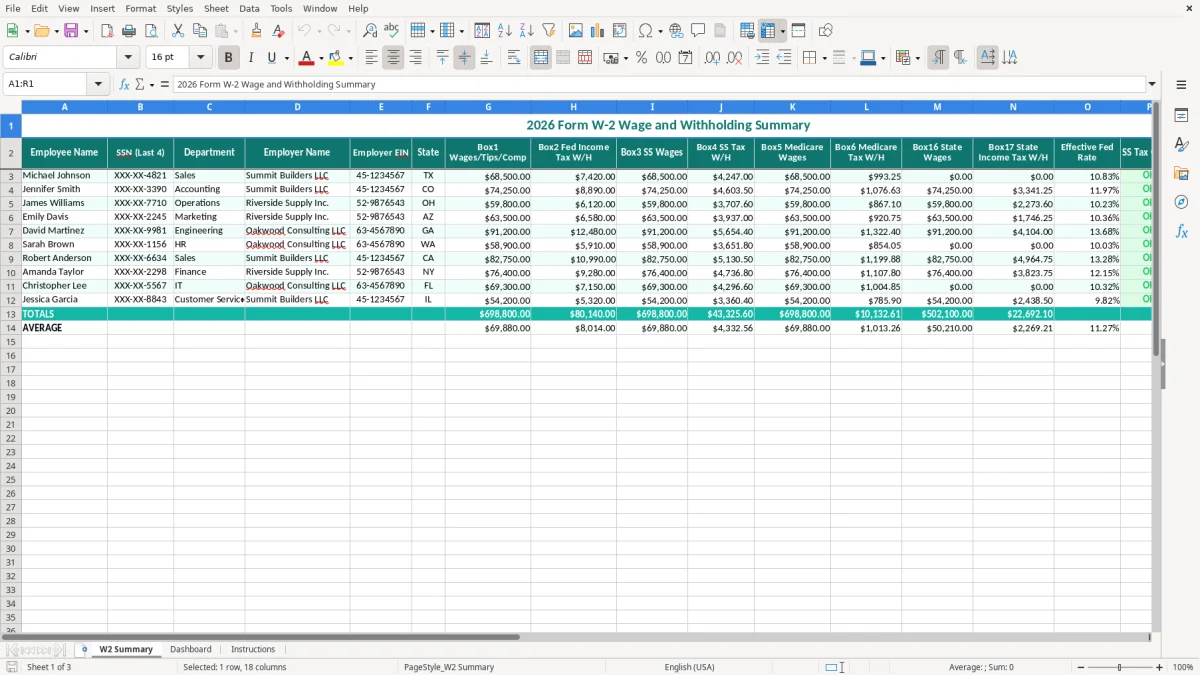
This W-2 wage and withholding summary records each employee's identifying details, employer information, W-2 box amounts, and payroll-tax checks. The workbook contains a W2 Summary tab for entry, a Dashboard tab for review, and an Instructions tab for setup.
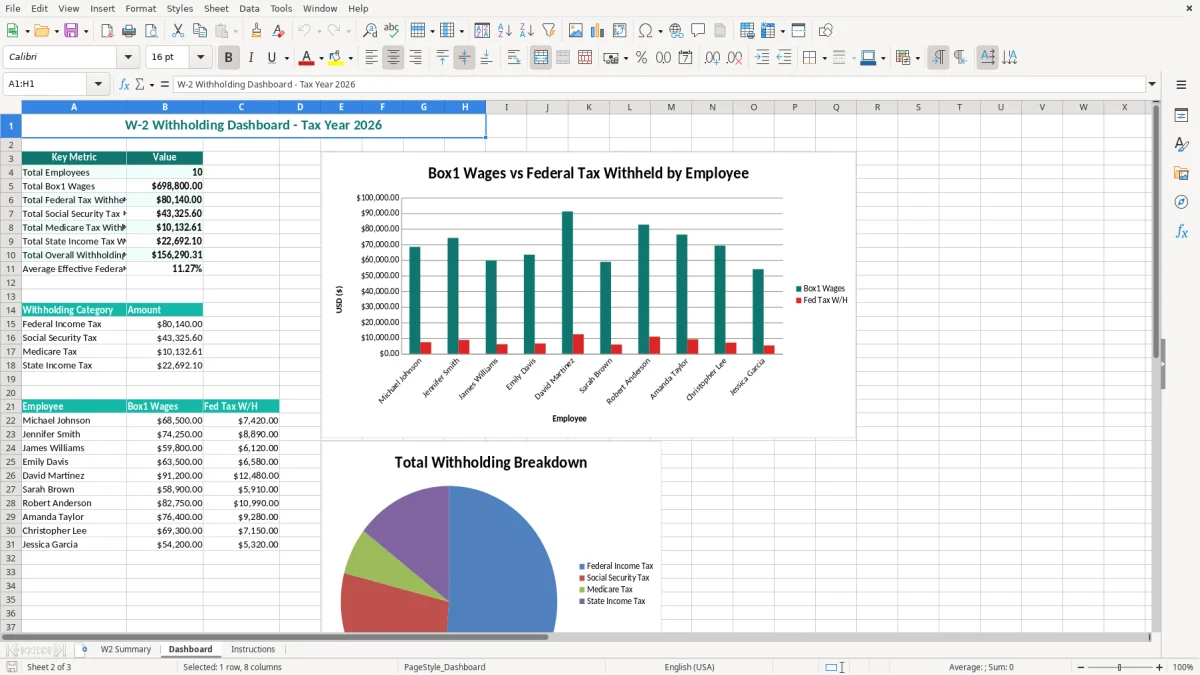
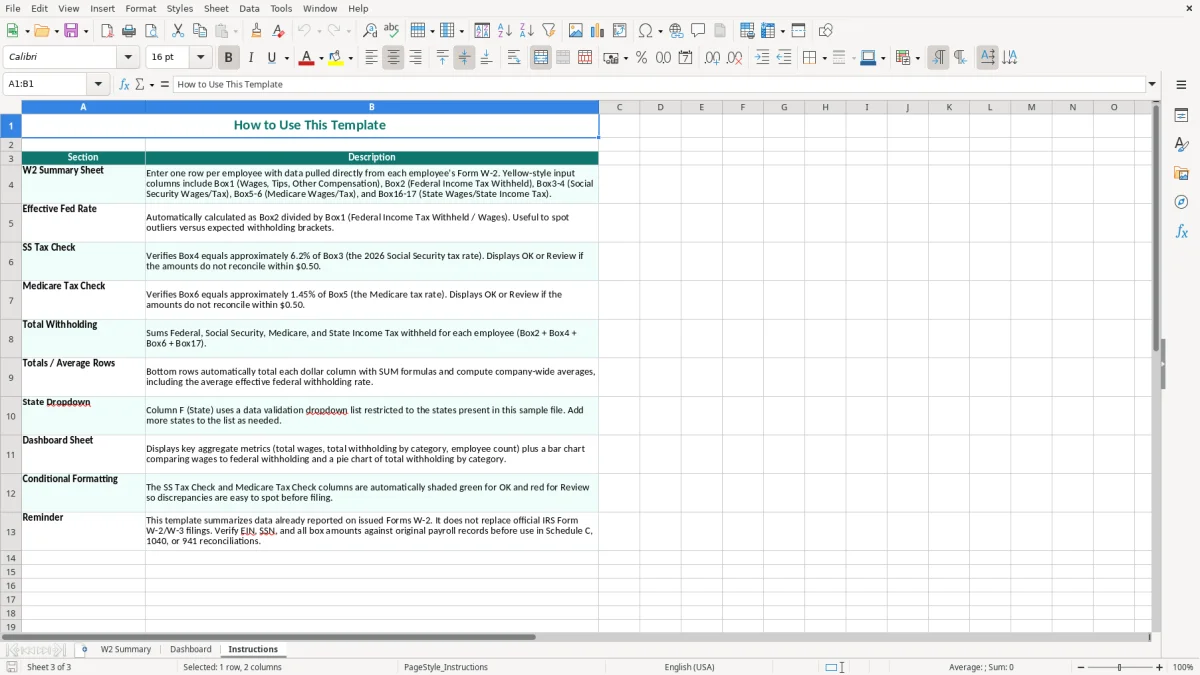
Use it during year-end payroll review to compare wage and withholding totals before preparing employee forms or sending information to your payroll provider. Image 1 shows the teal 18-column summary table, image 2 shows the dashboard view, and image 3 explains how to work with the file.
A payroll administrator, bookkeeper at an LLC, or office manager at a four-employee contractor can use this workbook when the final payroll register is ready. It puts each employee's W-2 amounts beside the employer's legal name and EIN, which is useful when one owner operates more than one business or has employees in several states.
For example, the W2 Summary row for Michael Johnson shows $68,500 in Box 1 wages, $7,420 in Box 2 federal withholding, $68,500 in Social Security wages, and $4,247 in Social Security withholding. The Medicare fields show $68,500 and $993.25; $68,500 × 1.45% equals $993.25, so the check is easy to understand during review.
You normally sit with this file after the last payroll of the year, when quarterly payroll reports, the general ledger, and the payroll provider's draft W-2 data need to agree. A bookkeeper can compare total wages to the wage expense account and compare Box 2 withholding to the federal tax liability account before approving a correction.
Jennifer Smith's example row includes Colorado wages and $3,341.25 of state income tax withholding, while Michael's Texas row shows $0.00 in the state wage and tax columns. That contrast is useful for a company with employees in states that impose income tax and states that do not. It also forces you to review the State field rather than assuming every employee has the same state treatment.
The Dashboard tab gives management a separate place to review the entered information, while the Instructions tab gives the person entering data a repeatable process. You can send a reviewed summary to a payroll provider without handing over unrelated bookkeeping worksheets.
Form W-2 reports wages and withholding to the employee, the IRS, and the Social Security Administration. Box 1 is federal taxable wages, Box 2 is federal income tax withheld, Box 3 is Social Security wages, Box 4 is Social Security tax withheld, Box 5 is Medicare wages, and Box 6 is Medicare tax withheld. Boxes 16 and 17 report state wages and state income tax withheld.
The employee share of FICA is generally 6.2% for Social Security plus 1.45% for Medicare, or 7.65% before any special wage-base or additional-tax treatment. The employer generally matches the regular 6.2% and 1.45% amounts. On $68,500 of taxable wages, 6.2% is $4,247 and 1.45% is $993.25, matching the example values in the sheet.
Do not copy Box 1 into every wage field simply because the numbers often match. Pretax benefits can make Box 1 different from Social Security or Medicare wages, while retirement deductions and benefit arrangements can change the relationship between Box 1 and Box 5. The summary keeps those boxes separate so you can investigate the actual payroll register.
Box 2 is withholding, not the employee's final federal income-tax liability. The employee reports wages and withholding on Form 1040, and the final result depends on filing status, deductions, credits, and other income. The Effective Fed Rate column is therefore a review ratio: $7,420 ÷ $68,500 equals approximately 10.83%, not a tax bracket calculation.
Reconcile the workbook to payroll registers, Forms 941, state payroll filings, and the general ledger. Store the final file with restricted access and follow the IRS recordkeeping period that applies to the underlying employment-tax records; do not treat a spreadsheet as a substitute for the filed forms.
The most expensive errors usually start with a copied payroll row, not a difficult tax calculation. If an employee changes departments or works for a second legal entity, copying the prior Employer Name and EIN can place correct wage figures under the wrong employer. That can force a corrected W-2 and a second review of every affected filing.
A common mistake is entering Box 1 wages into Box 3 and Box 5 without checking pretax deductions. Suppose Box 1 is $72,000 but Medicare wages are $74,000 because a benefit is excluded from federal wages but included for Medicare. A copied $72,000 in Box 5 makes the Medicare comparison wrong by $2,000 and can hide an incorrect $29.00 withholding difference at the 1.45% rate.
Payroll systems may retain cents while a manually typed report rounds to whole dollars. Entering $1,076.63 as $1,076.36 creates a $0.27 discrepancy that looks small for one employee but becomes $27 across 100 employees. A negative withholding amount, a missing decimal, or a state tax entered in the federal column can distort the Total Withholding result without changing the wage total.
Some users review only the employee name and Box 1 amount, then overlook the SS Tax Check and Medicare Tax Check fields. For Jennifer Smith, $74,250 × 6.2% equals $4,603.50 and $74,250 × 1.45% equals $1,076.63. If either check does not agree with the payroll record, stop and trace the difference before approving the summary.
Another failure is treating a $0.00 state amount as missing data. Michael's Texas example has zero state wages and withholding, while Jennifer's Colorado row has state amounts. The correct response is to verify the state assignment and payroll rules, not to fill every blank or zero with the value from the row above.
Make the file part of a fixed close rather than a once-a-year scramble. After the final payroll run, export the payroll register, assign one reviewer to enter the W-2 fields, and assign another person to compare the totals to the payroll-liability accounts. For a four-employee business, this should take minutes; for 100 employees, divide the review into batches of 25 rows.
Use the same employee-name spelling and department labels throughout the file. If you expand the workbook, use Excel data validation for State and Department entries, and use conditional formatting to flag failed tax checks or missing employer identifiers. A fixed Friday payroll-close appointment is more reliable than waiting until January when 80 rows need review at once.
This workbook is a practical summary and reconciliation tool, but it is not a payroll engine. Move to a payroll provider or an integrated accounting system when you process several hundred employees, need live payroll-tax deposits, have frequent multi-state adjustments, or require an audit trail showing who changed each W-2 field and when.
Keep the spreadsheet as an export-review layer even after that transition. Compare the provider's output to the prior quarter and the general ledger, then archive the approved file with the payroll reports that support every total.
It contains 18 columns for employee name, SSN last four digits, department, employer name, employer EIN, state, W-2 wage boxes, withholding boxes, Effective Fed Rate, SS Tax Check, Medicare Tax Check, and Total Withholding. Image 1 shows the teal header row and wrapped labels.
Enter Box 1, Box 2, Box 3, Box 4, Box 5, Box 6, Box 16, and Box 17 from the payroll register or draft Form W-2. Keep each box in its matching column because federal wages, Social Security wages, Medicare wages, and state wages may differ.
It is a review ratio comparing Box 2 federal income tax withholding with Box 1 wages. For example, $7,420 of federal withholding divided by $68,500 of Box 1 wages is approximately 10.83%; it is not the employee's final federal tax rate.
They help compare Social Security and Medicare withholding with the related wage amounts. At the regular 6.2% and 1.45% employee rates, $68,500 of wages produces $4,247.00 of Social Security tax and $993.25 of Medicare tax before any special payroll treatment.
Yes. Enter the applicable State, Box 16 state wages, and Box 17 state income tax withholding for each employee. The example includes a Texas employee with $0.00 in state fields and a Colorado employee with state wages and withholding, so review each payroll record instead of copying state values.
The Dashboard tab provides the workbook's review view after you enter the W2 Summary rows. The Instructions tab explains the intended workflow; image 3 shows that guidance. Use the Dashboard for review, but keep the payroll register and filed employment-tax records as the source documentation.