EIN Business Document Tracker Excel – Free Template (2026)
2
Free download
Track employee trips, business miles, rates, approvals, receipts, parking, tolls, and reimbursement totals in three connected Excel tabs.


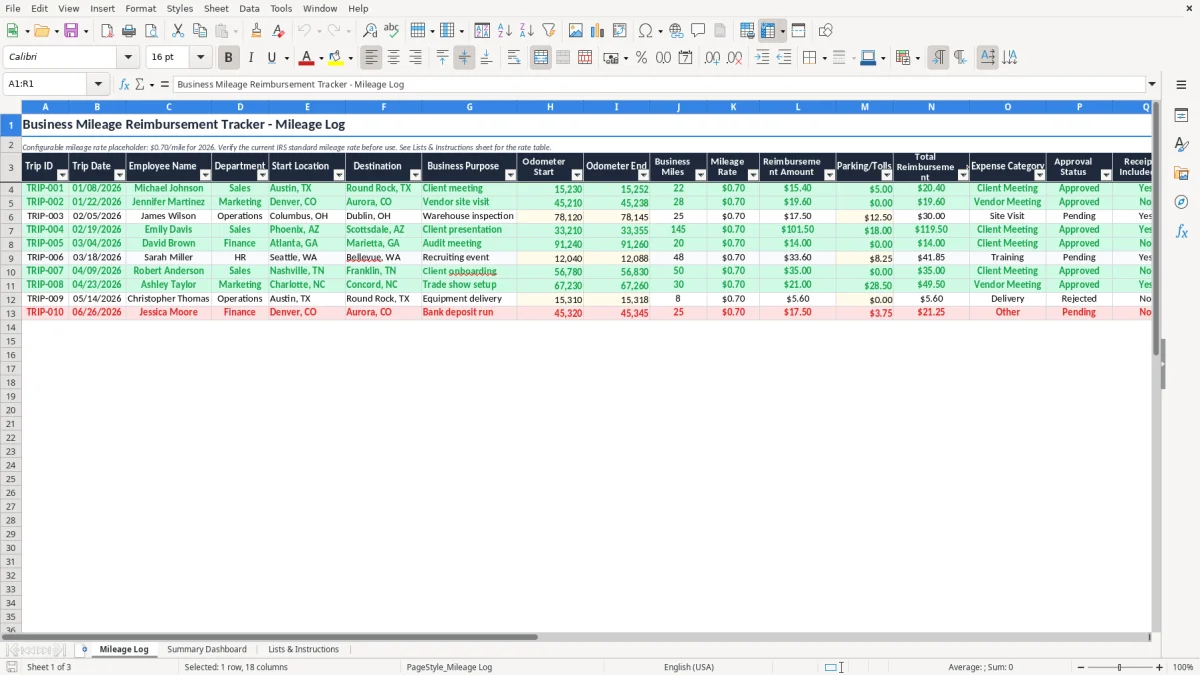
This business mileage reimbursement tracker records employee trips, odometer readings, business miles, mileage rates, parking, tolls, receipts, approvals, and total amounts owed. The workbook contains a Mileage Log, Summary Dashboard, and Lists & Instructions tab so you can document each trip and review reimbursement costs in one Excel file.
Image 1 shows the Mileage Log with fields from Trip ID through Notes, including Employee Name, Department, Business Purpose, and Approval Status. Image 2 shows the Summary Dashboard for reviewing mileage activity, while image 3 explains the workbook and provides the configurable 2026 mileage-rate reference.
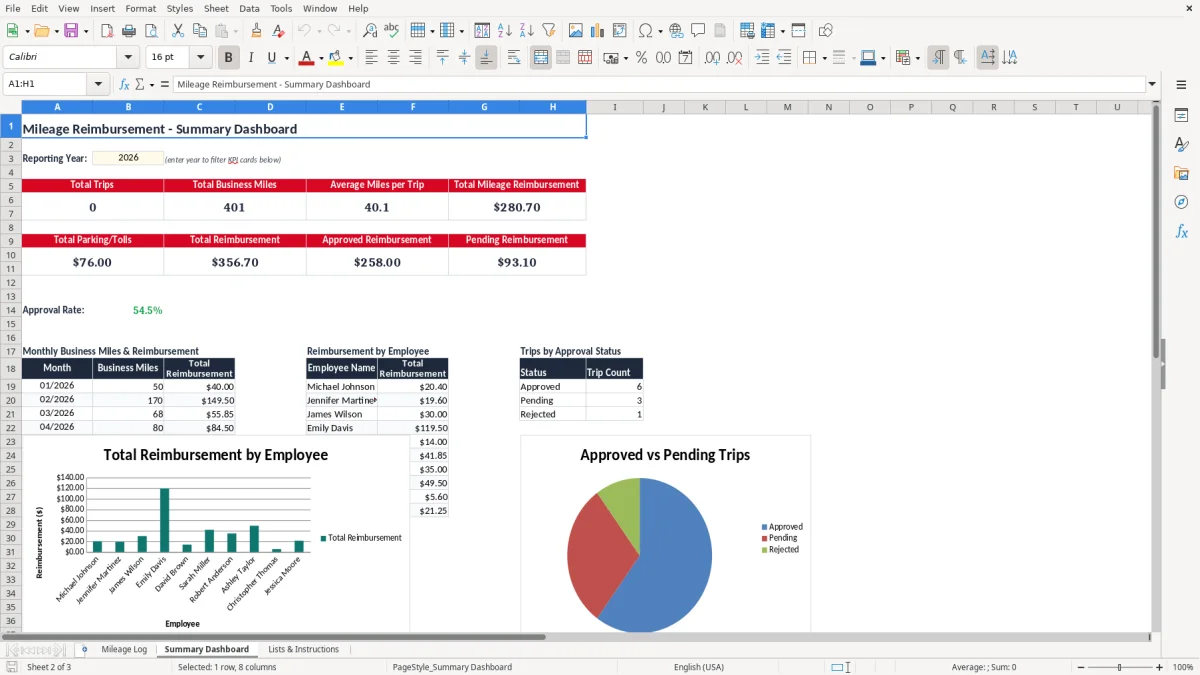
A small business usually needs this workbook at the moment an employee drives a personal vehicle for company work and asks to be paid back. An office manager at a plumbing contractor may record trips from the shop to three job sites, while a sales representative may submit 1,200 business miles after visiting customers across two counties. Without a trip-level record, payroll has little evidence for the amount being reimbursed.
Use the Mileage Log before each payroll run or expense-review meeting. A general contractor with four employees might receive 35 trip entries in a week: 900 business miles at a $0.70 placeholder rate produces $630.00 of mileage reimbursement, before $84.50 of parking and tolls. The Employee Name, Department, Approval Status, and Receipt Included? columns let the office manager separate approved claims from items that need documentation.
A bookkeeper at an LLC can use Department to compare field service, sales, and administration costs without mixing trips together. The Summary Dashboard is useful during month-end close because the bookkeeper can compare the dashboard total with the reimbursement batch submitted to payroll or accounts payable. Image 2 gives the manager a visual review rather than requiring a search through every row.
At year-end, a sole proprietor may use a similar log to support business-use mileage reported with Schedule C, while an employer uses it to support an accountable reimbursement arrangement. The Start Location, Destination, Business Purpose, and odometer fields are more useful than a bank statement that merely says an employee received $412.00. Image 1 shows where those facts are captured in the workbook.
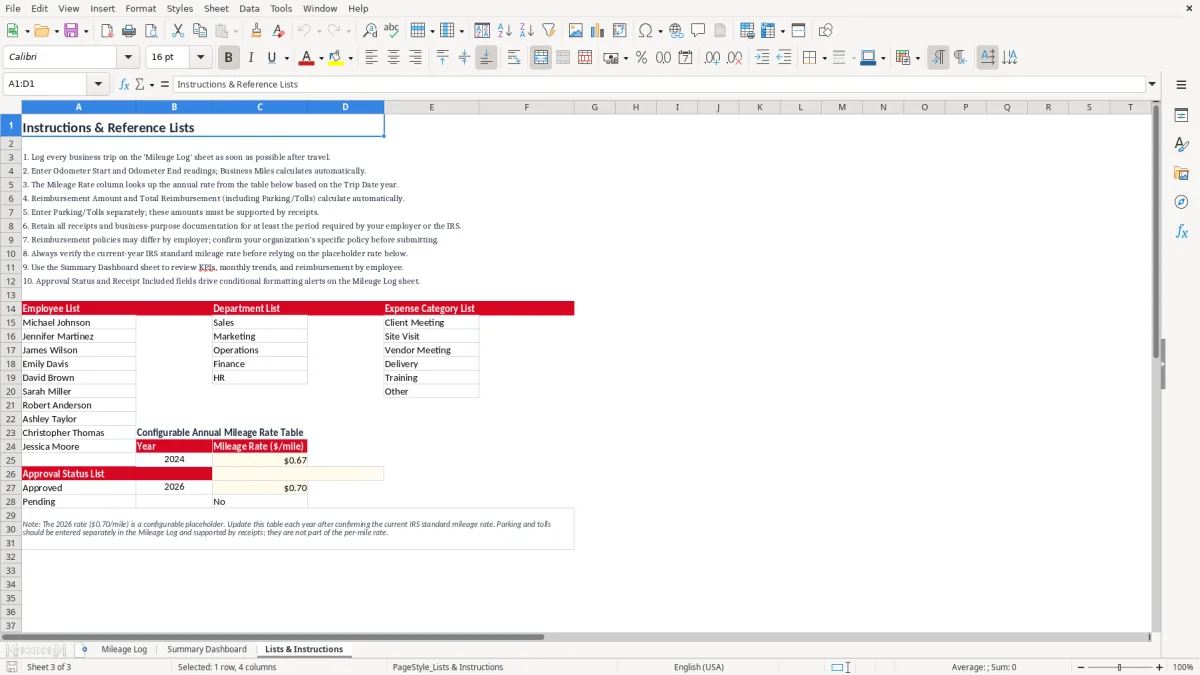
The workbook displays a configurable 2026 placeholder of $0.70 per business mile. Treat that figure as an input, not an automatic tax conclusion: confirm the official IRS standard mileage rate for 2026 and your written company policy before processing payments. At 642 qualified miles, a $0.70 rate produces $449.40; adding $26.00 of eligible tolls produces $475.40 total reimbursement.
Ordinary commuting between an employee's home and regular workplace is generally personal, not business mileage. Travel from a company location to a customer, supplier, temporary worksite, or another business destination is the type of trip your Business Purpose and location fields should explain. Do not count the same miles under both the standard mileage method and actual vehicle expenses; choose and apply the method required by the applicable tax treatment.
An employer generally wants a reimbursement arrangement that requires a business connection, adequate accounting, and return of excess advances. The Trip Date, Start Location, Destination, Business Purpose, Odometer Start, Odometer End, receipt indicator, and approval record help establish that trail. Reimbursements that fail accountable-plan requirements can be treated as wages, which may bring FICA withholding and employer payroll tax into the calculation.
The IRS generally expects tax records to be retained for 3 years, with 6 or 7 years relevant in certain situations. Keep the Excel file with receipts, policy versions, payment records, and approval evidence rather than retaining only the dashboard total. A self-employed taxpayer reports qualifying vehicle expenses through Schedule C and may need Schedule SE; an employee reimbursement is handled through the employer's payroll and accounting process instead.
The costliest failures are usually small omissions repeated across dozens of trips. I have seen employees enter “customer visit” in every Business Purpose field, leave the destination blank, and submit one monthly total. That may save five minutes per week, but it can force a $1,050 claim back into review when the employer cannot connect the payment to identifiable business travel.
Entering 18,430 as Odometer Start and 18,390 as Odometer End creates a negative distance that should never be approved. The opposite problem is more common: a driver types 185 miles for a route that is normally 28 miles, inflating reimbursement by $109.90 at $0.70 per mile. Compare unusual entries with a map, vehicle record, or job schedule before payment.
Duplicate Trip IDs or copied rows can pay the same 74-mile visit twice, creating an excess payment of $51.80 before tolls. A personal stop does not automatically make the entire trip business mileage; document the business portion and apply the company's policy consistently. The Notes field is the right place to explain a route exception, not a substitute for inventing a purpose after the fact.
Parking and tolls are often added to Total Reimbursement without a receipt, even when company policy requires one. A $38.75 parking charge may look minor, but 20 unsupported charges become $775.00 that accounts payable must chase. Mark Receipt Included? honestly, use Approval Status before payment, and preserve the submitted receipt with the dated workbook copy.
Another failure is changing the rate in one batch while older rows remain unclear. If 1,500 miles were paid at $0.70 instead of an approved $0.67 policy rate, the difference is $45.00; the larger problem is proving which rate was authorized for each period.
The workbook works best when mileage entry is attached to an existing event rather than postponed until tax season. Set a fixed cutoff, such as 3:00 p.m. every Friday, and require employees to complete the Mileage Log before the expense batch is prepared. For a 12-person service team averaging 18 trips each week, that routine prevents 216 entries from becoming a month-end reconstruction project.
Use the same department names, expense categories, and approval labels every time. The Lists & Instructions tab helps establish the terminology; do not alternate between “Field Service,” “Field Svcs,” and “Service” when managers expect a department total. Copying a prior period can save time, but delete old trips and verify every date, employee, odometer, and rate before saving.
This template is a practical control for a modest operation, but 10,000 rows, multiple legal entities, or frequent payroll integration calls for a real expense system. Move to QuickBooks or an expense platform when employees submit from mobile devices, receipts must be retained automatically, or the same reimbursement data must flow into payroll without rekeying. Until then, a weekly review and a locked approved copy are stronger than an expensive system nobody updates.
It includes three tabs: Mileage Log, Summary Dashboard, and Lists & Instructions. The log has fields for Trip ID, Trip Date, Employee Name, Department, locations, Business Purpose, odometer readings, Business Miles, Mileage Rate, reimbursement amounts, Parking/Tolls, Expense Category, Approval Status, Receipt Included?, and Notes.
The Mileage Log displays a configurable $0.70-per-mile placeholder for 2026 and tells you to verify the current IRS standard mileage rate before use. Replace the input with the rate authorized by your company policy and document when the change took effect.
Multiply qualified Business Miles by the applicable Mileage Rate. For example, 250 miles at $0.70 equals $175.00; if Parking/Tolls are $22.50, Total Reimbursement is $197.50.
Do not include ordinary commuting between an employee's home and regular workplace as business mileage. Enter trips between business locations or to customers, suppliers, and qualifying temporary worksites, and describe the business purpose clearly.
Keep the date, start location, destination, business purpose, odometer readings or other contemporaneous mileage evidence, and receipts for eligible parking and tolls. The IRS generally expects records to be retained for 3 years, with longer periods applying to some tax situations.
Yes. A sole proprietor can use it to organize vehicle records for qualifying business use reported on Schedule C. Keep the log with supporting receipts and apply either the standard mileage method or actual vehicle expenses consistently rather than claiming the same cost twice.