HR KPI Excel – Free Template (2026)
5
Free download
Track employee absence dates, workdays, leave types, documentation, status, and department totals in an XLSX sickness record workbook.


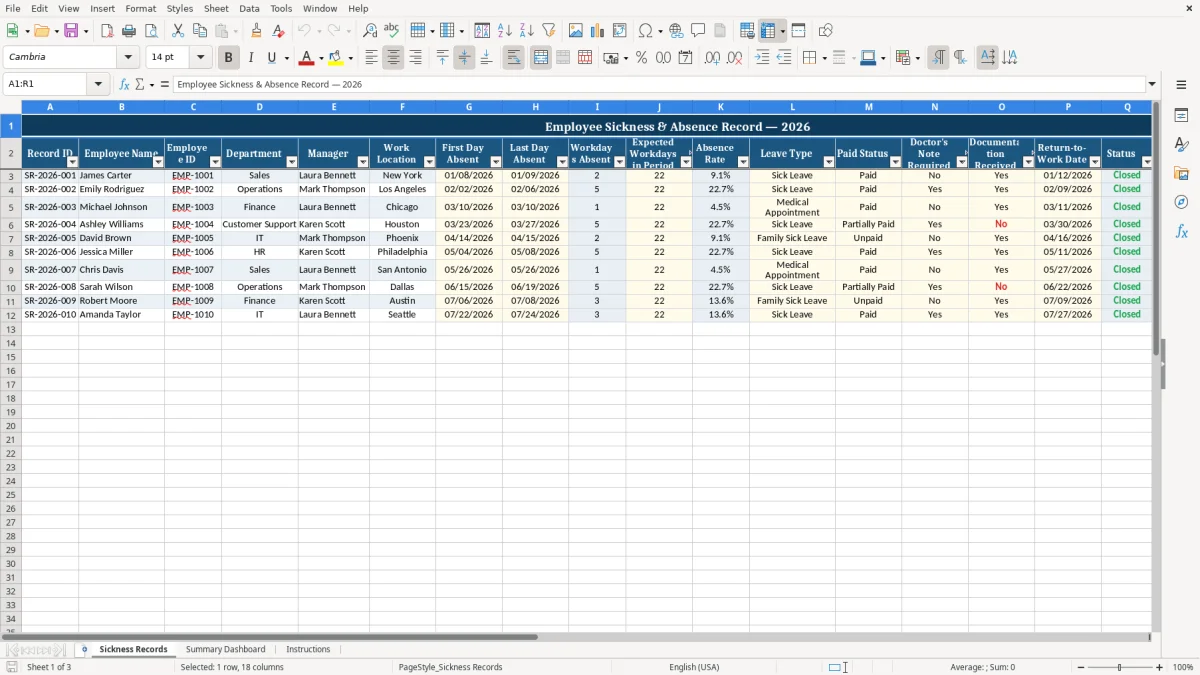
This sickness record workbook records one employee absence incident per row, calculates business days absent and absence rate, and summarizes results by department and leave type. It contains three tabs: Sickness Records, Summary Dashboard, and Instructions.
Use the Sickness Records tab to enter employee, manager, location, date, leave, payment, documentation, return-to-work, and notes information. The Summary Dashboard covers January 1, 2026 through July 31, 2026 in its sample setup, while the Instructions tab explains privacy, filters, calculated cells, and follow-up flags.
An office manager at a contractor, nonprofit, or growing LLC can use the Sickness Records tab during each payroll or attendance review. The sheet separates the employee’s name and Employee ID from the absence dates, department, manager, and work location, so you can follow up without searching through email threads.
Image 1 shows the complete 18-column entry layout, from Record ID through Notes. The sample includes James Carter’s two-day absence from 01/08/2026 through 01/09/2026, with New York as the work location and Sales as the department. The workbook calculates the business-day result rather than requiring you to count weekdays manually.
A manager can filter the records for one team and check whether an incident is Open, Closed, or Scheduled. A future absence is marked Scheduled, an absence whose last day has passed is marked Closed, and an absence that has started but has not ended is marked Open according to the workbook’s date formula.
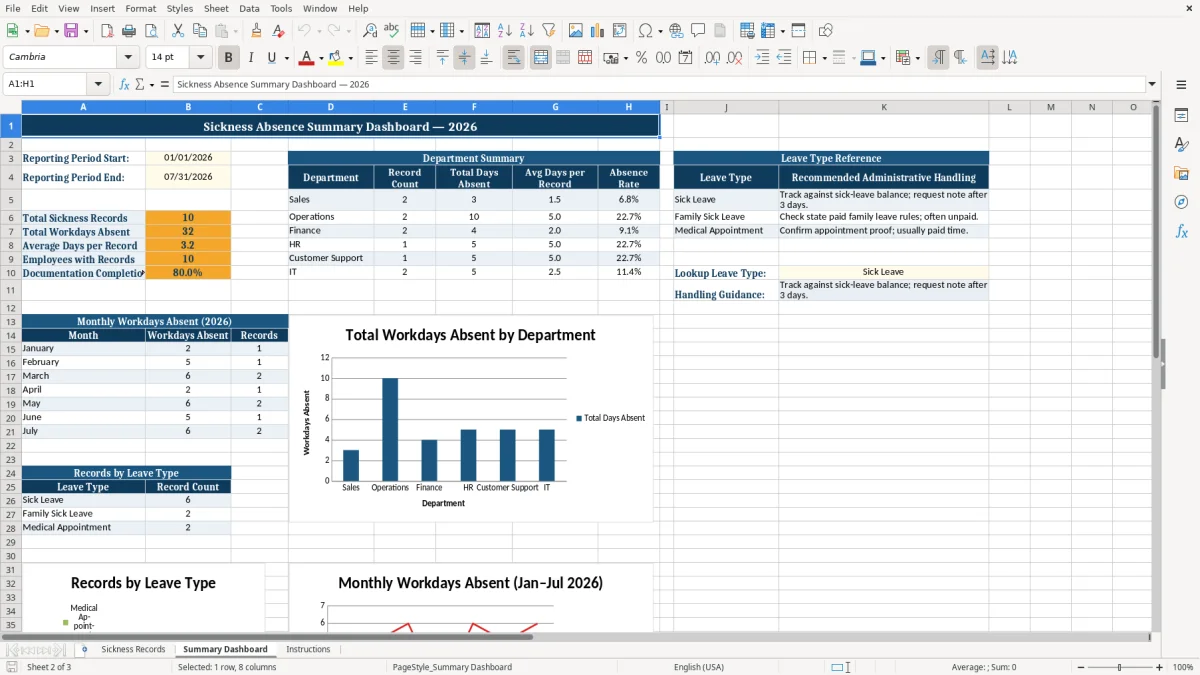
The dashboard is useful at a weekly operations meeting or during a monthly attendance review. It lists Sales, Operations, Finance, HR, Customer Support, and IT in the department summary, with record count, total days absent, average days per record, and absence rate. The sample reporting period runs from 01/01/2026 to 07/31/2026, so adjust those dates before using the summary for another period.
Paid Status distinguishes Paid, Unpaid, and Partially Paid absences, while the documentation fields show whether a doctor’s note is required and whether documentation was received. These fields support administrative coordination; they are not a medical file. The Instructions tab specifically says to record administrative information only and not diagnoses, treatment details, Social Security numbers, or other protected health information.
The Workdays Absent column uses Excel’s NETWORKDAYS function with the First Day Absent and Last Day Absent fields. It counts Monday through Friday and does not include a custom holiday list. For example, the sample record dated 01/08/2026 through 01/09/2026 covers two weekdays; a date range that includes a weekend still counts only the weekdays.
The formula stays blank when either absence date is missing. That prevents an incomplete record from displaying a misleading day count. Expected Workdays in Period is an input, so enter the denominator that matches the period you are reviewing rather than assuming every employee has the same schedule.
Absence Rate divides Workdays Absent by Expected Workdays in Period and uses IFERROR to return 0 when the calculation cannot be completed. A record with 2 workdays absent and 22 expected workdays would show approximately 9.1%; that calculation is an illustration of the workbook’s formula, not a policy threshold.
Status uses TODAY with the absence dates. If the last day is before today, the record is Closed; if the first day is today or earlier and the last day is not past, it is Open; otherwise it is Scheduled. Because TODAY changes with the current date, the displayed status can change when you reopen the XLSX file.
Image 2 shows the Summary Dashboard with KPI cards, a department table, a leave-type reference, monthly rows for January through July, and records-by-leave-type rows. Its formulas use COUNTIF, SUMIF, AVERAGEIF, and SUMPRODUCT across prepared ranges through row 100, while the entry sheet visibly contains ten prepared formula rows through row 12. The workbook has no custom holiday calendar, payroll calculation, or legal-compliance determination.
The most damaging entry error is putting several separate absences into one row. If an employee is absent on 03/10/2026 and again on 03/24/2026, entering only the earliest and latest dates makes the workbook treat the entire span as one incident. That inflates Workdays Absent and distorts the dashboard’s total days and average days per record.
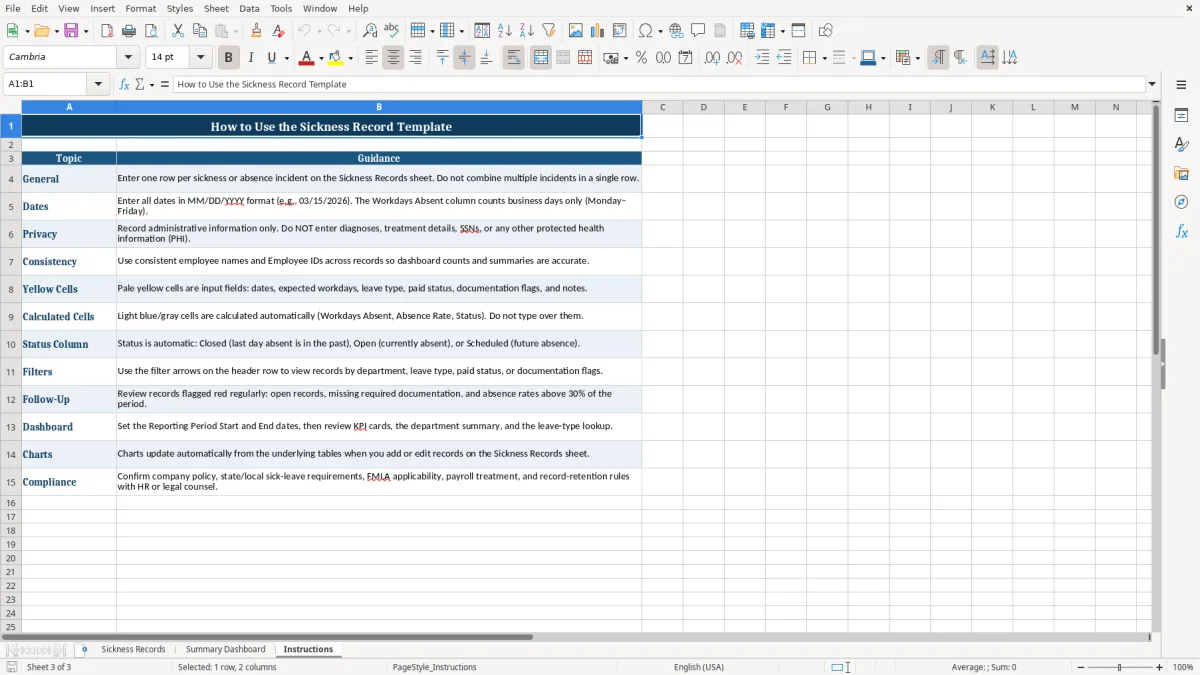
The Instructions tab directs you to enter one row per sickness or absence incident. Keep the Record ID unique and use the same employee name and Employee ID consistently so the employee count and department summaries do not split one person into multiple identities.
Workdays Absent, Absence Rate, and Status are calculated outputs. Typing over a formula can turn a two-day record into a permanent number or leave a record labeled Open after the last day has passed. The safest approach is to edit only the pale yellow input cells described on image 3’s Instructions tab.
A date alone does not tell the person handling the record whether the absence is Paid, Unpaid, or Partially Paid, whether a note is required, or whether documentation was received. For example, Emily Rodriguez’s sample record from 02/02/2026 through 02/06/2026 includes a required note and documentation received; omitting those flags would remove useful follow-up information without changing the day count.
Another problem is treating the dashboard as current without checking its reporting dates. If the period remains 01/01/2026 through 07/31/2026 while you are reviewing August records, the KPI cards and monthly view no longer describe the period you think they do. Update the start and end dates before relying on the summary.
Attach the workbook to an existing process, such as the Friday attendance review or the final payroll check of the week. Enter each new incident while the dates, paid status, and documentation flags are available instead of waiting until month-end and reconstructing several weeks from memory.
At month-end, set the Reporting Period Start and End dates and compare the department totals with the underlying filtered records. Image 2 includes monthly workday rows, a leave-type summary, and three charts; use them as a compact review, then inspect the source rows when a department total looks unusual.
Keep a dated copy before making major changes if your organization needs an audit trail. The workbook is an XLSX file with prepared entry and dashboard ranges, not a shared attendance database, so limit editing access and avoid storing diagnoses or other protected health information.
A spreadsheet is practical when one administrator maintains a modest list and the review process is manual. Consider a dedicated HR or timekeeping system when several people edit records at once, employees need self-service updates, approvals must be logged, or attendance data must connect directly to payroll. This workbook does not provide those workflows or integrations.
It tracks Record ID, employee name and ID, department, manager, work location, first and last days absent, expected workdays, leave type, paid status, documentation flags, return-to-work date, status, and notes. Workdays Absent, Absence Rate, and Status are calculated fields.
The workbook uses NETWORKDAYS to count Monday-through-Friday dates between First Day Absent and Last Day Absent. It does not use a custom holiday list, and the result stays blank until both dates are entered.
The Leave Type dropdown contains Sick Leave, Family Sick Leave, and Medical Appointment. The Paid Status dropdown contains Paid, Unpaid, and Partially Paid.
Status is calculated from the absence dates and TODAY. It displays Closed when the last day is past, Open when the absence has started and is not past, and Scheduled when the first day is in the future.
No. The Instructions tab says to record administrative information only. Do not enter diagnoses, treatment details, Social Security numbers, or other protected health information.
The dashboard includes total sickness records, total workdays absent, average days per record, employees with records, documentation completion, department summaries, a leave-type reference, monthly workdays absent for January through July 2026, and three charts. Set the reporting-period dates before reviewing results.