Customer Service Scorecard Excel – Free Template (2026)
3
Free download
Track new client details, onboarding tasks, owners, documents, deadlines, status, and progress with an XLSX checklist and dashboard.


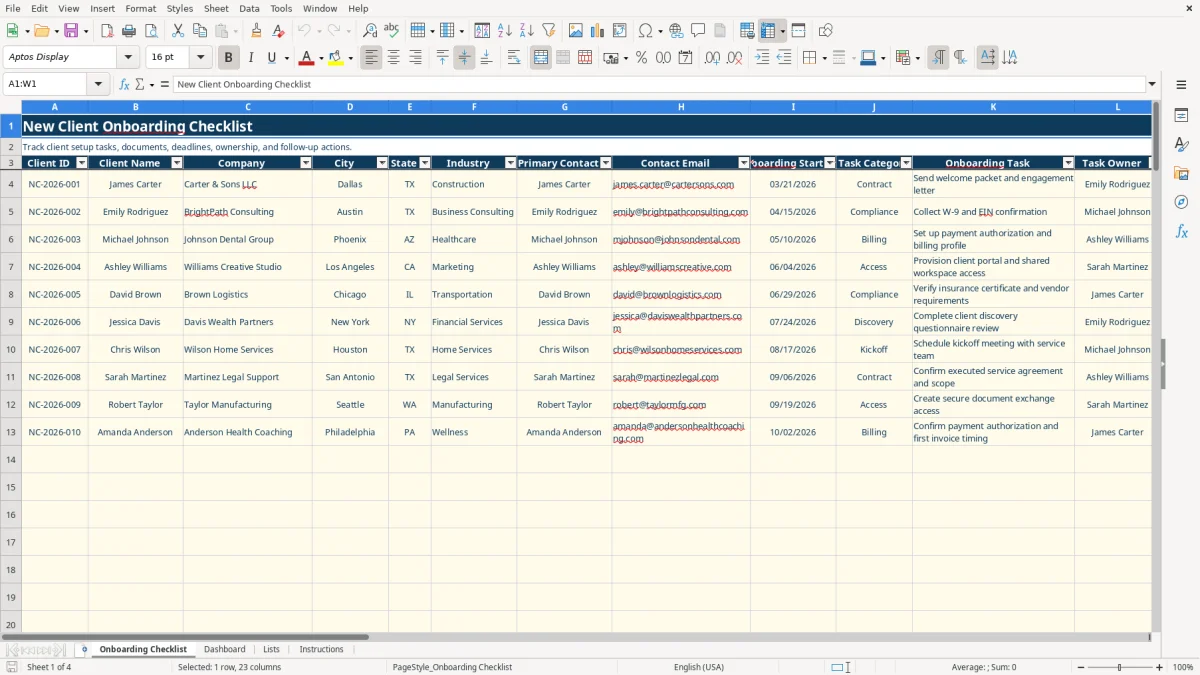
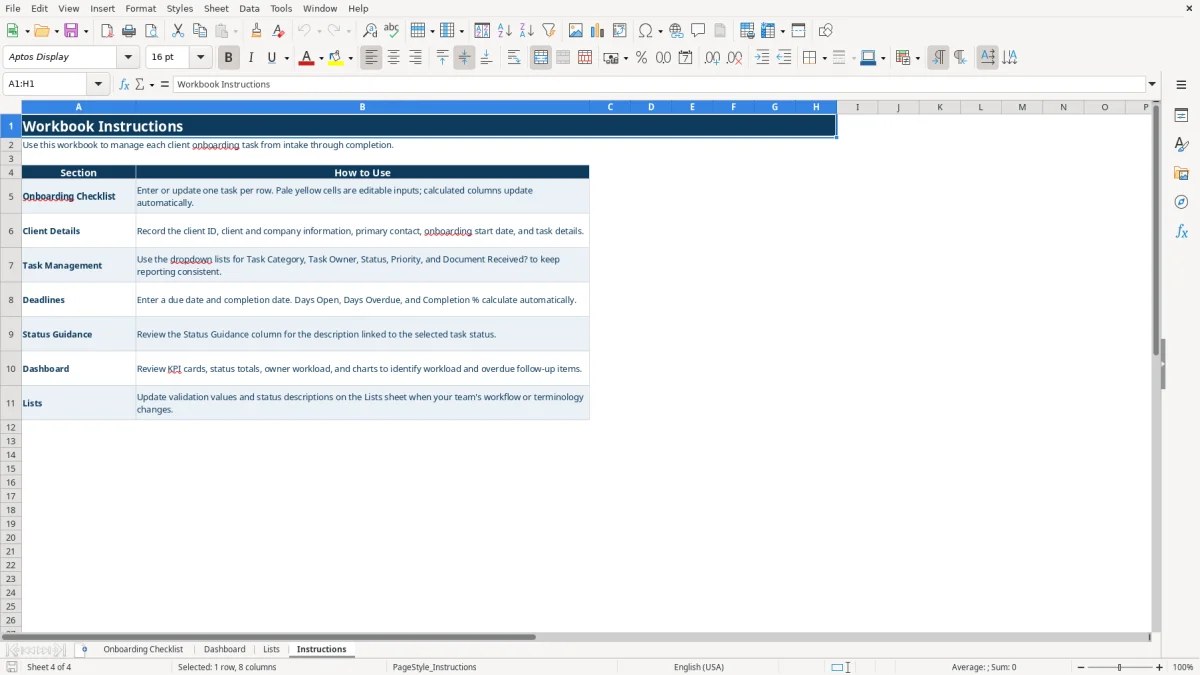
This new client onboarding checklist is an Excel workbook for recording client details, assigning onboarding tasks, tracking documents and due dates, and monitoring completion. It includes an Onboarding Checklist, Dashboard, Lists, and Instructions tab in XLSX format.
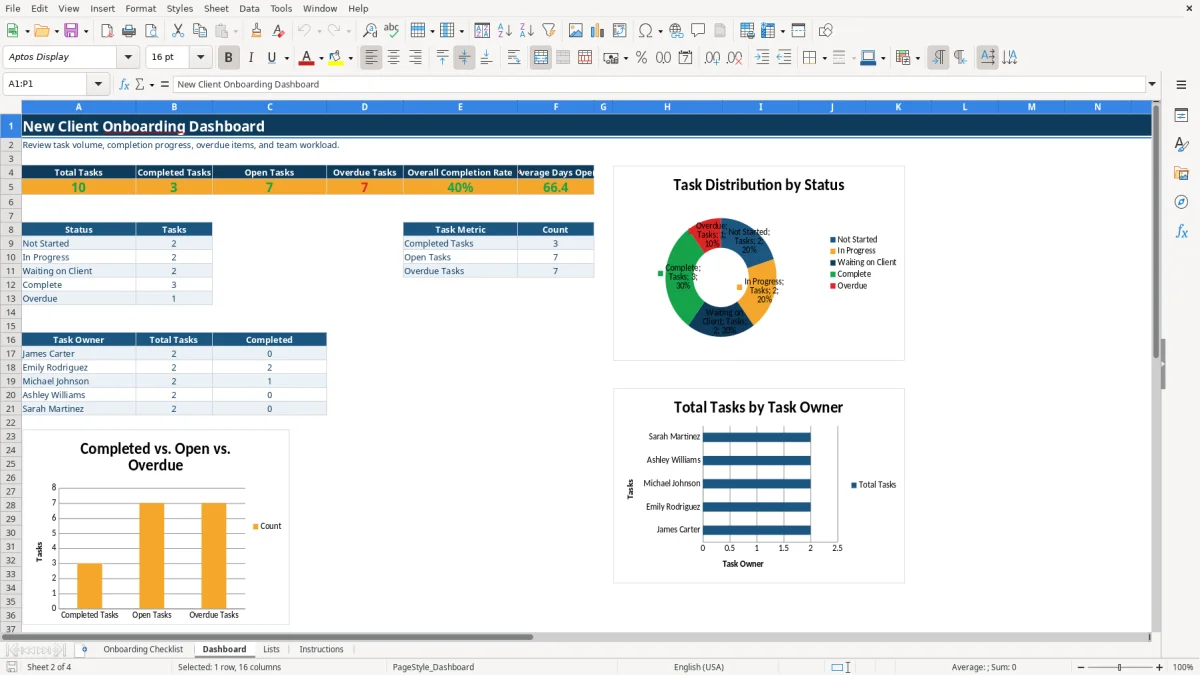
Enter one task per row, then use the calculated Days Open, Days Overdue, Completion %, and Status Guidance columns to keep follow-up visible. The Dashboard summarizes 100 prepared task rows, status totals, owner workload, and overdue activity.
A client services manager, account coordinator, or office administrator can use the checklist when a signed engagement becomes an active account. A construction company might record a Contract task for Carter & Sons LLC, while a consulting firm might create Compliance and Discovery tasks for a new business client.
The workbook separates client information from the work that must be completed. Client ID, Client Name, Company, City, State, Industry, Primary Contact, and Contact Email identify the account; Task Category, Onboarding Task, Task Owner, and Due Date identify the next action.
Use one row for each deliverable rather than placing several actions in one Notes cell. For example, a team can separately track a welcome packet, an engagement letter, a W-9 request, payment authorization, and a kickoff meeting.
The sample rows show three clients and distinct tasks, but the checklist has prepared rows through row 103. That gives you a consistent place to record up to 100 task rows in the supplied table without changing the workbook layout.
At the weekly onboarding meeting, filter your discussion by Task Owner, Status, or Priority. A manager can compare five listed owners on the Dashboard and see whether work is concentrated with one person instead of relying on scattered email reminders.
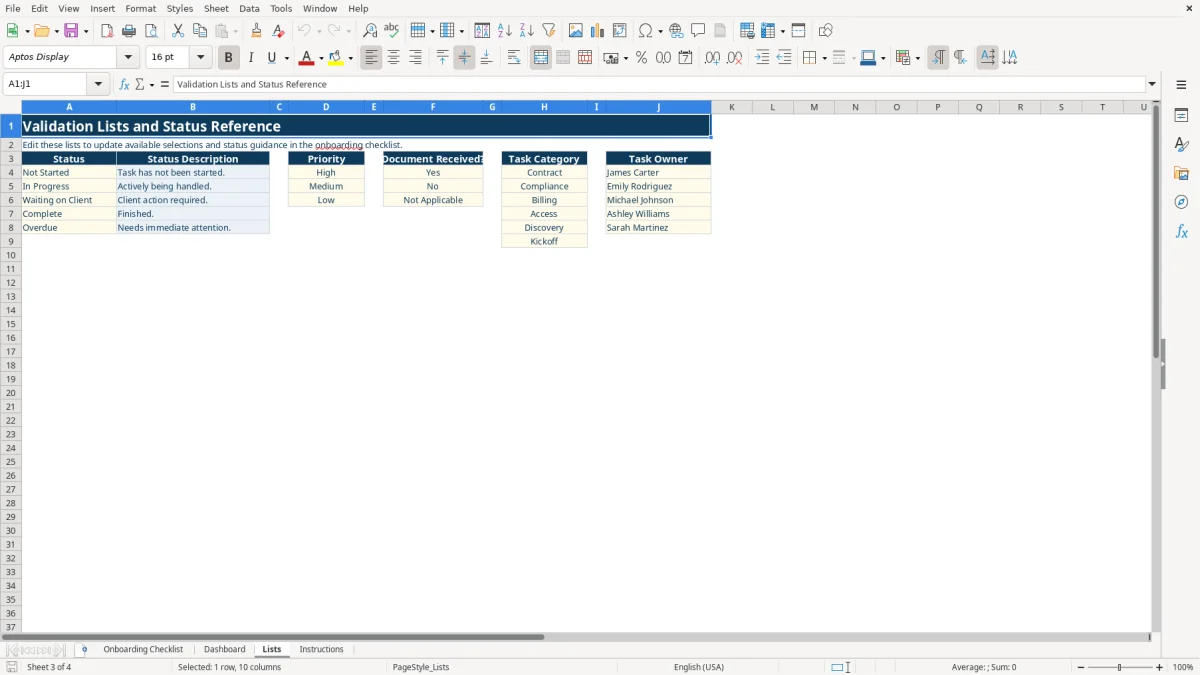
The checklist uses dropdowns for five fields. Status includes Not Started, In Progress, Waiting on Client, Complete, and Overdue; Priority includes High, Medium, and Low; and Document Received? includes Yes, No, and Not Applicable.
Task Category uses Contract, Compliance, Billing, Access, Discovery, and Kickoff. Task Owner uses the five names maintained on the Lists tab. These controlled values are preferable to free typing because the Dashboard counts exact status and owner names.
Days Open calculates the elapsed time from Onboarding Start Date to Completion Date for completed work, or to the current date for open work. Days Overdue remains zero for completed tasks and measures overdue days for an open task after its Due Date.
Completion % assigns 1 to Complete, 0.5 to In Progress, and 0 to other statuses. Status Guidance uses a VLOOKUP reference to the Lists tab, so selecting Waiting on Client displays the corresponding description instead of requiring you to type it again.
The Dashboard calculates counts with COUNTIF and COUNTIFS, while completion and days-open measures use AVERAGE. Its three charts summarize status, owner workload, and completed, open, and overdue task metrics; it does not contain a live email, CRM, or document-storage connection.
Typing Michael J instead of Michael Johnson creates a separate label from the owner value maintained in the Lists tab. The Dashboard then counts the work under the wrong name or leaves it outside the expected owner total. Use the dropdown rather than typing owner names manually.
The same problem occurs with statuses. Complete, Completed, and Done are not interchangeable in the formulas, so a task entered as Done will not appear in the completed count. This is a reporting error, not a harmless wording preference.
A task without a Due Date cannot produce a meaningful Days Overdue result. A completed task without a Completion Date also prevents Days Open from showing its full elapsed duration. For example, a task started on 05/10/2026 and completed on 05/22/2026 should show 12 days when both dates are entered.
Combining five onboarding actions into one row makes ownership and accountability unclear. If a client needs a signed engagement letter, payment authorization, access setup, and kickoff meeting, create separate rows so each item has its own owner, status, priority, document field, and deadline.
Do not overwrite formula columns S, T, U, or W with notes. Those columns are calculated outputs; replacing them with text stops the workbook from reporting the task correctly.
Attach the workbook to an existing meeting, such as a Monday operations review or Friday client-services check-in. Spend five minutes sorting attention around High priority items and tasks with a positive Days Overdue value rather than reviewing every completed line.
Change the Lists tab only during a deliberate process review. If your team replaces a status description, keep the status label itself consistent so the Dashboard formulas continue counting the same values.
The workbook is a practical task tracker, not a full client relationship or project-management system. When you need email reminders, permissions, document storage, activity history, or more than the supplied task rows, move the process into a system designed for those functions and retain the workbook as an export or review tool.
The XLSX workbook includes Onboarding Checklist, Dashboard, Lists, and Instructions tabs. The checklist records client details, tasks, owners, dates, documents, status, priority, notes, and calculated progress fields.
You can enter Client ID, Client Name, Company, City, State, Industry, Primary Contact, Contact Email, Onboarding Start Date, Task Category, Onboarding Task, Task Owner, Due Date, Status, Priority, Required Document, Document Received?, Completion Date, and Notes.
Days Open, Days Overdue, Completion %, and Status Guidance are formula-driven columns. Enter the relevant dates and status values, then leave these calculated columns unchanged.
The Onboarding Checklist table runs from row 3 through row 103, with row 3 as the header and rows 4 through 103 prepared for task entries. The workbook includes populated sample records that you can replace.
The Dashboard shows Total Tasks, Completed Tasks, Open Tasks, Overdue Tasks, Overall Completion Rate, and Average Days Open. It also summarizes tasks by status, task owner, and task metric with three charts.
The Lists tab contains the status descriptions, priorities, document values, task categories, and task owners used by the checklist. Review changes carefully because the Dashboard formulas count the exact labels used in the checklist.