Case Tracker Excel – Free Template (2026)
4
Free download
Plan study sessions, track hours, monitor completion, and review subject progress with three organized XLSX workbook tabs.


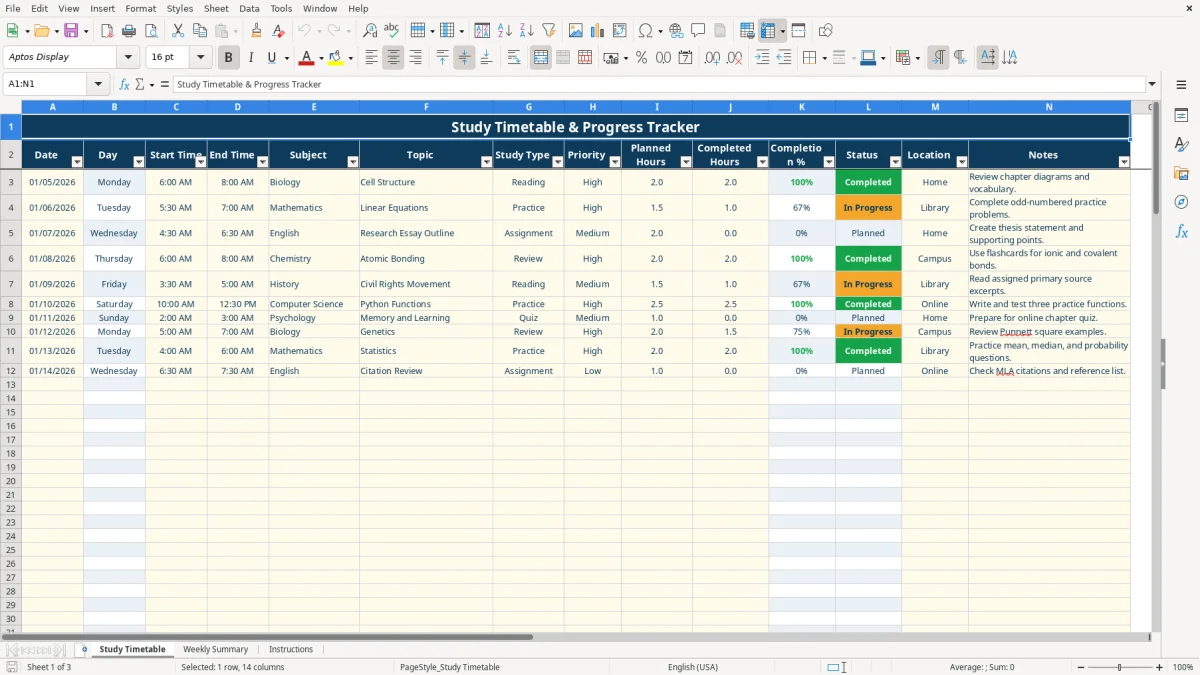
A study timetable Excel workbook helps you schedule study sessions, record planned and completed hours, and measure progress by subject. It includes a Study Timetable tab with date, time, subject, topic, study type, priority, location, notes, calculated completion percentage, and status fields.
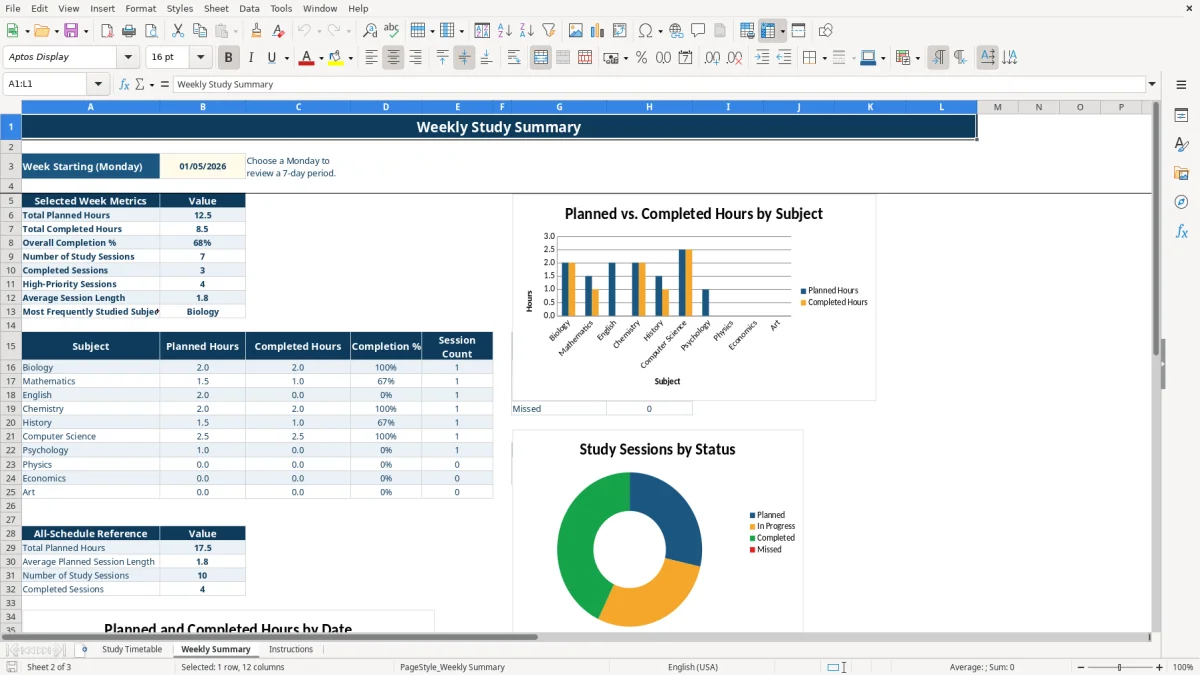
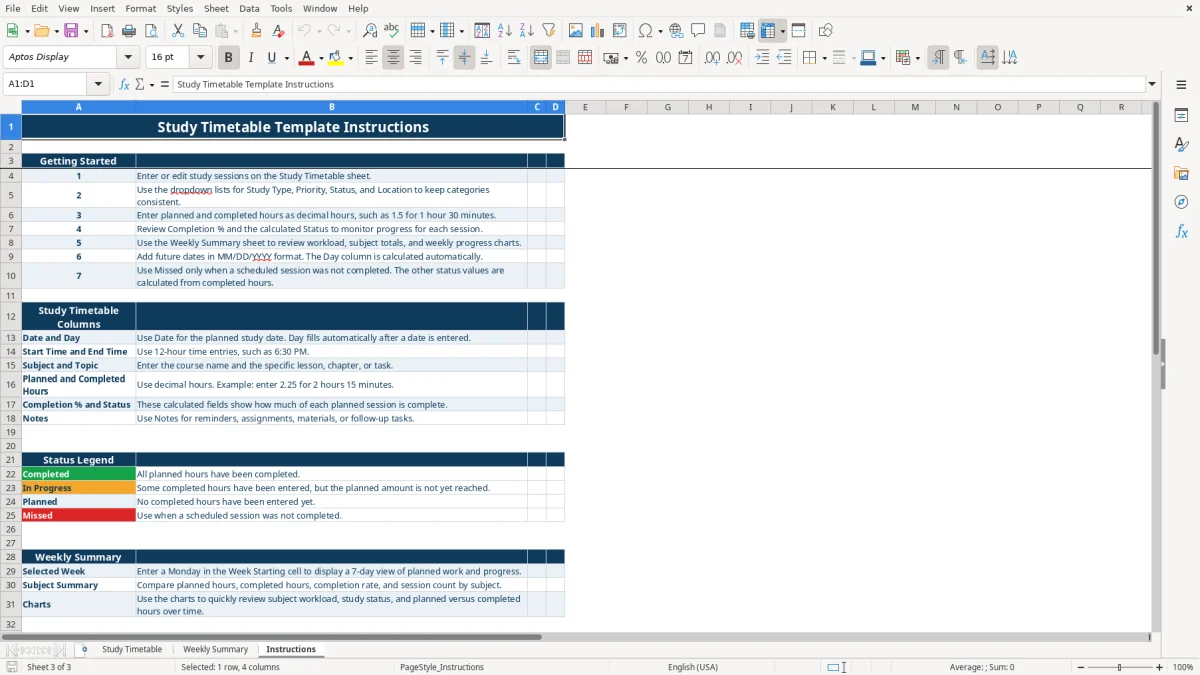
The workbook also includes a Weekly Summary tab for seven-day metrics, subject comparisons, status counts, lookup results, and three charts. The Instructions tab explains the entry process, decimal-hour format, dropdown choices, calculated fields, and weekly review.
A student balancing Biology, Mathematics, and English can use the Study Timetable tab to turn a broad to-do list into dated sessions. The sample rows show a 2-hour Biology reading session, a 1.5-hour Mathematics practice session, and a 2-hour English assignment session. You can replace those populated examples with your own coursework.
Enter the date, start time, and end time for each block rather than recording only a subject name. A session from 5:30 AM to 7:00 AM can be assigned to Mathematics, while an evening block can cover an essay outline or review. The Day column fills from the date, giving you a quick weekday view without another manual entry.
Use Subject for the course and Topic for the specific work. For example, enter Biology as the subject and Cell Structure as the topic, or Mathematics and Linear Equations. This distinction matters on the Weekly Summary, where planned hours, completed hours, completion percentage, and session count are grouped by subject.
The Priority dropdown offers High, Medium, and Low, while Study Type distinguishes Reading, Practice, Review, Quiz, and Assignment. Location choices include Home, Library, Campus, and Online. Those controlled choices are useful when your week includes classes, commuting, library sessions, and remote study.
Enter a Monday in the Week Starting cell on Weekly Summary to review a seven-day period. The sheet calculates Total Planned Hours, Total Completed Hours, Overall Completion %, Number of Study Sessions, Completed Sessions, High-Priority Sessions, Average Session Length, and the Most Frequently Studied Subject for that selected week.
The workbook expects decimal hours. Enter 1.5 for 1 hour and 30 minutes, or 2.25 for 2 hours and 15 minutes. If you record three sessions of 1.5 hours, the weekly planned total becomes 4.5 hours; completed hours are totaled separately from the values in Completed Hours.
Completion % divides completed hours by planned hours and limits the displayed result to 100%. Status is calculated as Planned when completed hours are zero, In Progress when some but not all planned hours are complete, and Completed when completed hours reach the planned amount. The Status dropdown also includes Missed for a scheduled session that was not completed.
The Weekly Summary includes subject rows for Biology, Mathematics, English, Chemistry, History, Computer Science, Psychology, Physics, Economics, and Art. It also contains status counts for Planned, In Progress, Completed, and Missed, plus a subject lookup that returns planned hours for the selected subject.
The most damaging timetable error is entering planned hours without updating completed hours. A 2-hour session left at zero remains Planned even if you finished it, so the weekly completion percentage understates your work and the Completed Sessions count stays low.
Do not enter 90 minutes in one row and 1.5 in another if you want reliable totals. The Instructions tab specifically uses decimal hours, so 90 minutes should be recorded as 1.5 and 2 hours 15 minutes as 2.25. Mixing formats makes comparisons harder and can produce misleading average-session figures.
A timetable can look complete while assigning too many hours to one day. The sample schedule includes 2 hours for Biology, 1.5 hours for Mathematics, and 2 hours for English across separate dates; copying all three into one evening would create a 5.5-hour workload that may not be realistic alongside classes and assignments.
Another problem is using vague topics such as Study or Homework. The Weekly Summary can compare subjects, but meaningful review depends on specific entries such as Cell Structure, Linear Equations, or Research Essay Outline. If you record a missed session, use the Missed status deliberately rather than leaving completed hours blank and assuming the reason is obvious.
Set up the timetable during one fixed weekly planning session, then update completed hours immediately after each study block. A Monday review works especially well because the Weekly Summary is designed around a Monday start and a seven-day period.
Use the dropdowns rather than typing alternate labels such as High Priority or At Home. The workbook's approved choices are High, Medium, Low; Home, Library, Campus, Online; and the listed study types. Consistent labels keep the Weekly Summary counts meaningful.
Use Notes for the next concrete action, such as reviewing diagrams, completing odd-numbered practice problems, or drafting supporting points. If a session is repeatedly missed, move it to a more realistic time or location rather than continuing to mark the same block as unfinished.
This XLSX workbook is best for a personal or small study schedule with the prepared rows and subjects shown. If you need shared scheduling, automatic reminders, attendance tracking, or a much larger academic program, a dedicated learning-management or calendar system will be more suitable.
The XLSX workbook contains Study Timetable, Weekly Summary, and Instructions tabs. The timetable records dates, times, subjects, topics, study types, priorities, hours, locations, and notes, while the summary calculates weekly and subject-level progress.
Enter Planned Hours and Completed Hours as decimal hours. Use 1.5 for 1 hour and 30 minutes, or 2.25 for 2 hours and 15 minutes. Start Time and End Time can be entered as times such as 6:30 PM.
Completion % is calculated by dividing Completed Hours by Planned Hours. The formula limits the result to 100%, and it displays zero when no completed hours have been recorded for a planned session.
Enter a Monday in the Week Starting cell. The summary reviews that date and the following six days, then calculates planned hours, completed hours, completion percentage, session counts, subject totals, and status counts.
Yes. The populated Biology, Mathematics, and English rows are examples that you can edit. The Weekly Summary includes listed subject rows for ten subjects, so use the subjects shown there when you want the subject comparison and lookup areas to return matching results.
Missed is available for a scheduled session that was not completed. Planned, In Progress, and Completed are calculated from the date and hour entries, while Missed is the manual status choice described on the Instructions tab.