Study Timetable Excel – Free Template (2026)
4
Free download
Track case details, deadlines, priorities, finances, documents, and attorney workloads with a case tracker workbook for legal teams.


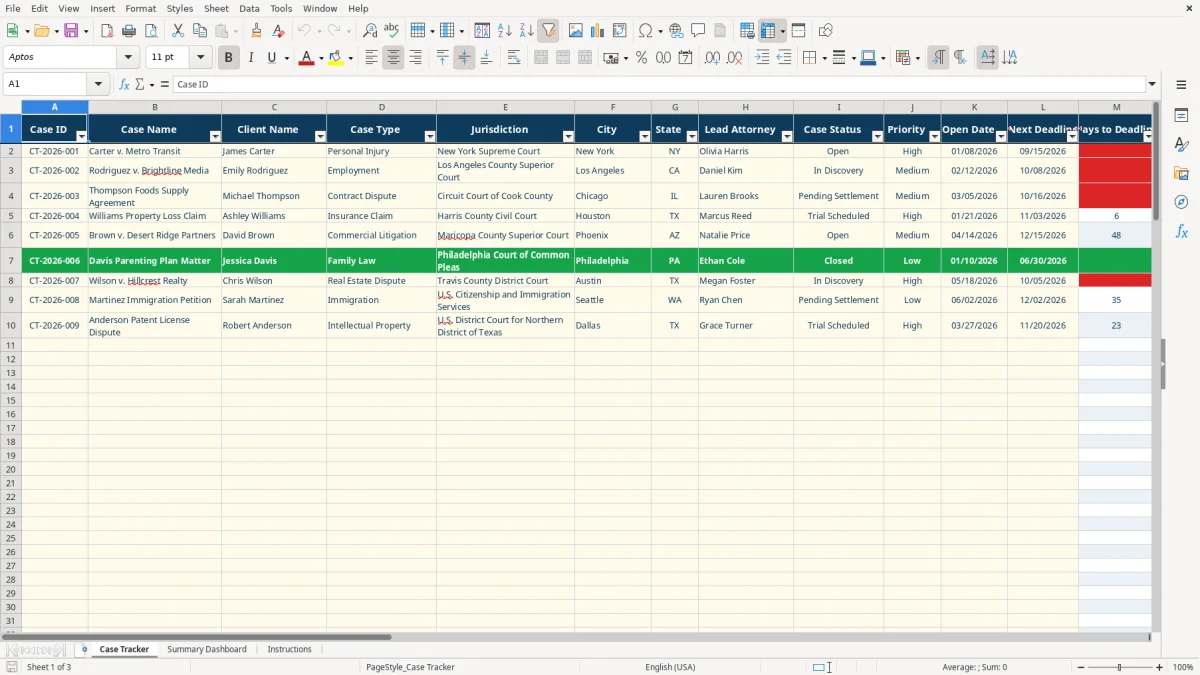
This case tracker workbook records client matters, case status, jurisdiction, attorneys, deadlines, financial amounts, documents outstanding, and next actions. It includes a Case Tracker input sheet, a formula-driven Summary Dashboard, and an Instructions sheet for maintaining consistent entries.
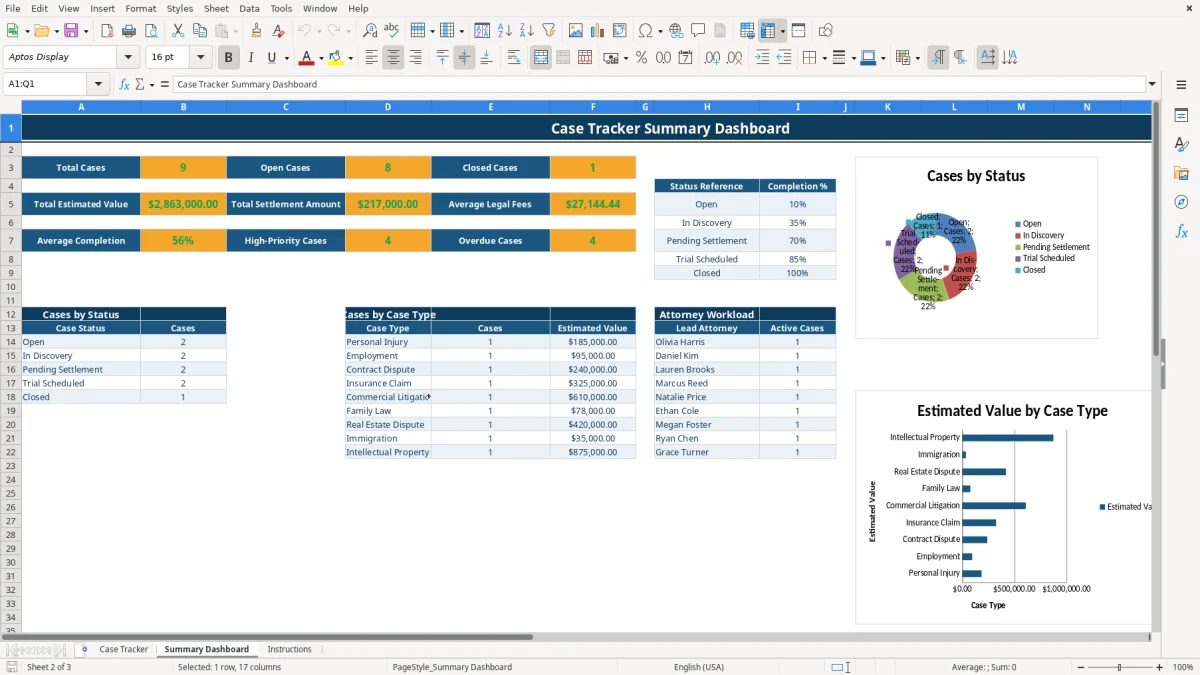
Use the Case Tracker tab to manage up to row 101 of prepared case-entry rows. The workbook calculates days to deadline, completion percentage, and risk level, while the dashboard summarizes case counts, estimated values, settlements, fees, case types, and attorney workloads.
A solo attorney, litigation assistant, or practice administrator can use this workbook when a firm needs one working list of active matters rather than scattered notes and email reminders. The Case Tracker tab contains fields for the client, case type, jurisdiction, lead attorney, opposing counsel, next deadline, documents outstanding, and next action, so a weekly case meeting can begin with the same source.
After a deposition, filing, settlement call, or client update, the user can update Last Activity, Next Action, and Documents Outstanding on the same row. For example, the populated sample for Carter v. Metro Transit shows a New York matter with a High priority, a $185,000 estimated value, $12,400 in legal fees incurred, six outstanding documents, and the next action Obtain medical records.
A managing attorney can use image 1, the Case Tracker view, to filter the visible rows by status, priority, attorney, or jurisdiction. Image 2 shows the Summary Dashboard, where total cases, open cases, closed cases, estimated value, settlement amount, and attorney workload are brought together. The dashboard also separates case volume by the nine available case types.
This is most useful for a small team that needs a repeatable weekly review. It is not a replacement for a firm’s official docket, document repository, or case-management system, and the Instructions tab explicitly frames it as an organizational tool.
The workbook uses calculated columns to turn entered case information into review signals. In Days to Deadline, the formula subtracts TODAY() from Next Deadline and leaves the result blank when the case lacks a deadline or has a Closed status. A negative result therefore identifies a deadline that has passed relative to the date Excel uses.
Completion % is assigned through a lookup on the Summary Dashboard’s Status Reference list. The prepared values are Open at 10%, In Discovery at 35%, Pending Settlement at 70%, Trial Scheduled at 85%, and Closed at 100%. These are workbook illustrations for tracking progress, not a legal measurement or court-approved percentage.
Risk Level returns High when Days to Deadline is below zero or Priority is High. Otherwise, it returns Medium when the deadline is 14 days or less away and Low when it is farther out. For example, a High-priority matter remains High even when its deadline is more than 14 days away; that is a deliberate formula result, not a manual judgment.
The dashboard uses COUNTA, COUNTIF, COUNTIFS, SUM, SUMIF, AVERAGE, and VLOOKUP formulas. Its prepared ranges reference Case Tracker rows 2 through 101, while the three charts use the dashboard’s status, case-type, and attorney tables. Keep the status text consistent because the calculations match these exact list values.
The most expensive spreadsheet failures usually begin with stale dates or incomplete next actions. A row may still show a matter as Open even after a settlement, or Next Deadline may remain blank after a new filing date arrives. In that situation, Days to Deadline cannot provide a useful signal, and the dashboard can understate the team’s active workload.
Typing variations such as Discovery, discovery phase, or Settled instead of using the supplied dropdown values prevents the status formulas from matching the intended categories. The workbook offers five exact statuses, so selecting from the list is the correct approach. A single inconsistent entry may not change every total, but several can make the status chart and completion summary misleading.
Estimated Value, Settlement Amount, and Legal Fees Incurred measure different things. Entering a projected settlement in Settlement Amount before an agreement is finalized can make the dashboard report money that has not been received. Likewise, confusing fees incurred with estimated value makes the average-fee metric less useful for staffing or matter review.
Another common failure is overwriting calculated columns M, U, and V. If a user types over Days to Deadline, Completion %, or Risk Level, the displayed result may remain unchanged until the formula is restored. Use the Notes and Next Action fields for explanations, and reserve formula columns for calculated outputs.
Choose one fixed review time each week, preferably before the team’s case meeting. Start on the Case Tracker tab, filter the list using its built-in auto-filter, and review every row with a High Risk Level, a negative Days to Deadline result, or a High priority. Then update Last Activity, Next Action, and Documents Outstanding before opening the dashboard.
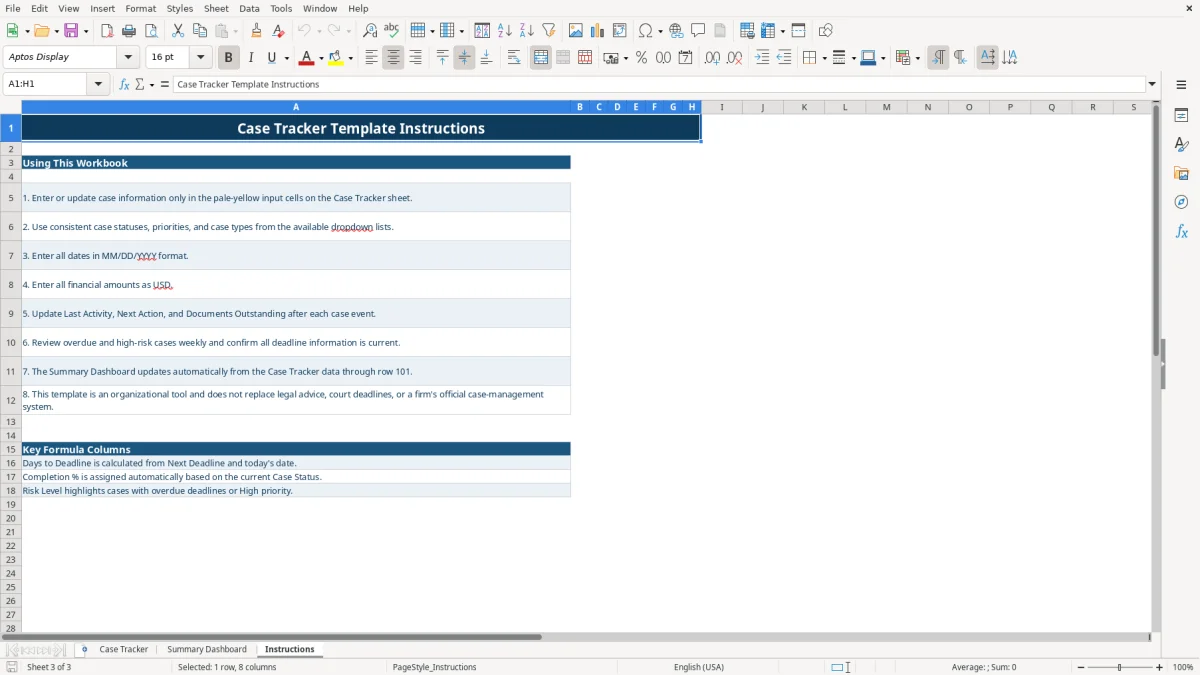
Use the dropdowns rather than creating new status or case-type wording. Enter dates in MM/DD/YYYY format and financial values as USD, as the Instructions tab specifies. Do not change the status reference values casually: they feed the Completion % lookup through VLOOKUP.
The workbook is a practical fit for a small team maintaining a controlled list through 100 prepared Case Tracker rows. Once the office needs document storage, docket synchronization, user permissions, audit history, or substantially more matter records, move the operational process to a dedicated case-management system and retain this file only for a limited summary or transition record.
The workbook includes Case Tracker, Summary Dashboard, and Instructions. Image 1 shows the entry sheet, image 2 shows the dashboard, and image 3 shows the written usage guidance.
You can record identifying, client, jurisdiction, attorney, status, priority, date, opposing counsel, financial, document, activity, action, completion, risk, and notes information. The Case Tracker tab has 23 columns from Case ID through Notes.
The formula subtracts TODAY() from the entered Next Deadline. It stays blank when Next Deadline or Case Status is blank, and it also stays blank for a Closed case.
Risk Level is High when a case is overdue or has High priority. It is Medium when the deadline is 14 days or less away, and Low when the deadline is farther away.
The dashboard calculates total, open, and closed cases; total estimated value; total settlement amount; average legal fees; average completion; high-priority cases; and overdue cases. It also includes status, case-type, and attorney workload summaries with three charts.
No. The Instructions tab states that the workbook is an organizational tool and does not replace legal advice, court deadlines, or a firm’s official case-management system. Confirm critical dates and records through the firm’s approved process.