Case Tracker Excel – Free Template (2026)
4
Free download
Track diligence requests, owners, deadlines, documents, findings, risk exposure, and dashboard status across financial, legal, tax, and other workstreams.


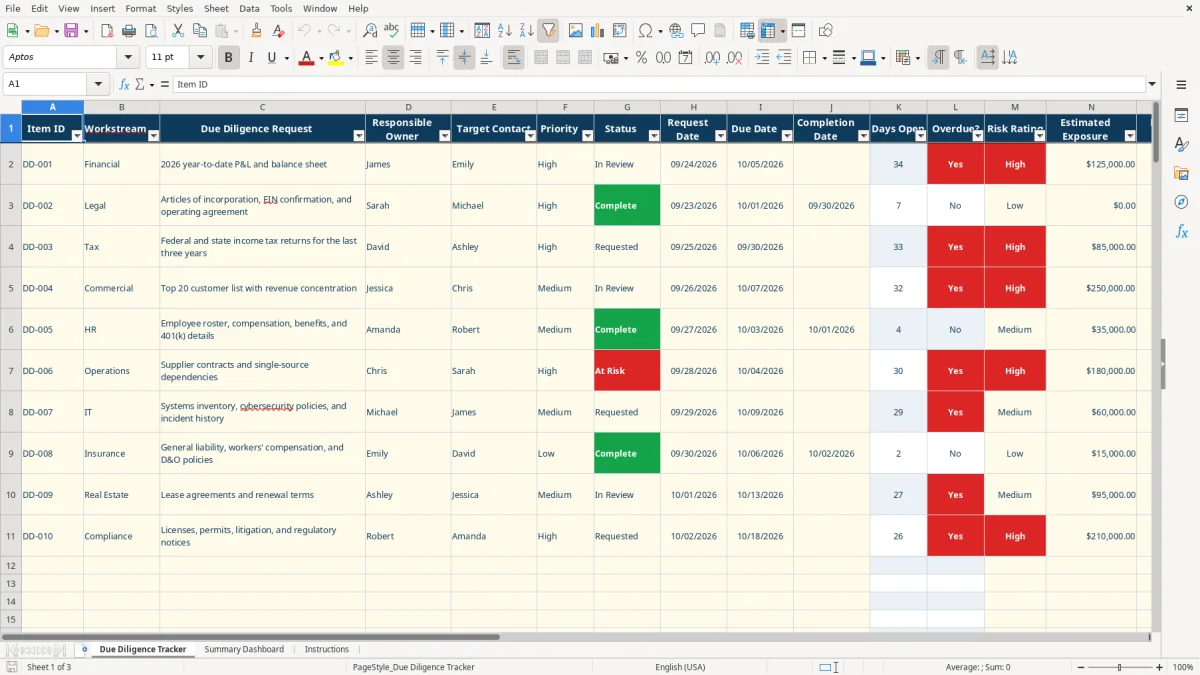
This due diligence workbook organizes requests, owners, contacts, deadlines, documents, findings, risk ratings, and estimated exposure in one XLSX file. It includes a 100-row tracker, a formula-driven summary dashboard, and instructions for reviewing financial, legal, tax, HR, commercial, operations, IT, insurance, real estate, and compliance items.
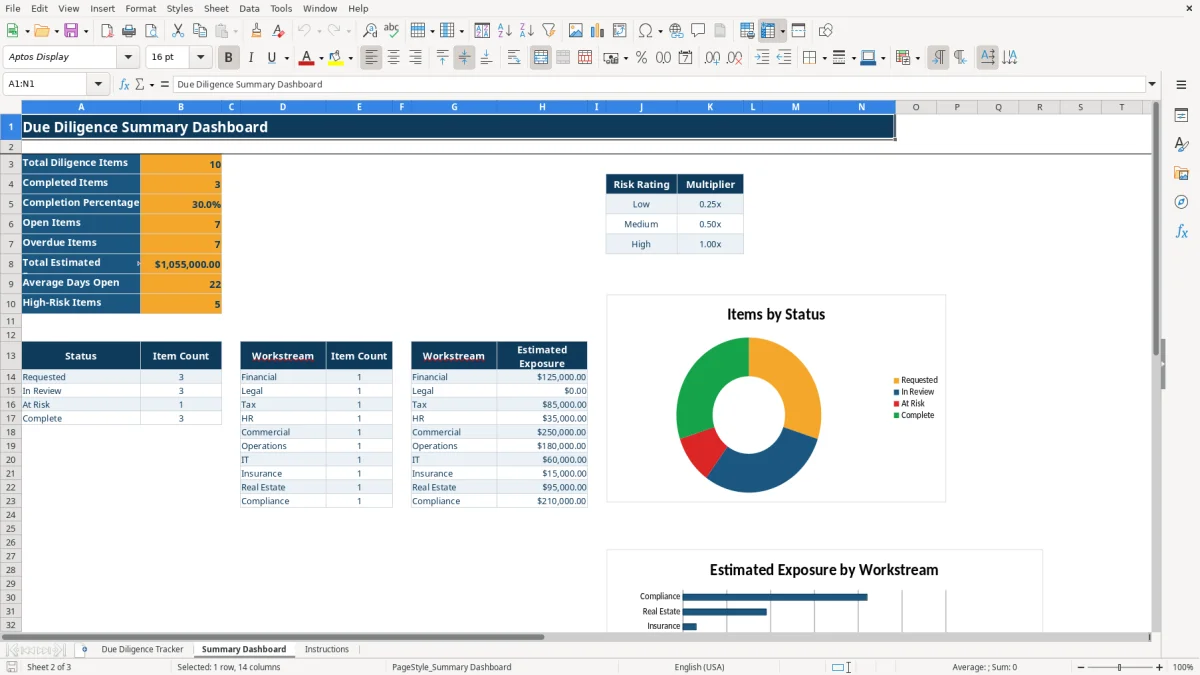
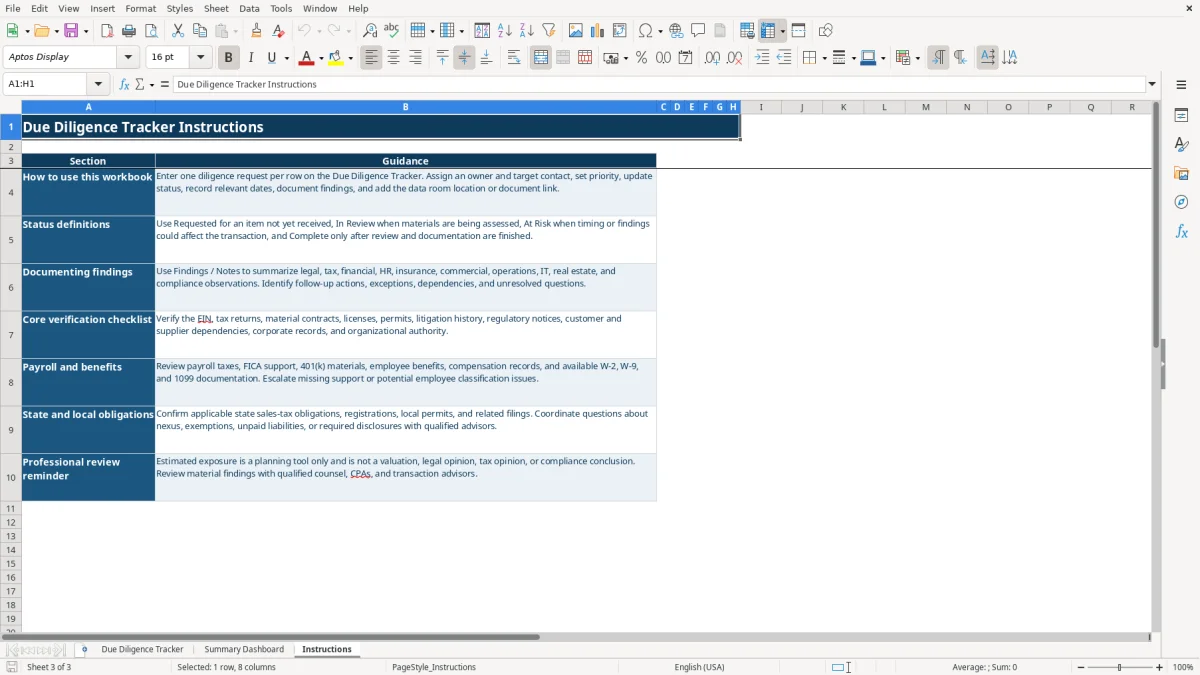
Use the Due Diligence Tracker tab to manage each request from Requested through Complete. The Summary Dashboard counts open, overdue, completed, and high-risk items, while the Instructions tab explains status definitions, verification areas, and the limits of estimated exposure.
A buyer’s deal team, seller’s office manager, private-equity analyst, lender, or corporate development group can use this workbook to keep requests moving through a transaction review. The tracker covers 100 prepared rows, so you can give each request an Item ID such as DD-001 and assign it to a named owner and target contact.
A finance lead might enter a request for year-to-date profit and loss and balance sheet support under Financial, while counsel tracks articles of incorporation, an EIN confirmation, and an operating agreement under Legal. The workbook’s sample rows show those exact types of requests, including a $125,000 estimated exposure on a financial item and a completed legal item with $0 exposure.
Use the Workstream list for Financial, Legal, Tax, HR, Commercial, Operations, IT, Insurance, Real Estate, and Compliance. This matters when a review has several contributors: the tax owner can track returns and nexus questions, HR can review payroll and benefits records, and operations can document customer or supplier dependencies without creating separate disconnected lists.
The right time to update the file is whenever a request changes hands, a document arrives, or a finding affects the transaction. Updating after a weekly deal-team meeting is better than waiting until the closing checklist is already under pressure.
The Due Diligence Tracker uses formulas rather than requiring you to calculate review metrics manually. Days Open compares Request Date with Completion Date; when Completion Date is blank, the formula compares the request date with TODAY(). That gives you a live aging figure for unfinished requests.
The Overdue? column returns Yes when an item is not Complete and today is after its Due Date. The list accepts Requested, In Review, At Risk, and Complete, which keeps dashboard counts reliable. An item marked Complete should have a Completion Date and supporting findings, not merely a document received flag.
Risk-Adjusted Exposure multiplies Estimated Exposure by the dashboard’s lookup table: Low equals 0.25x, Medium equals 0.50x, and High equals 1.00x. For example, the sample financial item has $125,000 estimated exposure and High risk, producing $125,000 risk-adjusted exposure; a $0 legal item remains $0.
The Summary Dashboard uses COUNTIF, COUNTIFS, SUM, SUMIF, and AVERAGE to summarize the tracker. Treat these outputs as planning indicators: the Instructions tab explicitly says estimated exposure is not a valuation, legal opinion, tax opinion, or compliance conclusion.
Due diligence breaks down when a request has no accountable owner. A row with a request description but no Responsible Owner or Target Contact gives the team no clear next action, even if the document exists somewhere in a data room. Enter both names before moving an item from an informal request into active review.
Missing Request Date prevents Days Open from showing a useful age, while missing Due Date prevents the Overdue? calculation from identifying a late item. A request received on 09/24/2026 with a 10/05/2026 deadline should have both dates recorded; otherwise a review meeting cannot distinguish a new request from one that has been open for weeks.
Estimated Exposure is often entered as a round number without a note explaining its source. The sample tax item shows $85,000 exposure and notes that state filings, payment support, and nexus analysis are still pending. That combination is more useful than a dollar amount alone because the note tells the reviewer what evidence is missing.
Another frequent failure is marking an item Complete when only a document was received. Document Received? and Status measure different things: a file may arrive but still require analysis. Use Findings / Notes to record exceptions and follow-up actions before closing the row.
Set one fixed update point before each deal-team meeting. During that review, sort attention around At Risk and overdue items first, then confirm that every new document has an owner, status, findings note, and data-room location in Document Link.
Use the controlled lists instead of typing variations such as “In review,” “Reviewing,” or “Done.” Consistent values are essential because the dashboard’s COUNTIF and SUMIF formulas match the listed labels exactly.
This XLSX file is appropriate for a defined review with up to 100 prepared tracker rows and a small deal team. Move to a dedicated deal-room or workflow system when you need permissions by user, audit history, automated reminders, document storage, or more than one person editing simultaneously.
It contains 18 columns, including request details, ownership, priority, status, three date fields, Days Open, Overdue?, risk rating, estimated exposure, document receipt, findings, document location, and Risk-Adjusted Exposure. The prepared table runs from A1:R101.
The formula multiplies Estimated Exposure by the multiplier selected from Summary Dashboard: Low is 0.25x, Medium is 0.50x, and High is 1.00x. A $40,000 item rated Medium produces $20,000 of risk-adjusted exposure.
Yes. The multiplier values appear in cells K5:K7 on Summary Dashboard. Change them to match your review methodology, but document the approach because the workbook identifies these figures as planning tools rather than valuation or professional conclusions.
It shows total diligence items, completed items, completion percentage, open items, overdue items, total estimated exposure, average days open, and high-risk items. It also includes status counts, item counts by workstream, estimated exposure by workstream, and two charts.
No. Document Link is a text field for recording a data-room location or reference. It is not a live data feed or confirmed functional hyperlink, so you should verify the location separately.