Case Tracker Excel – Free Template (2026)
4
Free download
Track task owners, priorities, statuses, dates, progress, hours, overdue items, and dashboard totals in this XLSX task list workbook.


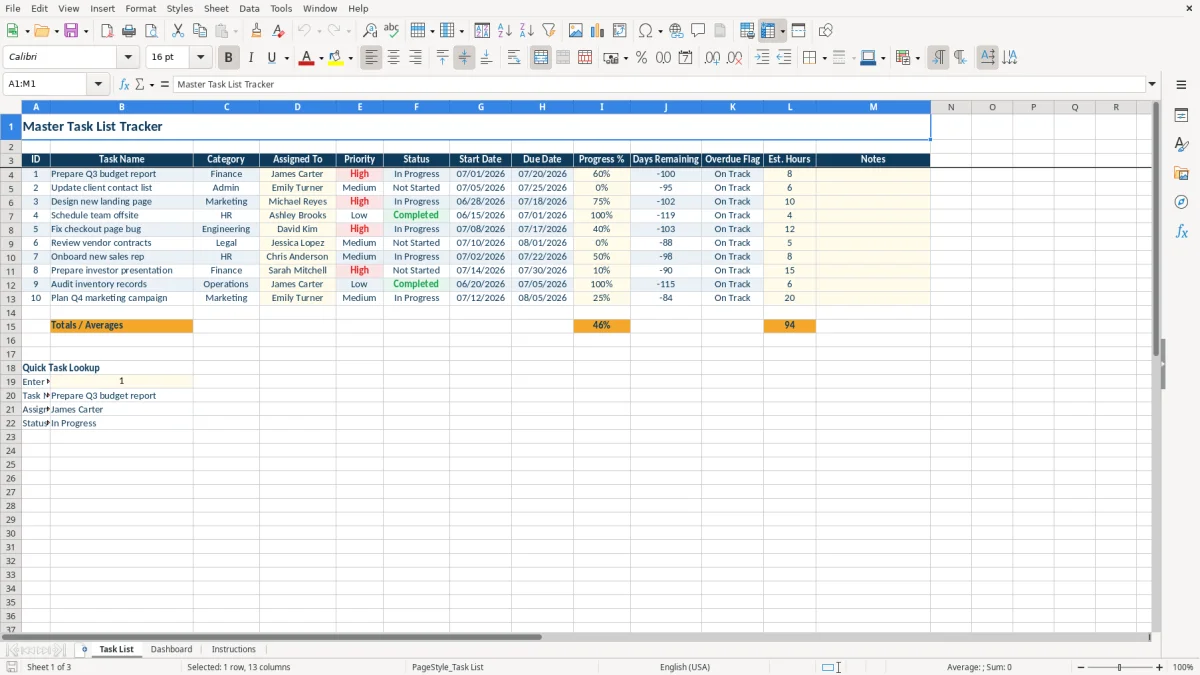
This task list Excel template is an XLSX workbook for recording work, assigning owners, setting priorities, monitoring due dates, and reviewing progress. It includes a Task List sheet with 13 tracking columns, calculated days remaining and overdue status, a Dashboard with task counts and charts, and an Instructions sheet.
Use it for a small office team, department project, or recurring operations list. The sample rows show finance, administration, marketing, and other categories, while the prepared rows let you replace the examples with your own tasks.
A task list is most useful when several people need one shared view of ownership and deadlines. An office manager can track a vendor follow-up, a marketing coordinator can manage a landing page, and a finance employee can monitor a budget report without maintaining separate notes.
The Task List sheet is organized around practical fields: Assigned To, Priority, Status, Start Date, Due Date, Progress %, Est. Hours, and Notes. A department with 10 active rows can quickly see whether work is Not Started, In Progress, or Completed and which person owns the next action.
The sample workbook includes tasks such as Prepare Q3 budget report, Update client contact list, and Design new landing page. Treat those as illustrations, not live work. Replace them with your own projects while keeping the ID numbers as a simple reference.
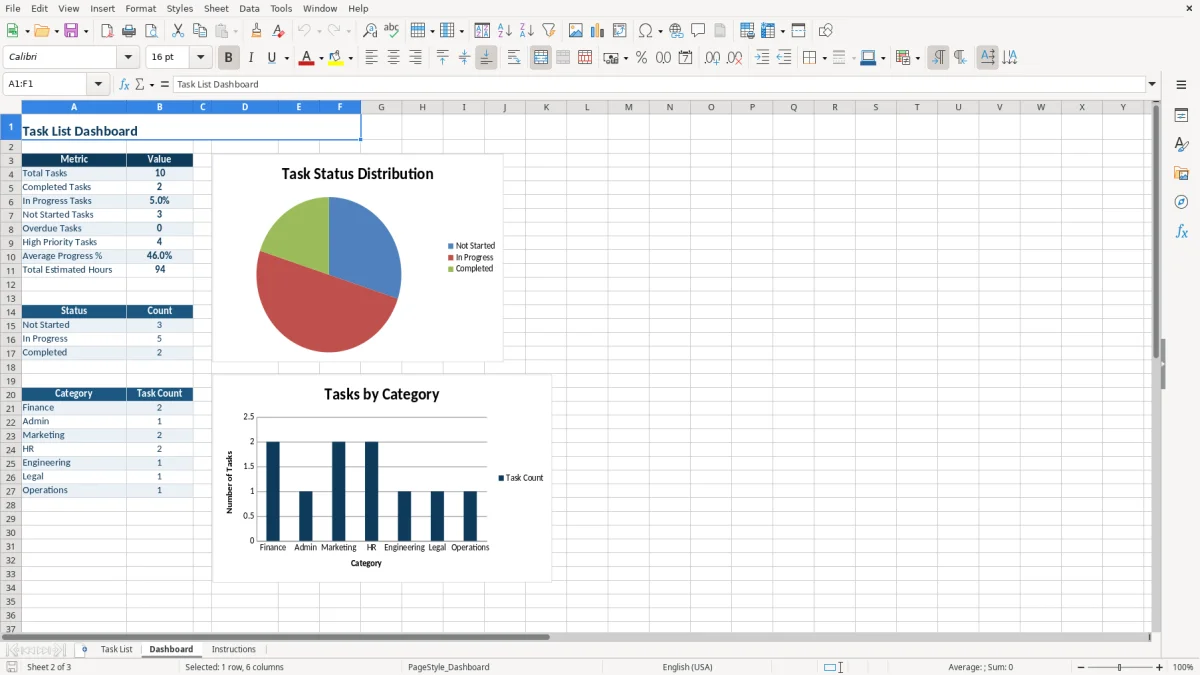
Use the Dashboard before a Monday planning meeting or Friday closeout. It counts total tasks, completed tasks, in-progress tasks, not-started tasks, overdue tasks, and high-priority tasks, while the status chart gives a quick view of the workload mix.
The category summary covers Finance, Admin, Marketing, HR, Engineering, Legal, and Operations. That makes the workbook suitable for a small business team that wants department-level visibility without building a separate report for each group.
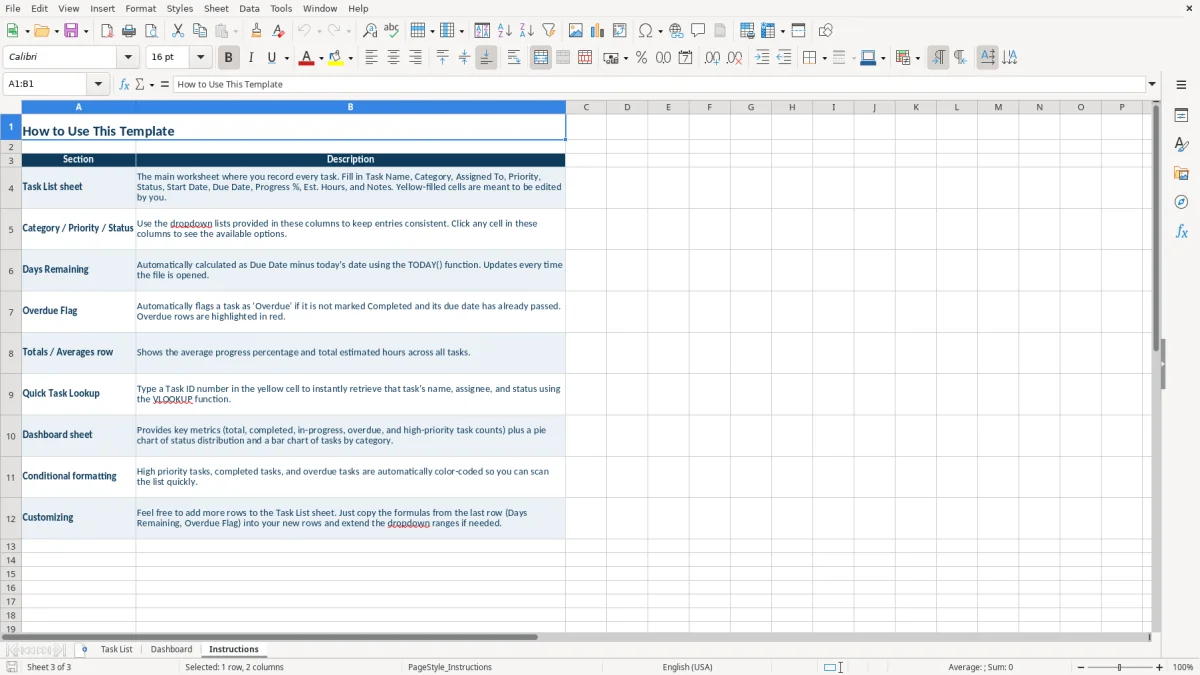
The workbook separates information you enter from values Excel calculates. You enter the task details in the Task List sheet; formulas calculate Days Remaining, Overdue Flag, the totals row, Dashboard metrics, and the Quick Task Lookup results.
Days Remaining uses the formula H4-TODAY(), where H is Due Date. If a task is due 5 days from the date Excel evaluates the file, the result is 5. The value changes when the workbook recalculates, so it is a current countdown rather than a permanently saved number.
Overdue Flag checks two conditions: the status is not Completed and the Due Date is earlier than today. A completed task with an old due date therefore remains On Track, while unfinished work past its deadline is marked Overdue and highlighted.
The Dashboard uses COUNTA for Total Tasks, COUNTIF for status, priority, overdue, and category counts, AVERAGE for Average Progress %, and SUM for Total Estimated Hours. For example, if three task rows contain 8, 6, and 10 estimated hours, the displayed total is 24 hours.
The lookup area accepts an ID and uses VLOOKUP against the task range to return Task Name, Assigned To, and Status. The Instructions sheet explains the lookup and notes that additional rows require copied formulas and extended dropdown ranges.
Task tracking usually fails when the same status is entered several ways. In Progress, in-progress, and Started may describe the same work to a person, but COUNTIF treats them as different text. The workbook's dropdown list prevents that problem for Category, Priority, and Status.
A task without an Assigned To value has no accountable owner, even if the task name is clear. A task with a Due Date but no Status can also distort the Dashboard because the overdue formula is designed around whether the task is marked Completed.
Dates create another practical failure. Entering a date as text can prevent Excel from subtracting TODAY() correctly. Use the workbook's MM/DD/YYYY format and check that Days Remaining shows a number rather than a blank or unexpected result.
Progress % is only useful when everyone interprets it consistently. If one person enters 75 for 75% and another enters 0.75, the average can become misleading depending on the cell format. Use one convention throughout the list and review the Average Progress % value beside the task rows.
Do not leave completed sample rows mixed with current work when presenting the Dashboard. A report containing old examples can show inflated totals, extra high-priority tasks, or a misleading category distribution. Clear or replace sample entries before relying on the summary.
A task workbook becomes useful when updates happen at a fixed time. Set a 15-minute review before the weekly team meeting: change completed statuses, update progress, confirm due dates, and assign any blank owners. Then open the Dashboard and use the counts to decide what needs attention first.
Compare Total Estimated Hours with the team's available time during planning. If the list contains 40 estimated hours but the team has only 25 hours available, use Priority and Due Date to decide what moves forward instead of treating every task as equally urgent.
The workbook is best for a compact list within its prepared task area. If you need a large shared database, permissions, automated notifications, or live collaboration, move to a dedicated task-management system. For this XLSX workbook, keep a dated copy after each weekly review so you can compare changes without overwriting the prior snapshot.
It contains columns for ID, Task Name, Category, Assigned To, Priority, Status, Start Date, Due Date, Progress %, Days Remaining, Overdue Flag, Est. Hours, and Notes. The sample rows can be replaced with your own tasks.
The Overdue Flag checks whether the task is not marked Completed and whether its Due Date is earlier than today's date. Matching tasks are labeled Overdue and highlighted through conditional formatting.
Category includes Finance, Admin, Marketing, HR, Engineering, Legal, and Operations. Priority includes High, Medium, and Low. Status includes Not Started, In Progress, and Completed.
The Dashboard calculates total, completed, in-progress, not-started, overdue, and high-priority task counts, plus average progress and total estimated hours. It also summarizes status and category counts in two charts.
Enter a Task ID in the lookup area on the Task List sheet. The VLOOKUP formulas return that task's name, assigned person, and status, or display Not Found when the ID does not match the prepared range.
The Instructions sheet says you can add rows, but you must copy the Days Remaining and Overdue Flag formulas into new rows and extend the dropdown ranges. You should also check the Dashboard ranges so new entries are included in the summaries.