Case Tracker Excel – Free Template (2026)
4
Free download
Plan shifts, calculate hours and labor cost, and review staffing status with a three-tab XLSX scheduling workbook.


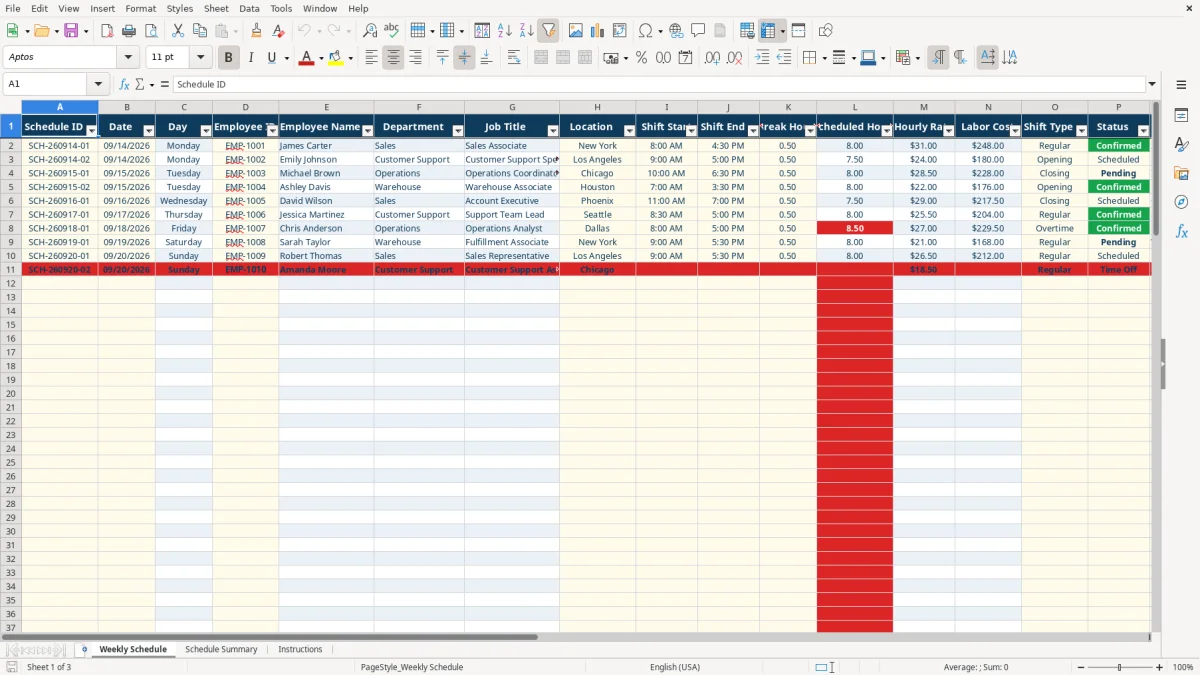
This scheduling workbook organizes employee shifts by date, location, role, start time, end time, breaks, status, and notes. It contains a Weekly Schedule entry table, a Schedule Summary dashboard with staffing and labor-cost metrics, and an Instructions tab.
Use the prepared rows for up to 100 schedule entries. Employee details, scheduled hours, hourly rates, labor cost, department totals, and status counts are calculated from the information you enter.
A scheduling spreadsheet suits an office manager, retail supervisor, warehouse lead, or operations coordinator who needs a weekly staffing view without separating shifts across email messages and handwritten notes. The Weekly Schedule tab, shown in image 1, provides 17 columns from Schedule ID through Notes, so each shift carries its location, role, timing, status, and coverage detail.
A store manager can record a New York sales-floor shift, a Los Angeles customer-support opening, or a Chicago operations closing in the same table. The sample rows illustrate this structure with 08:00 AM to 04:30 PM, 09:00 AM to 05:00 PM, and 10:00 AM to 06:30 PM shifts, each with a 0.5-hour break.
Use the Employee ID as the linking field rather than repeatedly typing names and rates. The workbook returns the employee name, department, job title, and hourly rate from the lookup table, reducing mismatches when one employee works several shifts during the week.
This is useful when the schedule must answer two questions at once: who is working, and what will the planned labor cost be? A manager can enter a closing shift with an Inventory review note, then use the summary figures to compare staffing needs across departments.
The workbook contains 100 prepared schedule rows, not an unlimited scheduling system. If your team regularly schedules more than 100 entries in one planning period, treat this file as a short-term planning workbook and move the process into a system designed for larger workforce data.
The workbook calculates scheduled hours from Shift Start, Shift End, and Break Hours. Time entries must be numeric Excel times between 00:00 and 23:59, and break hours must be a nonnegative decimal such as 0.5 for thirty minutes.
The formula uses MOD to treat an end time earlier than the start time as the following day. For example, 22:00 to 06:00 is an eight-hour span; subtracting a 0.5-hour break returns 7.5 scheduled hours. Equal start and end times return zero hours, not a 24-hour shift.
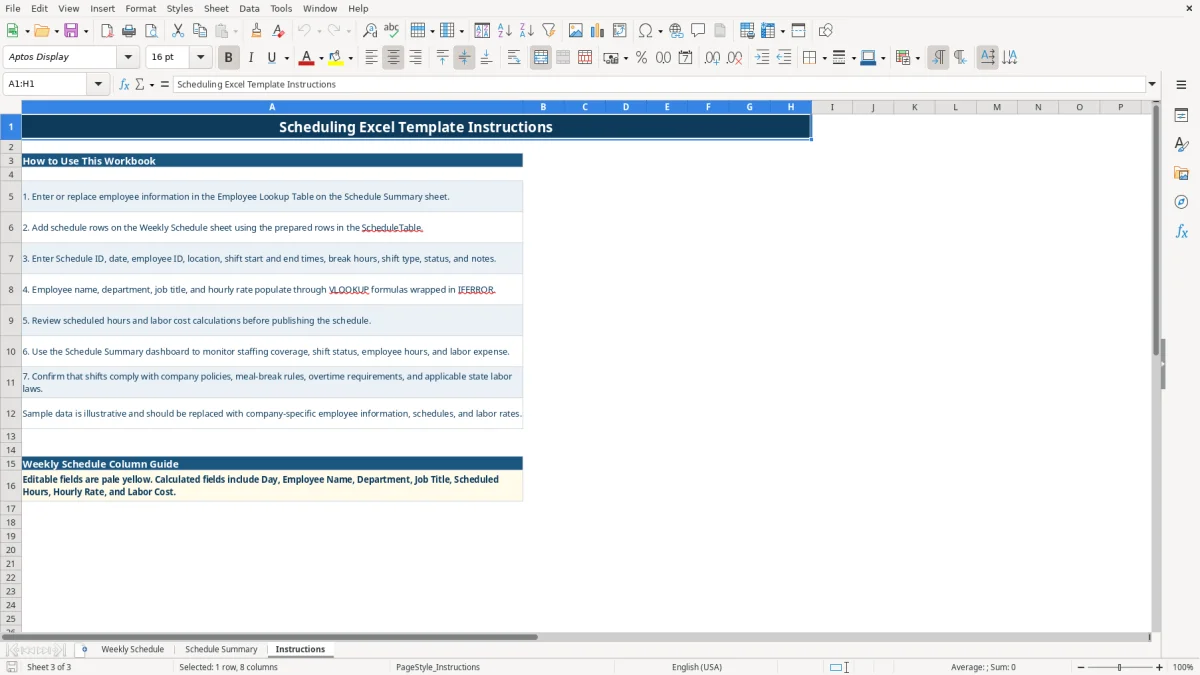
Invalid entries leave Scheduled Hours blank. That includes missing or nonnumeric time values, a break longer than the shift, or an invalid break value. The Instructions tab, shown in image 3, specifically tells you to use actual Excel time values and a break shorter than the shift.
Labor Cost equals Scheduled Hours multiplied by Hourly Rate. For a 7.5-hour shift at $24.00 per hour, the calculated labor cost is $180.00. The employee rate comes from the Schedule Summary lookup table, so changing that rate updates linked schedule rows.
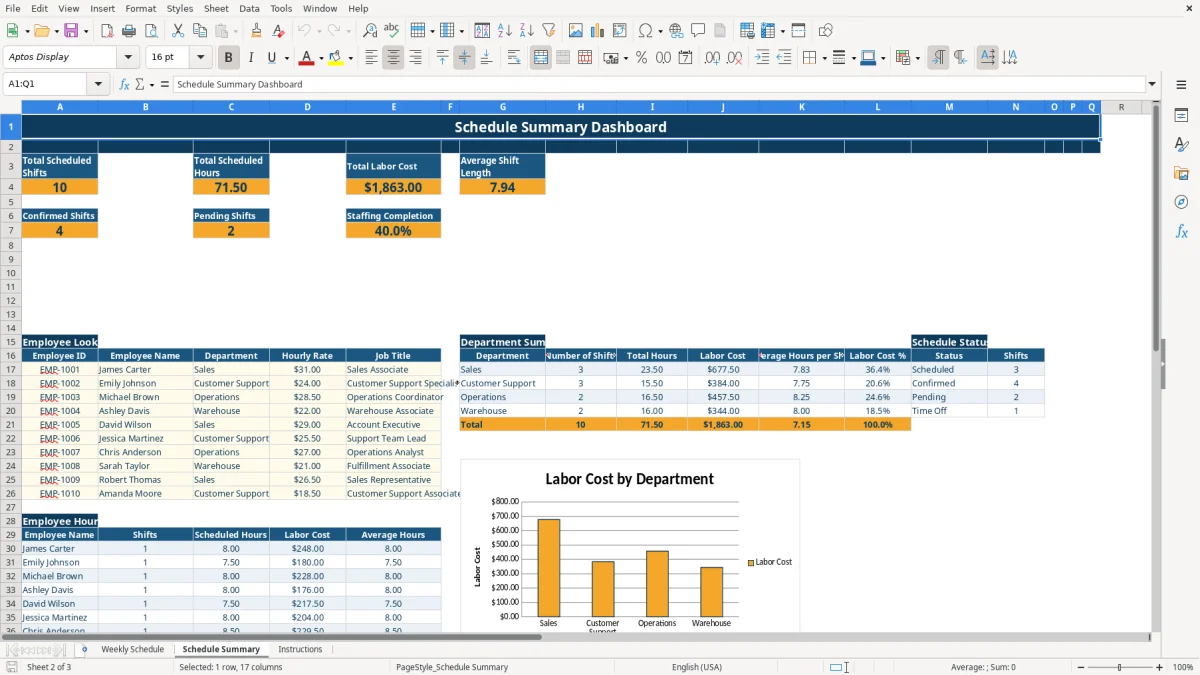
Image 2 shows the Schedule Summary dashboard. Its formulas calculate total scheduled shifts, total hours, total labor cost, average shift length, confirmed shifts, pending shifts, and staffing completion. These are planning calculations, not payroll, overtime, meal-break, or labor-law determinations; the Instructions tab directs you to check company policies and applicable requirements separately.
The most expensive scheduling errors usually begin with incomplete time entries. A blank or text-formatted start time can leave Scheduled Hours empty, which also prevents Labor Cost from calculating. A supervisor may then publish a shift that appears on the roster but is missing from the labor estimate.
Entering 22:00 to 06:00 as text instead of Excel time values can defeat the intended calculation. Entering a 9-hour break for an 8-hour shift also produces a blank result because the formula rejects a break longer than the shift.
Equal start and end times cause another practical problem. The workbook correctly treats 08:00 to 08:00 as zero hours, but a user who intended an overnight shift must enter an end time earlier than the start time, such as 06:00 after a 22:00 start.
If you type an Employee ID that is not in the lookup table, employee details may remain blank and the hourly-rate lookup returns zero. That can make the schedule look complete while understating labor cost. Replace the sample employee records before entering live schedules, and use the employee list rather than creating near-duplicate IDs.
Status errors also distort the dashboard. A shift left as Pending will not count as Confirmed, so staffing completion can fall even when the person has verbally accepted the assignment. Review status values before distributing the final schedule, especially when several managers update the file.
Set one recurring planning time for the next week, such as Thursday afternoon, and update the Weekly Schedule tab in one pass. Start with employee records, then enter dates and shifts, then review calculated hours and costs before changing statuses from Scheduled or Pending to Confirmed.
Keep the Instructions tab available for anyone who takes over scheduling. The pale-yellow editable fields and calculated columns described there give a practical division of responsibility: schedulers enter assignments, while formulas return employee details, hours, rates, and costs.
This workbook has 100 prepared schedule rows and no chart-driven filtering or live payroll connection. If you schedule 25 employees across five shifts each week, those 125 entries already exceed the prepared row capacity for one planning period; use a workforce or payroll system when that volume becomes routine.
Save a dated XLSX copy after each published schedule so you retain the version issued to staff. The file is for scheduling cost and coverage planning, not payroll processing or overtime compliance.
The Weekly Schedule tab contains a table from A1:Q101, with 100 prepared schedule-entry rows beneath the header. It is not an unlimited schedule database.
Yes. Enter numeric Excel times, such as 22:00 for the start and 06:00 for the end. With a 0.5-hour break, the formula returns 7.5 scheduled hours.
Equal times return zero hours, not a 24-hour shift. To represent an overnight shift, enter an end time earlier than the start time.
They come from the Employee Lookup Table on the Schedule Summary tab. The Weekly Schedule tab uses Employee ID with VLOOKUP formulas to return the name, department, job title, and hourly rate.
No. It calculates scheduled hours and planned labor cost only. Review company policies, meal-break rules, overtime requirements, and applicable state labor laws separately.