Case Tracker Excel – Free Template (2026)
4
Free download
Track residential construction costs, vendors, invoices, dates, variances, category totals, and top over-budget items in an XLSX workbook.


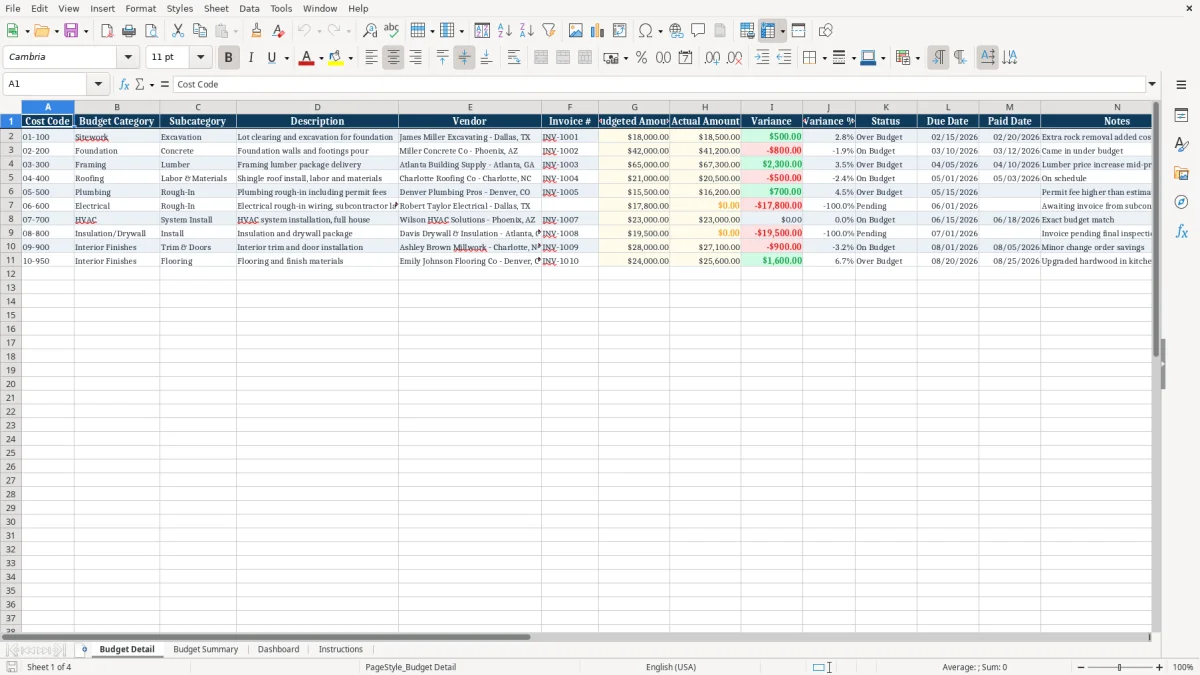
This residential construction budget workbook tracks budgeted and actual costs by cost code, category, vendor, invoice, due date, and paid date. It calculates variance, variance percentage, and status for each line, then summarizes totals by category and displays over-budget items, spending comparisons, and budget share across four tabs.
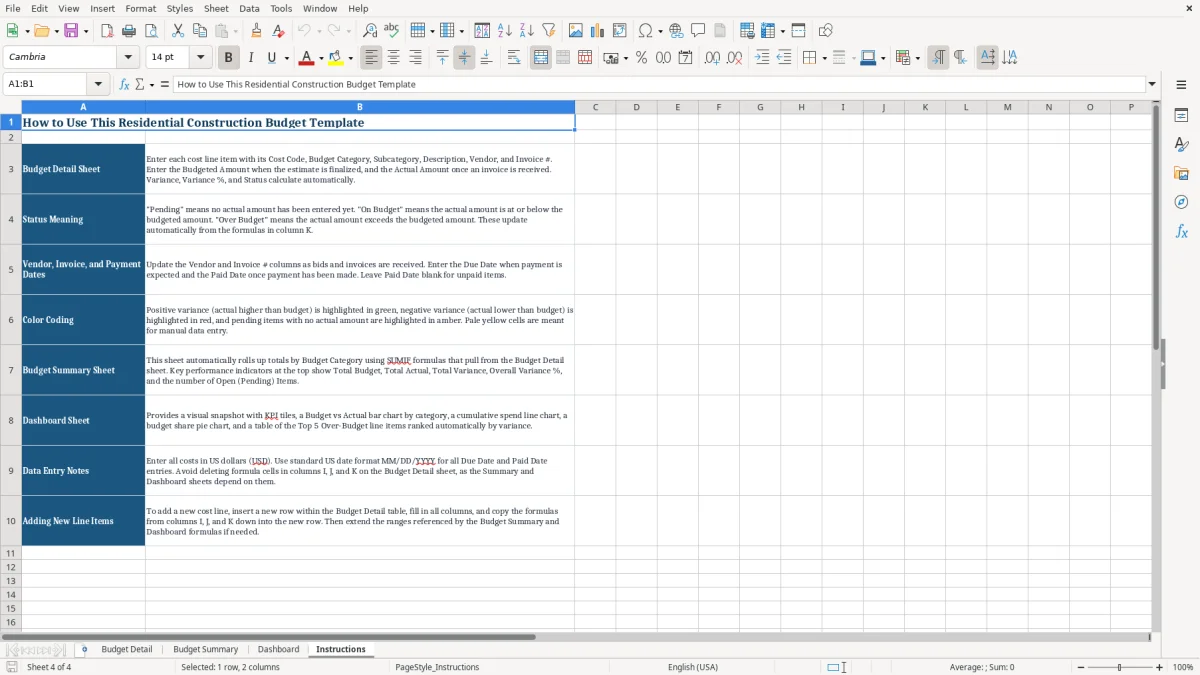
Enter project costs on the Budget Detail tab, review calculated totals on Budget Summary, and use the Dashboard for a visual project snapshot. The Instructions tab explains the intended entries, status labels, color coding, and how to add a line item.
A residential builder can use this workbook during estimating, purchasing, invoice review, and project closeout. The populated sample includes site excavation, foundation concrete, and framing lumber, with budgeted amounts of $18,000, $42,000, and $65,000 respectively. These entries show how a cost code and trade category connect to a specific vendor and invoice.
A homeowner managing a custom build can use the same layout to compare contractor allowances with invoices. The Vendor column identifies who supplied or performed the work, while Description distinguishes a foundation pour from a lumber delivery. That detail matters when several invoices arrive in the same category.
Update the detail sheet when an estimate is approved, a bid changes, an invoice arrives, or a payment is made. For example, the sample excavation line has a $18,000 budget and an $18,500 actual amount, producing a $500 variance. The framing line has a $65,000 budget and a $67,300 actual amount, making the cost increase visible before the project is complete.
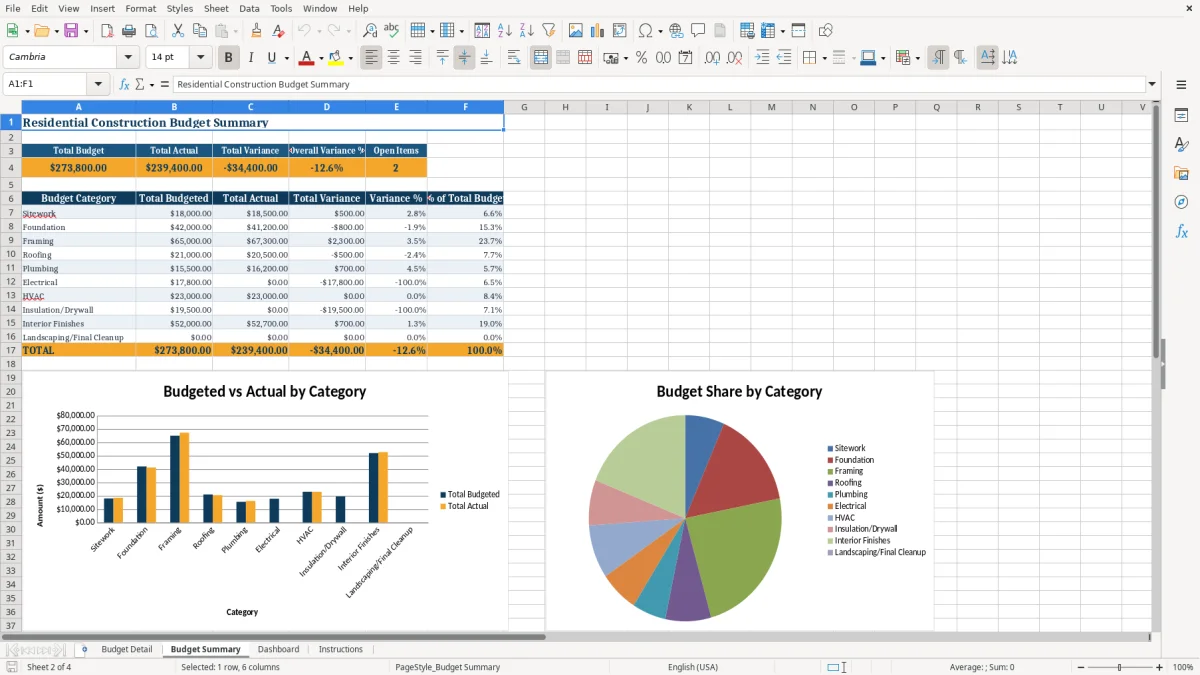
The Budget Summary tab groups the listed categories, while the Dashboard surfaces the largest positive variances. Image 1 shows the detailed cost-entry layout; image 2 shows the category rollup used for project review.
On Budget Detail, Variance equals Actual Amount minus Budgeted Amount. A $42,000 foundation budget with a $41,200 actual produces a -$800 variance, while the $18,000 excavation budget and $18,500 actual produce $500. Variance % divides that result by the budget and uses IFERROR to avoid a divide-by-zero error.
Status uses three outcomes: Pending when Actual Amount is zero, On Budget when actual is at or below budget, and Over Budget when actual exceeds budget. The workbook also applies conditional formatting to variance and pending cells, so review begins with the lines needing attention.
Budget Summary uses SUM across the Budget Detail budget and actual columns. It uses SUMIF to total each category and COUNTIF to count Pending entries. The summary also calculates each category's share of the total budget, allowing you to see whether one trade represents a disproportionate portion of planned spending.
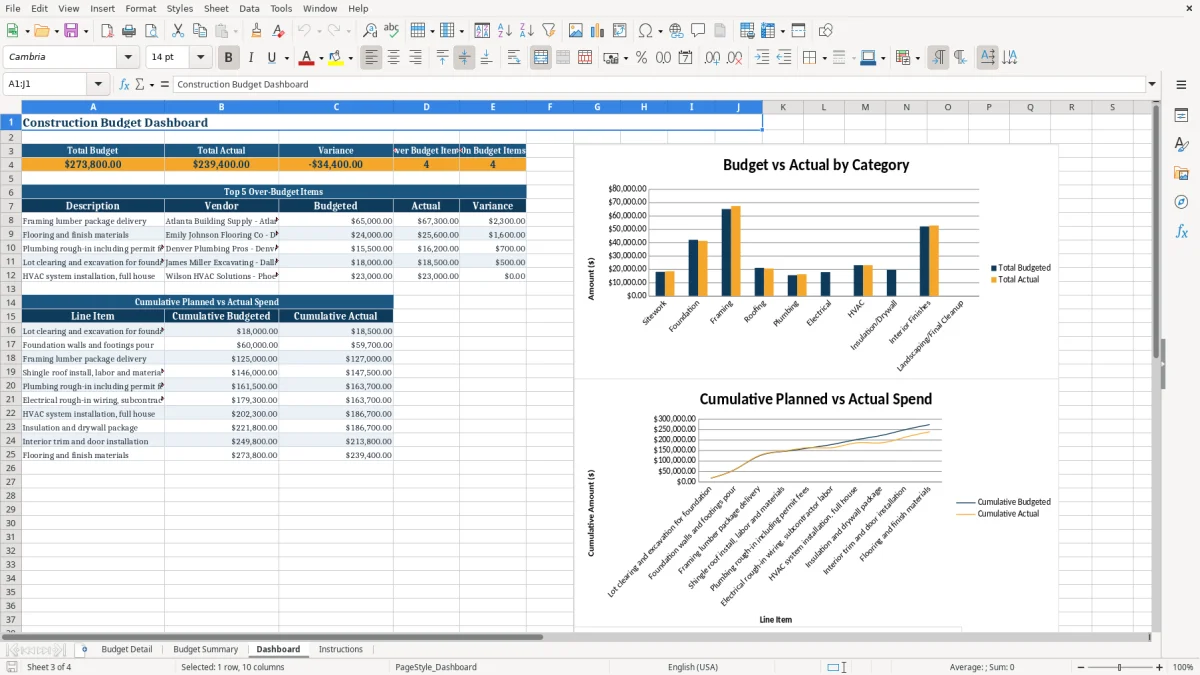
Dashboard formulas use INDEX, MATCH, and LARGE to identify the top five positive variances. It also counts Over Budget and On Budget statuses, then presents category comparisons and cumulative planned-versus-actual spend through charts. These are workbook calculations based on the entered rows, not external cost data or live market pricing.
The most expensive mistake is leaving a scope change in an email or text instead of adding it to the cost detail. The sample excavation note records extra rock removal, and the framing note records a lumber price increase. Without a description and note, a $500 or $2,300 increase can look like an unexplained accounting error during review.
Another failure occurs when the invoice amount is entered but the original budget is overwritten. That removes the baseline needed to measure performance. Keep the budgeted amount intact and place the incurred cost in Actual Amount so the workbook can calculate the difference.
A construction budget can show correct totals while still leaving payment work unclear. Missing Invoice #, Due Date, or Paid Date fields make it difficult to tell whether a cost is approved, payable, or already settled. The workbook separates those fields so a $41,200 foundation cost can be reviewed independently from when its invoice was due or paid.
Do not delete formulas in columns I, J, and K. If you add a row, copy those formulas down and extend the related summary references as described on Instructions. Otherwise, the new line may appear in the detail sheet without contributing to variance or status reporting.
Choose one recurring project meeting or invoice-review time each week. Enter new invoices, update actual amounts, record payment dates, and then review Budget Summary. A short weekly update is more useful than waiting until the end of a phase, when several cost changes may be difficult to reconstruct.
Keep Budgeted Amount as the approved estimate and document changes in Notes. If the project owner approves a revised scope, record the change clearly rather than silently replacing the original figure. This preserves the meaning of the Variance column and makes the $500 excavation overrun distinguishable from an authorized change.
Use the Instructions tab as the handoff page for anyone entering costs. The workbook is an XLSX file with prepared formulas and charts, but its operational ranges are finite; adding a line requires copying formulas and extending summary references. When transactions become too numerous for that manual process, move to a construction accounting system rather than relying on an unchecked spreadsheet.
It includes Budget Detail, Budget Summary, Dashboard, and Instructions tabs. The detail sheet tracks cost codes, categories, vendors, invoices, budgeted and actual amounts, variances, statuses, due dates, paid dates, and notes.
Variance is calculated as Actual Amount minus Budgeted Amount. For example, a $18,000 budget and $18,500 actual produce a $500 variance; Variance % divides that result by the budgeted amount.
Pending means no actual amount has been entered for the line. Once an actual amount is entered, the formula returns On Budget when actual is at or below the budget or Over Budget when actual exceeds it.
The Dashboard shows total budget, total actual, variance, counts of over-budget and on-budget items, the top five over-budget items, and charts for category comparison, cumulative spend, and budget share.
Insert a new line within Budget Detail, complete the cost fields, and copy the formulas from columns I, J, and K into the new row. Extend the related summary references so the new line is included in totals.