Case Tracker Excel – Free Template (2026)
4
Free download
Track personal, career, health, and financial goals with progress formulas, status tracking, dashboard summaries, and charts in XLSX format.


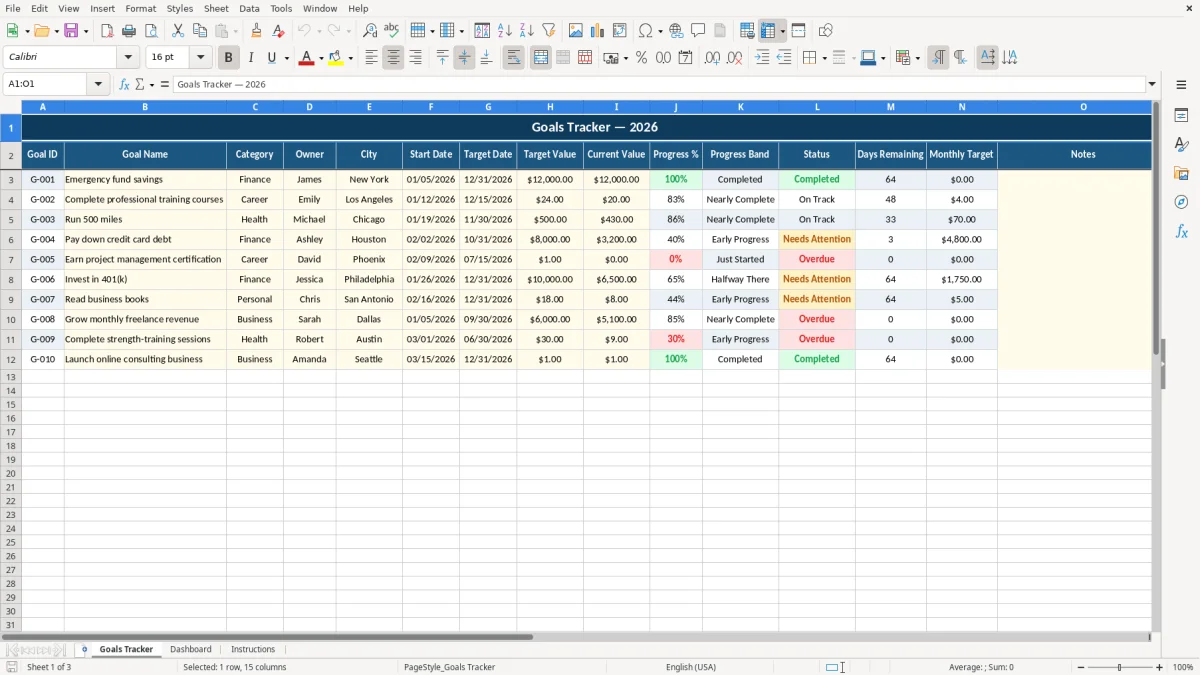
This goal tracker Excel template records each goal's owner, category, dates, target value, and current value, then calculates progress, status, days remaining, and monthly target. The workbook includes a Goals Tracker tab for entry, a Dashboard tab for summaries and charts, and an Instructions tab.
Use the sample rows as a starting point or replace them with your own goals. The workbook shows examples such as a $12,000 emergency fund, 24 training courses, and a 500-mile running target, with calculations designed for consistent numeric units.
A household can use the Goals Tracker tab to manage savings, fitness, and career targets in one place. The sample data shows a $12,000 emergency fund, 24 professional training courses, and a 500-mile running goal, demonstrating how the same structure handles dollars, course counts, and miles without mixing units within a goal.
Use Owner and City to distinguish responsibilities when several people share a plan. James can own the New York emergency fund while Michael owns the Chicago running goal; each person then updates Current Value without changing the target or another person's row.
A small office can use Category, Owner, and Target Date for professional or business objectives. A manager might assign a training target to Emily, while a business owner tracks a sales, customer, or task count using the same numeric Target Value and Current Value fields.
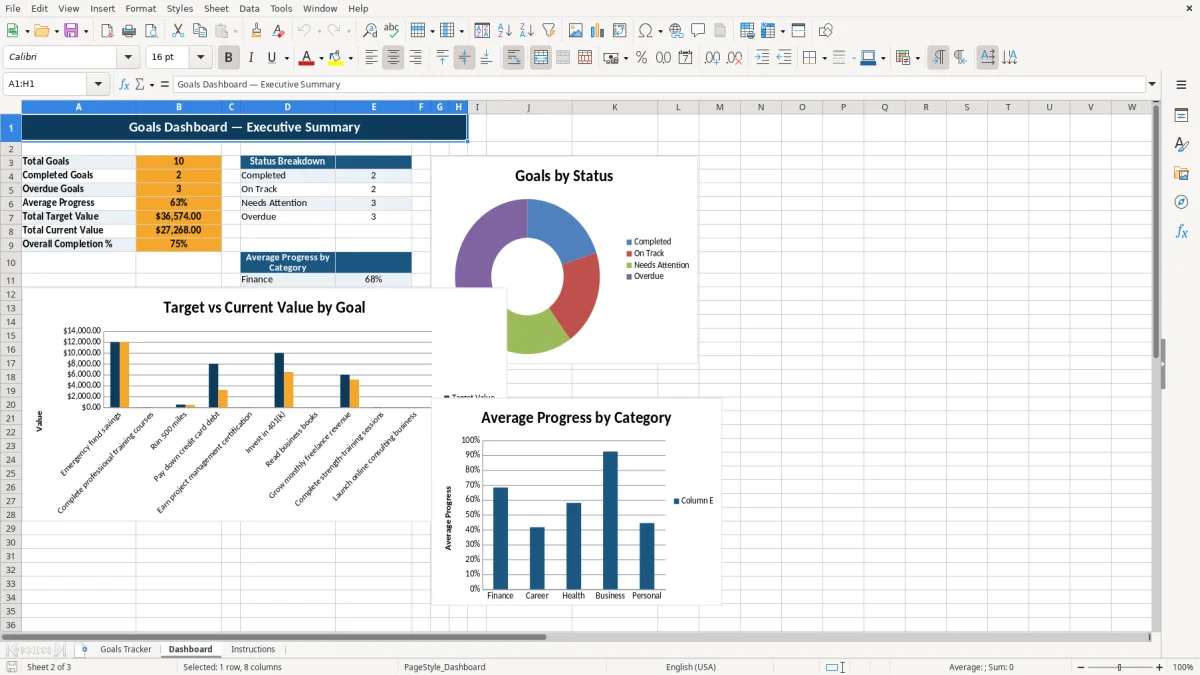
The Dashboard summarizes the populated rows rather than requiring a separate status report. It counts goals, completed goals, and overdue goals, calculates average progress, and groups category progress for Finance, Career, Health, Business, and Personal.
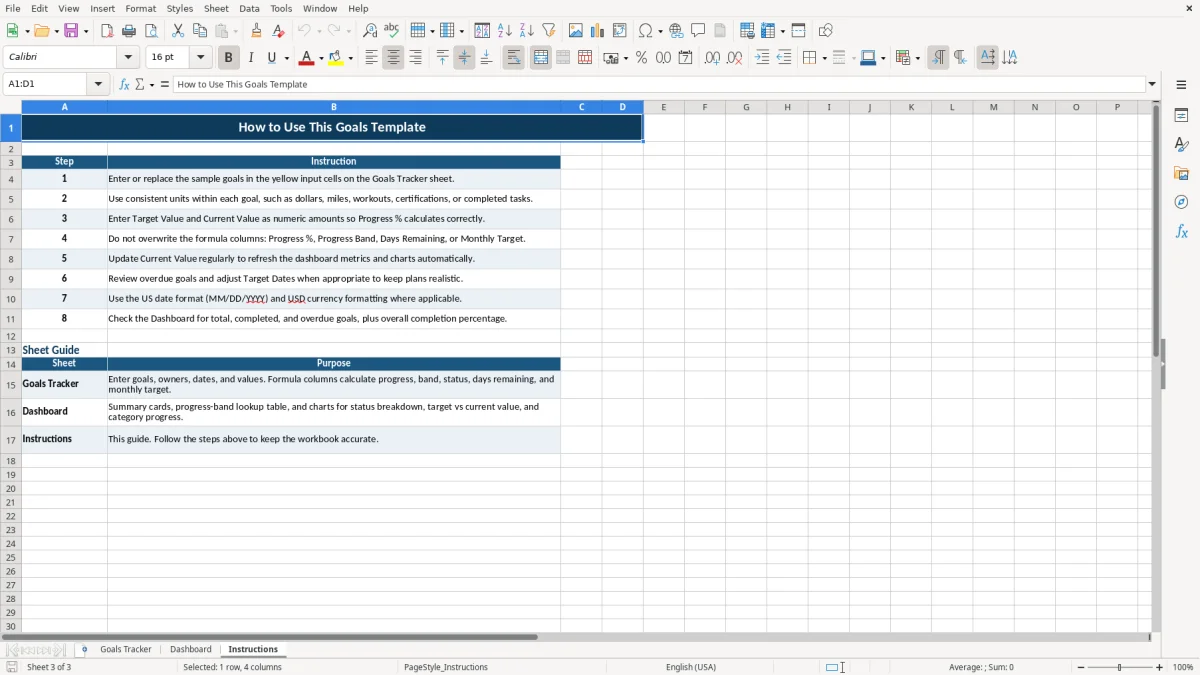
Image 1 shows the Goals Tracker layout, including the frozen top rows, date fields, numeric value columns, calculated status fields, and Notes column. Image 2 shows the Dashboard summary area and charts, while image 3 shows the step-by-step guide for replacing the sample goals.
The workbook measures progress with a direct ratio: Current Value divided by Target Value. For the sample running goal, 430 miles divided by 500 miles produces 86% progress; for the training goal, 20 courses divided by 24 produces approximately 83.3%.
The Dashboard contains editable-looking lookup values from 0% through 100% and labels them Just Started, Early Progress, Halfway There, Nearly Complete, and Completed. The Progress Band column uses VLOOKUP with approximate matching to assign the label based on Progress %.
Status uses a different rule. A goal at 100% or more is Completed; a goal whose Target Date has passed is Overdue; a goal at 75% or more is On Track; all other current goals are Needs Attention. This ordering means a fully completed goal remains Completed even after its target date passes.
Days Remaining uses the current date from TODAY and never displays a negative number. Monthly Target estimates the remaining amount divided by the number of months until the Target Date, with a minimum divisor of one month. A $12,000 target with $9,000 completed and three months remaining would imply a $1,000 monthly target.
Enter dates in the U.S. format MM/DD/YYYY and numeric values without text symbols. The workbook uses 0% and dollar-style formats where appropriate; formulas protect against division errors with IFERROR.
The most common failure is mixing units in one row. If Target Value is entered as $12,000 but Current Value is entered as 8, the formula returns 0.07%, which is mathematically correct but useless for decision-making. Keep dollars with dollars, miles with miles, and completed courses with course counts.
Entering a number as text can prevent Progress % from calculating correctly. A blank or zero Target Value also creates a misleading result: the formula returns zero rather than a meaningful completion rate. Check both numeric fields whenever a row appears stuck at 0%.
Changing a formula column creates a second problem. If someone types over Status or Days Remaining, that row stops responding to the date and current-value changes while the Dashboard may still count the stale text. The Instructions tab specifically identifies Progress %, Progress Band, Days Remaining, and Monthly Target as columns not to overwrite.
A missed Target Date changes an incomplete goal to Overdue, even if it is at 90% progress. That is useful for visibility, but it is not a reason to alter a date casually. Review the real deadline first, then update the Target Date only when the plan has genuinely changed.
Another trap is treating the Dashboard as a detailed activity log. It summarizes the ten tracker rows and does not record individual deposits, workouts, courses, or task events. Keep supporting detail elsewhere if you need an audit trail, and update Current Value with the verified total.
A spreadsheet works when updating it is tied to a fixed event. Choose one weekly time, such as Friday afternoon or Sunday evening, and update Current Value for every active row before reviewing the Dashboard. Ten goals should take only a few minutes when you enter the latest totals rather than reconstructing the entire history.
Use the Notes column for a short explanation such as a delayed course, a larger-than-planned deposit, or a revised training schedule. Keep the main numeric fields clean so the formulas continue to calculate accurately.
Use the five Dashboard categories consistently: Finance, Career, Health, Business, and Personal. If you invent several near-duplicates such as Fitness, Exercise, and Health, the category summary will split related goals and make comparisons less useful.
The workbook is a practical summary tracker, not a detailed project-management system. Once you need daily activity logs, dependencies, multiple worksheets of history, or more than the prepared rows, move the detailed records to a purpose-built system and retain this workbook for a concise goal summary.
The XLSX workbook includes Goals Tracker, Dashboard, and Instructions tabs. It tracks goal details and calculates progress, progress band, status, days remaining, and monthly target, while the Dashboard provides summary metrics and three charts.
Enter Goal ID, Goal Name, Category, Owner, City, Start Date, Target Date, Target Value, Current Value, and Notes. Progress %, Progress Band, Status, Days Remaining, and Monthly Target are calculated columns.
Progress % equals Current Value divided by Target Value. For example, 430 miles toward a 500-mile target produces 86%. Use the same unit in both value fields for each goal.
Completed means progress is at least 100%. An incomplete goal past its Target Date is Overdue; a current goal at 75% or more is On Track; other current goals are Needs Attention.
Yes. Replace the sample entries in the yellow input cells with your own goals, dates, owners, categories, and values. Keep the formula columns unchanged so the Dashboard and calculated fields continue to update.