Case Tracker Excel – Free Template (2026)
4
Free download
Plan 100 communications with dates, owners, channels, budgets, reach, engagement rates, dashboard metrics, charts, and instructions.


A communications calendar is a planning and performance workbook for organizing campaigns, messages, owners, channels, dates, budgets, and results. This XLSX template includes 100 prepared planning rows, calculated days and engagement rates, a dashboard with four charts, and an instructions sheet.
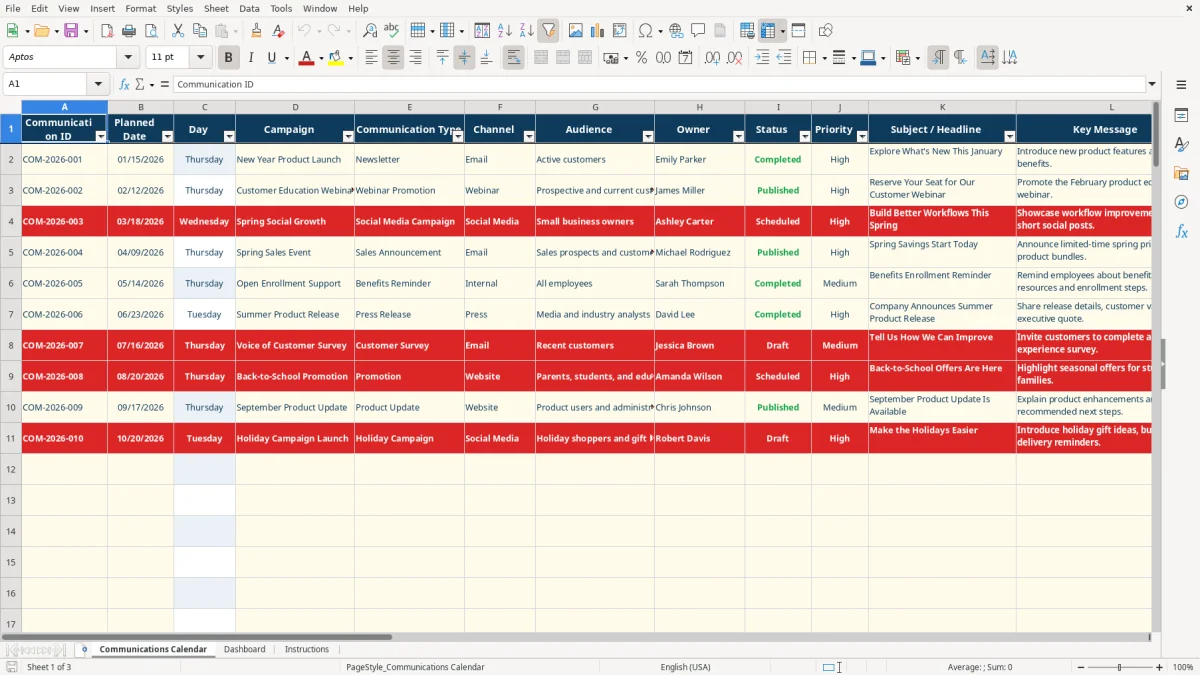
Use the Communications Calendar tab to record each activity from draft through completion. Image 1 shows fields for the campaign, communication type, channel, audience, owner, message, call to action, budget, reach, engagements, asset link, and notes.
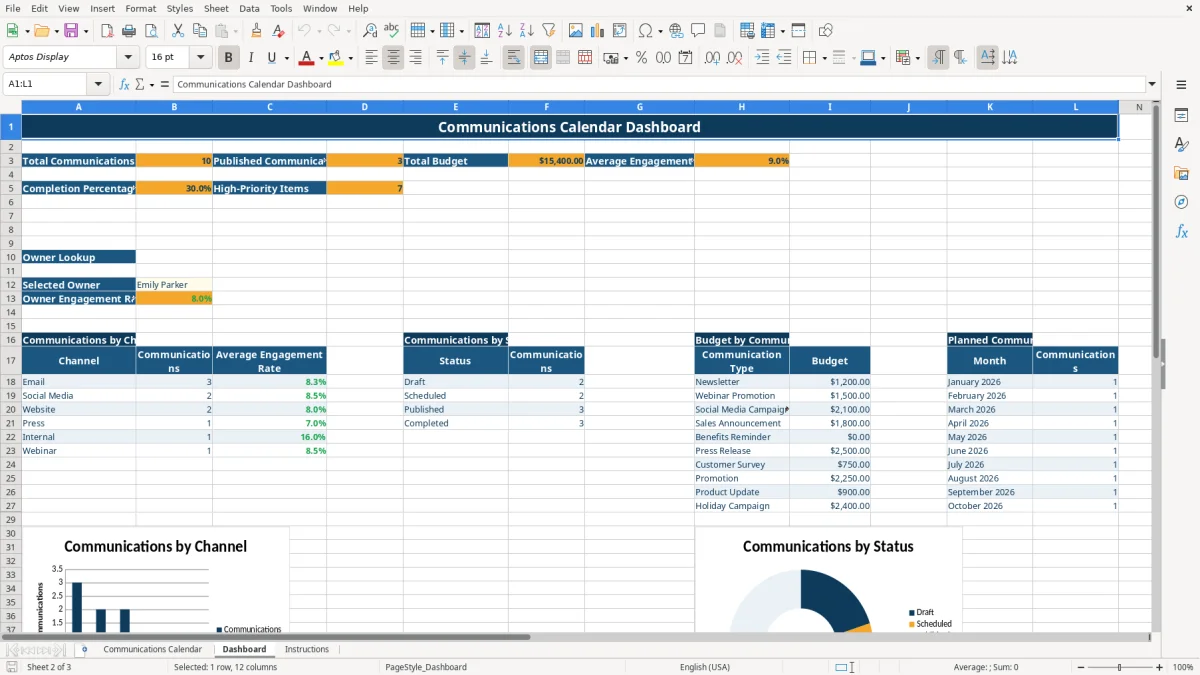
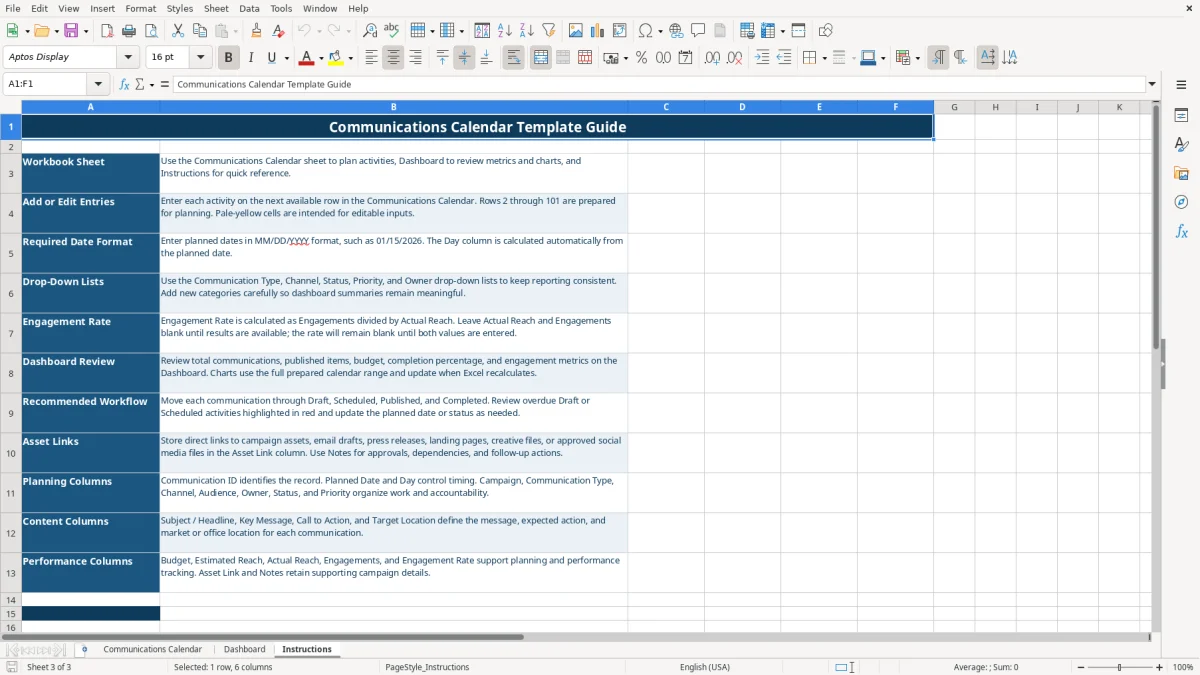
The Dashboard tab in image 2 summarizes totals, published communications, total budget, completion percentage, priority items, owner engagement, channel activity, status, communication-type budgets, and monthly planning. The Instructions tab in image 3 explains the intended workflow and editable fields.
A communications calendar gives a small marketing team one place to coordinate messages that would otherwise sit in email threads, project notes, and separate campaign documents. A nonprofit communications coordinator can schedule a donor newsletter, a webinar promotion, and a press release while assigning each item to an owner and marking its status as Draft, Scheduled, Published, or Completed.
A local business may use the calendar for email, social media, website, press, internal, and webinar activity. The Channel list contains those six choices, while Communication Type includes options such as Newsletter, Webinar Promotion, Social Media Campaign, Sales Announcement, Customer Survey, and Product Update.
The workbook's sample records show how a team can document a January newsletter, a February webinar promotion, and a March social media campaign. Each record includes a planned date, campaign name, owner, audience, headline, message, call to action, target location, budget, and asset reference.
An office manager or marketing lead can review the calendar during a Monday planning meeting and filter the rows by owner, status, channel, or priority. The prepared workbook contains 100 operational rows, so a team can map a substantial annual schedule without starting from a blank sheet.
Image 1 shows the working grid, including Communication ID, Planned Date, Day, Campaign, Owner, Priority, Budget, Estimated Reach, Actual Reach, Engagements, and Notes. Image 2 turns those entries into a summary with total communications, published items, budget, completion percentage, and high-priority items.
This communications calendar uses straightforward Excel calculations rather than external data feeds. The Day column uses the Planned Date to return a weekday name, and Engagement Rate uses Engagements divided by Actual Reach. If either result field is blank, the rate remains blank rather than presenting a misleading percentage.
Enter dates in MM/DD/YYYY format, such as 01/15/2026. For the sample January newsletter, Actual Reach is 16,400 and Engagements are 1,320, producing an engagement rate of approximately 8.0% after Excel calculates 1,320 divided by 16,400.
Budget is formatted as currency, reach and engagement counts use numeric formatting, and engagement rates use percentage formatting. These are workbook calculations and display conventions; the file does not connect to an email platform, social network, advertising account, or live analytics feed.
The Dashboard counts Communication IDs, counts Published and Completed statuses, sums Budget, averages Engagement Rate, and counts High-priority items. It also summarizes activity by channel, status, communication type, and month using formulas such as COUNTIF, SUMIF, AVERAGE, VLOOKUP, and COUNTIFS.
The selected-owner area uses a drop-down list containing 10 sample owner names and returns an engagement-rate result from the calendar. Keep the approved list values consistent with the dashboard categories; changing labels casually can cause summaries to separate records that should be grouped together.
The most expensive calendar errors are usually small entry mistakes repeated across many campaigns. A planned date entered as text instead of a real Excel date can prevent the Day calculation and the monthly dashboard summary from recognizing the activity correctly.
Teams often enter Estimated Reach but forget Actual Reach and Engagements after publication. That leaves the Engagement Rate blank by design, so the Dashboard average may not represent the campaign until the result fields are completed.
The sample January record demonstrates the difference between planning and reporting: its Estimated Reach is 18,000, while Actual Reach is 16,400. Treating the estimate as the result would overstate delivery by 1,600 people and distort any later comparison of campaign performance.
A status such as “Done” does not match the provided Completed value, and a channel typed as “Social” does not match Social Media. Those variations can make the Dashboard undercount work even though the row looks correct to a person reading it.
Duplicate Communication IDs create another review problem. If COM-2026-001 appears twice, the total count can suggest two activities while the team actually has one duplicated record. Use one ID per communication and check the filtered list before adding a new row.
The Asset Link column is intended for a direct reference to a campaign file, draft, landing page, press release, or approved social asset. A vague note such as “see email” forces the next reviewer to search manually and can delay approval or publication.
Use the workbook at a fixed time each week rather than updating it only when a campaign is late. A practical routine is to review upcoming Planned Dates, assign owners, confirm Priority, and move each item through Draft, Scheduled, Published, and Completed.
Use the pale-yellow editable cells described on the Instructions tab for data entry, and leave calculated fields alone. The calendar's conditional formatting is intended to draw attention to overdue Draft or Scheduled activities, giving you a visible follow-up list without creating a separate tracker.
Choose one approved label for each channel and status and use the drop-down lists consistently. If your team adds a new category, review the Dashboard summary afterward because the existing formulas summarize the categories already laid out there.
For a 10-person marketing department or a high-volume organization with more than the prepared 100 rows, this workbook may become difficult to maintain as a shared operating system. At that point, a dedicated project-management or marketing platform can provide permissions, comments, reminders, and integrations that this XLSX file does not provide.
It includes Communications Calendar, Dashboard, and Instructions tabs. The calendar has 100 prepared rows, 21 columns, calculated Day and Engagement Rate fields, five drop-down lists, and four dashboard charts.
Enter Planned Date values as MM/DD/YYYY, such as 01/15/2026. The Day column calculates the weekday from that date, and the monthly Dashboard summary uses the planned date.
Engagement Rate is calculated as Engagements divided by Actual Reach. For example, the sample January record uses 1,320 engagements divided by 16,400 actual reach, or approximately 8.0%.
The Channel list includes Email, Social Media, Website, Press, Internal, and Webinar. Using the supplied labels keeps the Dashboard's channel counts and engagement summaries consistent.
Yes. Enter a direct reference to a campaign asset, email draft, press release, landing page, creative file, or approved social media file in the Asset Link column. The workbook does not provide a live asset library or data feed.
Yes. Dashboard formulas summarize the prepared calendar range from rows 2 through 101, and the four charts use Dashboard summary ranges. Keep dates, statuses, channels, and other list values consistent so the summaries remain accurate.