Case Tracker Excel – Free Template (2026)
4
Free download
Track NCR details, actions, owners, due dates, cost impact, status, and dashboard trends in an XLSX workbook for quality teams.


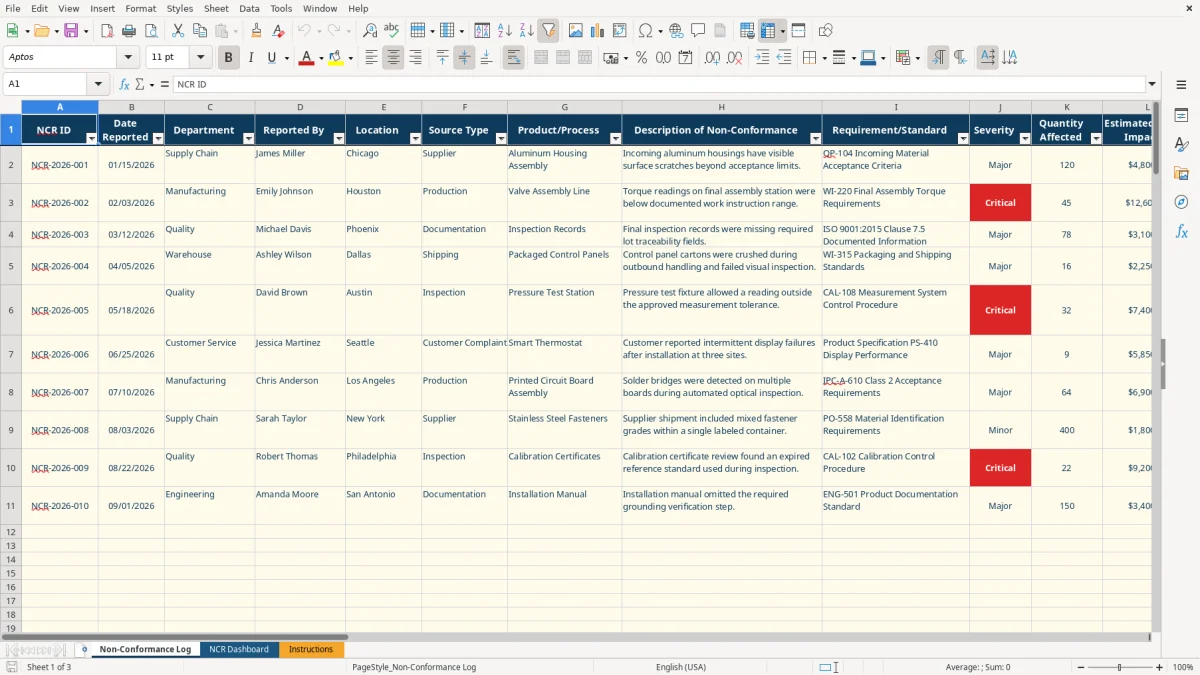
This non-conformance report workbook records quality issues, affected quantities, estimated cost, containment, corrective and preventive actions, owners, deadlines, verification, and final disposition. It includes a 100-row log, calculated days open and overdue status, an NCR Dashboard, and an Instructions tab.
Use the Non-Conformance Log to document each issue from discovery through closure. The workbook includes sample records for supplier, production, and documentation problems, while the remaining prepared rows are available for your own NCRs.
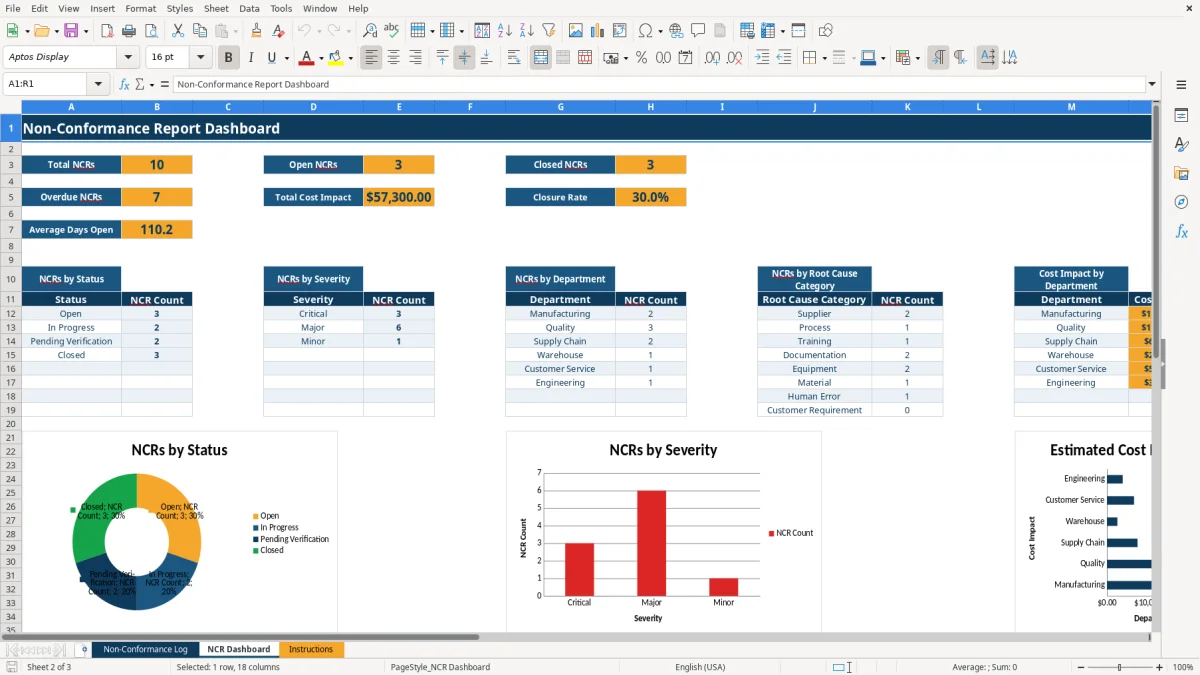
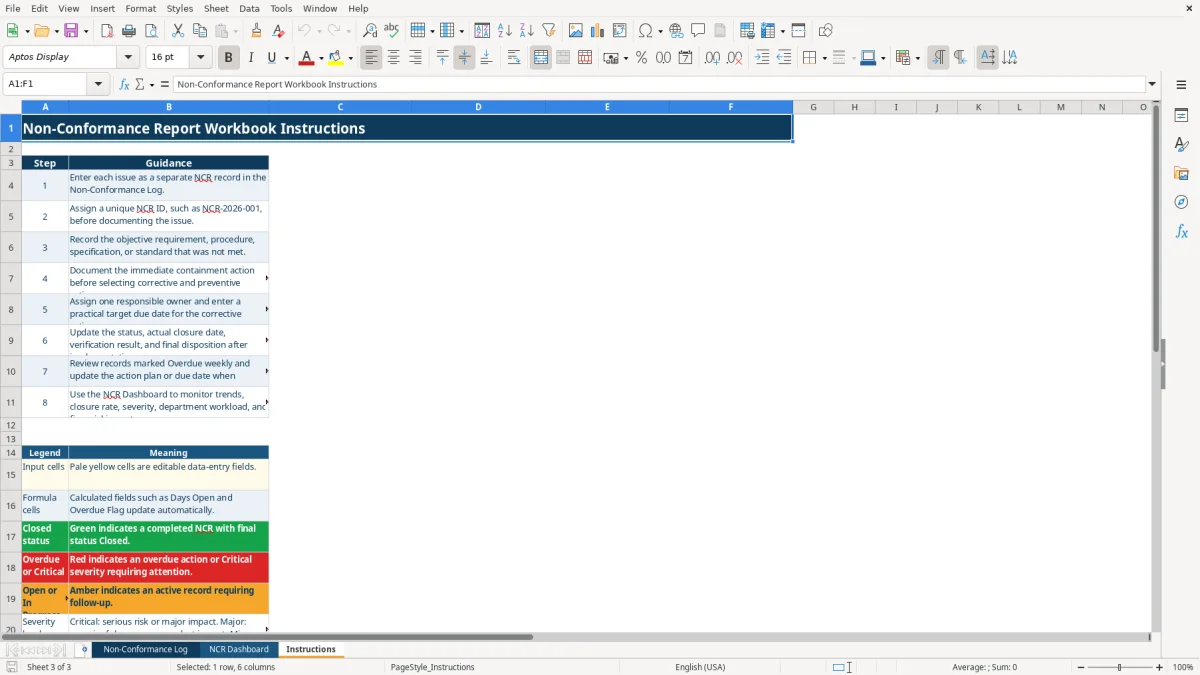
Image 1 shows the entry log with columns A:Y, frozen headers, filters, editable fields, and calculated tracking columns. Image 2 shows the dashboard with summary metrics, three charts, and an NCR lookup area; image 3 shows the step-by-step guidance and color legend.
A quality coordinator in a U.S. manufacturing plant may open the log after an incoming inspection failure, a production deviation, a customer complaint, or an internal audit finding. A supplier issue belongs in the same record as its containment, corrective action, owner, target date, and verification result; keeping those facts together makes the handoff from quality to supply chain much cleaner.
The sample records show three distinct situations: 120 aluminum housings with visible scratches and a $4,800 estimated cost impact, 45 valve assemblies with torque readings outside the work instruction range and a $12,600 impact, and missing lot traceability fields affecting 78 inspection records with a $3,100 impact. These are populated examples, not required values for your operation.
An office manager or quality lead can use the same columns during a weekly action meeting. Filter the log by owner, department, status, or target due date, then review whether containment has protected current production before discussing longer-term corrective and preventive actions.
During an audit or monthly management review, the dashboard provides counts by status, severity, department, and root cause category. A plant with 15 NCRs can quickly separate five open records from eight closed records and two pending verification records, provided those entries have been maintained accurately.
The Requirement/Standard field is especially useful because it connects the observed failure to a procedure, specification, work instruction, customer requirement, or documented standard. The Instructions tab recommends weekly review of open and overdue records and monthly review of trends and cost impact.
The log uses two calculated columns rather than requiring you to count days manually. Days Open uses the Date Reported value and, when present, the Actual Closure Date; if the record is not closed, it compares the report date with the current date. For example, an NCR reported on 02/03/2026 with no closure date continues accumulating days until you enter a closure date.
Overdue Flag checks whether a target due date exists, whether the status is not Closed, and whether the target date has passed. A record due on 03/05/2026 with status Open will show Overdue after that date, while a Closed record does not remain overdue even if its target date has passed.
Do not type over the calculated columns U and V. Enter dates in the input fields, use a real Excel date such as 03/05/2026, and let the formulas produce the tracking result. The workbook formats dates as MM/DD/YYYY and estimated cost impact as dollars with two decimal places.
Drop-down lists limit Department to six choices, Source Type to eight choices, Severity to Critical, Major, or Minor, and Status to four workflow stages. Verification Result and Final Disposition also have controlled lists, including Verified Effective, Verified Ineffective, Rework, Scrap, Use As Is, and Return to Supplier.
This structure supports consistent counts through COUNTIF, cost totals through SUM and SUMIF, averages through AVERAGE, and the dashboard lookup through VLOOKUP. The calculations cover the prepared log range through row 101.
The first failure is usually an incomplete record. A description such as “bad part” cannot support an effective review; the log needs the specific defect, the affected product or process, the requirement that was missed, and the quantity affected. In the sample, “visible surface scratches beyond acceptance limits” is actionable because it identifies both the defect and the acceptance basis.
Teams often record containment but leave the corrective action vague. “Notify supplier” does not explain how recurrence will be prevented. The sample supplier record separates quarantine and notification from the corrective action request, replacement-lot inspection, and preventive trend review.
A second costly error is assigning a target due date without naming one responsible owner. The workbook has separate fields for Responsible Owner and Target Due Date because a department-wide assignment is difficult to chase. One owner and one date give the weekly review a clear next action.
Changing Status to Closed without an Actual Closure Date, Verification Result, or Final Disposition weakens the record. It also distorts the dashboard’s closure rate and average days open. A record marked Pending Verification should remain active until the effectiveness check is documented.
Do not treat the estimated cost field as a precise financial statement. It is an operational impact estimate; entering $12,600 for a 45-unit issue gives management a useful comparison, but the estimate should be updated when better information becomes available.
Choose one fixed review time each week, preferably before the production, supplier, or quality meeting. Start with the NCR Dashboard, note the overdue count and average days open, then filter the log for Open, In Progress, and Pending Verification records.
Use the dashboard’s NCR Lookup area for a focused status check. Select an NCR ID in the lookup field, then review the returned current status without searching across all 25 log columns.
Keep the header row and formula columns intact, use the provided drop-downs instead of creating new spellings, and enter one issue per row. The log has an auto-filter on A1:Y101 and frozen headers at row 1, which makes a 100-row prepared range easier to review.
This XLSX workbook is best for a controlled log of moderate size. When several people need simultaneous editing, attachments, approval history, or more than the prepared range, move the process to a quality management system rather than weakening the spreadsheet with manual workarounds.
It tracks NCR ID, date reported, department, reporter, location, source type, product or process, description, requirement or standard, severity, quantity affected, estimated cost impact, containment, root cause, corrective and preventive actions, owner, due date, closure date, status, verification, disposition, and notes.
The Non-Conformance Log is prepared through row 101, providing 100 operational rows below the header. Three rows contain sample NCR records, so the remaining rows are available for your own entries.
Days Open and Overdue Flag calculate automatically in columns U and V. Days Open uses the report date and closure date, or the current date when the NCR remains open; Overdue Flag compares the target date with today for non-closed records.
Status choices are Open, In Progress, Pending Verification, and Closed. Severity choices are Critical, Major, and Minor, and both fields use drop-down validation in the log.
The dashboard calculates total NCRs, open NCRs, closed NCRs, overdue NCRs, total cost impact, closure rate, and average days open. It also summarizes status, severity, department, root cause category, and cost impact by department, with three charts and an NCR lookup.
Document the corrective and preventive actions, enter the actual closure date, select a verification result, choose the final disposition, and add notes when needed. Keep the status at Pending Verification until the action has been checked for effectiveness.