Case Tracker Excel – Free Template (2026)
4
Free download
Track meeting dates, attendees, action items, follow-ups, costs, and status with Meetings, Dashboard, and Instructions tabs.


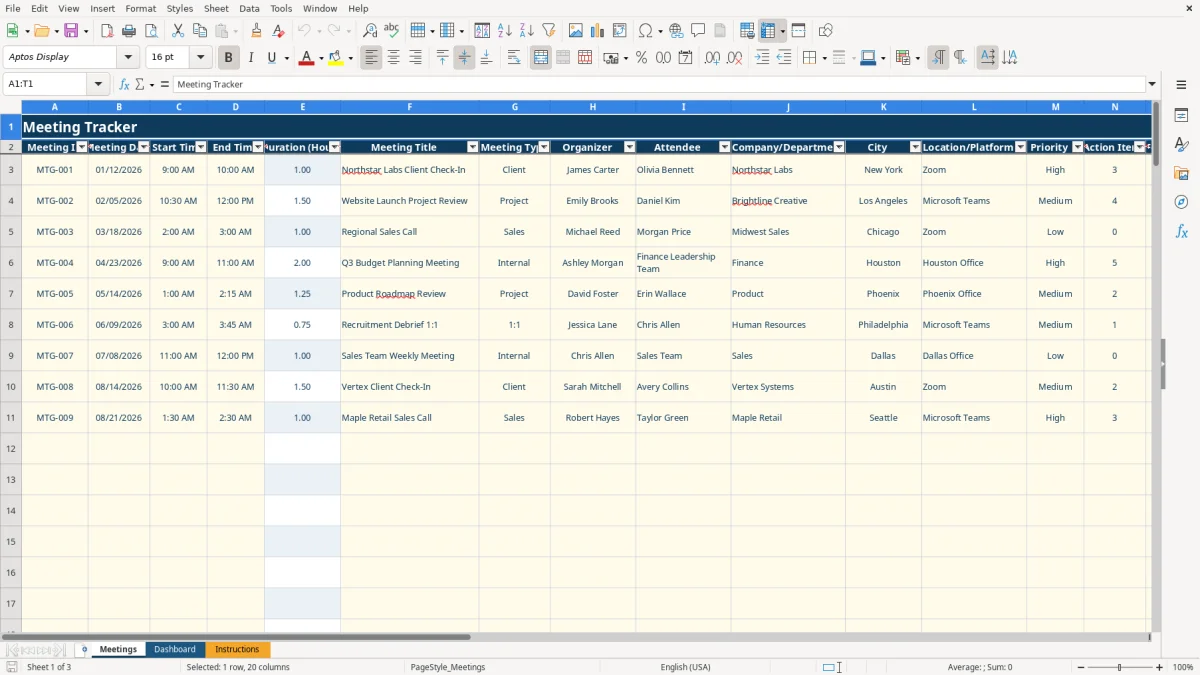
A meeting tracker is a structured record for scheduling meetings, documenting attendees and notes, counting action items, and monitoring follow-up deadlines. This workbook contains a Meetings log, a Dashboard with summary metrics and charts, and an Instructions tab with entry guidance.
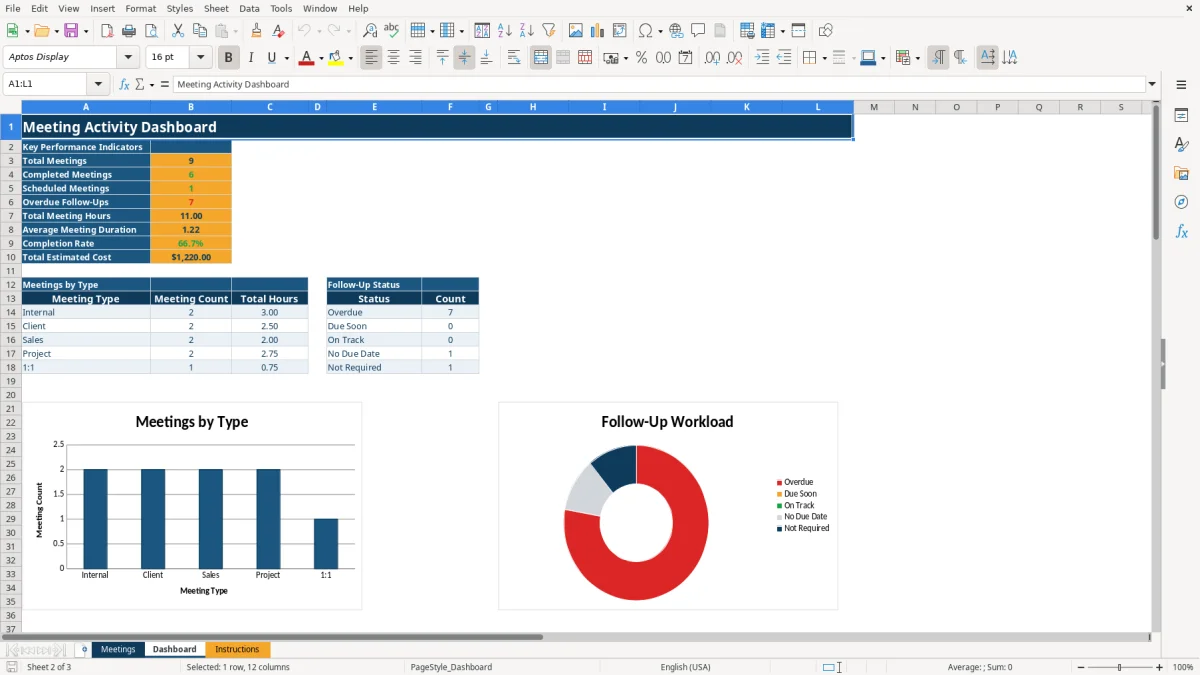
Use the Meetings tab to record dates, times, titles, organizers, attendees, platforms, priorities, notes, and estimated costs. The workbook calculates duration, follow-up status, and owner lookup results, while the Dashboard summarizes meeting volume, hours, completion, follow-ups, and cost.
A meeting tracker fits anyone who needs a reliable record after a busy week of internal reviews, client calls, sales conversations, or project meetings. An office manager can record a contractor coordination meeting, while a department lead can separate Internal, Client, Sales, Project, and 1:1 activity without maintaining several disconnected lists.
The Meetings tab is designed for operational entry. Image 1 shows the full log with columns for Meeting ID, Meeting Date, Start Time, End Time, Duration (Hours), Meeting Title, Meeting Type, Organizer, Attendee, Company/Department, City, Location/Platform, Priority, Action Items, Follow-Up Due, Follow-Up Status, Meeting Status, Notes, Estimated Cost, and Owner Lookup.
Enter a scheduled meeting before it occurs, then update its status and notes after the discussion. For example, the populated sample includes a one-hour client check-in with 3 action items and an estimated cost of $150, plus a 1.5-hour project review with 4 action items and an estimated cost of $225.
This structure is useful when several people organize meetings but one person needs a consistent record. The sample rows show three meetings totaling 3.5 hours and $375 in estimated cost; your own entries will drive the Dashboard formulas.
The workbook uses formulas rather than manual status labels for three fields. Duration (Hours) calculates the difference between End Time and Start Time, Follow-Up Status compares Follow-Up Due with TODAY(), and Owner Lookup uses VLOOKUP against the organizer list on the Instructions tab.
A canceled meeting receives Not Required. A meeting without a due date receives No Due Date. A past due date receives Overdue, while a deadline within the next 7 days receives Due Soon; later dates receive On Track. These labels are workbook logic, not a substitute for your team’s own project-management policy.
Meeting Type accepts Internal, Client, Sales, Project, or 1:1. Meeting Status accepts Scheduled, Completed, Canceled, or Rescheduled, and Priority accepts High, Medium, or Low. Action Items is restricted to whole numbers from 0 through 999, so a meeting with no assigned tasks should be entered as 0 rather than left ambiguous.
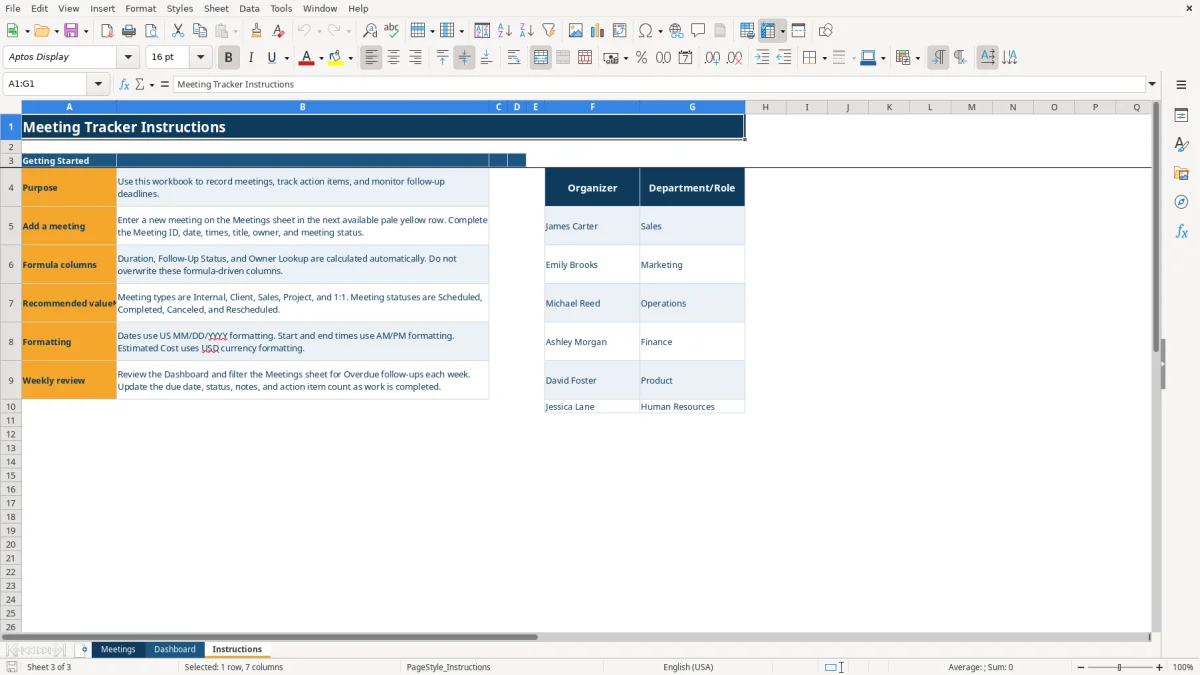
The Instructions tab lists seven sample organizers with department or role values. If an organizer is not listed, Owner Lookup returns Not Listed; the formula does not create a new person automatically.
The most damaging errors are usually incomplete follow-up fields, not dramatic spreadsheet failures. If you record a meeting as Completed but leave Follow-Up Due blank, the workbook reports No Due Date, which makes that work invisible when you review overdue items.
Duration requires both Start Time and End Time. If either time is missing, the calculated duration remains blank. That can understate a team’s meeting load: the sample’s first three rows total 3.5 hours, but one omitted 30-minute session would reduce the reported total by 0.5 hour.
Typing a variation such as Client Meeting instead of Client prevents that entry from matching the Dashboard’s meeting-type categories. The same problem applies to statuses and priorities. Use the dropdown lists instead of typing replacements, especially when multiple people maintain the file.
Duration, Follow-Up Status, and Owner Lookup are calculated columns. Replacing one of those formulas with a typed value can make a single row disagree with the rest of the log and can misstate Dashboard totals. Correct the input fields first; do not repair the output by typing over it.
The simplest routine is a short weekly review tied to an existing calendar block. Open the Dashboard first, note the current meeting count, total hours, completion rate, and overdue follow-ups, then return to Meetings and filter the log for items needing attention.
Keep the formula columns intact and use the provided dropdowns. The Instructions tab specifically recommends reviewing Overdue follow-ups each week, so make that step part of the same process as your meeting recap rather than treating it as a separate administrative task.
The workbook is a practical log and summary tool, not a shared calendar or project-management system. When several teams need concurrent editing, reminders, permissions, or a larger history than the prepared log supports, move the workflow to a dedicated system and retain this workbook for a focused export or review.
The XLSX workbook includes three tabs: Meetings for entry, Dashboard for calculated summaries and charts, and Instructions for guidance and organizer lookup values.
Enter the Meeting ID, date, start and end times, title, type, organizer, attendee, company or department, city, location or platform, priority, action-item count, follow-up due date, meeting status, notes, and estimated cost.
Duration (Hours), Follow-Up Status, and Owner Lookup are formula-driven. Do not overwrite them; update the input fields that supply their results.
The formula returns Not Required for canceled meetings, No Due Date when no deadline is entered, Overdue for past deadlines, Due Soon for deadlines within 7 days, and On Track for later deadlines.
Meeting Type uses Internal, Client, Sales, Project, and 1:1. Meeting Status uses Scheduled, Completed, Canceled, and Rescheduled. Priority uses High, Medium, and Low.
Yes, you can enter the organizer in the Meetings tab, but Owner Lookup will return Not Listed unless that name matches one of the organizer values shown on Instructions.