Case Tracker Excel – Free Template (2026)
4
Free download
Track decisions, owners, options, costs, deadlines, outcomes, overdue items, and management metrics in this XLSX workbook.


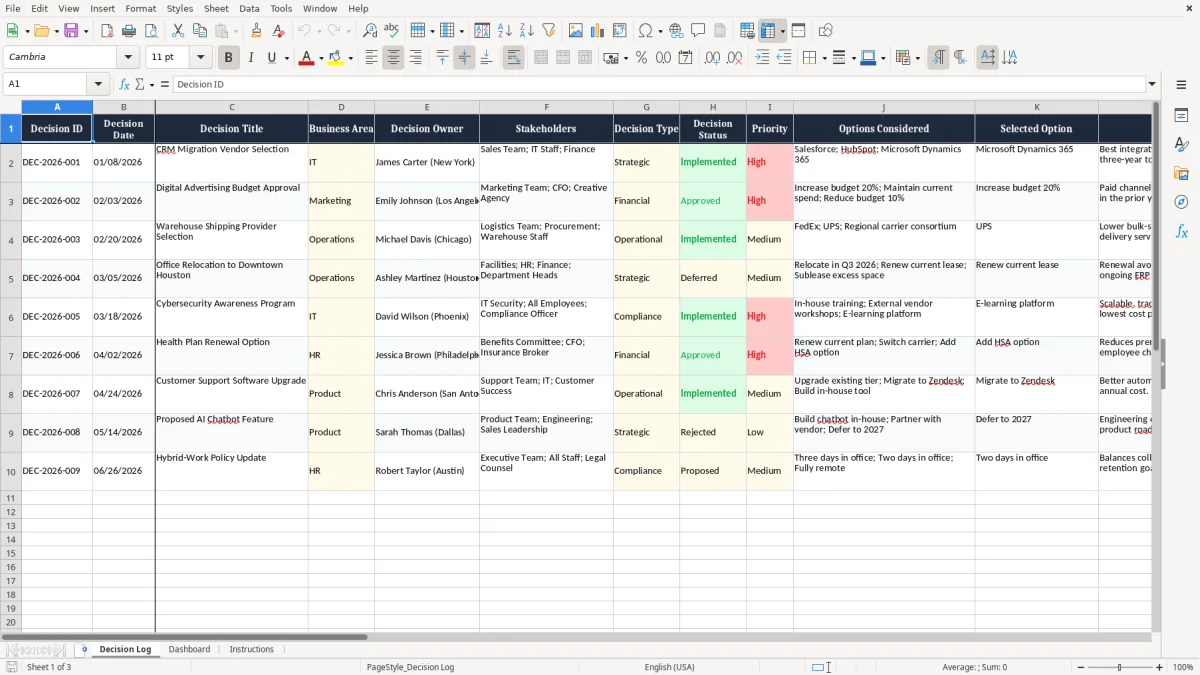
A decision log records what your organization decided, who owns it, which options were considered, why one was selected, and what happened afterward. This XLSX workbook includes a Decision Log tab for detailed entries, a Dashboard for status and impact metrics, and Instructions for setup.
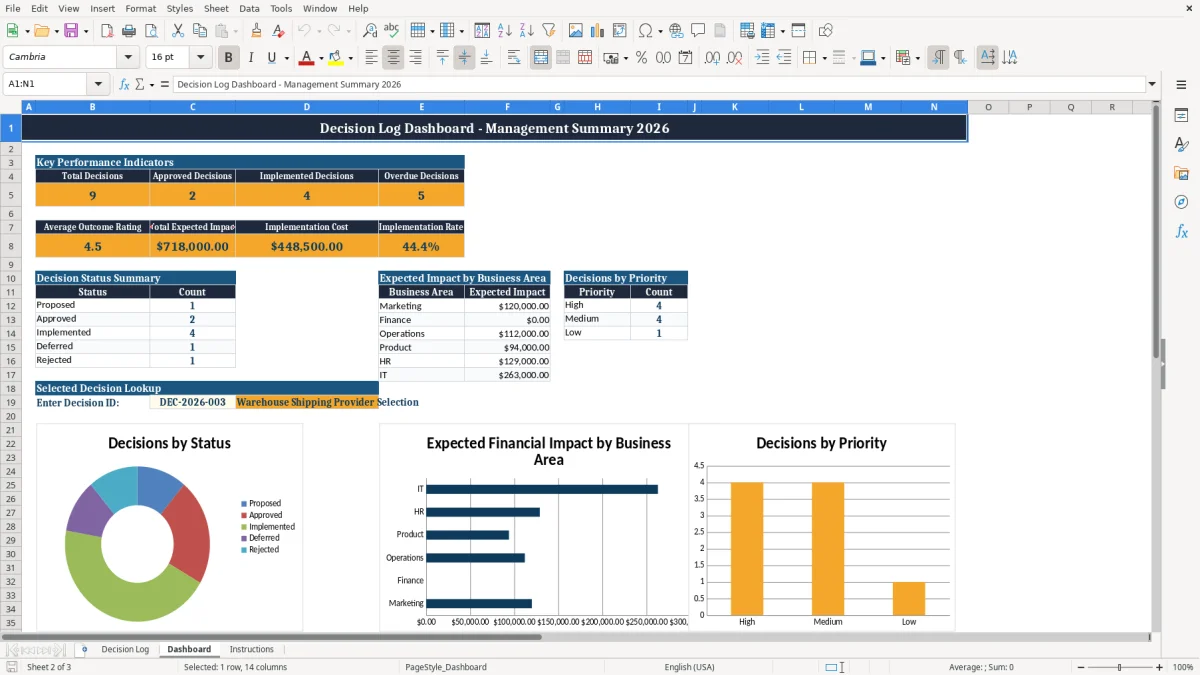
Use the Decision Log tab to capture dates, business areas, stakeholders, costs, target dates, completion dates, ratings, and review dates. The Dashboard summarizes proposed, approved, implemented, deferred, and rejected decisions, while the Instructions tab explains the workflow shown in image 3.
A decision log is useful when several people influence a choice but one person must own the result. An office manager can record a vendor change, a finance lead can document a budget approval, and an operations manager can preserve the reasoning behind a shipping or staffing decision.
Use the Decision Log tab before a weekly meeting to identify items still marked Proposed or Approved. The workbook's sample records include CRM vendor selection, advertising budget approval, and warehouse shipping provider selection, showing how strategic, financial, and operational decisions can sit in one register.
Stakeholders often remember the selected option but forget the alternatives and rationale. Recording both prevents a new project owner from reopening the same debate. For example, the sample CRM entry records three options, selects Microsoft Dynamics 365, and includes an expected impact of $185,000 and implementation cost of $92,000.
Use Review Date for a later check rather than treating implementation as the end of the process. A completed decision can still require an outcome rating, follow-up discussion, or a documented note about what actually happened.
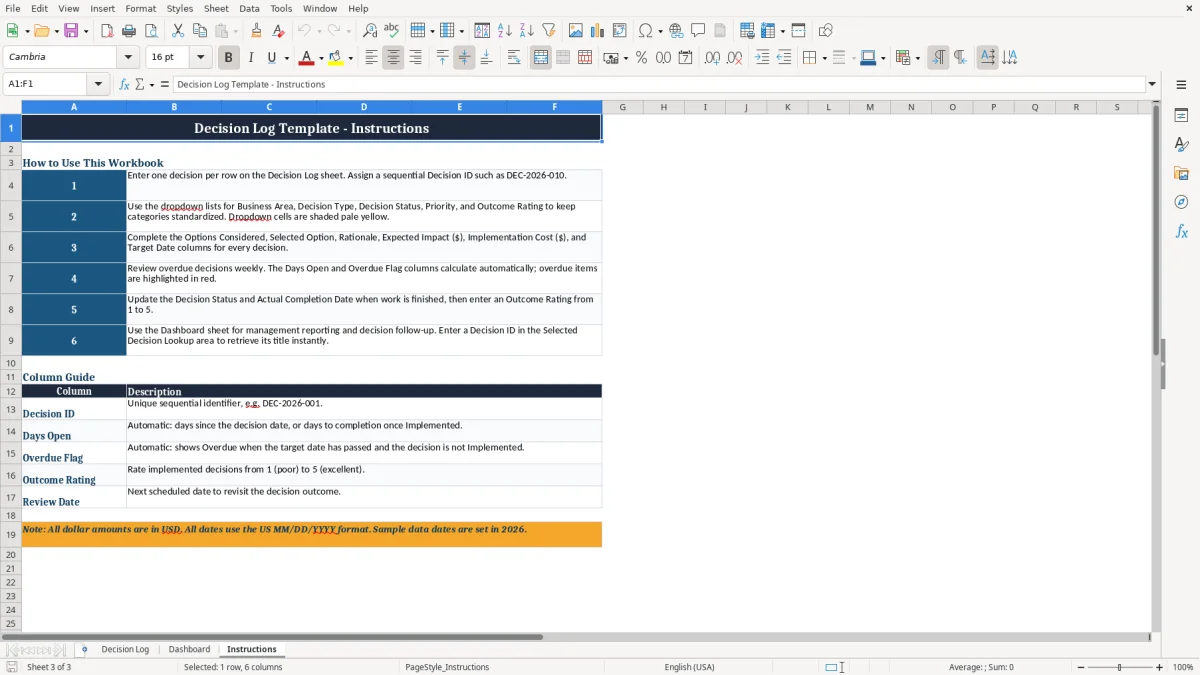
The Decision Log uses formulas for two operational outputs: Days Open and Overdue Flag. Days Open measures the period from Decision Date to today for an unfinished item. Once Decision Status is Implemented, it uses Actual Completion Date when that field is filled.
If a decision date is 01/08/2026 and completion is 04/02/2026, the completed record measures the elapsed period between those dates rather than continuing to grow. If an item is not Implemented, the formula compares its decision date with the current date.
Dropdowns cover Business Area values such as Marketing, Finance, Operations, Product, HR, and IT. Decision Type includes Strategic, Operational, Financial, and Compliance; status includes Proposed, Approved, Implemented, Deferred, and Rejected; priority includes High, Medium, and Low.
The Dashboard applies COUNTIF, SUM, SUMIF, AVERAGE, and VLOOKUP to the log. It calculates implementation rate, average outcome rating, total expected impact, implementation cost, status counts, and impact by business area. Dollar fields are formatted in USD, while dates use MM/DD/YYYY.
The most expensive failure is not always a bad choice; it is an undocumented choice that must be debated again. If a team cannot see the options, rationale, or owner, a 30-minute approval meeting can turn into repeated research and delayed implementation.
A row without a Decision Owner has no clear person responsible for moving an Approved choice toward its Target Date. A row without Stakeholders also makes follow-up difficult because the people affected by the decision are not visible in the record.
Marking a decision Implemented without entering Actual Completion Date weakens the Days Open result. Leaving an old status such as Approved after the work is finished can also keep the decision in the wrong management count and make the Overdue Flag misleading.
An Outcome Rating from 1 to 5 is useful only when you revisit it after implementation. A rating of 5 on the sample CRM decision is paired with a Review Date of 07/15/2026, giving management a specific point to confirm whether the expected result held up.
Do not overwrite calculated Days Open or Overdue Flag cells with typed values. Those fields are outputs; changing them removes the date-based logic that makes the log useful.
Set one recurring review time, such as the first leadership meeting each week. Before the meeting, filter your attention to Approved items without completion dates and records whose Overdue Flag requires action.
Use the KPI area to see the total decision count, approved count, implemented count, and overdue count. The three charts show status distribution, expected impact by business area, and priority counts, so a leadership discussion can focus on concentration and follow-up rather than scanning every field.
For a selected record, enter its Decision ID in the Dashboard lookup area. The workbook returns the matching decision title, which is practical when a meeting agenda references an ID such as DEC-2026-003.
Use the spreadsheet while the register remains manageable and the team can maintain consistent ownership. If decisions become part of a larger approval, project, or compliance workflow, move the process to a dedicated system rather than relying on an uncontrolled copy of the workbook.
The XLSX workbook contains Decision Log, Dashboard, and Instructions tabs. The log captures decision details, ownership, alternatives, rationale, dollar amounts, dates, ratings, and notes; the Dashboard summarizes counts, impact, costs, priorities, and selected decision titles.
Complete the Decision ID, Decision Date, Decision Title, Business Area, Decision Owner, Stakeholders, Decision Type, Status, Priority, Options Considered, Selected Option, Rationale, Expected Impact, Implementation Cost, and Target Date. Add completion, rating, review, and notes as the decision progresses.
Days Open and Overdue Flag are calculated columns. Days Open uses the decision date and, for implemented decisions, the actual completion date; Overdue Flag shows Overdue when an unfinished decision passes its target date.
Use the dropdown cells for Business Area, Decision Type, Decision Status, Priority, and Outcome Rating. The available ratings are 1 through 5, while status choices include Proposed, Approved, Implemented, Deferred, and Rejected.
Enter a Decision ID in the Selected Decision Lookup area on the Dashboard. The workbook uses that ID to return the matching decision title; an unmatched ID displays Decision ID not found.