Case Tracker Excel – Free Template (2026)
4
Free download
Plan 2026 holidays, track event budgets, monitor receipts, and review monthly activity with four practical XLSX worksheets.


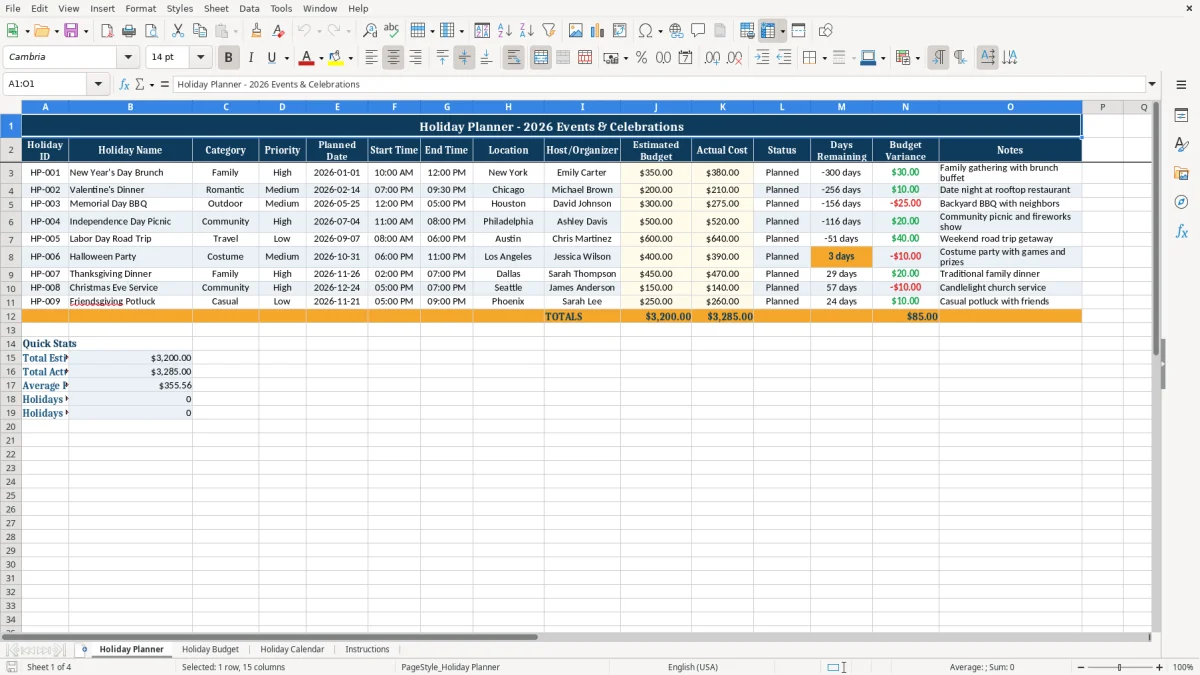
This holiday planner is an XLSX workbook for organizing 2026 events, dates, hosts, locations, priorities, and costs. It includes a Holiday Planner event list, Holiday Budget tracker, Holiday Calendar monthly summary, and Instructions sheet.
Use the Holiday Planner tab to record events such as the sample New Year's Day Brunch, Valentine's Dinner, and Memorial Day BBQ. The workbook calculates status, days remaining, and budget variance while the budget tab tracks spending, payment methods, receipt status, and reimbursable amounts.
A household coordinating family gatherings can use the workbook to keep dates, hosts, locations, and costs together instead of splitting details between text messages and paper notes. The sample rows show three different planning situations: a $350 estimated New Year's Day Brunch, a $200 Valentine's Dinner, and a $300 Memorial Day BBQ.
The Holiday Planner tab is useful when several people share responsibility for celebrations. Enter the event date in Planned Date, add Start Time and End Time, and identify the Host/Organizer. For example, a family can record Emily Carter for the brunch in New York, Michael Brown for the dinner in Chicago, and David Johnson for the BBQ in Houston.
Use Estimated Budget before purchases are made and Actual Cost afterward. In the sample, the brunch is estimated at $350 and costs $380, creating a $30 unfavorable variance; the BBQ is estimated at $300 and costs $275, leaving a $25 favorable difference. That comparison gives you a practical spending check for each event.
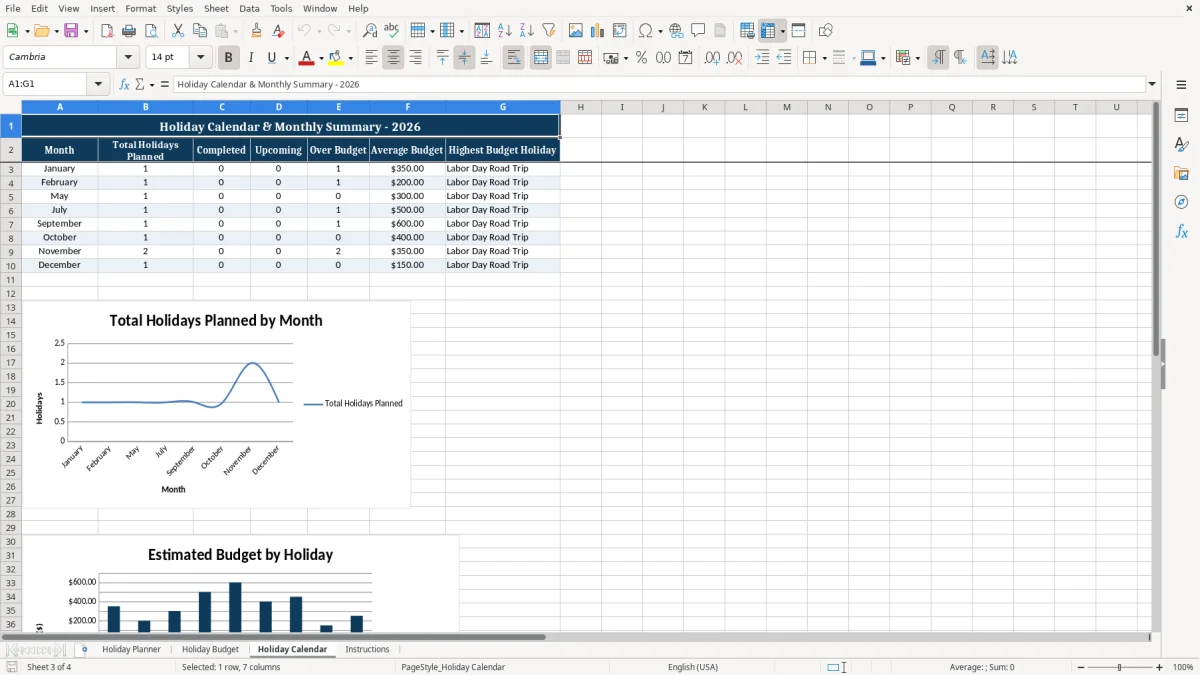
The workbook also suits an office coordinator, community group, or event host managing multiple celebrations during 2026. The Holiday Calendar tab summarizes the populated event dates by month, while the two charts provide a quick visual view of monthly activity and event budgets.
The Holiday Planner sheet uses the Planned Date to calculate four status labels. A date before the current date is Past Due, the current date is Today, a date within the next 7 days is Upcoming, and a later date is Planned. The Days Remaining column also compares the event date with TODAY(), so the result changes as the calendar moves forward.
Budget Variance is calculated as Actual Cost minus Estimated Budget. A positive result means the actual cost is higher than planned, while a negative result means the event came in under budget. In the sample, $380 minus $350 equals $30 over budget, and $275 minus $300 equals -$25 under budget.
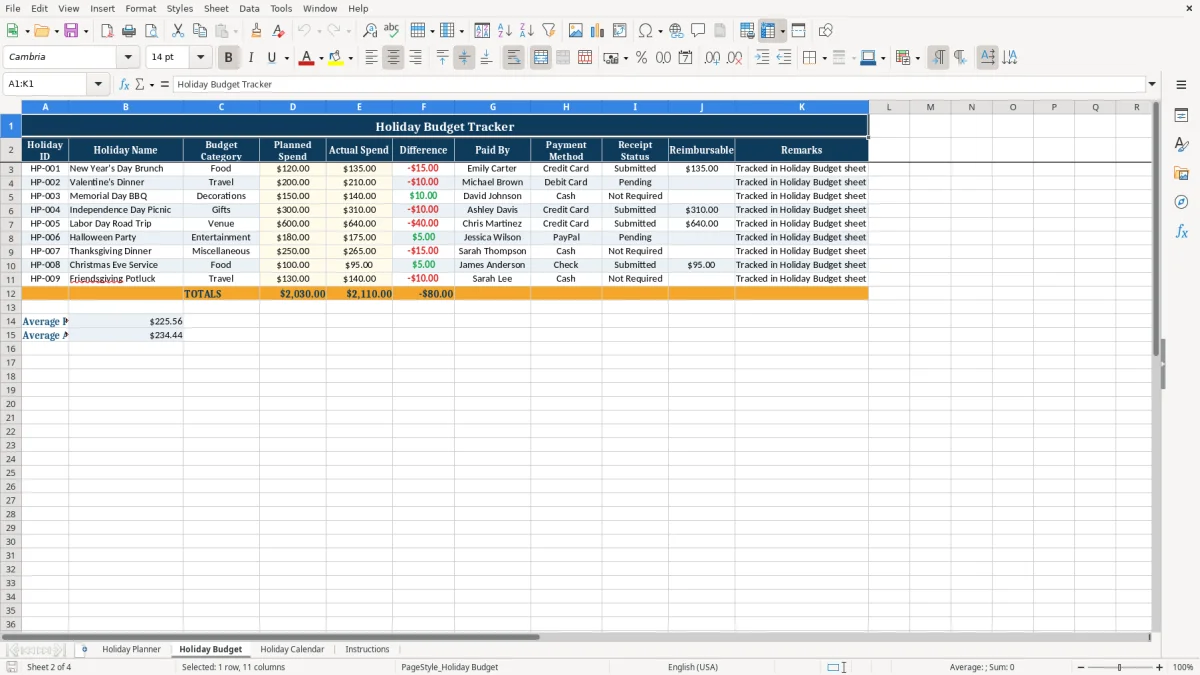
On Holiday Budget, Difference is calculated as Planned Spend minus Actual Spend. The Reimbursable column returns the actual spend only when Receipt Status is Submitted; Pending and Not Required leave that result blank. For example, the $135 brunch expense is reimbursable because its receipt status is Submitted, while the $210 Valentine's Dinner expense remains blank while status is Pending.
The monthly summary uses formulas such as SUMPRODUCT, INDEX, and MATCH to count events by month, identify over-budget events, calculate average budgets, and return the highest-budget holiday. These are workbook calculations, not live calendar or banking connections, so you must update dates and amounts yourself.
The most expensive mistake is entering an actual cost in the wrong row. If the $210 Valentine's Dinner expense is placed beside the Memorial Day BBQ, the totals may still calculate but the event-level comparison becomes misleading. Match every budget line to its Holiday ID, such as HP-001, HP-002, or HP-003.
A planner loses value when dates are left as old samples. The status formulas depend on Planned Date, so a stale date can show Past Due even when the celebration has been rescheduled. Update the date first, then check Status and Days Remaining before relying on the calendar summary.
Receipt Status controls the Reimbursable output. Selecting Submitted for an expense without a submitted receipt can overstate reimbursement by the full actual amount. Conversely, leaving a valid receipt as Pending hides that amount from the reimbursable calculation.
Another frequent problem is mixing event-level and category-level costs. Holiday Planner records an event's Estimated Budget and Actual Cost, while Holiday Budget records individual spending categories such as Food or Decorations. A $300 event budget and a $150 decorations line are not duplicates automatically; they represent different planning levels and should be labeled consistently.
Use a short weekly review rather than waiting until the celebration is over. Open Holiday Planner, sort your attention by Status, and check events marked Upcoming. Because Upcoming covers the next 7 days, this review gives you a focused list for invitations, shopping, venue confirmation, and other immediate tasks.
Use the supplied drop-down lists instead of typing variations such as Submitted, submitted, or Receipt Submitted. Consistent values matter because the formulas look for the exact options provided in the workbook. Keep the Holiday ID aligned across both sheets so HP-001 always refers to the same event.
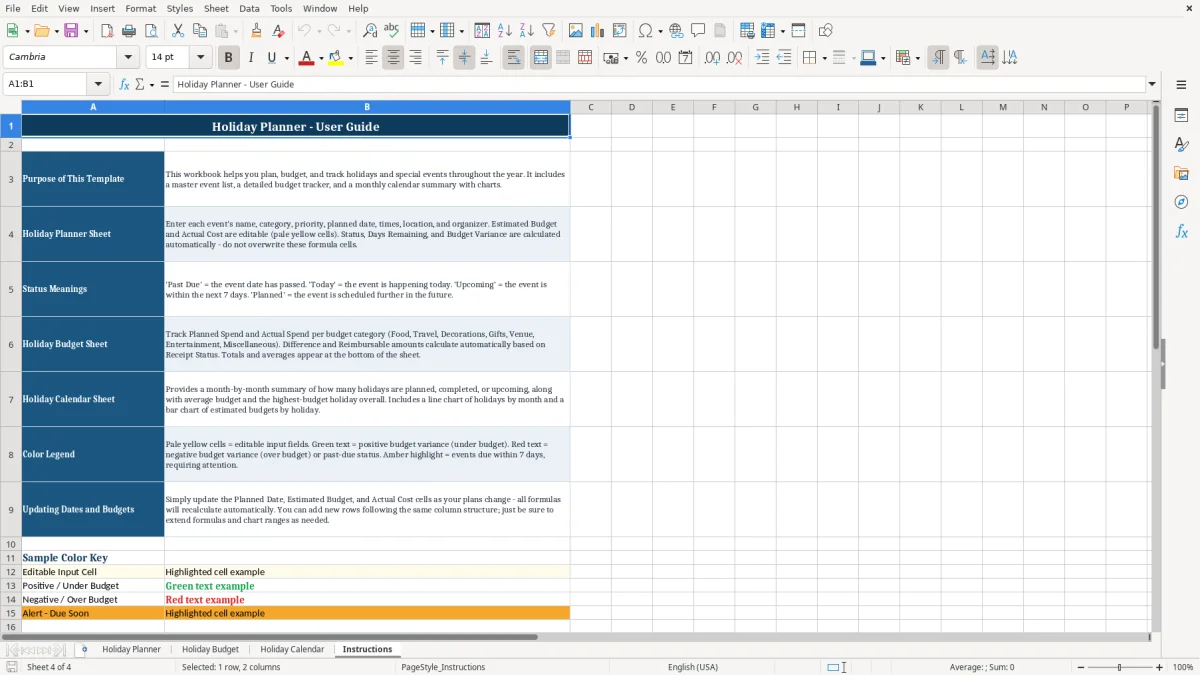
Use the Instructions tab as a quick reference when another household member or organizer takes over. The workbook is best for a defined list of events and expenses; if your planning requires shared real-time editing, automated invitations, or live payment feeds, this XLSX file will not provide those functions.
The workbook contains Holiday Planner, Holiday Budget, Holiday Calendar, and Instructions. The first three sheets handle event details, spending, and monthly summaries; Instructions explains how the inputs and calculated fields work.
Enter or replace the Holiday ID, Holiday Name, Category, Priority, Planned Date, Start Time, End Time, Location, Host/Organizer, Estimated Budget, Actual Cost, and Notes. Status, Days Remaining, and Budget Variance are calculated outputs.
An event is labeled Upcoming when its Planned Date is within the next 7 days. The same formula labels earlier dates Past Due, the current date Today, and later dates Planned.
The Reimbursable column returns Actual Spend only when Receipt Status is Submitted. If the status is Pending or Not Required, the calculated cell remains blank.
On Holiday Planner, Budget Variance equals Actual Cost minus Estimated Budget. A positive result means the event cost exceeded the estimate; for example, $380 actual cost minus $350 estimated budget equals $30 over budget.