Case Tracker Excel – Free Template (2026)
4
Free download
Assess, score, assign, and track compliance risks with Risk Assessment, Dashboard, and Instructions tabs in XLSX format.


This compliance risk assessment workbook helps you record one risk per row, score likelihood and impact from 1 to 5, measure control effectiveness, assign remediation owners, and monitor target dates. It contains Risk Assessment, Dashboard, and Instructions tabs.
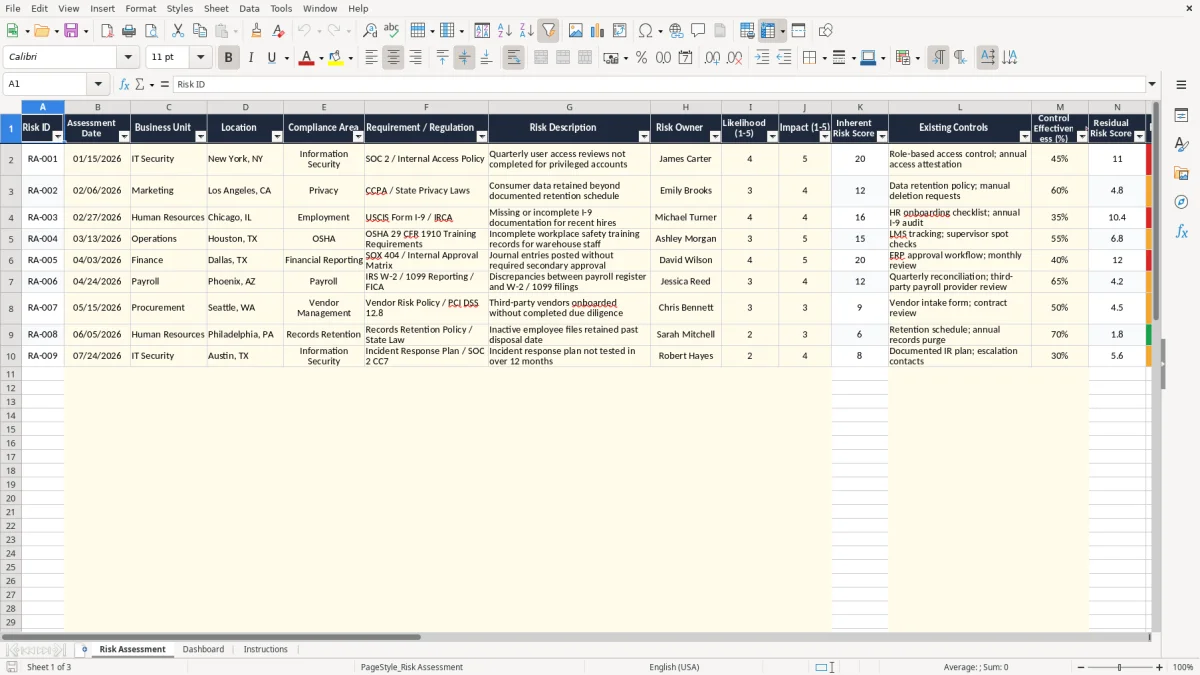
Enter editable risk details in the Risk Assessment tab, including the requirement, business unit, owner, controls, action plan, status, costs, and evidence notes. The workbook calculates inherent and residual risk scores, ratings, remediation flags, days to target, and overdue status.
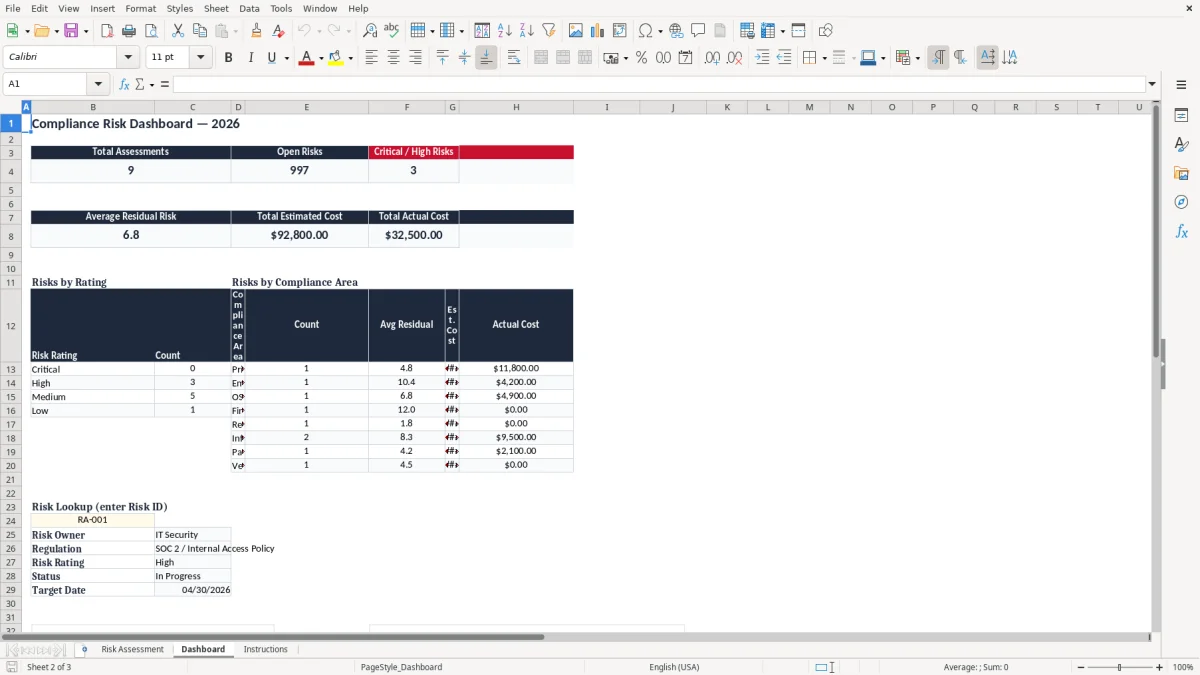
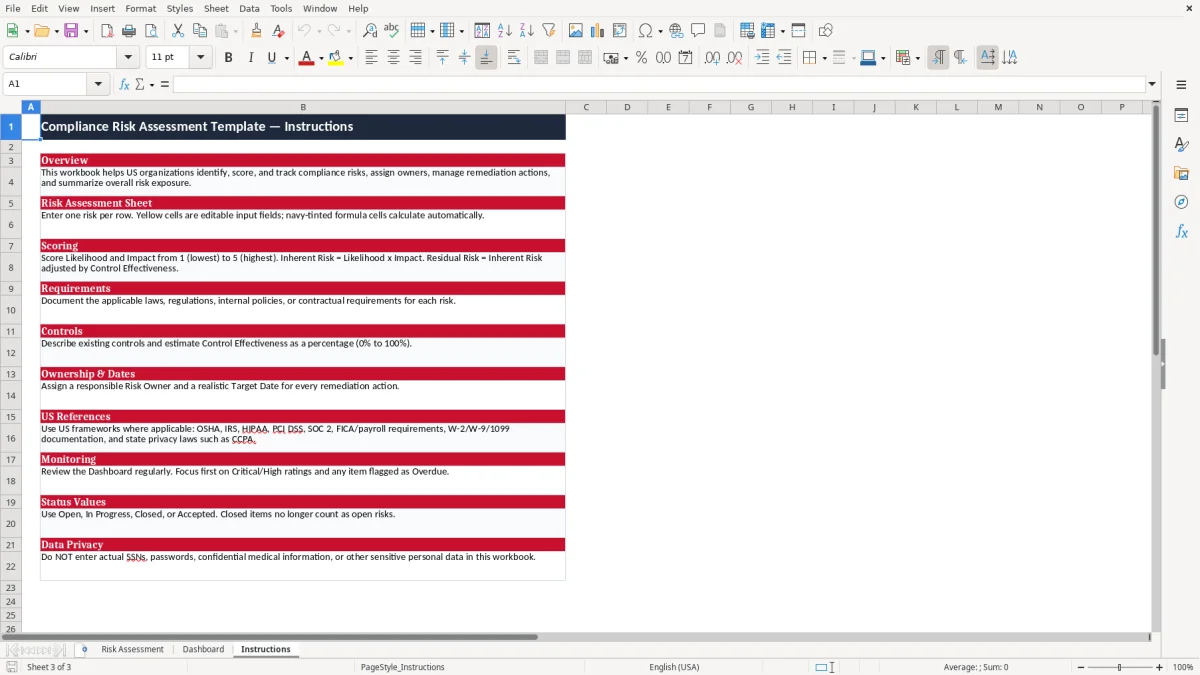
The Dashboard summarizes total assessments, open risks, Critical and High risks, average residual risk, estimated cost, actual cost, risk ratings, compliance areas, and a Risk Lookup. Image 1 shows the detailed assessment table, image 2 shows the dashboard, and image 3 shows the usage guidance.
A compliance manager can use this workbook during a quarterly risk review, while an operations lead may update it after a control test, incident, vendor review, or policy change. The Risk Assessment tab is structured for one risk per row, with fields for Business Unit, Location, Compliance Area, Requirement / Regulation, Risk Description, and Risk Owner.
Image 1 shows the working table with sample entries for Information Security, Privacy, and Employment risks. The populated examples include an IT Security risk in New York, a Marketing privacy risk in Los Angeles, and a Human Resources I-9 documentation risk in Chicago. These are sample records, not a conclusion that those risks apply to your organization.
A compliance coordinator can meet with department owners and update Likelihood, Impact, Existing Controls, and Control Effectiveness. For example, the sample access-review item has Likelihood 4 and Impact 5, producing an Inherent Risk Score of 20. Its 45% control effectiveness produces a Residual Risk Score of 11.0, which the workbook classifies as High.
Use Action Plan, Target Date, Status, Estimated Remediation Cost, Actual Remediation Cost, and Evidence / Notes to connect assessment work with follow-up. A risk owner can mark an item Open, In Progress, Closed, or Accepted, while management can compare the $18,000 estimated cost and $9,500 actual cost shown for the sample IT Security item.
The Dashboard in image 2 gives leadership a compact review area. It displays Total Assessments, Open Risks, Critical / High Risks, Average Residual Risk, Total Estimated Cost, and Total Actual Cost, followed by summaries by rating and compliance area.
The workbook uses a transparent 1–5 scoring method rather than hiding the calculation in a chart. Enter Likelihood and Impact in the Risk Assessment tab; the formula multiplies them to create Inherent Risk Score. A Likelihood of 4 and Impact of 5 therefore equals 20.
Control Effectiveness is entered as a percentage from 0% to 100%. Residual Risk Score is calculated as Inherent Risk adjusted by the remaining exposure after controls. In the sample IT Security row, 20 multiplied by 1 minus 45% equals 11.0.
The Risk Rating formula assigns Critical at 15 or higher, High at 8 through 14.9, Medium at 4 through 7.9, and Low below 4. The workbook then marks Remediation Required? as Yes for Critical or High ratings. Treat these bands as the workbook's scoring convention, not as a legal severity classification.
The Instructions tab names examples such as OSHA, IRS, HIPAA, PCI DSS, SOC 2, FICA and payroll requirements, W-2, W-9, 1099 documentation, and state privacy laws such as CCPA. Enter the specific applicable requirement in Requirement / Regulation rather than relying on the general Compliance Area label.
For instance, the sample rows identify SOC 2 / Internal Access Policy, CCPA / State Privacy Laws, and USCIS Form I-9 / IRCA. Your organization must determine which laws, contracts, standards, and internal policies apply; the workbook records that determination but does not provide legal interpretation or verify compliance.
Dates also affect follow-up. Days to Target uses the Target Date and the current date, while Overdue Flag shows Overdue when the target has passed and Status is not Closed. Because that result changes with the date the file is opened, review overdue items before each management meeting.
The most damaging failure is often an incomplete row. If a risk has no Risk Owner, Target Date, or Action Plan, the spreadsheet can display exposure without identifying who must reduce it or when. That turns a review document into a list of observations rather than a remediation register.
Teams frequently use Likelihood 5 for every serious issue or enter Impact without agreeing what the scale means. That distorts priority: a 4 × 5 risk scores 20, while a 2 × 3 risk scores 6. Keep the 1–5 choices tied to written internal criteria and revisit the criteria during training.
Control Effectiveness should describe the strength of existing controls, not the percentage of work someone hopes to complete. The sample privacy record uses 60%, while the I-9 example uses 35%; those values should be supported by testing, evidence, or a documented review method. Inflating effectiveness lowers Residual Risk Score and can move attention away from a material gap.
An item marked Closed no longer counts as an open risk in the Dashboard, even if the Evidence / Notes field is empty. Conversely, leaving a completed item In Progress makes Open Risks and Overdue Flag totals look worse. Before reporting, compare Status with the evidence reference and the Target Date.
Cost fields create another practical problem. Estimated Remediation Cost and Actual Remediation Cost are separate inputs; entering the same amount in both makes variance invisible. For the sample access-review item, $18,000 estimated against $9,500 actual leaves a $8,500 difference that deserves explanation rather than silent replacement.
Set a fixed review point that matches how your organization manages controls. A monthly compliance meeting works well for open remediation items; a quarterly review fits risks such as privileged-access checks or privacy retention assessments. Open the Dashboard first, then investigate the underlying rows instead of editing summary numbers.
Keep sensitive details out of Evidence / Notes. The Instructions tab specifically warns against entering actual SSNs, passwords, confidential medical information, or other sensitive personal data. Store supporting documents in an approved secure location and record only a useful reference in the workbook.
The Dashboard Risk Lookup lets you enter a Risk ID such as RA-001 and review the associated owner, regulation, rating, status, and target date. Use that lookup during meetings to focus on one accountable item without changing the calculated summary fields.
This XLSX workbook is most suitable for a controlled register with structured review meetings. Consider a dedicated governance, risk, and compliance system when you need formal approvals, audit trails, role-based access, notifications, attachments, or many simultaneous editors. Until then, a fixed monthly owner review and quarterly scoring refresh will keep this file from becoming a static snapshot.
It calculates Inherent Risk Score from Likelihood multiplied by Impact, Residual Risk Score after Control Effectiveness, Risk Rating, Remediation Required?, Days to Target, and Overdue Flag. The Dashboard also calculates counts, averages, and cost totals.
Enter the Risk ID, Assessment Date, Business Unit, Location, Compliance Area, Requirement / Regulation, Risk Description, Risk Owner, Likelihood, Impact, Existing Controls, Control Effectiveness, Action Plan, Target Date, Status, remediation costs, and Evidence / Notes.
The Status field accepts Open, In Progress, Closed, or Accepted. Closed items are excluded from the Dashboard's Open Risks calculation, while other status values remain open for reporting.
Residual Risk Score of 15 or more is rated Critical. Scores from 8 through 14.9 are High, scores from 4 through 7.9 are Medium, and scores below 4 are Low. Critical and High results produce Yes in Remediation Required?.
No. The Instructions tab lists U.S. reference examples including OSHA, IRS, HIPAA, PCI DSS, SOC 2, payroll requirements, and state privacy laws, but the workbook does not interpret those rules or verify that a requirement applies.
No. The Instructions tab says not to enter actual SSNs, passwords, confidential medical information, or other sensitive personal data. Use a secure approved system for that information and record only a non-sensitive evidence reference here.